Table of Contents
A USB flash drive is convenient for moving files, but it is easy to lose, damage, infect, or erase. Protecting the device therefore requires more than a password: keep another copy of the data, encrypt sensitive files, control what can write to the drive, scan untrusted devices, and replace unreliable hardware.
1. Keep a separate backup
Do not let a USB drive become the only copy of an important file. Keep the working copy on a trusted computer or managed storage service and maintain at least one additional backup. After copying files, open a sample from the backup to verify that the transfer completed correctly.
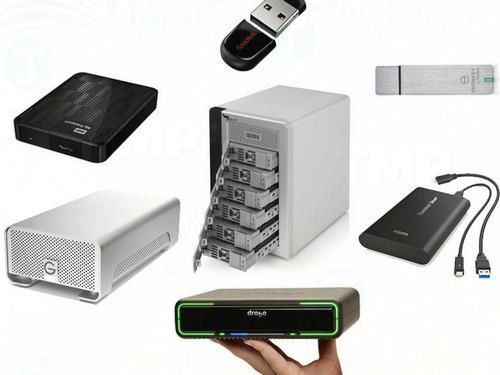
A backup also protects against accidental formatting, lost passwords, physical loss, and flash-memory failure—problems that access controls alone cannot solve.
2. Encrypt sensitive data
A hidden folder or an unfamiliar drive letter does not stop someone who has the USB device from reading its contents. Use actual encryption. On supported Windows editions, BitLocker To Go can encrypt the entire removable drive and require a password when it is connected.
Store the recovery key separately from the USB drive and test the unlock process before deleting any original files. Follow the BitLocker To Go setup guide for detailed steps.
3. Scan untrusted drives and disable automatic actions
Before opening files from an unfamiliar USB drive, run a custom scan with Windows Security. Keep Windows and its security intelligence current, and do not run unexpected executables, scripts, or shortcuts from removable storage.
Set AutoPlay for removable drives to Take no action or turn AutoPlay off. This reduces automatic prompts and legacy autorun risk, but it does not replace malware scanning. The guide to protecting USB drives from autorun malware explains the current safeguards.
4. Use write protection when files should not change
Write protection can help preserve reference files or reduce accidental deletion on shared computers. Some devices have a physical lock switch; managed Windows PCs can also apply removable-storage policies.
Write protection does not hide or encrypt data. It may also block legitimate saves, updates, and file repairs, so document how to disable it when authorized changes are required. See ways to control writing to USB storage.
5. Eject safely and watch for failure signs
- Wait for file transfers, backups, and security scans to finish before ejecting the device.
- Use Safely Remove Hardware and Eject Media or right-click the drive in File Explorer and choose Eject.
- Keep connectors clean and avoid bending a flash drive while it is plugged in.
- Replace a drive that repeatedly disconnects, becomes read-only, reports the wrong capacity, or corrupts new files.
What does not provide reliable protection
Hiding a partition: The original article recommended a “Hide Partition” feature and showed the interface below. Hiding a volume mainly removes it from normal view; a user with disk-management tools or access to another computer may still find it.
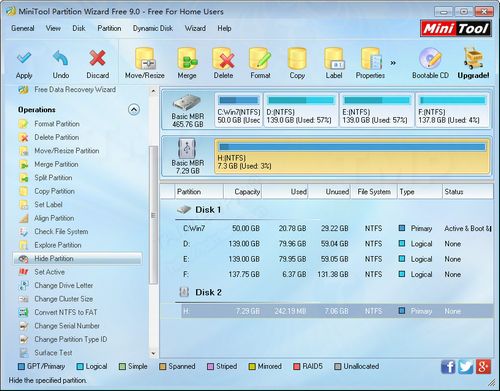
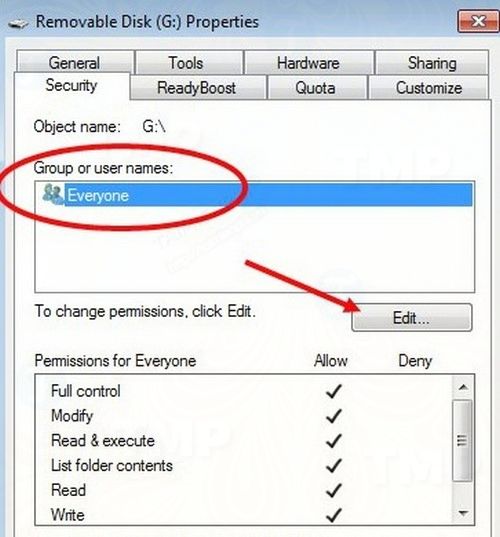
Denying all access: Broad permission changes can lock out the owner and do not protect the device when it is used on a different operating system. Apply access policies only on managed computers where administrators can test and reverse them.
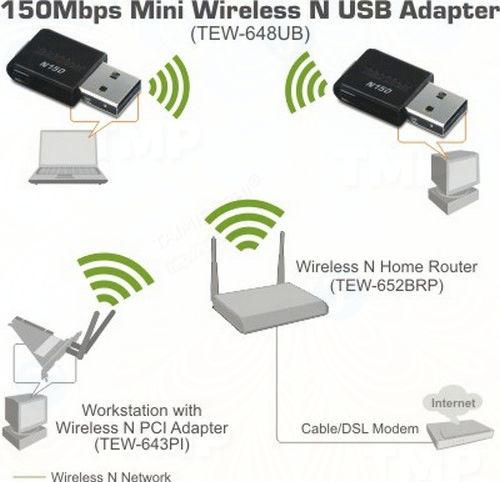
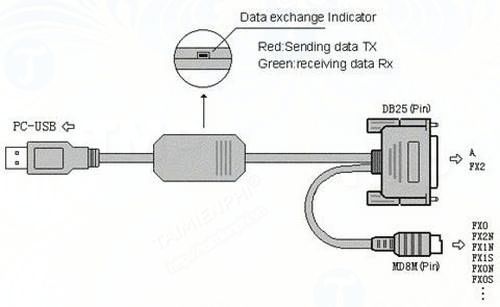
USB specifications and connector diagrams: Transfer standards describe speed, wiring, and compatibility—not data protection. The retained legacy diagram below is useful for hardware context but does not change the security steps above.
A practical USB protection checklist
- There is at least one verified copy of every important file elsewhere.
- Sensitive data is encrypted, and the recovery key is stored separately.
- The drive is scanned before untrusted files are opened.
- Write protection is used only when it fits the workflow.
- The device is ejected safely and replaced at the first repeated reliability problems.
Related Articles
 Security: Data Protection with Securedoc 4.38 minutes read
 10 Ways to Avoid Losing Laptops and Data When Traveling6 minutes read
 What Is Packet Loss? How to Fix and Prevent Packet Loss8 minutes read
 Six Ways to Prevent Data Leakage1 minutes read
 Exercise Routine for Women to Prevent Muscle Loss After 405 minutes read
 USB Safe Withdrawal: Safe Ways to Withdraw USB4 minutes read
Reader Comments 0
Sign in with email or Google to join the discussion.