Table of Contents
This updated guide explains how to Fix 'This App Has Been Blocked for Your Protection' through clear steps, practical examples, and important checks that help prevent common errors.
Windows Defender SmartScreen acts as a security tool while you use Windows 10. It will prevent you from opening certain applications if they come from an unknown place or created by an unknown source. You will then receive the error message "This app has been blocked for your protection" .
The instructions in this article will help you fix the "This app has been blocked for your protection" error, by blocking the opening of apps in Windows 10 caused by Windows Defender SmartScreen, but be careful when using them.. Some apps are really harmful and will get you in trouble. Only apply the following tips if you are certain that the file is safe.
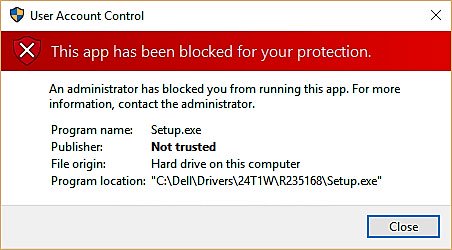 "This app has been blocked for your protection" error message
How to Open Files Blocked by Windows Defender SmartScreen
If a secure file is causing trouble when you try to launch it, you can quickly grant permission to open it.
1. Navigate to a file or program that is being blocked by SmartScreen.
2. Right-click the file.
3. Click Properties.
4. Click the checkbox next to Unblock for a checkmark to appear.
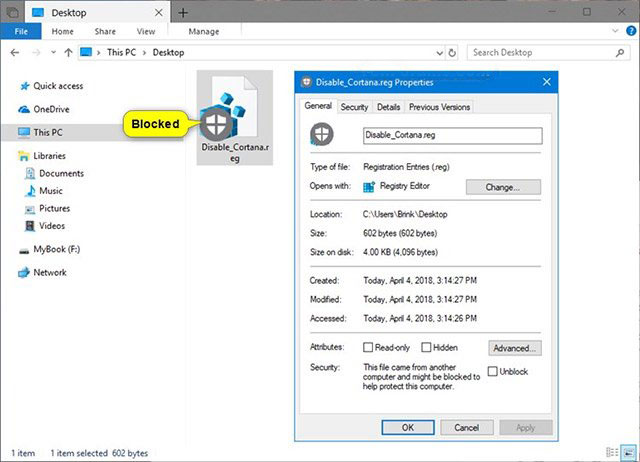 Click the checkbox next to Unblock to allow a checkmark to appear
5. Click Apply.
Now, SmartScreen considers the file to be safe and you are allowed to open it. The error "This app has been blocked for your protection" has been fixed.
Should I Disable Windows Defender SmartScreen?
Although not recommended, SmartScreen can be disabled through Windows Defender. If you have to turn off SmartScreen completely at a time, you should turn it on again later.
For how to turn on / off the Windows Defender SmartScreen tool, please refer to the article: How to enable or disable SmartScreen on Windows 10 for more details.
FAQ
What is the easiest way to Fix 'This App Has Been Blocked for Your Protection'?
Start with the requirements in this guide, then follow each step in order. Check the result after every major change so problems are easier to identify.
Can beginners follow these instructions?
Yes. The process is organized into practical steps, and you can repeat any step before moving forward.
What should I check if the method does not work?
Confirm your software or device version, permissions, settings, file format, and internet connection when the task depends on online services.
Related Articles
 How to Fix 'Mmc.exe Blocked for Your Protection' Error on Windows3 minutes read
 Steps to Fix 'This App Has Been Blocked for Your Protection'6 minutes read
 Windows Error: Complete Guide: How to Fix ''windows Defender Firewall9 minutes read
 7 Ways to Fix, Fix 'Write Protection' Error on USB6 minutes read
 Fix Error 'This Publisher Has Been Blocked from Running Software2 minutes read
 Steps to Fix 'Application Has Been Blocked from Accessing8 minutes read
Reader Comments 0
Sign in with email or Google to join the discussion.