Table of Contents
If YouTube has no sound, start with the player’s mute button, your device volume, and the selected audio output. Those checks solve most cases without reinstalling the browser or changing drivers. Test another video and another app first: the result tells you whether the problem is limited to one upload, YouTube, the browser, or the whole device.
Quick diagnosis
| Test | What the result suggests |
|---|---|
| Another YouTube video has sound | The first upload may have a silent or unavailable audio track. |
| Other browser tabs have sound | The YouTube tab or player may be muted. |
| A different browser has sound | An extension, site permission, cache, or browser setting is likely involved. |
| No app has sound | Check the output device, system mixer, cable/Bluetooth connection, and audio driver. |
| Phone speaker works but headphones do not | Reconnect, charge, or reselect the Bluetooth or wired device. |
1. Unmute the YouTube player and device
- Move the pointer over the YouTube player and select the speaker icon. On a computer, press M to toggle mute while the player is active.
- Raise the phone or computer’s media volume. On Windows, select the speaker icon on the taskbar; on a phone, use the volume buttons while a video is playing.
- Check whether the browser tab is muted. In Chrome or Edge, right-click the YouTube tab and choose Unmute site if shown.
- Play a second video. A creator can upload a video with no audio, and some videos have multiple audio tracks.

2. Select the correct speaker or headphones
Audio may be playing through a monitor, dock, Bluetooth headset, smart speaker, or disconnected HDMI device.
- Windows: Select the sound icon, open the output-device selector, and choose the speakers or headphones you are using.
- macOS: Open Control Center > Sound and select the intended output.
- Android or iPhone: Open the media output or AirPlay control and switch back to the phone speaker, or reconnect the headset.
Disconnect Bluetooth temporarily if the active destination is unclear. Check cables, monitor volume, and any hardware mute switch.
3. Check the Windows volume mixer
Windows can mute or reduce one browser independently of the master volume.
- Keep the browser open and play a YouTube video.
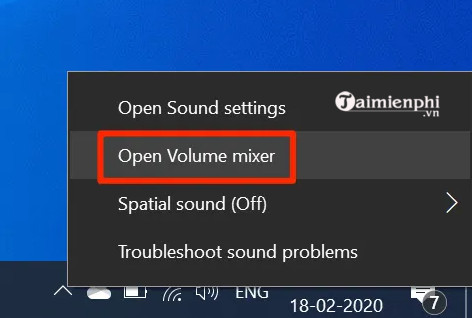
- Right-click the taskbar speaker icon and choose Open volume mixer. On Windows 11, you can also open Settings > System > Sound > Volume mixer.
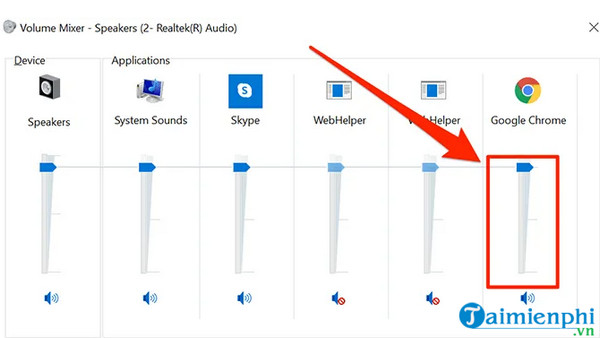
- Find the browser and raise its slider. Confirm that it is routed to the expected output device.
- If the routing looks wrong, use Reset under the mixer to restore recommended defaults.
The following screenshots show the older Windows mixer but the principle is unchanged.
4. Test the browser without extensions
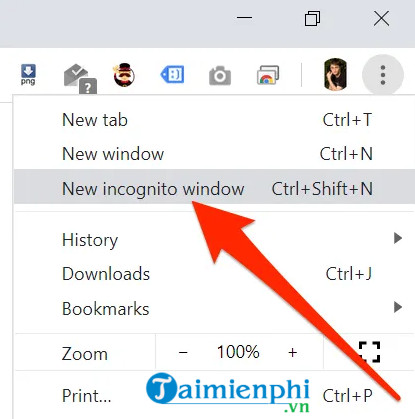
Open a private window and test the same video. In Chrome, select the three-dot menu > New Incognito window; in Firefox, select the menu > New private window.
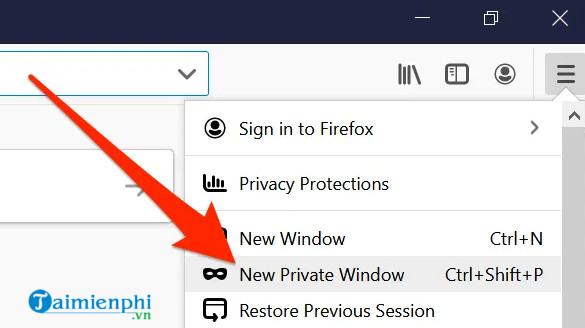
Private mode does not clear your normal browser cache. It is useful because many extensions are disabled there by default and the session starts with separate temporary site data. If sound works:
- disable audio enhancers, ad blockers, downloaders, privacy tools, and equalizer extensions one at a time;
- open the site information icon beside the address, find Sound, and allow it;
- clear site data for
youtube.com, then sign in again; and - update and restart the browser.
Try another supported browser to confirm the diagnosis. Avoid resetting the entire browser before checking extensions and YouTube’s site permission.
5. Fix sound in the YouTube mobile app
- Force-close YouTube and reopen it.
- Turn Bluetooth off briefly and test the phone speaker.
- Restart the phone and install pending YouTube and operating-system updates.
- On Android, open Settings > Apps > YouTube > Storage & cache and clear the cache. Clear storage only as a later step because it resets the app.
- On iPhone or iPad, make sure the device is not routing audio through AirPlay. If the app alone remains silent, remove and reinstall YouTube.
Some phones have separate media-volume controls or per-app sound routing. Raise the volume while the video is actively playing so you adjust media, not ringtone volume.
6. Restart audio services and run Windows help
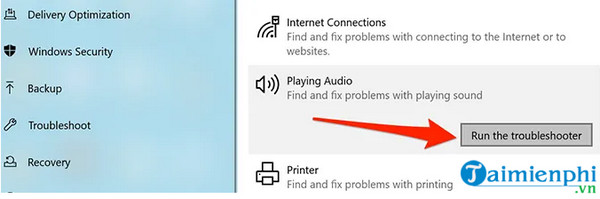
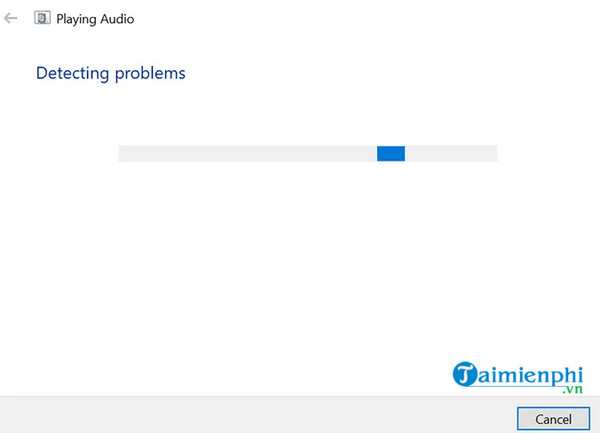
Restart the computer before changing drivers. If every app is silent, open Get Help, search for “audio troubleshooter,” and follow the guided checks. Depending on the Windows build, the control may also appear under Settings > System > Troubleshoot > Other troubleshooters.
The older Windows 10 path is shown below for reference:
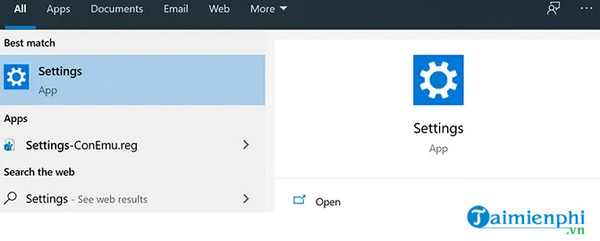
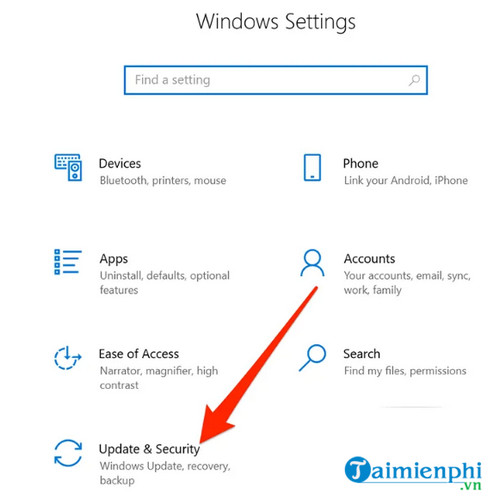
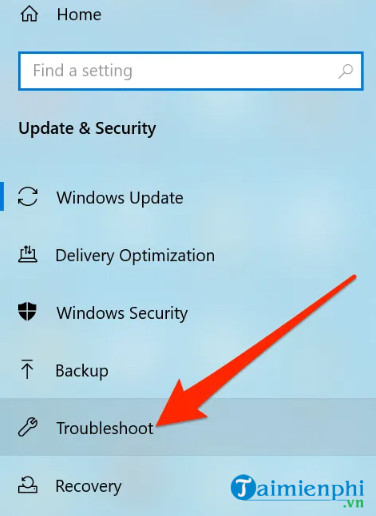
For system-wide failures, work through the complete Windows no-sound checklist. You can also review Windows 10 audio fixes if you use that version.
7. Update or roll back the audio driver
Change drivers only when all applications are affected, the issue began after an update, or Device Manager shows a device error.
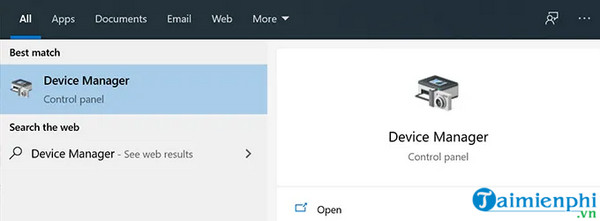
- Right-click Start and open Device Manager.
- Expand Sound, video and game controllers and Audio inputs and outputs.
- Open the relevant device’s properties and check the device status.
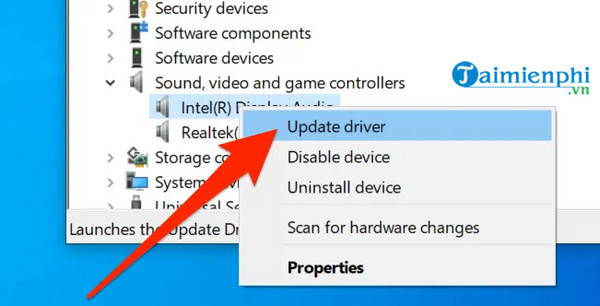
- Use Update driver, or install the driver supplied by the computer or audio-device manufacturer for your exact model.
- If sound failed immediately after a driver update, use Roll Back Driver when available.
- Restart Windows and test with another application before returning to YouTube.
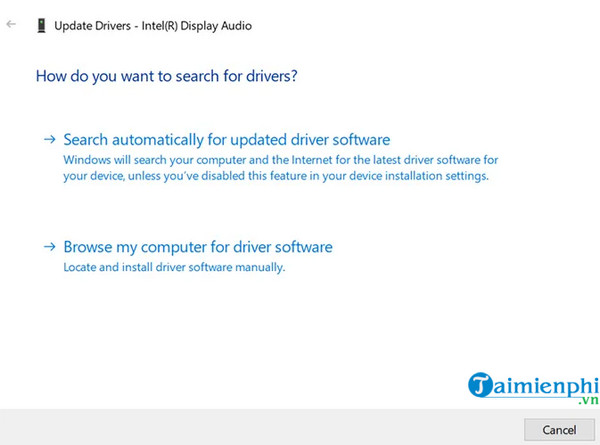
Prefer Windows Update or the hardware manufacturer over third-party driver-download sites. Our Windows 11 driver update guide explains the supported routes.
If only one video is silent
Check another device and read the video description or comments for an audio notice. Switch the player’s audio track if one is available. A video can be intentionally silent, incorrectly encoded, muted because of a rights issue, or temporarily affected by a processing problem. System troubleshooting will not repair audio that is absent from the upload itself.
Related Articles
 The Simplest Way to Fix the No Sound Error on YouTube Videos8 minutes read
 4 YouTube Add-ons That Make Watching Long Videos More Enjoyable7 minutes read
 YouTube Will Soon Bring Picture-in-Picture Feature to the Desktop4 minutes read
 How to Turn on the Feature That Prompts You to Watch Videos Too Long3 minutes read
 Eliminate the Discomfort When Watching YouTube Videos: Comments4 minutes read
 How to Download Videos from YouTube to Your Phone Quickly4 minutes read
Reader Comments 0
Sign in with email or Google to join the discussion.