Table of Contents
The safest way to save YouTube videos is to use YouTube’s own Download button or download videos you uploaded through YouTube Studio. Websites that convert arbitrary YouTube links to MP4 or MP3 can expose you to misleading ads, unwanted notifications, tracking, and files of uncertain origin. They may also violate YouTube’s terms or copyright law when used without permission.
This guide replaces an outdated “top downloader sites” list with methods that are more reliable and appropriate for the content you own or are authorized to save.

Choose the right download method
| What you want to save | Recommended method | Result |
|---|---|---|
| A video for offline viewing | YouTube’s Download button, where available | Encrypted offline copy played inside YouTube |
| Your own uploaded video | YouTube Studio or the YouTube mobile app | Video file saved to your device |
| A file the creator offers | Use the creator’s official download link | File in the format provided by the owner |
| Audio from your own video | Download your upload, then convert it locally | Audio file you control without uploading it to a converter |
| Someone else’s copyrighted upload | Ask permission or use YouTube’s offline feature | Avoids unauthorized copying |
Download videos for offline viewing in YouTube
Eligible YouTube Premium members can download videos in the official app. In some locations, YouTube also permits limited offline viewing of selected content without Premium.
- Open the YouTube app and sign in.
- Open the video you want to watch later.
- Tap Download below the player and choose a quality when prompted.
- Open the You or Library tab and select Downloads to watch offline.
The saved video remains inside YouTube rather than appearing as a normal MP4 file. Your device must reconnect periodically so YouTube can verify that the video is still available. Some content cannot be downloaded because of location, rights, account, or creator settings.
See Google’s offline viewing instructions and our practical guide to downloading YouTube videos on a phone.
Download a video you uploaded
On a computer
- Sign in to YouTube Studio.
- Select Content in the left menu.
- Find your video, open its options menu, and choose Download.
On Android or iPhone
- Open YouTube and tap your profile picture.
- Select Your videos, then open the Videos or Shorts tab.
- Open the menu beside your upload and choose Save to device when available.
YouTube may not let you download an upload that has been removed, has an active copyright or Community Guidelines strike, uses certain preapproved audio, or has already reached a download limit. Google documents the current restrictions in Download YouTube videos that you’ve uploaded.
Convert your own video to MP3 locally
If you own the video and need an audio copy, download the source file first and convert it on your device. A local media tool avoids sending private recordings to an unknown website and gives you control over the output quality.
- Keep the original video as your master copy.
- Open it in a reputable desktop media converter installed from its official source.
- Choose MP3 for broad compatibility or a lossless format when preserving original audio quality matters.
- Select a destination folder and inspect the result before deleting the video.
Converting a compressed YouTube stream to a “lossless” format does not restore quality that was already removed. It only creates a larger file containing the same limited source audio.
Why online YouTube converter sites are risky
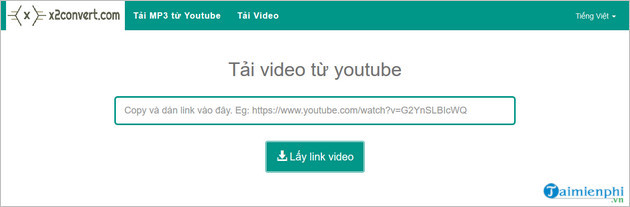
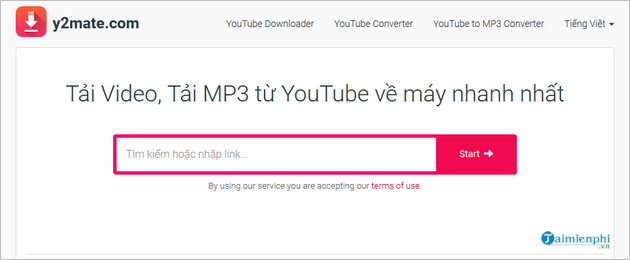
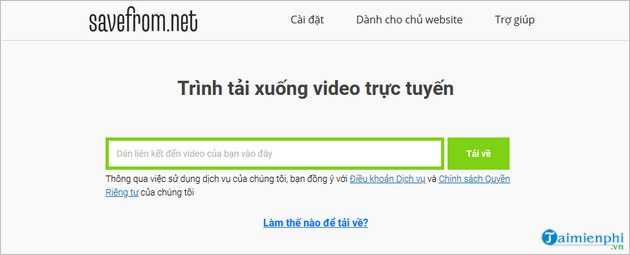
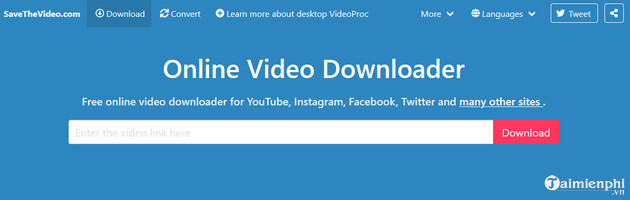
The original article recommended X2Convert, Y2Mate, SaveFrom, SaveTheVideo, and 10Convert. Their availability, ownership, domains, advertising partners, and behavior can change, so this article no longer endorses them.
- Misleading buttons: Ads can be designed to look like the site’s real Download control.
- Notification abuse: A prompt may ask to send browser notifications, which can later deliver spam or scam alerts.
- Unwanted software: Some flows redirect to extensions, installers, or “codec updates” unrelated to the requested file.
- Privacy exposure: The service receives the video URL, IP address, browser information, and potentially other tracking data.
- Uncertain files: A renamed executable or archive is not the MP3 or MP4 you expected.
- Legal and terms issues: Permission to stream a video is not automatically permission to make and redistribute a copy.
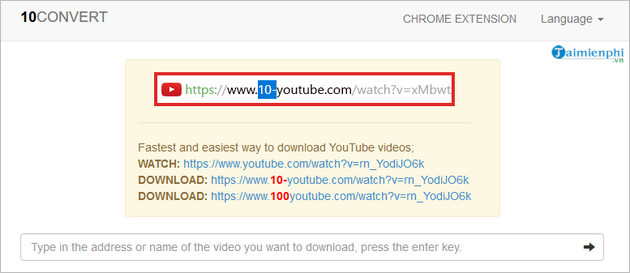
Be especially cautious with URL tricks that insert letters into youtube.com. They redirect you to a different domain; they are not a hidden YouTube feature.
If you use a converter for authorized content
- Confirm that you own the content, have the creator’s permission, or have a license that permits downloading and conversion.
- Do not sign in with your Google account or paste private/unlisted links into an unknown service.
- Reject browser-notification requests and do not install an extension or “download manager” to retrieve one file.
- Verify that the final filename ends in the expected media extension, not
.exe,.msi,.apk, or a script format. - Scan the file with current security software before opening it.
- Do not upload, share, or monetize the result unless the license allows it.
If ad-free viewing and offline access are your main goals, compare YouTube Premium with YouTube’s free features before relying on a converter site.
Legacy screenshots from the former site list
These images are retained to identify the services discussed in the original article. They are not current recommendations, and their interfaces or domains may have changed.
Related Articles
 Convert YouTube MP3 Files: What You Need to Know9 minutes read
 How to Convert YouTube Videos to MP3: Clear Instructions11 minutes read
 10 Ways to Download YouTube Videos Fast and Simple14 minutes read
 Instructions for Downloading Mp3 Music YouTube Does Not Need8 minutes read
 How to Convert High Quality Mp3 from YouTube to Your9 minutes read
 Summary of Websites That Download YouTube Videos8 minutes read
Reader Comments 0
Sign in with email or Google to join the discussion.