Table of Contents
If a YouTube video plays but you cannot hear anything, start by checking the video player, the browser tab, and your computer's selected audio output. Most cases are caused by a muted control, a low app-specific volume, or sound being routed to the wrong device. If audio is missing everywhere—not only on YouTube—move on to Windows audio settings, drivers, and the built-in troubleshooter.

Quick checks to restore YouTube sound
- Play a different YouTube video to rule out a silent or damaged upload.
- Click the speaker icon in the YouTube player and raise its volume slider.
- Check whether the browser tab is muted.
- Raise the system volume and confirm that the correct speakers or headphones are selected.
- Open the Windows volume mixer and make sure the browser is not muted.
If another website or app produces sound, the problem is probably limited to YouTube or the browser. If nothing produces sound, use the system-level steps later in this guide. For broader Windows problems, see how to resolve no sound on a Windows computer.
1. Unmute the YouTube player
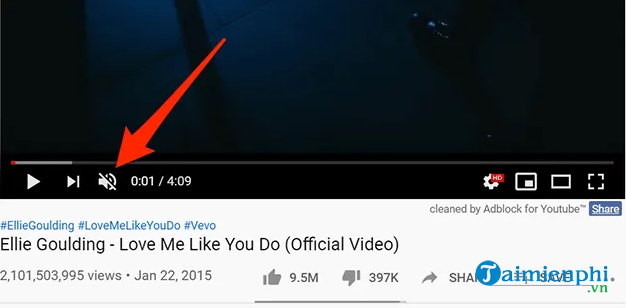
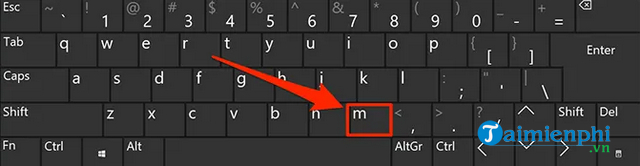
Look at the speaker icon in the lower-left corner of the video. A diagonal line through the icon means the player is muted. Click it, then drag the adjacent volume slider to the right. You can also press M while the player is focused to toggle mute.
If only one video is silent, try another upload. The original video may have no audio track or may contain a section with intentional silence.
2. Check whether the browser tab or site is muted
Chrome, Edge, Firefox, and other browsers can mute a single tab or an entire site. Right-click the YouTube tab. If the menu shows Unmute site or Unmute tab, select it. Also check for a crossed-out speaker icon on the tab itself.
If your browser has site-specific sound permissions, open the site information or permissions panel beside the address bar and make sure sound is allowed.
3. Verify system volume and the active output device
Raise the computer's volume with the taskbar control or keyboard volume keys. Make sure the system is not muted, then check the selected output device. Audio may be going to a disconnected monitor, a Bluetooth headset in another room, an HDMI device, or a dock instead of the speakers you expect.
Disconnecting and reconnecting headphones or Bluetooth devices can force the computer to refresh its output selection. If you need more help with the controls, see how to change laptop volume in Windows.
4. Check the Windows volume mixer
Windows can store a separate volume level for each application. This means YouTube can appear silent even when the main system volume is high.
- Keep the browser open and play a YouTube video.
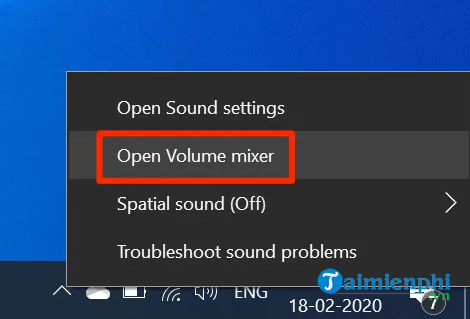
- Right-click the speaker icon on the taskbar and open Volume mixer. On newer Windows versions, you can also go to Settings > System > Sound > Volume mixer.
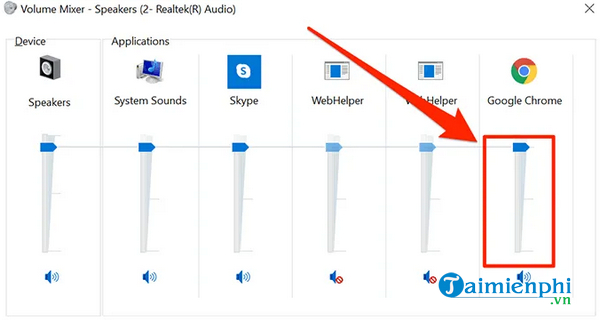
- Find your browser and confirm that it is not muted.
- Raise the browser's volume and verify its output device if Windows shows an app-specific output option.
5. Test YouTube in a private window
A private or incognito window usually runs without your normal cached session data and may disable some extensions. It is a useful test when an extension, cookie, or browser setting is interfering with playback.
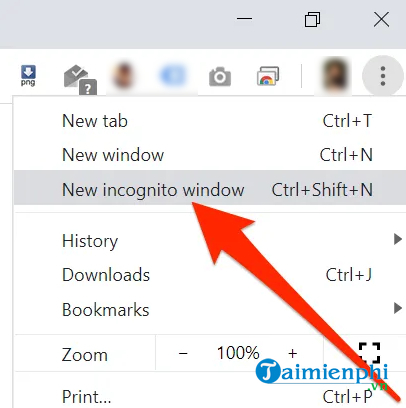
- Chrome or Edge: open the browser menu and choose a new Incognito or InPrivate window.
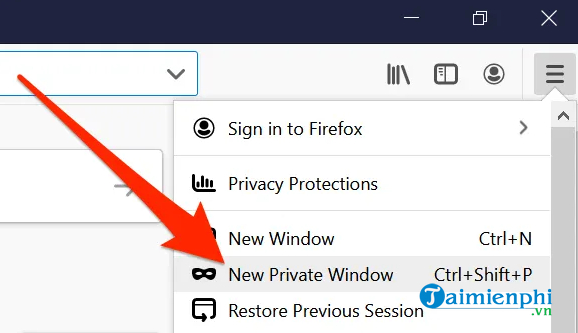
- Firefox: open the menu and choose New private window.
Open YouTube in that window and play the same video. If sound works there, return to the normal window and disable extensions that modify video, audio, ads, privacy, or site permissions. Then clear YouTube's site data and restart the browser.
6. Restart or update the browser
Close every browser window, reopen the browser, and test YouTube again. If the problem continues, install the browser's available updates. You can also try another current browser. If YouTube has sound in the second browser, focus on extensions, permissions, cached data, or settings in the original browser rather than changing Windows audio drivers immediately.
7. Check headphones, speakers, Bluetooth, and HDMI
For wired devices, reseat the plug and try another audio port if one is available. For USB or Bluetooth audio, disconnect and reconnect the device. If you use a monitor or TV through HDMI, confirm that the display supports audio and that its volume is not muted.
Testing with a second set of headphones or the computer's built-in speakers helps distinguish a device problem from a browser problem.
8. Restart Windows audio services
If all applications are silent, restart the computer first. A restart is safer and simpler than changing several settings at once. If the issue returns, open the Services app and check that Windows Audio and Windows Audio Endpoint Builder are running. Restarting these services may restore audio without reinstalling hardware.
9. Update or reinstall the audio driver
Driver troubleshooting is appropriate when audio is missing across the system, the device is absent from Sound settings, or the problem began after a hardware or Windows change.
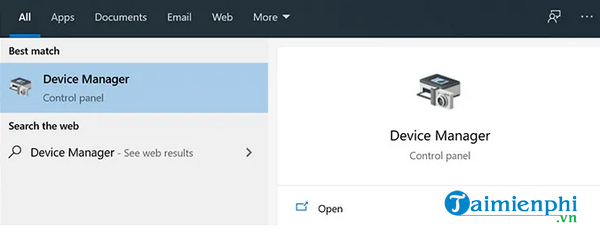
- Right-click Start and open Device Manager.
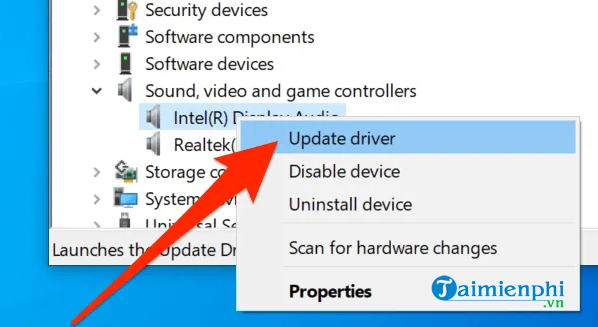
- Expand Sound, video and game controllers and Audio inputs and outputs.
- Right-click the relevant audio device and choose Update driver.
- If updating does not help, open the device's properties and consider rolling back a recently installed driver. You can also uninstall the device and restart Windows so it can detect the hardware again.
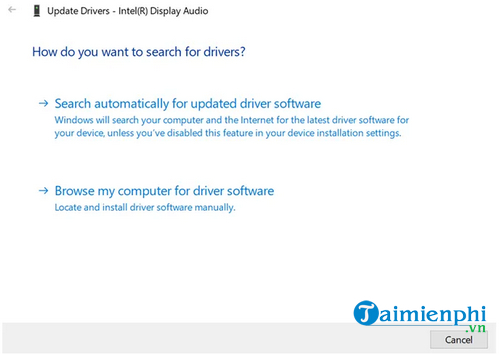
When possible, use Windows Update or the computer manufacturer's support page for model-specific drivers. For a related device-specific procedure, see how to troubleshoot missing Realtek HD Audio Manager.
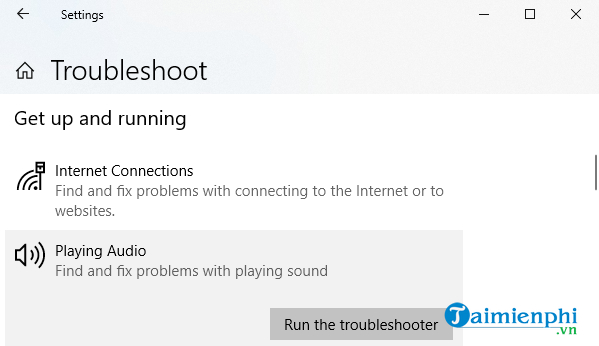
10. Run the Windows audio troubleshooter
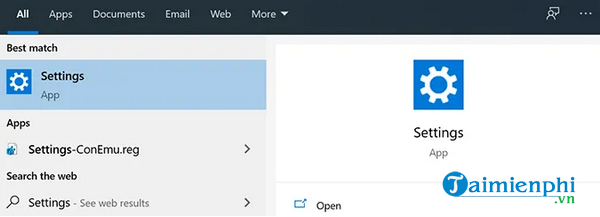
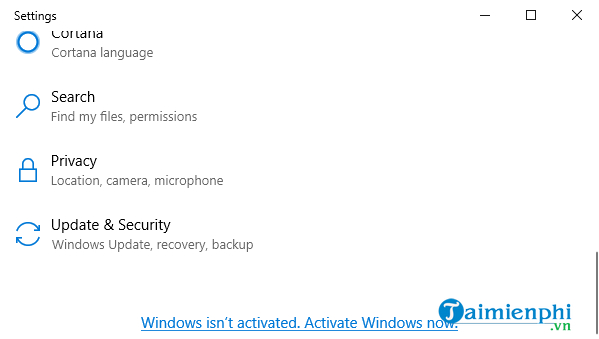
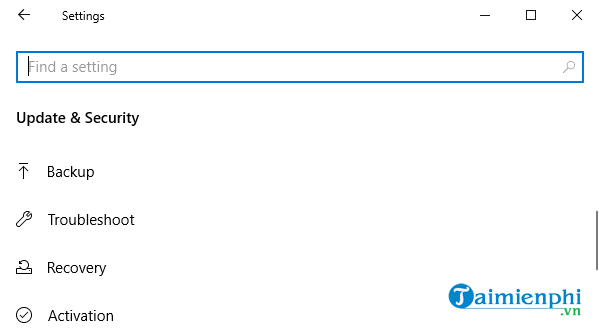
On Windows 11, open Settings > System > Troubleshoot > Other troubleshooters, then run the audio troubleshooter. On some Windows 10 versions, the path appears under Settings > Update & Security > Troubleshoot. Menu names can vary by Windows build.
How to identify where the problem is
- Only one video is silent: the upload may not contain usable audio.
- Only YouTube is silent: check the player, tab mute state, site permissions, and extensions.
- Only one browser is silent: check that browser in Volume mixer, update it, and test without extensions.
- Every app is silent: verify the output device, connections, Windows services, drivers, and the audio troubleshooter.
Work through the checks in order and test after each change. This makes it easier to identify the actual cause and avoids unnecessary driver or system changes.
Related Articles
 How to Fix the No Sound Issue When Watching YouTube Videos6 minutes read
 The Most Effective Way to Fix Sound Loss Error on Windows 119 minutes read
 How to Handle When YouTube Videos Loaded with IDM Is Corrupted2 minutes read
 All the Errors on YouTube and How to Fix It: YouTube Error14 minutes read
 Simple Way to Quickly Download YouTube Videos2 minutes read
 YouTube Videos Don't Play, Black Screen on Android, iOS, Computer7 minutes read
Reader Comments 0
Sign in with email or Google to join the discussion.