Table of Contents
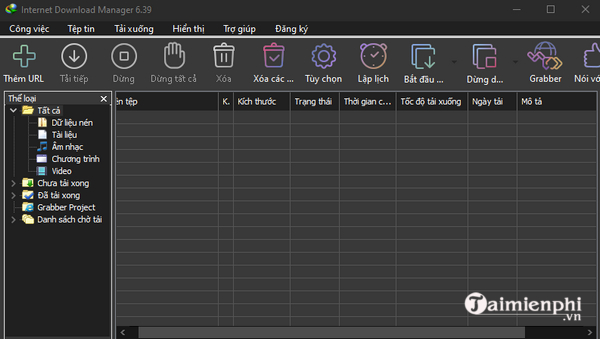
Internet Download Manager (IDM) can use a dark interface on supported Windows versions. In older IDM builds, the View > Dark Mode support option tells IDM to follow the Windows app theme. Current releases may expose the theme more directly, but the menu remains the first place to check.
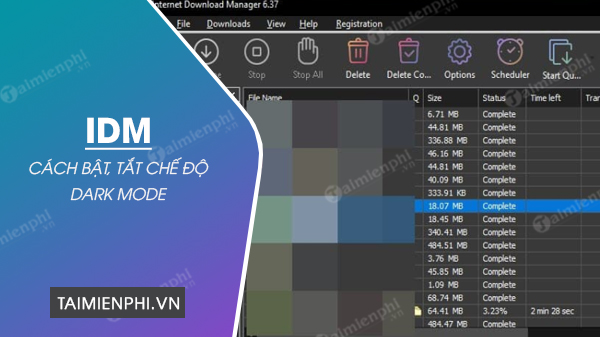
Dark mode reduces the amount of bright interface area in a dim room, but it is a preference rather than a guarantee against eye strain. Comfortable screen brightness, text size, contrast, and regular breaks still matter.
Enable dark mode in IDM
- Update IDM if necessary. In IDM, open Help > Check for updates. Dark-mode support first appeared in the 6.37 series, so very old installations do not have the option.
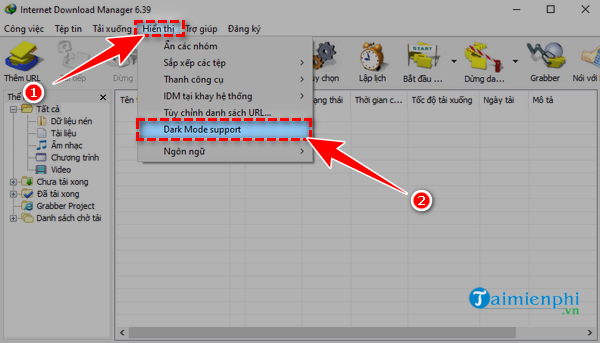
- Open the View menu and select Dark Mode support.
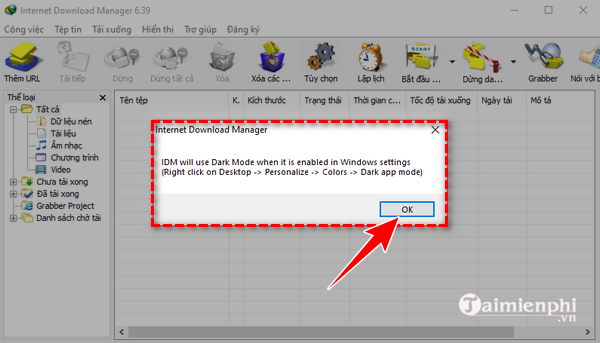
- If IDM explains that it will follow the Windows color setting, select OK.
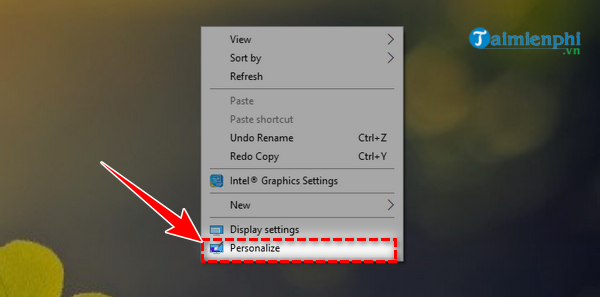
- Right-click an empty area of the Windows desktop and select Personalize.
- Open Colors. In Windows 11, set Choose your mode to Dark, or choose Custom and set the app mode to dark. In Windows 10, choose Dark under the default app mode.
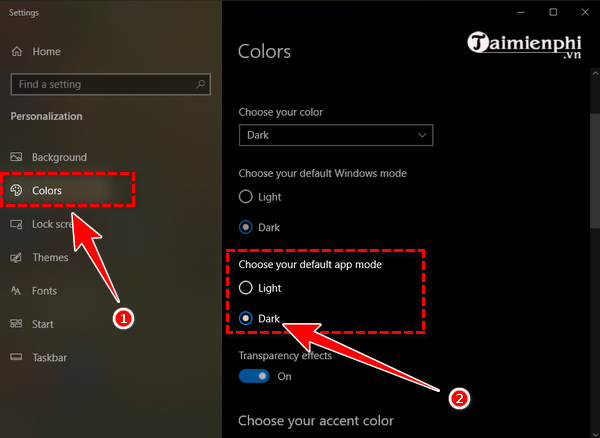
- Return to IDM. If the interface does not update, exit IDM completely through Tasks > Exit and start it again.
Disable IDM dark mode
Open View and clear Dark Mode support, then restart IDM if requested. This lets Windows remain in dark mode while IDM uses its light interface. If your release offers a direct light/dark theme selector, choose Light there instead.
If the IDM interface stays light
- Confirm that View > Dark Mode support is checked.
- Verify that Windows uses the dark app mode, not only a dark desktop background.
- Install current IDM updates from the application or the official IDM website.
- Exit the application fully rather than merely closing its window; IDM may continue running in the notification area.
- Some uncommon dialogs or older plug-in windows may not follow the theme consistently.
The dark-theme option changes only IDM's appearance; it does not affect download handling or browser integration. If you need to stop interception temporarily, follow the separate guide to prevent IDM from automatically capturing audio downloads. Users who want a different download manager can also review how Neat Download Manager works.
Related Articles
 How to Enable Dark Mode in Ubuntu 20.04 LTS5 minutes read
 How to Enable Dark Mode in Notepad on Windows 10/117 minutes read
 How to Enable Dark Mode for Gmail4 minutes read
 How to Enable Dark Mode for File Explorer, Open Dark Mode4 minutes read
 How to Enable Dark Mode in Microsoft Office on Android3 minutes read
 How to Activate Dark Mode on Windows 10?4 minutes read
Reader Comments 0
Sign in with email or Google to join the discussion.