Table of Contents
You can change a known Windows password from Settings > Accounts > Sign-in options. The exact result depends on whether you sign in with a local account, a personal Microsoft account, or an organization-managed account. A Windows Hello PIN is separate from the account password.

Change a password in Windows 11 or Windows 10
- Sign in to the account whose password you want to change.
- Open Settings, select Accounts, and then select Sign-in options.
- Expand Password and select Change.
- Enter the current password when prompted.
- Enter and confirm the new password, add a local-account hint if requested, and finish the wizard.
- Lock the PC with Windows + L and test the new password before relying on it.
For another supported route, press Ctrl + Alt + Delete and select Change a password. If that command is missing, it may have been hidden by policy; see how the Change a password option is controlled.
Local account, Microsoft account, or PIN?
- Local account password: applies only to that account on the PC. Settings can change it when you know the current password.
- Microsoft account password: is shared with Microsoft services such as Outlook.com and OneDrive. Changing it affects those sign-ins too.
- Work or school account: may be governed by company policy. Use the organization's password portal or contact its administrator if Windows redirects you.
- Windows Hello PIN: is tied to the device and is not the Microsoft account password. To change it, use Settings > Accounts > Sign-in options > PIN (Windows Hello) > Change PIN.
Microsoft's local-account password instructions cover the supported Settings route. A more detailed version-specific walkthrough is available in the Windows 10 password guide.
Legacy method for Windows 7
Windows 7 reached end of support, so it should not be used for internet-connected work. The screenshots below are retained for legacy systems that cannot yet be replaced.
- Open the Start menu and select Control Panel.
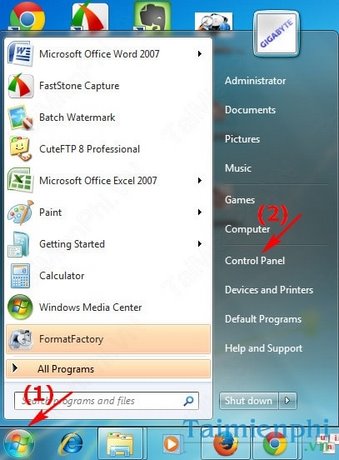
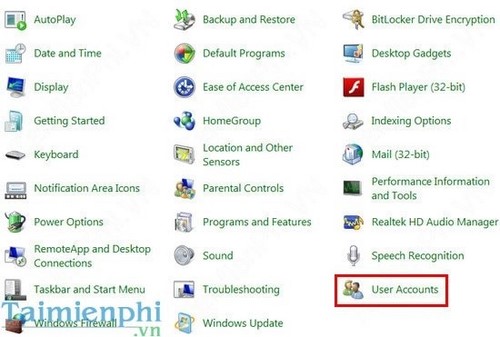
- Set View by to Large icons, then select User Accounts.
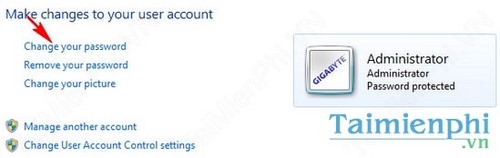
- Select Change your password for your account.
- Enter the current password, enter the new password twice, and select Change password.
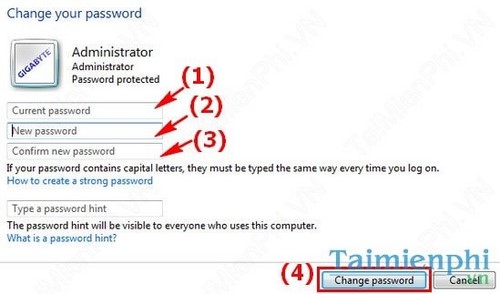
A password hint is visible to anyone at the sign-in screen. Do not put the password itself, a close variation, or sensitive personal information in that field.
If you forgot the password
Changing a known password and resetting a forgotten one are different procedures:
- For a Microsoft account, select I forgot my password at sign-in or use Microsoft's official account recovery flow.
- For a local account, choose Reset password at the sign-in screen and answer the security questions that were configured for the account. A previously created password-reset disk is another supported option.
- For a work or school account, use the organization's self-service reset page or contact its administrator.
A reset performed by another local administrator can cause loss of access to some encrypted data or stored credentials. Use supported recovery methods and do not attempt to bypass access controls on a device you do not own or administer.
Choose a better password
Use a long, unique password that is not reused on another service. A password manager is safer than creating predictable variations. Changing an uncompromised password on an arbitrary schedule is less useful than replacing weak, reused, exposed, or shared credentials. Finally, remember that a sign-in password does not protect an unlocked session—learn how to lock the computer whenever you step away.
Related Articles
 How to Change Account Password in Windows 119 minutes read
 Instructions for Changing Windows Passwords Without Having to3 minutes read
 How to Change Your Computer Password for the Most Popular Operating Systems7 minutes read
 Click: How to Hack a Password Protected Computer Account11 minutes read
 How to Hack into a Windows User Account Using the Net User8 minutes read
 How to Change Windows 10 Laptop Password Easily, Secure Computer4 minutes read
Reader Comments 0
Sign in with email or Google to join the discussion.