Table of Contents
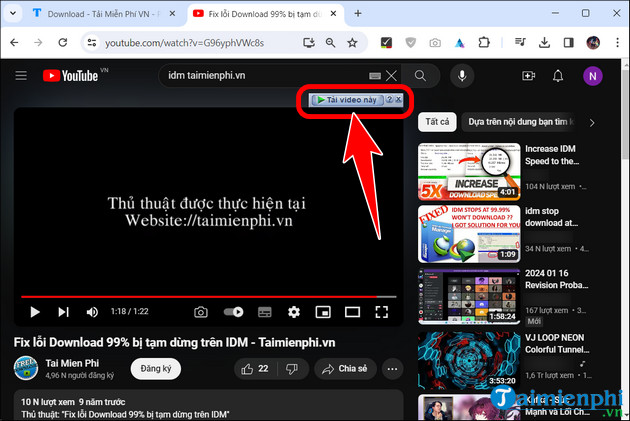
If IDM's Download this video panel does not appear on YouTube in Chrome, first update IDM and verify the official IDM Integration Module. Then check IDM's browser-integration settings and reload the page. Some videos use protected delivery that IDM cannot download, so a missing panel is not always a Chrome fault.
Download only videos you own or are authorized to save. YouTube Premium's built-in offline feature and YouTube Studio's download option for your own uploads are the supported alternatives. Offline YouTube downloads remain inside YouTube rather than becoming normal MP4 files.
1. Update Internet Download Manager
Browser and site changes can break older IDM integration. In IDM:
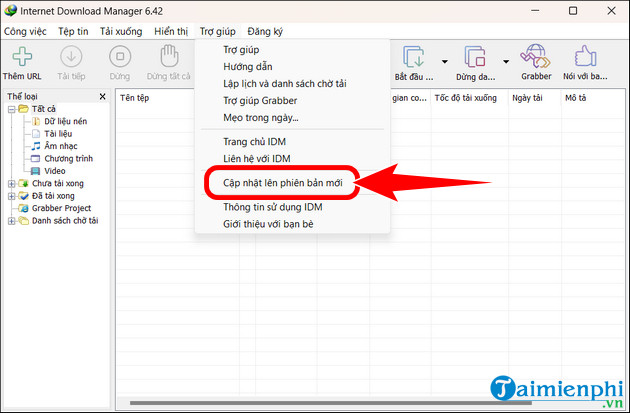
- Open Help.
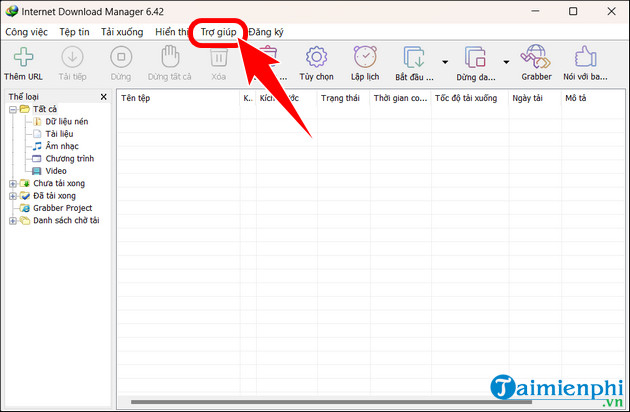
- Select Check for updates or the update command shown by your version, install the available release, and restart Windows if requested.
Use a genuine IDM installation. Modified copies may fail to update or contain altered integration files. If you need to reinstall, follow the safe process in the IDM installation guide.
2. Enable the official Chrome extension
- In Chrome, select the Extensions icon and choose Manage extensions, or open
chrome://extensions.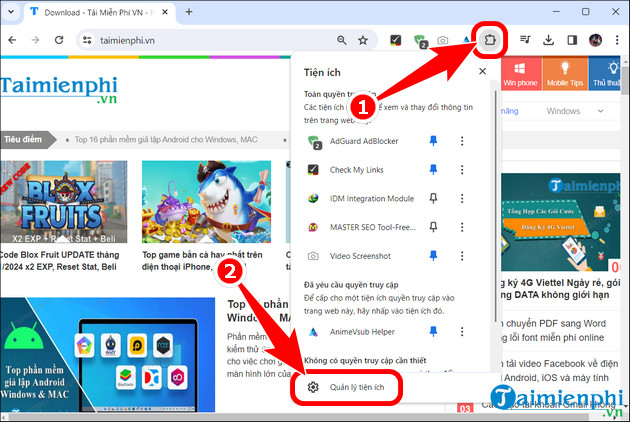
- Find IDM Integration Module and turn it on.
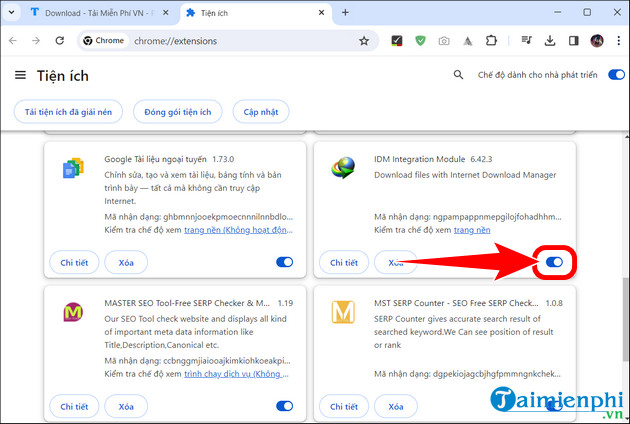
- Open its Details page and allow it to read site data where you want IDM integration. Enable incognito access only if you intentionally need IDM in incognito windows.
The genuine Chrome extension has the ID ngpampappnmepgilojfohadhhmbhlaek. Tonec warns that similarly named extensions found through store search can be fake, so use the direct link supplied by the current IDM installer or Tonec's official Chrome integration page.
3. Repair or reinstall the extension
If the extension is present but not working:
- Remove all IDM-related extensions from Chrome, especially duplicates or copies from unknown developers.
- Download and install the current genuine IDM release over the existing installation.
- Restart Windows if setup requests it.
- Use Tonec's direct Chrome Web Store link to install the official module.
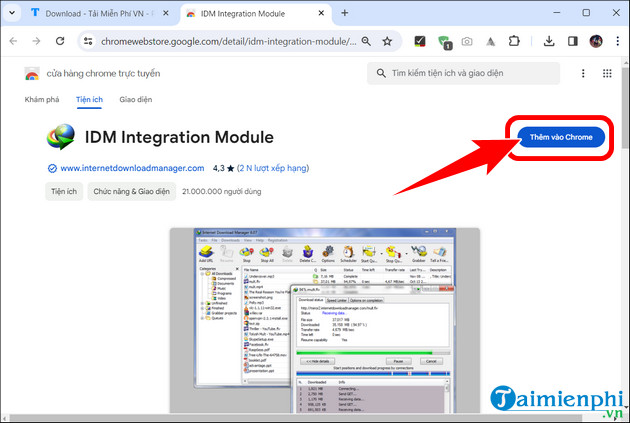
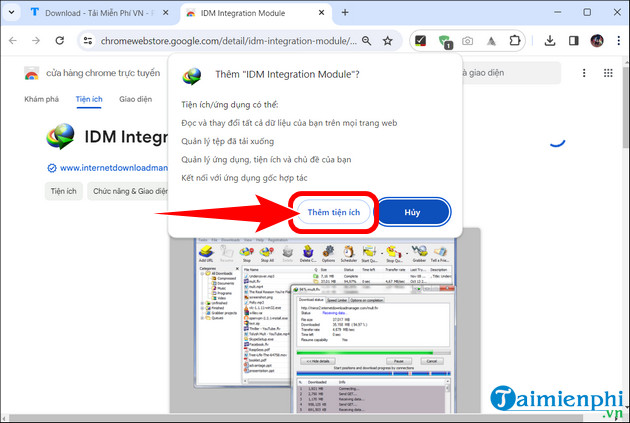
- Confirm the Chrome permission prompt.
- Start IDM, reopen Chrome, play the video, and reload the page with Ctrl + F5.
4. Check IDM's browser-integration settings
- Open IDM and select Options.
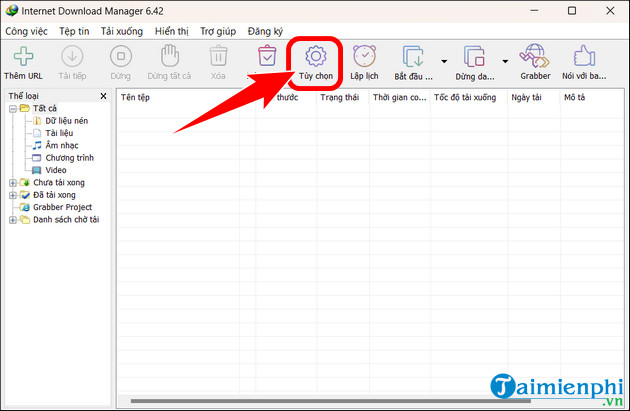
- On the General tab, enable advanced browser integration and make sure Google Chrome is selected.
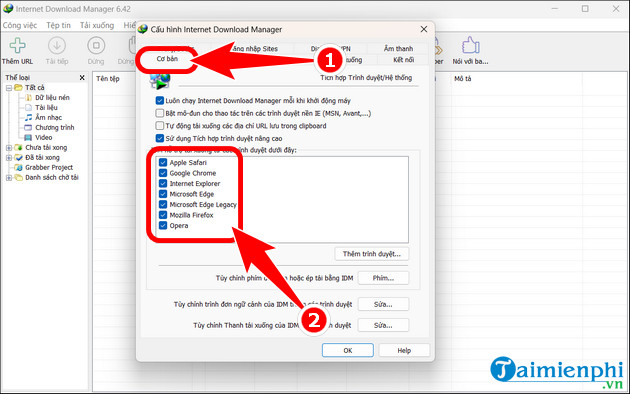
- Select Edit beside Customize IDM Download panels in browsers. Confirm that YouTube is not in the exceptions list and that the panel is enabled for web players.
Do not run Chrome as administrator while IDM runs normally; mismatched privilege levels can prevent integration. Portable browsers with custom launchers may have the same problem.
5. Check file types only when other sites are affected
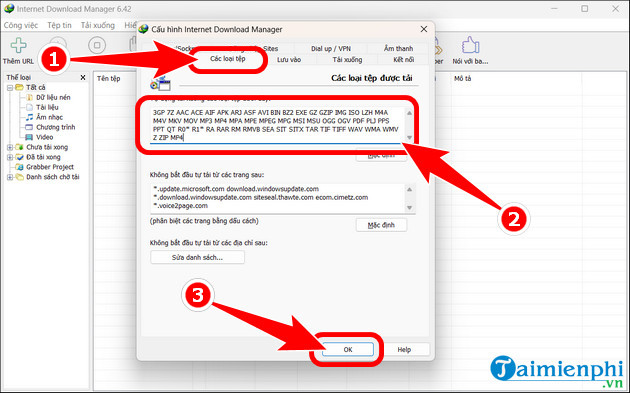
The old recommendation to add MP4 under File types is relevant only when IDM misses ordinary direct MP4 links. YouTube often delivers separate or segmented streams, so adding MP4 does not guarantee that its panel will appear and may cause IDM to intercept downloads you wanted Chrome to handle.
6. Rule out page and network issues
- Confirm that IDM is running and visible in the taskbar notification area.
- Start playing the video, then refresh with F5 or Ctrl + F5.
- Clear Chrome's cached files for the site and test again.
- Test with and without a VPN. A filtering proxy or network may change the media requests IDM sees.
- Test a different public video. If the panel works elsewhere, the specific video may use protected delivery or another unsupported format.
IDM's developer states that it does not circumvent encrypted copy protection. If IDM reports that a video is protected, reinstalling software or adding file extensions will not make it downloadable.
Do not install “IDM Silent” as a fix
An unofficial preactivated repack is not a valid repair method. It may disable updates, replace IDM files, or bundle unwanted software. Read the IDM Silent safety explanation before trusting any package with that label.
If the official installation still fails after these checks, use Tonec's video-panel troubleshooting page or contact its support team with the IDM version, Chrome version, and a nonprivate example URL.
Related Articles
 7 Ways to Fix IDM Not Capturing YouTube Links on Chrome, Firefox?6 minutes read
 How to Fix IDM Not Automatically Downloading Music and Video6 minutes read
 Fix IDM Error Without Capturing MP4 File Download on Chrome5 minutes read
 Fix IDM Error Without Downloading Download Link4 minutes read
 Warning: the YouTube URL Shared on Facebook May Be Deceptive5 minutes read
 How to Fix the Error of Not Being Able to Open YouTube Links Using The3 minutes read
Reader Comments 0
Sign in with email or Google to join the discussion.