Table of Contents
Internet Download Manager (IDM) is a paid Windows application for organizing, scheduling, accelerating, and resuming file downloads. It integrates with supported browsers through the IDM Integration Module and can take over eligible download links. It cannot exceed the limits of your internet connection, the source server, or the service you are downloading from.
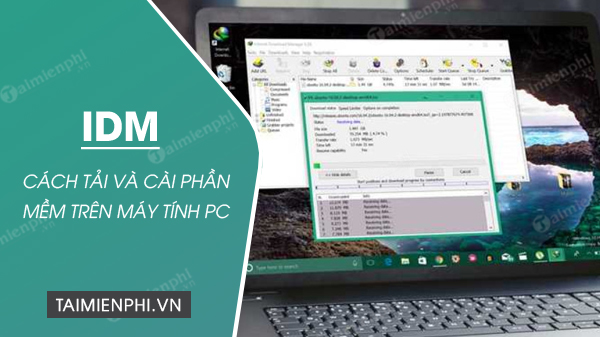
What IDM does
- Resumes interrupted downloads: when the server supports resuming, IDM can continue after a dropped connection or restart.
- Uses segmented transfers: it can request several parts of a file concurrently, which may improve throughput on some servers.
- Organizes files: categories, queues, and a scheduler help manage multiple downloads.
- Integrates with browsers: the official extension can detect eligible downloads and add IDM commands to supported browsers.
- Supports common web transfer methods: including HTTP, HTTPS, and FTP where the server permits access.
IDM is not required for normal browsing. Modern browsers already download files and can resume some transfers. IDM is useful when you frequently manage large queues or interrupted files and its Windows-only workflow fits your needs.
Download and install IDM safely
- Go to the official Internet Download Manager website and download the current installer. Avoid “full,” “cracked,” or repackaged copies from third-party download pages.
- Choose a save location for the installer.
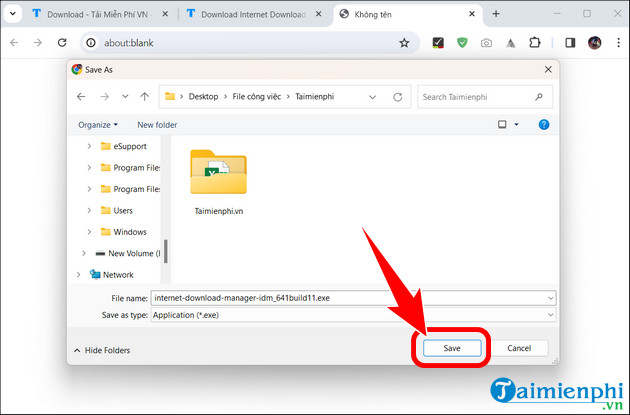
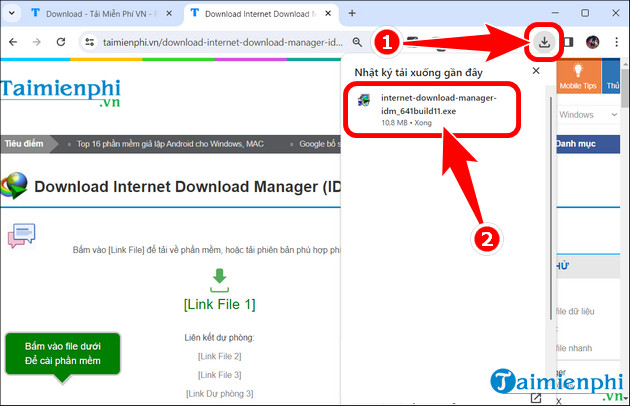
- Open the browser's Downloads panel and launch the setup file. If Windows displays a security prompt, verify that the publisher is Tonec before allowing changes.
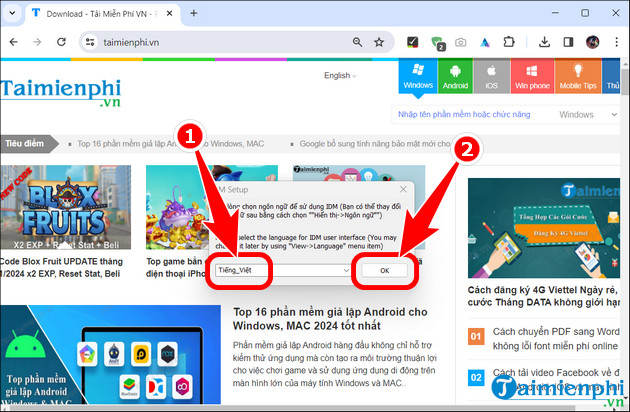
- Select an installation language and continue.
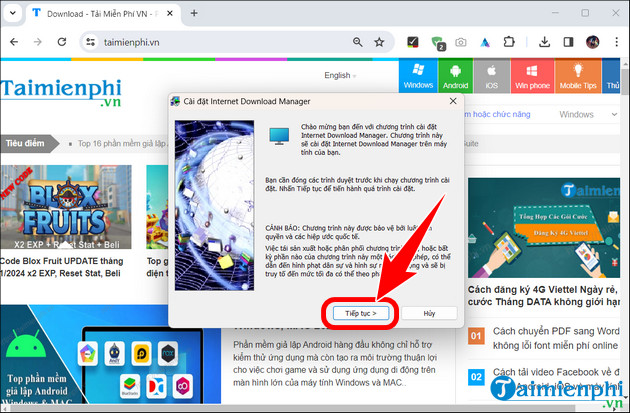
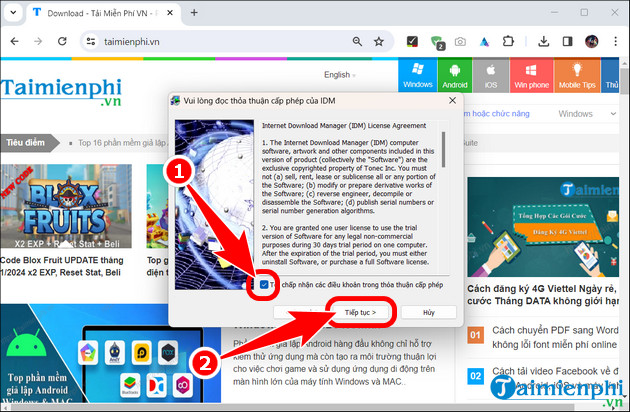
- Read the license agreement. If you accept it, select the agreement box and continue.
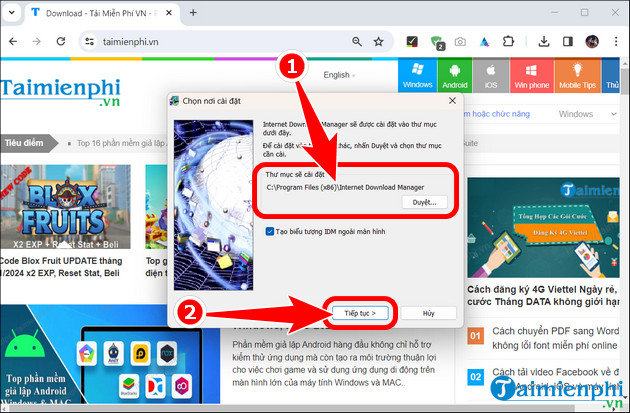
- Keep the default installation folder unless you have a specific reason to change it, then complete setup.
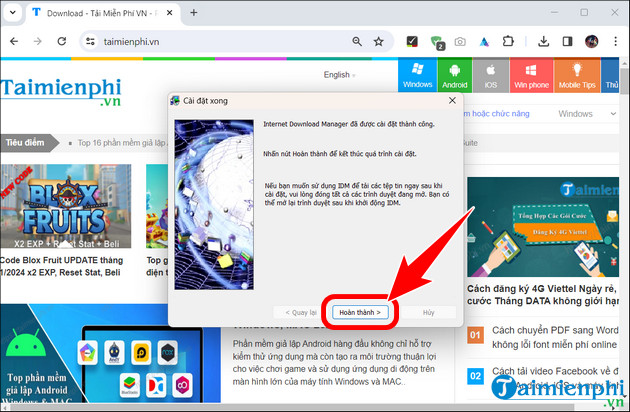
- Open IDM and allow it to check for updates.
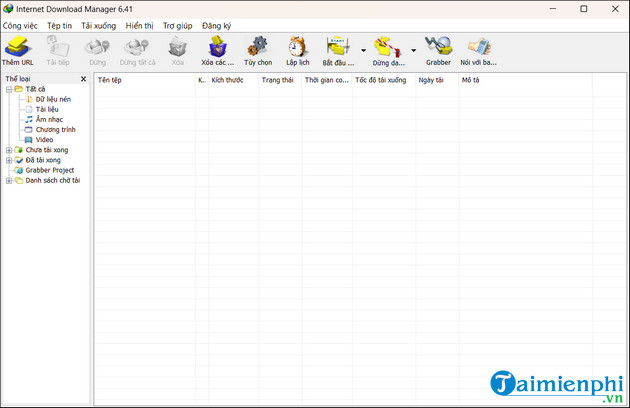
The official product currently offers a time-limited trial. A valid license is required for continued use after the trial; prices and terms can change, so check the vendor rather than relying on an old figure.
Enable IDM in Chrome or another browser
Current IDM installers normally add the official IDM Integration Module automatically. Do not install similarly named extensions found through advertisements or search results.
- In Chrome, open the Extensions menu and select Manage extensions.
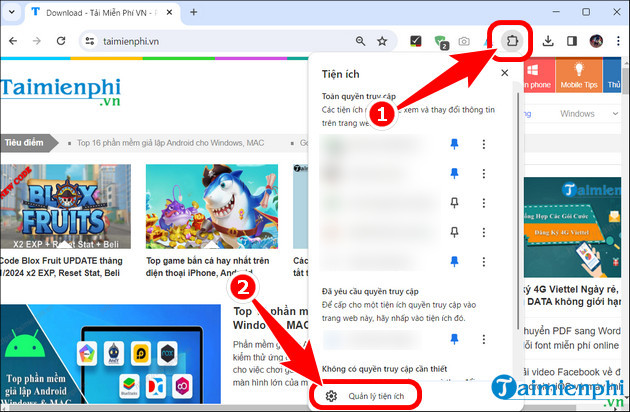
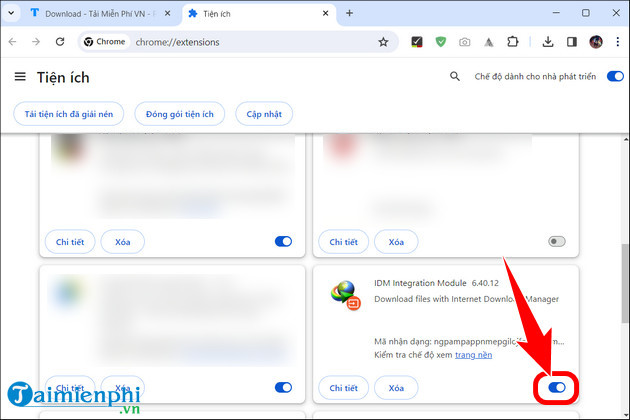
- Find IDM Integration Module and turn it on.
- In IDM, open Options > General and confirm that browser integration is enabled for the browser you use.
- Restart both IDM and the browser.
If the extension is absent, update IDM through Help > Check for updates and follow Tonec's official browser-integration instructions. The vendor warns that searchable copies in extension stores may be fake; use the direct route opened by IDM or its support page.
Start a download with IDM
- Open a normal file link in the integrated browser. On supported embedded media, IDM may show a Download this video panel. Download only content you are authorized to save.
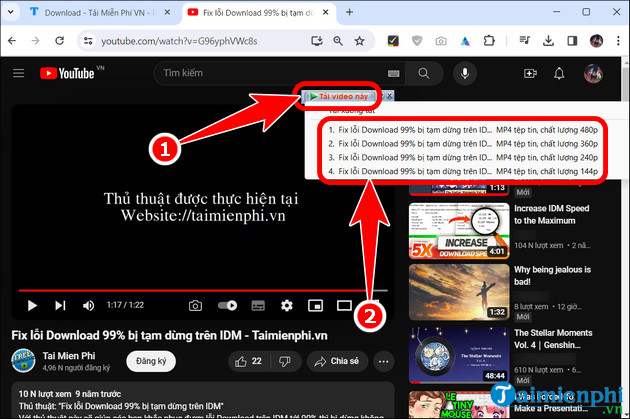
- Select the available file or quality, review the filename and destination, and choose Start Download.
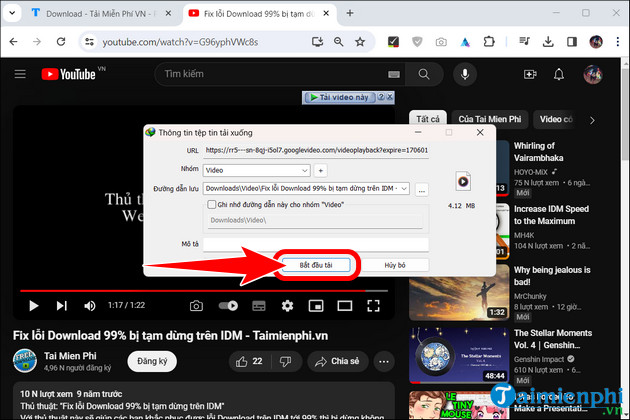
- Use Pause or Resume as needed. A download cannot be resumed if the source server issues an expired URL or does not support range requests.
Common limitations
- Acceleration varies. A fast local connection cannot overcome a slow server, account limit, or network congestion.
- Protected streaming services may use DRM or segmented formats that IDM cannot or should not bypass.
- Changing a file extension does not convert its format.
- Browser and site updates can temporarily disrupt detection until IDM is updated.
- Security software may flag unofficial patches; the correct response is to remove the modified copy and install the vendor's clean release.
After setup, you can switch IDM to dark mode. If you want a different workflow, compare the free alternative in the guide to Neat Download Manager.
Related Articles
 What Is IDM Silent?4 minutes read
 How to Download and Install Anthemscore on Your Computer Super3 minutes read
 How to Download and Install CH Play on Your Computer, Laptop Simple3 minutes read
 Instructions for Installing Android SDK - Software Development Kit6 minutes read
 Broadcast Wi-Fi on Laptop with Wi-Fi Sharing Software3 minutes read
 Download and Install Arduino on the Computer11 minutes read
Reader Comments 0
Sign in with email or Google to join the discussion.