Table of Contents
Google Drive may temporarily block a heavily accessed file with a message such as “Too many users have viewed or downloaded this file recently.” This is a traffic limit on that shared file, not an upload-size error and not necessarily a problem with your browser or Google Account.
The most reliable response is to wait and try again later or ask the owner to provide another authorized copy. Google does not publish a guaranteed reset time for every case, so “24 hours” should be treated as an estimate rather than a promise.
Check the error before trying a workaround
- Too many users viewed or downloaded the file: the shared file has hit a temporary access limit.
- Download disabled: the owner has intentionally prevented viewers and commenters from downloading, printing, or copying. Do not bypass that restriction.
- Access denied: request permission or sign in with the Google Account the owner authorized.
- Storage full: free space or purchase storage before making a copy in your own Drive.
- Browser error: blocked cookies, extensions, or cached data may stop an otherwise permitted download.
Safe fixes for a download-quota error
- Confirm that you trust the file and have permission to download it.
- Wait and retry later. Repeatedly refreshing or sending the same link to more people can keep demand high.
- Ask the owner to upload a separate copy, share through an appropriate distribution service, or reduce the audience.
- If you are the owner, create a distinct copy yourself and share that new file selectively. For sustained public distribution, Google Drive may not be the right hosting method.
- Try a clean browser session only if the error appears to be local: allow Google cookies, disable extensions temporarily, or use another supported browser.
Google's official file-download troubleshooting recommends checking cookie rules and browser extensions for ordinary download failures.
Optional: Make an authorized copy in your Drive
This older method may work when the owner allows copying and your account has enough storage. It is not guaranteed to bypass a traffic limit, and current Drive menus may differ. Do not use it when copying is disabled or when you do not have permission to duplicate the file.
- Open the legitimate shared link. A Drive file URL commonly has this form:
https://drive.google.com/file/d/FILE_ID/viewThe long string between
/d/and/viewis the file ID. Do not paste unknown IDs into unrelated websites.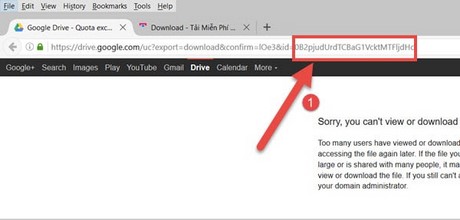
- Open the normal
/file/d/FILE_ID/viewaddress while signed in to the Google Account that should store the copy.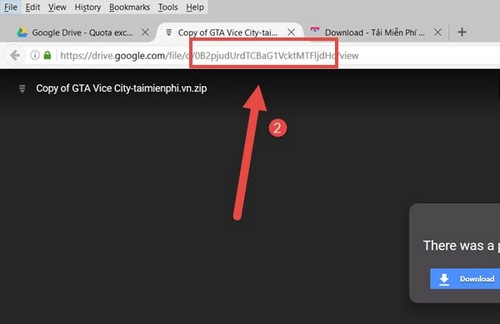
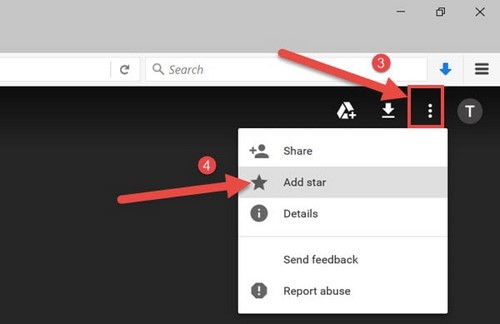
- Use the file menu to add the item to Starred if that makes it easier to find. Starring does not copy the file or reset its quota.
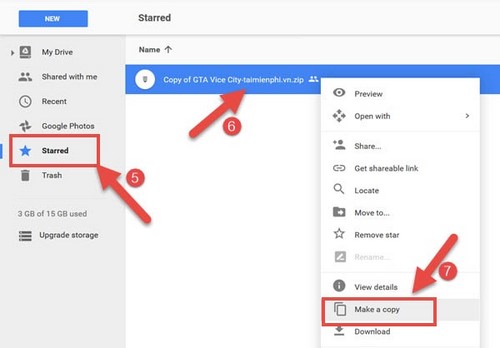
- Open Starred in Drive, right-click the file, and choose Make a copy if the command is available.
- Find the newly created copy in My Drive, rename it clearly, and choose Download.
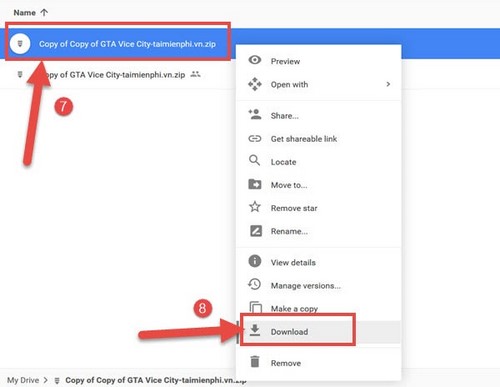
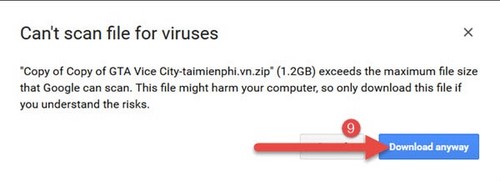
- If Google cannot scan a large file for viruses, it may show a Download anyway warning. Continue only when you trust the source and have scanned the file independently; the warning is not proof that the file is safe.
If “Make a copy” is missing
- The owner may have disabled copying for viewers and commenters.
- You may be signed in to the wrong Google Account.
- The item may be a shortcut, folder, or file type that behaves differently.
- Your Drive storage may be full.
- An administrator may restrict external sharing or copying for work and school accounts.
Do not use scripts, bookmarklets, or third-party “quota bypass” sites that ask for Drive access or account credentials. They can expose private files and do not guarantee a valid download.
Advice for file owners
- Share only with the intended audience and review access permissions.
- For many readers who only need information, publish a Google Docs, Sheets, or Slides document to the web after removing sensitive data.
- For large public downloads, use a distribution platform designed for that traffic rather than repeatedly cloning files.
- Keep an original backup outside the shared folder.
For ordinary viewing workflows, see tools that improve Google Drive use. If Drive's limits do not fit the project, compare alternative cloud-storage services before moving sensitive data.
Related Articles
 How to Fix Errors Do Not Upload Files to Google Drive7 minutes read
 How to Download Files on Google Drive When the Download Limit Is3 minutes read
 How to Download PDF Files on Google Drive Is Blocked Download6 minutes read
 How to Update Files on Google Drive Does Not Change the Shared Link3 minutes read
 How to Upload Files to Google Drive, Upload Files to Google4 minutes read
 How to Let Others Upload Files to Your Google Drive: Drive Uploader6 minutes read
Reader Comments 0
Sign in with email or Google to join the discussion.