Table of Contents
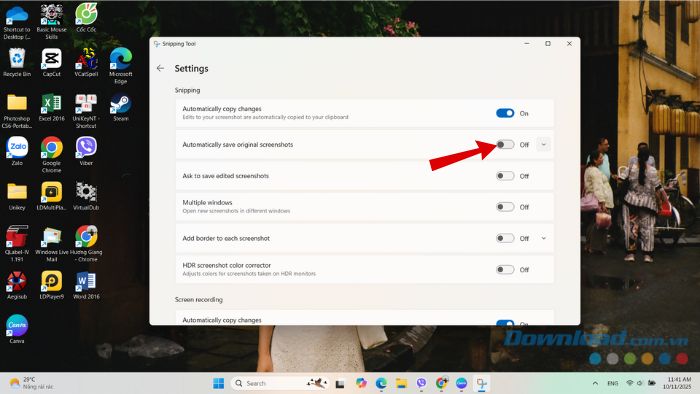
To stop Snipping Tool from automatically creating screenshot files, open the app's Settings and turn off Automatically save original screenshots. You can still copy a capture to another app or save a selected image manually.
Turn off automatic screenshot saving
- Open Start, search for Snipping Tool, and launch it. You do not need to take a screenshot first.
- Select the three-dot menu in the app and choose Settings.
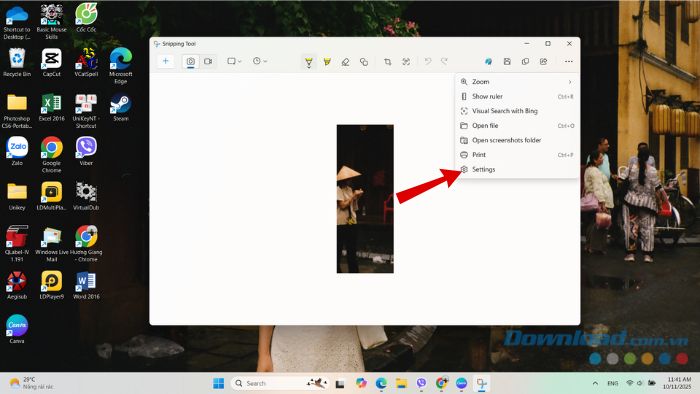
Find Automatically save original screenshots and switch it off. The layout can vary with the app version.
Take a harmless test capture, then check the folder shown in Snipping Tool settings to confirm that it did not receive a new automatically saved file. If the option is missing, check your app version and available Microsoft Store updates. Microsoft's Snipping Tool guide covers the current save controls.
Copy or save a capture manually
Use Windows + Shift + S to capture an area. Paste the copied image into a compatible app with Ctrl + V, or open the capture notification to review it in Snipping Tool.
To keep a file, choose Save or Save as, or press Ctrl + S in the editor. Select a folder and filename. You do not have to annotate the image before saving it.
The auto-save setting does not mean a capture leaves no trace: clipboard history, manual saves, and other applications may retain copies. For clipboard cleanup, see clearing Windows 11 clipboard history.
Find and clean up earlier screenshots
Turning off auto-save affects future captures; it does not remove files already saved. The usual folder is Pictures > Screenshots, but the location may have been changed or redirected to OneDrive. Check the destination displayed in the app settings.
Open that folder in File Explorer, sort by date, and review files before deleting them. Keep any screenshots you still need. Do not delete an entire folder merely because a filename looks similar to a recent capture.
If organization is the problem, changing the destination may be more useful than disabling saving: see changing the screenshot save folder.
Optional: change what Print Screen opens
In Windows 11, open Settings > Accessibility > Keyboard and review Use the Print screen key to open screen capture. Turn it off if you prefer the keyboard's traditional Print Screen behavior. This shortcut setting is separate from Snipping Tool's auto-save setting.
Windows + Print Screen is also a separate screenshot shortcut and can still save files. If screenshots continue appearing, check which shortcut or application created them. Screen-recording auto-save controls, when present, are separate too.
Related Articles
 How to Turn On/off the Automatic Screenshot Saving Feature in Snipping Tool on4 minutes read
 How to Use Snipping Tool on Windows 10 Full Set10 minutes read
 Turn Off Automatic Saving of Snipping Tool Screenshots: How-To Guide2 minutes read
 How to Annotate Screenshots Using Snipping Tool3 minutes read
 Cannot Find Snipping Tool on Windows 10? This Is How to Fix It8 minutes read
 How to Enable HDR Screenshot Color Corrector in Snipping Tool2 minutes read
Reader Comments 0
Sign in with email or Google to join the discussion.