Table of Contents
This guide provides a clear, practical overview of "Snipping Tool on Windows 11 Added Useful Screen Recording Feature". It organizes the most useful details, explains important considerations, and highlights the steps or choices that matter most.
How to export GIF files easily
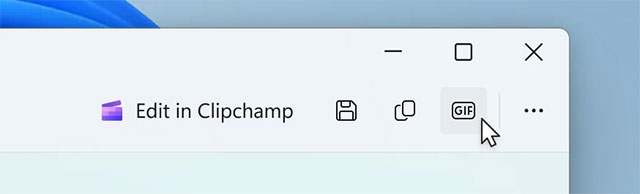
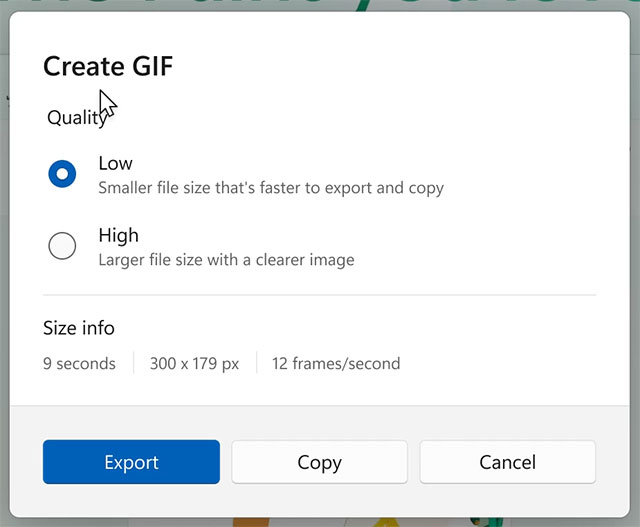
Start the screen recording as usual, once done click the GIF button in the top right corner of the editor. The app will ask you to choose the GIF quality and display the size information: duration, resolution and frame rate (FPS). Just hit Export (save as file) or Copy (put to clipboard).
However, currently, the GIF export feature only supports videos up to 30 seconds long. For longer recordings, the app will automatically trim to keep only the first 30 seconds.
Manual deployments and activations
This feature is available since Snipping Tool version 11.2505.21.0. If you haven't received this update even though your computer is in the Canary/Dev channel, you can manually enable it using the ViveTool:
- Download ViveTool from GitHub and extract to an easily accessible folder
- Open Command Prompt with Administrator rights
- Use the CD command to navigate to the folder containing ViveTool (e.g. CD C:Vive )
- Enter the command: vivetool /enable /id:47081492 and press Enter
- Restart your computer
Official information about the new feature has been posted on Windows Blogs. Previously, Snipping Tool also added the "Perfect Screenshot" feature - automatically aligning the capture area according to the shape of objects such as tables and charts.
FAQ
How to export GIF files easily?
Start the screen recording as usual, once done click the GIF button in the top right corner of the editor. The app will ask you to choose the GIF quality and display the size information: duration, resolution and frame rate (FPS). Just hit Export (save as file) or Copy (put to clipboard).
What should you know about manual deployments and activations?
This feature is available since Snipping Tool version 11.2505.21.0. If you haven't received this update even though your computer is in the Canary/Dev channel, you can manually enable it using the ViveTool:
What does this guide cover?
This guide explains snipping tool on Windows 11 added useful screen recording feature, including the main steps, important details, and practical considerations.
Related Articles
 Notify Save Edits of Snipping Tool Screen Recording Video: How-To Guide3 minutes read
 How to Create GIF Images from Screen Recording Videos on Snipping Tool3 minutes read
 How to Record Screen Using Snipping Tool on Windows 116 minutes read
 How to Use Snipping Tool on Windows 10 Full Set10 minutes read
 How to Edit Screen Recording Videos on Snipping Tool3 minutes read
 Record Screen Video: Complete Guide4 minutes read
Reader Comments 0
Sign in with email or Google to join the discussion.