Table of Contents
Snipping Tool saves all screenshots. Here's how to turn off automatic screenshot saving on Snipping Tool.
By default, Snipping Tool saves all screenshots in the Screenshots folder, or a folder you specify. This is sometimes unnecessary because the images you capture will be saved to the clipboard for pasting into other content. Here's how to turn off automatic screenshot saving on Snipping Tool.
Instructions to turn off saving Snipping Tool screenshots
Step 1:
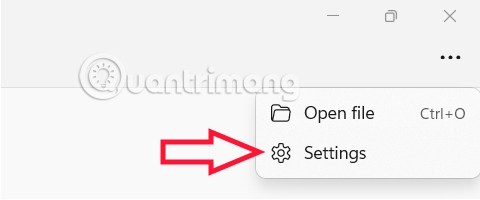
Open Snipping Tool on your computer, then Select the 3-dot icon And Click Settings To adjust the settings.
Step 2:
Switch to the settings for the screenshot program on your computer. Now you will see that the Automatic saving mode of screenshots from Snipping Tool is enabled .
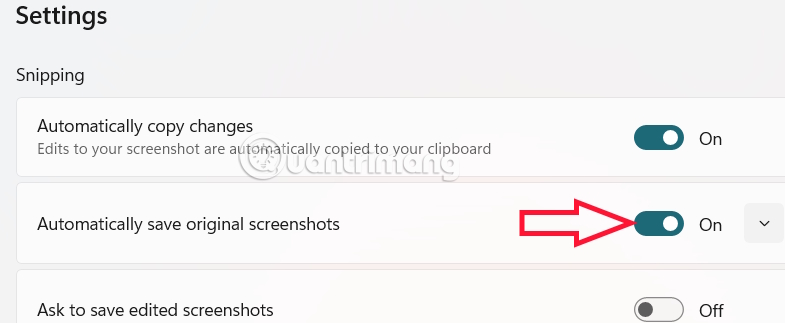
Turn Off the Automatically save original screenshots setting To turn off saving screenshots on Snipping Tool.
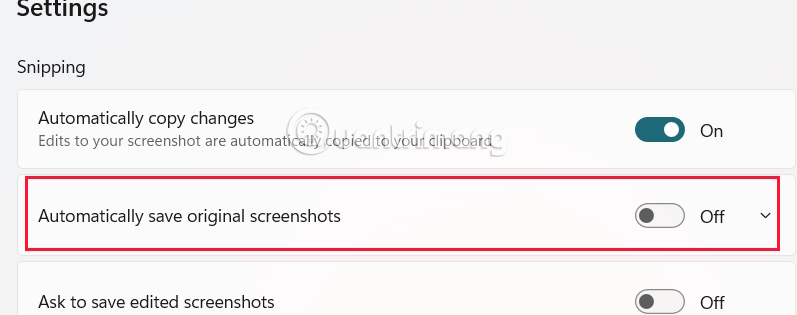
This setting will prevent Snipping Tool from automatically saving unedited screenshots, instead of copying them to your hard drive, you can just copy them to your clipboard instead. To keep a permanent copy, you can edit the image using any of the editing options and press the Save button on the application's toolbar.
FAQ
How do you turn off automatic saving of snipping tool screenshots: how-to guide?
In practical terms, snipping Tool saves all screenshots. Here's how to turn off automatic screenshot saving on Snipping Tool.
What should you check before getting started?
Review the requirements, compatible device or software version, and any warnings described in the guide before making changes.
What should you do if the steps do not work?
Repeat the steps in order, confirm that your app or system is up to date, and review the troubleshooting details provided above.
Related Articles
 How to Turn On/off the Automatic Screenshot Saving Feature in Snipping Tool on4 minutes read
 How to Turn Off Automatic Saving of Screenshots to Google Photos2 minutes read
 Steps to Fix Snipping Tool Not Working Error on Windows5 minutes read
 How to Annotate Screenshots Using Snipping Tool3 minutes read
 Instructions for Enabling or Disabling Snipping Tool in Windows3 minutes read
 How to Use Snipping Tool on Windows 10 Full Set10 minutes read
Reader Comments 0
Sign in with email or Google to join the discussion.