Table of Contents
This practical guide explains how to change the default screenshot saving folder on Windows 10 and 11. Follow the steps in order, review the requirements first, and use the troubleshooting notes when a setting or option does not work as expected.
Method 1: Change the save folder via Snipping Tool
*(Only applies to photos taken from Snipping Tool, not to Win + PrintScreen key combination)*
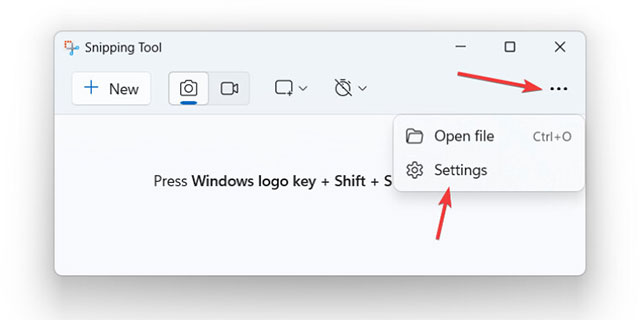
1. Open Snipping Tool > press the 3 dots button in the right corner > select Settings.
2. Scroll down to " Automatically save original screenshots " > click Change in the " Screenshots are saved to " section.
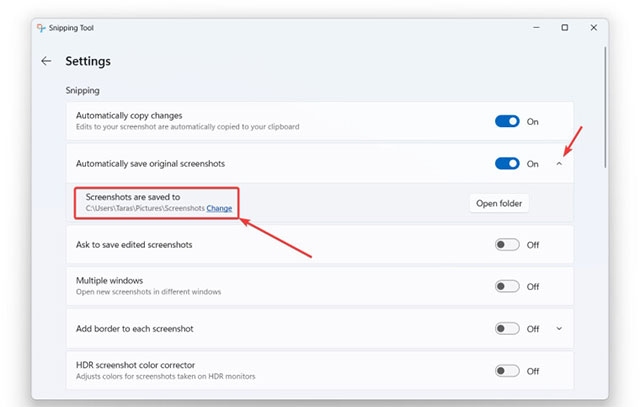
3. Select new folder > OK .
Change the folder where screenshots are saved (Screen Recordings):
Repeat the above steps with the " Automatically save original screen recordings " item.
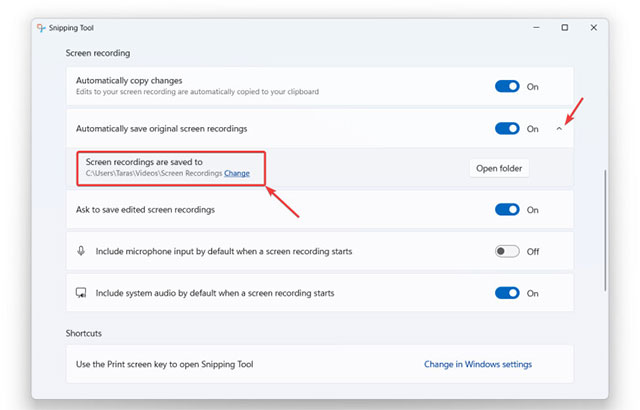
Note : You can turn off "Automatically save." to choose where to save each shot.
Method 2: Change folder via File Explorer
*(Applies to both Snipping Tool and Win + PrintScreen , only changes the capture folder)*
1. Open File Explorer > go to Pictures > Screenshots folder.
2. Right-select Screenshots > select Properties .
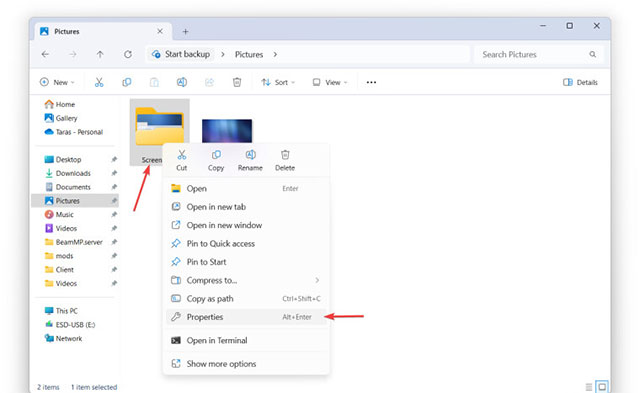
3. Select the Location tab > click Move > select a new folder > OK .
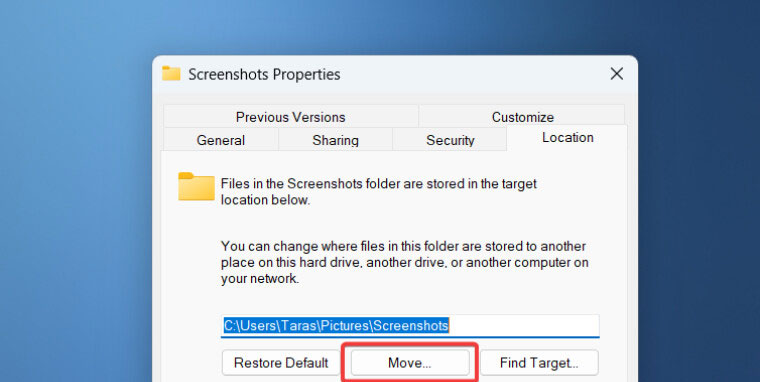
4. Select Yes when Windows asks if you want to move the old photos to the new folder.
Change the folder where screenshot videos are saved:
Do the same with the Videos > Screen recordings folder.
Restore default:
Repeat the above steps > click Restore Default .
Method 3: Switch to Registry Editor
(For advanced users, only applies to screenshots)
Warning : To be safe, back up your data before editing the Registry.
1. Create a new folder to save the images (for example: D:Screenshots ).
2. Press Win + R > type regedit > OK .
3. Paste the following path into the address bar:
ComputerHKEY_CURRENT_USERSoftwareMicrosoftWindowsCurrentVersionExplorerUser Shell Folders
4. Find the value { B7BEDE81-DF94-4682-A7D8-57A52620B86F } (if it doesn't exist, create a new one using Edit > New > String Value and set this value).
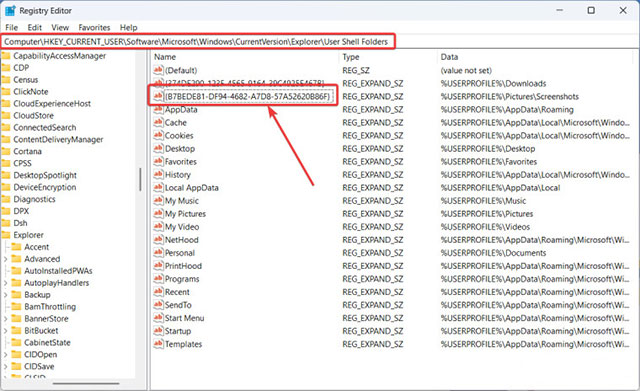
5. Double-click the value > enter the new folder path (eg: D:Screenshots ) > OK .
Note : This method does not move old photos to the new folder.
Important Note:
- The above steps do not apply to third-party screenshot apps (Snagit, ShareX.). Please check the settings of each app.
- To avoid filling up your hard drive, choose a save folder on a drive with plenty of free space.
Good luck!
FAQ
What should you know about method 1: Change the save folder via Snipping Tool?
*(Only applies to photos taken from Snipping Tool, not to Win + PrintScreen key combination)*
What should you know about change the folder where screenshots are saved (Screen Recordings):?
Repeat the above steps with the " Automatically save original screen recordings " item.
What should you know about method 2: Change folder via File Explorer?
*(Applies to both Snipping Tool and Win + PrintScreen, only changes the capture folder)*
What should you know about change the folder where screenshot videos are saved:?
Do the same with the Videos > Screen recordings folder.
Related Articles
 Change the Folder to Save the Default Data in Windows 103 minutes read
 How to Change the Default Name 'New Folder' of a Newly4 minutes read
 How to Set the Default Name of a Newly Created Folder5 minutes read
 Change the Path to Save Screenshots on Windows 104 minutes read
 4 Steps to Change the Default Download Folder on Coc Coc3 minutes read
 How to Change the Download Folder Windows Update in Windows 105 minutes read
Reader Comments 0
Sign in with email or Google to join the discussion.