Table of Contents
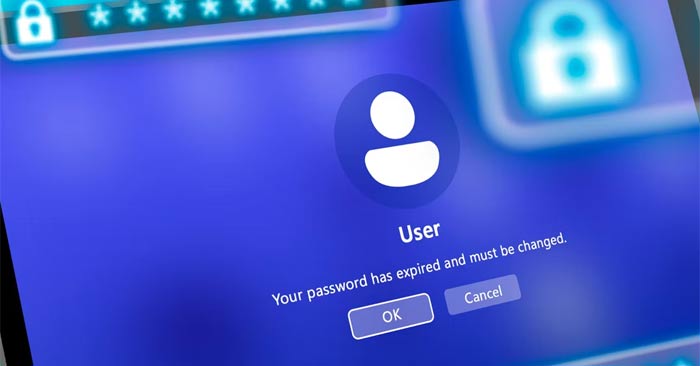
“Your password has expired and must be changed” usually means an account policy requires a new password before sign-in can continue. If you know the current password, follow the change-password prompt. If you have forgotten it, use the recovery route for that account type.
First identify the account
| Account | Where to start |
|---|---|
| Local Windows account | The sign-in screen or Windows account settings on that PC. |
| Personal Microsoft account | Microsoft's account security or password recovery page. |
| Work or school account | Your organization's password-change process or IT support. |
A Windows Hello PIN is different from the account password. Check Sign-in options so you know which credential the screen is requesting.
If you know the current password
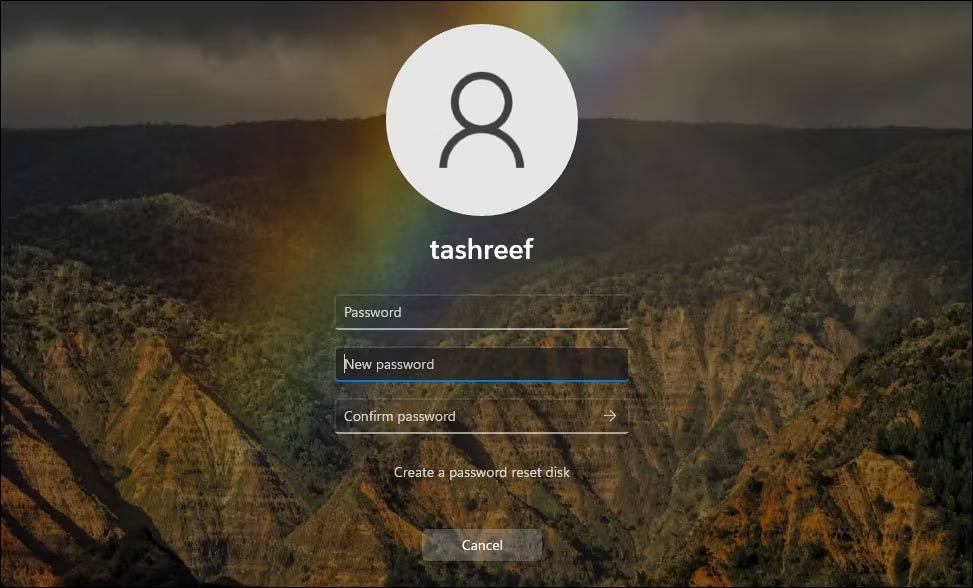
- Read the expiration message and continue to the password-change screen.
- Enter the current account password.
- Enter and confirm a new, unique password that meets the displayed policy.
- Submit the change and wait for confirmation before signing in again.
Do not leave the new password blank or assume the old one can be reused. Password history and complexity policies may reject it. If a work account cannot complete the change, contact IT; a domain connection or organization-specific recovery process may be required.
If you forgot a local account password
Use Reset password on the sign-in screen where available and answer the security questions configured for that account. If you previously created a Windows password reset disk, use its recovery option. A reset disk created for a local account is different from downloading a third-party boot utility after lockout.
The older reset-utility screenshot below is retained for context; it is not a recommendation to download or boot that software.
Follow Microsoft's local-account recovery guidance. If you have another authorized administrator account on the PC, check the documented reset method and any warning about access to encrypted or protected data before proceeding. Do not reset or reinstall Windows without checking your backup and recovery options.
If you forgot a Microsoft account password
Choose I forgot my password at sign-in, or use Microsoft's recovery instructions from a trusted device. Verify your identity using the recovery methods available for your account.
If you no longer control those methods, use Microsoft's sign-in helper rather than giving verification codes to a third-party service.
Review expiration settings only after recovering access
Changing expiration policy is separate from regaining access. On a managed device, let the administrator handle policy. A local setting does not override a domain or cloud-account policy.
The Local Users and Groups interface shown above is not available in every Windows edition. Do not install unofficial management tools merely to copy a screenshot's steps. On a personal device, review the applicable account policy before deciding whether any change is appropriate.
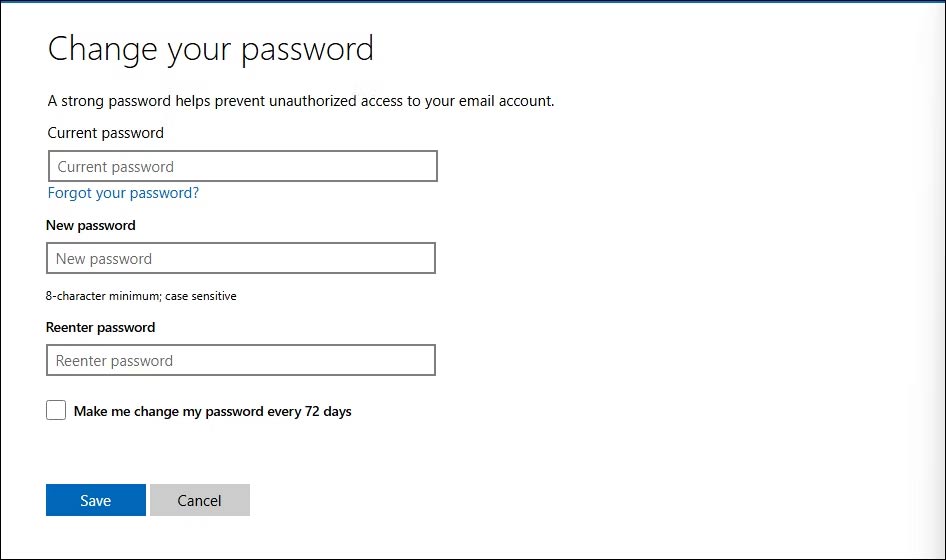
For a personal Microsoft account, use the account's security page to review password options. The interface may include an optional periodic-change setting. Follow Microsoft's current password-change guide rather than assuming that changing the password disables expiration.
Reduce the chance of another lockout
- Keep account recovery details current.
- Use a unique password and store it securely.
- Review available multifactor or passwordless sign-in options.
- For local accounts, prepare supported recovery options while you can still sign in.
- Keep a separate backup of important files.
Our account-security course covers password and recovery habits. Local and Microsoft accounts have different recovery tradeoffs; neither is automatically better for every user.
Related Articles
 How to Log in and Turn Off Password Expiration Prompts5 minutes read
 Can Expired Tea Bags Be Used?8 minutes read
 How to Login to Your Computer When You Forget Your Password10 minutes read
 How to Change Your Computer Password for the Most Popular Operating Systems7 minutes read
 Simple Ways to Reuse Expired Products: What to Know5 minutes read
 Top 3 Simple Ways to Change Computer Password on Windows6 minutes read
Reader Comments 0
Sign in with email or Google to join the discussion.