Table of Contents
Word 2016 can export a document directly to PDF and, when the option is available, require a password to open the PDF. Work on a copy, check the document layout, and store the password safely before publishing.
Support note: Office 2016 reached the end of Microsoft support in October 2025. The steps remain useful for an existing installation, but a computer that handles external documents should be moved to a supported Office version.
Export a Word 2016 document to PDF
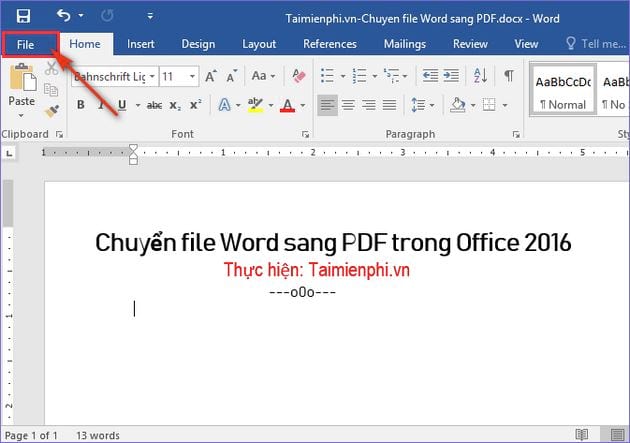
Open the DOC or DOCX file. Select File.
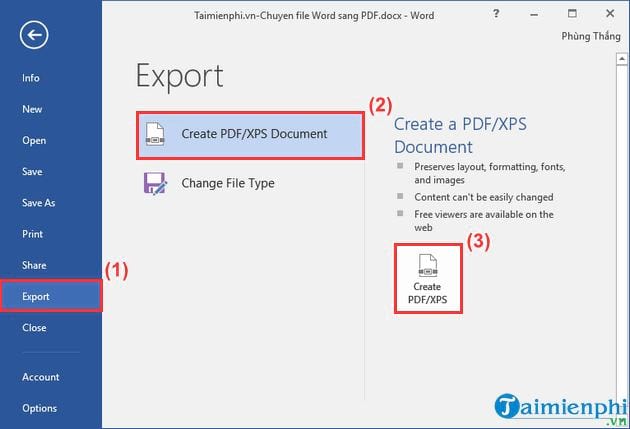
Select Export > Create PDF/XPS Document > Create PDF/XPS.
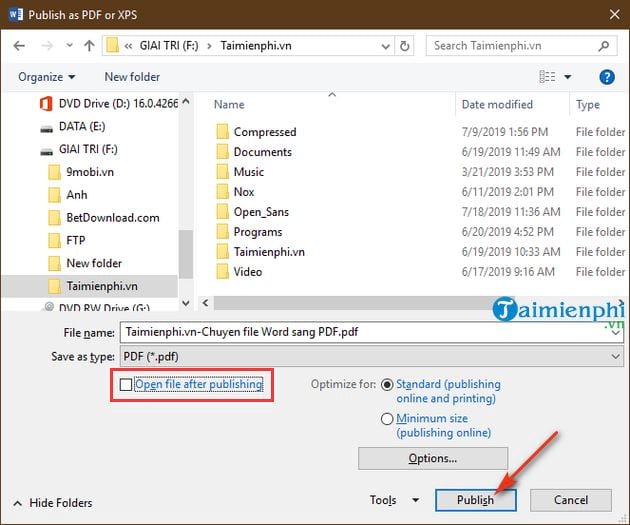
In Publish as PDF or XPS, choose a folder and file name. Select Standard for better print quality or Minimum size for a smaller online file.
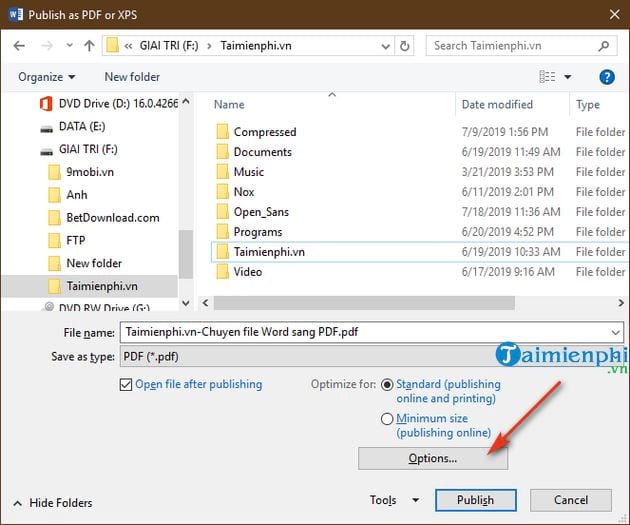
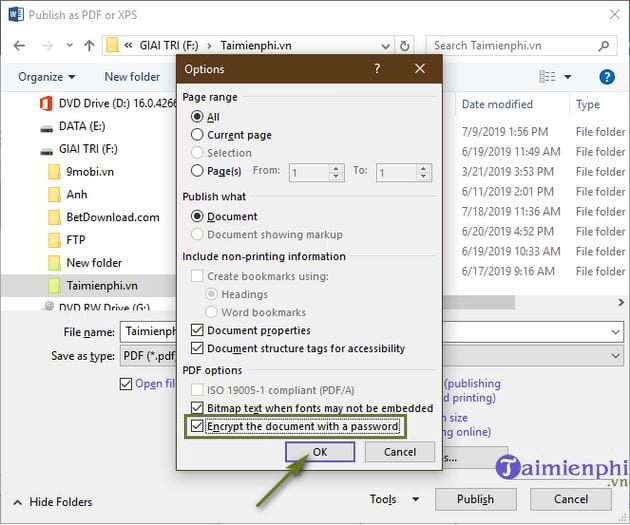
Choose Options if you need a page range, bookmarks from headings, document properties, accessibility tags, PDF/A, or encryption.
To protect the PDF with an opening password, enable Encrypt the document with a password, then select OK.
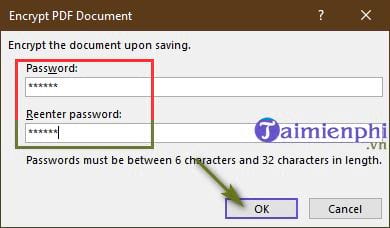
Enter the password twice and confirm it.
Choose whether Open file after publishing should remain enabled, then select Publish.
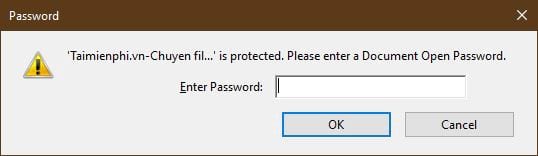
Open the PDF and verify that it requests the password and that every page displays correctly.
Choose the password carefully
- Use a long, unique password that is not reused for another account or document.
- Send the password through a different channel from the PDF when practical.
- Store it in an approved password manager or records system. A forgotten opening password may make the file inaccessible.
- Keep an unencrypted master copy in a protected location if policy allows it.
Password encryption controls opening the file; it does not prove who created it, prevent an authorized reader from copying information by other means, or replace access controls on the storage system.
Improve PDF navigation and accessibility
Before export, apply Word heading styles and meaningful link text. In Options, create bookmarks from headings and keep document-structure tags enabled unless a specific workflow requires otherwise. For consistent formatting, review how to use styles in Word and create an automatic table of contents.
If the encryption option is unavailable
Confirm that you are publishing as PDF from the desktop version of Word and not using a restricted web or mobile interface. Check the Office edition and update level. An organization may also restrict features through policy. Do not upload a confidential document to an arbitrary online converter merely to add a password.
Check the finished PDF
After publishing, compare the page count, fonts, page breaks, images, tables, hyperlinks, headers, and footers with the Word source. Test the password in a second trusted PDF reader. If the layout shifts, correct the Word document and export again rather than maintaining two different editable versions.
For the simpler Save As route and optimization details, see how to save DOC and DOCX files as PDF in Word 2016. If a password-protected PDF later becomes inaccessible, do not rely on unsafe “unlock” downloads; use the recovery guidance in how to handle a forgotten PDF password.
Related Articles
 How to Convert a Word File to an Image File - Save the Word File as an5 minutes read
 Convert Word Files to PDF, Convert DOC / DOCX Files into PDF Quickly4 minutes read
 Convert Word File to Csv File: How to Convert Word to a Csv File4 minutes read
 How to Convert PDF Files to Word Online Very Fast3 minutes read
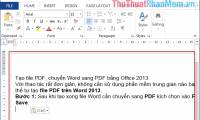 Convert Word to PDF with Office 20132 minutes read
 Professional PDF File Conversion Software for Word7 minutes read
Reader Comments 0
Sign in with email or Google to join the discussion.