Table of Contents
Solid Converter is a commercial Windows PDF application for converting PDFs to editable formats, creating PDFs, and combining files. “PDF to Word Converter” is a generic description used by many products, so verify that the installer is from Solid Documents and review the current license before installing it.
Download and licensing
Use the official Solid Documents product site, not a mirror. The current version and trial restrictions can differ from the older interface below. A trial may watermark output or limit features; confirm this before processing a long document.
Convert a PDF to Word
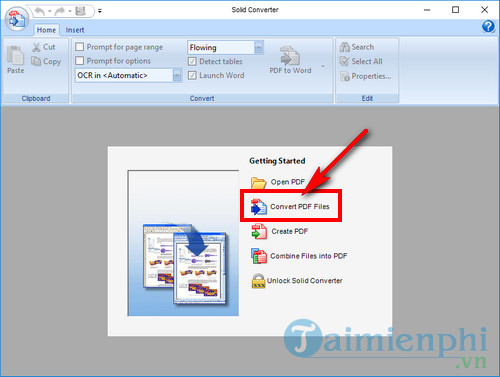
Open Solid Converter and choose Convert PDF Files.
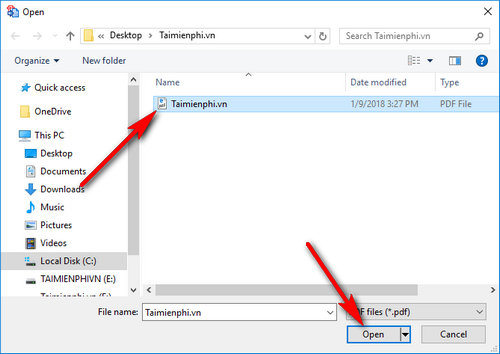
Select the source PDF and choose Open.
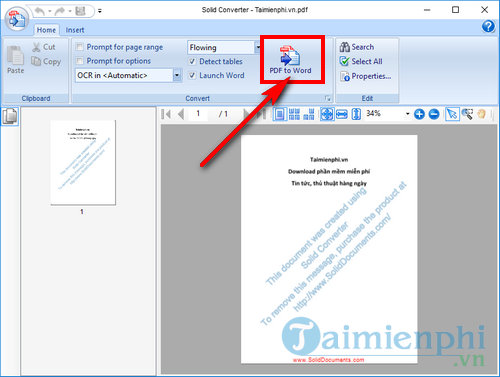
Review the document preview and select PDF to Word.
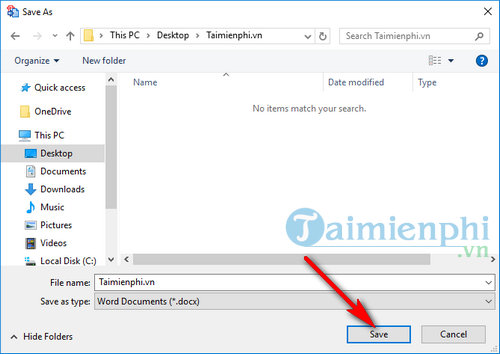
Choose an output folder and a new DOCX filename, then start the conversion.
Open the result and compare it with the PDF.
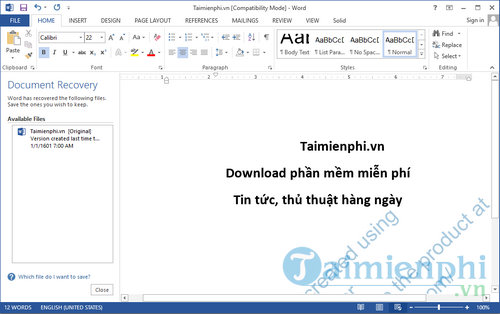
Select the layout mode based on the goal. A flowing layout is easier to edit; a page-accurate layout may rely on text boxes and be harder to reorganize. For scans, enable OCR and choose the correct language if the installed edition provides those options.
Create a PDF from a document
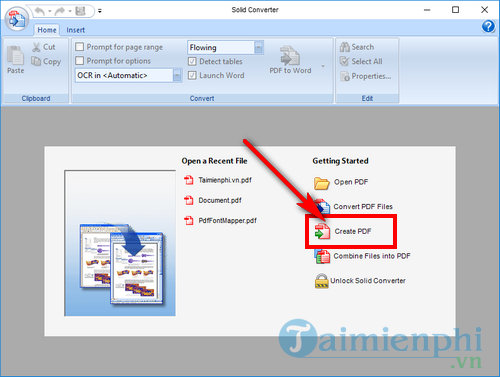
Choose Create PDF.
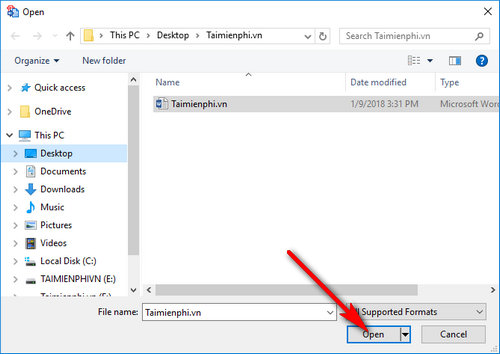
Select a supported document such as DOC, DOCX, or RTF.
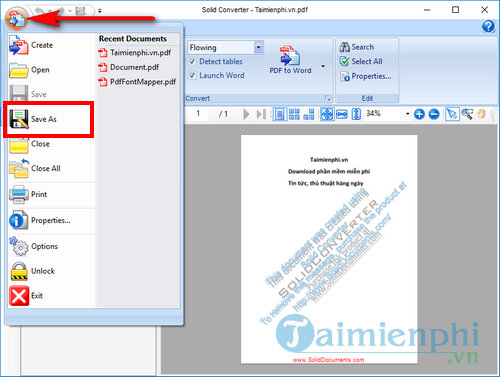
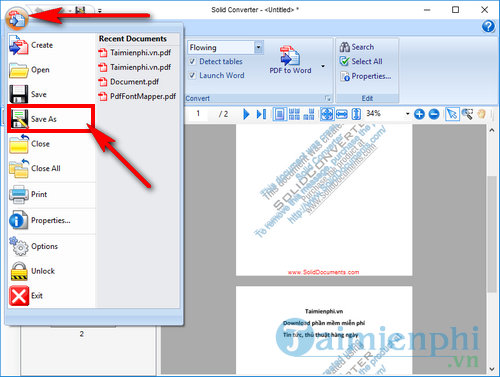
After conversion, use the application menu and choose Save As.
When the source is a Word document, Word's own PDF export is generally the better first choice because it can preserve headings, links, and document structure without another converter. See how to save Word as PDF.
Combine files into one PDF
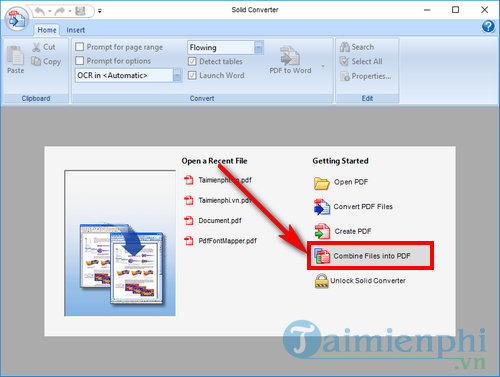
Select Combine files into PDF.
Use Add Files or drag supported files into the window. Arrange them in the required order.
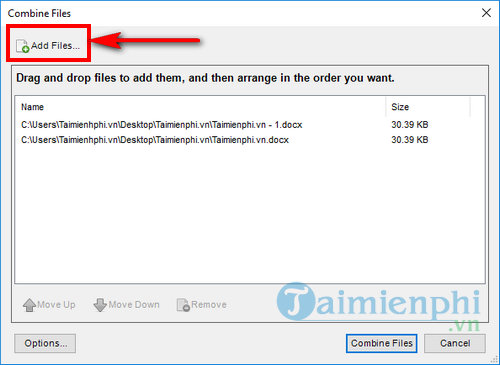
Select Combine Files, review the generated PDF, and save it under a new name.
Check page size, orientation, bookmarks, and blank pages when combining documents from different sources. For PDFs that already exist, a dedicated merge workflow may be simpler; compare the guide to merging PDF files.
Privacy and document safety
- Keep an unchanged copy of every source file.
- Do not overwrite the original PDF during conversion or cleanup.
- For confidential documents, confirm the application processes files locally and does not upload them through an optional cloud feature.
- Update the software and verify the installer signature before use.
- Do not treat a PDF password or watermark as complete access control.
Verify the output
Check page order, headings, paragraph flow, tables, equations, images, footnotes, hyperlinks, and fonts. Recalculate or compare important totals. OCR output must be proofread against the scan, especially names, numbers, punctuation, and accented characters.
If the trial adds a watermark, do not try to remove it by modifying the software. Purchase the appropriate license or choose another tool. The broader PDF-to-Word comparison includes browser and desktop alternatives. For a full-featured alternative, also evaluate the PDFelement overview while checking its current version and terms.
Related Articles
 Link to Download PDF to Word Converter Free 3.57 minutes read
 How to Install PDF to Word Converter on Your Computer Quickly and Simply5 minutes read
 PDF to Word Converter: Register for Free, Many New Features4 minutes read
 Install Word to PDF Converter to Convert Word Files to High-Quality Pdfs3 minutes read
 Convert PDF to Word Using Free PDF to Word Doc Converter5 minutes read
 VideoProc Converter AI: What You Need to Know9 minutes read
Reader Comments 0
Sign in with email or Google to join the discussion.