Table of Contents
Microsoft Word 2016 can save DOC and DOCX documents as PDF without extra conversion software. Open the document, choose File > Save As, select PDF as the file type, and save the exported copy.
Save a Word 2016 document as PDF
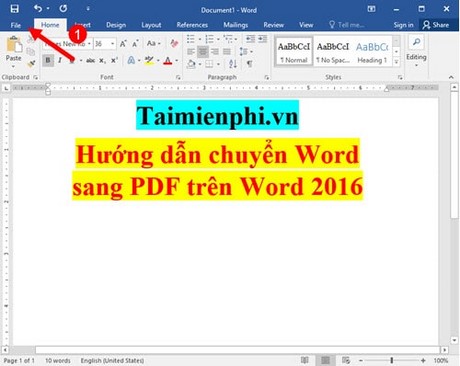
Open the document and select the File tab.
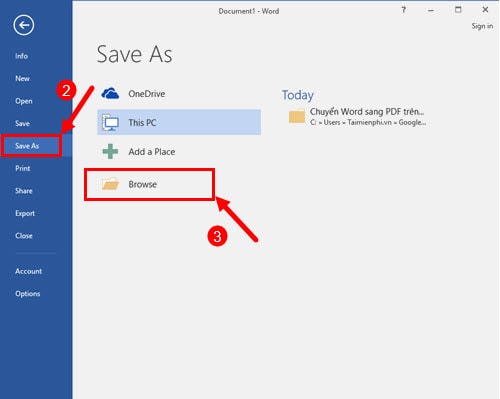
Select Save As, then choose Browse to open the Save As dialog.
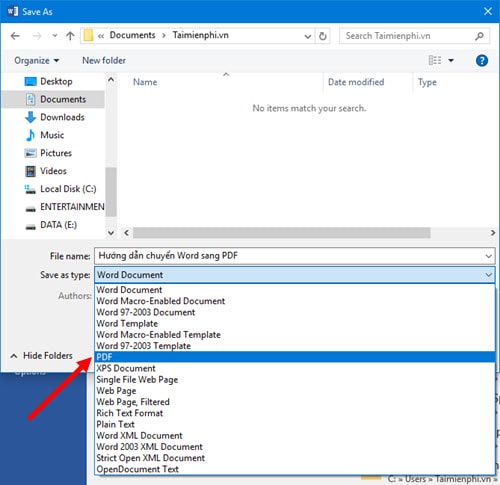
Choose a destination folder, enter a clear file name, and select PDF (*.pdf) from Save as type.
Choose an optimization option:
- Standard (publishing online and printing) preserves more detail and is the usual choice for documents that will be printed or viewed on a large screen.
- Minimum size (publishing online) reduces the file size but may lower image quality.
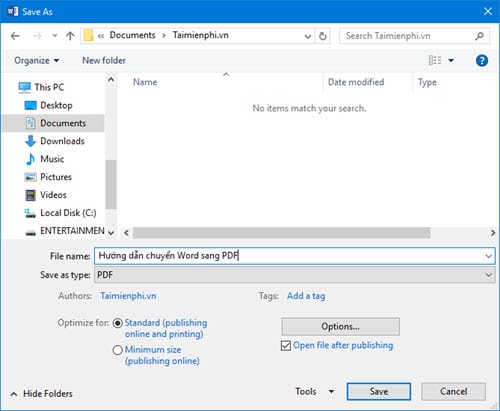
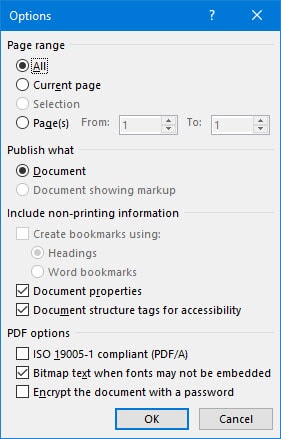
If necessary, select Options to choose a page range, include document properties, create bookmarks from headings, or control PDF accessibility and archival options. Leave settings at their defaults if you do not have a specific requirement.
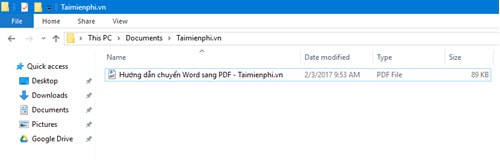
Select Save. Open the new PDF and check page breaks, images, tables, links, and fonts.
Export only selected pages
In the Save As dialog, select Options. Under Page range, choose the current page, a page range, or selected content where available. This avoids creating the entire PDF when you only need part of a long document.
Make the PDF easier to navigate
Use Word's built-in heading styles before exporting. In Options, enable bookmark creation from headings when the PDF needs a clickable outline. A well-structured document is also easier to maintain; see how to use styles in Word and create an automatic table of contents.
If the exported PDF looks wrong
- Text or page breaks moved: confirm the correct paper size, margins, and printer settings before exporting.
- A font changed: use an embeddable font and make sure it is installed correctly.
- The file is too large: choose Minimum size or compress large images in Word before exporting.
- Links do not work: use real hyperlinks in Word rather than underlined plain text, then export again.
If you later need to revise a PDF whose Word source is unavailable, review the limitations and methods for converting PDF back to Word.
Related Articles
 How to Convert Docx Files to Doc: Practical Guide6 minutes read
 How to Convert Doc, Docx to PDF by Cloudconvert: Convert Word to PDF5 minutes read
 Instructions to Convert Doc Doc to Docx: Convert Doc to Docx3 minutes read
 Convert PDF to Word, Convert PDF Files for Free12 minutes read
 Trick to Convert Docx Tail to Quick Doc: Convert Docx to Doc3 minutes read
 2 Ways to Convert PDF Files to Docx for Free on Mac4 minutes read
Reader Comments 0
Sign in with email or Google to join the discussion.