Table of Contents
Free PDF to Word Doc Converter is a legacy Windows utility shown in many old download guides. Its current publisher, official download source, maintenance status, and compatibility could not be verified. Do not install an executable from a mirror merely to reproduce the screenshots below; use a supported, traceable conversion tool instead.
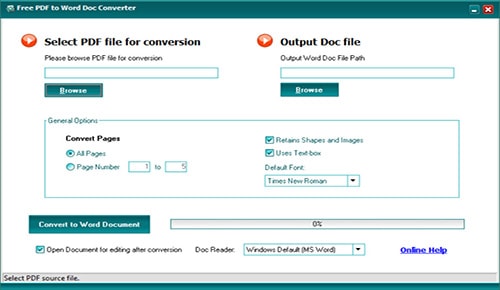
Why the old claims need caution
- “Free” does not establish that an installer is safe, current, or free of bundled software.
- Offline conversion can protect privacy only if the application itself is trustworthy and truly processes files locally.
- No converter can promise output without font or layout errors.
- The legacy DOC output and WordPad workflow are poor choices for modern document fidelity.
- A scanned PDF requires OCR; an ordinary layout converter may return page images rather than editable text.
Archived workflow for an existing verified installation
If your organization already has an approved, known-good copy in a controlled environment, the historical interface worked as follows. These instructions are for recognition and data recovery, not a download recommendation.
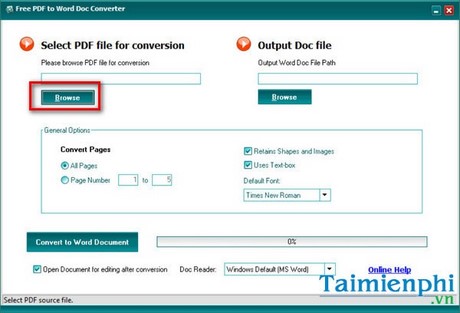
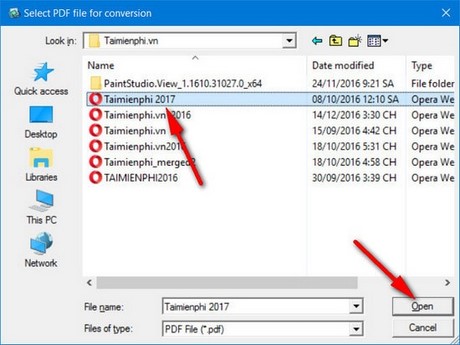
Select Browse beside Select PDF file for conversion and choose the source PDF.
Choose the Output Doc file location. Use a new filename so the original is never overwritten.
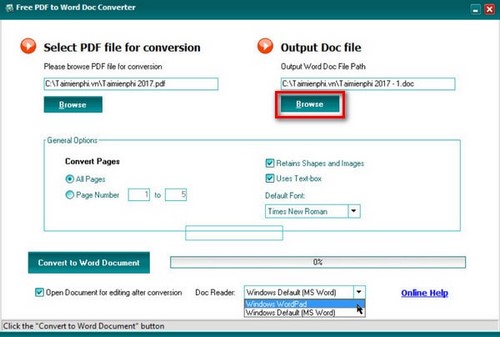
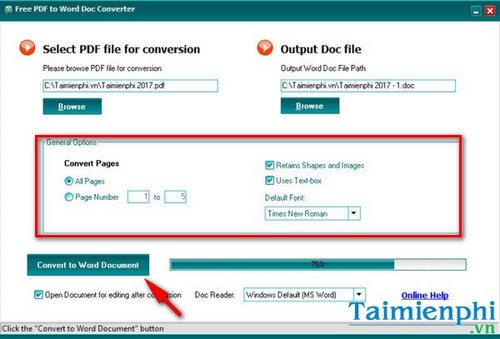
Select all pages or enter a specific page range. Options such as preserving shapes/images or using text boxes can improve visual similarity but make later editing harder.
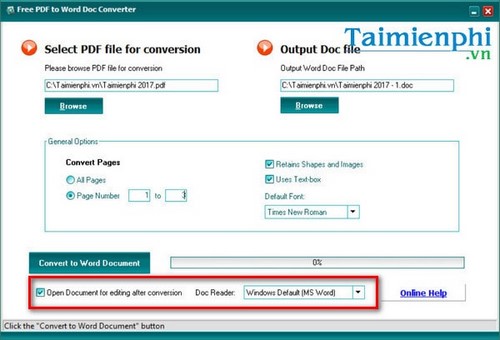
Select Convert to Word Document and wait for completion.
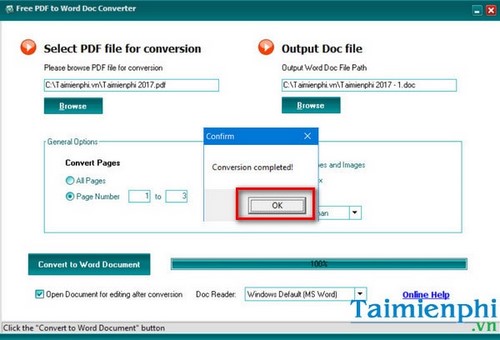
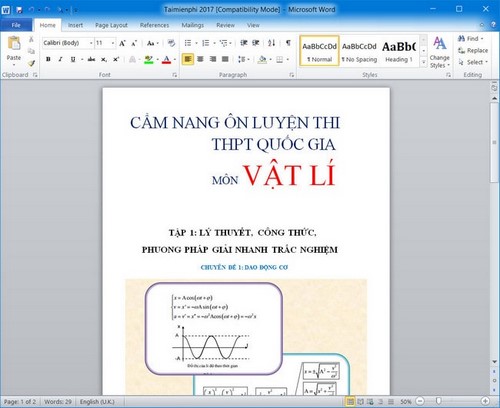
Open the result in a supported word processor and compare it with the PDF.
Safer current alternatives
Open a text-based PDF in Microsoft Word
In current desktop Word, choose File > Open and select the PDF. Word creates an editable copy and keeps the original unchanged. This works best for documents that are mostly text and can still change page breaks, columns, or graphics.
Use a maintained desktop PDF application
A supported PDF editor or converter can process files locally and may include OCR, page-range selection, batch conversion, and DOCX output. Obtain it from the publisher's official site, verify the digital signature, review licensing, and keep it updated. The PDFgear overview is one option to evaluate; confirm its current capabilities and terms before use.
Use a browser converter only for appropriate files
Online services are convenient but may upload the document. Read the privacy and retention terms, verify the domain, and never submit confidential material to an unapproved service. Compare the available PDF-to-Word methods rather than relying on an abandoned executable.
How to evaluate any replacement converter
- It has an identifiable publisher and official download page.
- The installer is digitally signed and receives updates.
- It supports DOCX and the languages you need.
- OCR is clearly identified for scanned documents.
- Local versus cloud processing is explained.
- Pricing, trial renewal, file limits, and telemetry are disclosed.
- You can select page ranges and preserve or simplify layout as needed.
Verify the Word result
Compare headings, names, dates, totals, accented characters, tables, images, footnotes, and page order with the PDF. Text-box-heavy output may look accurate but be difficult to edit; flowing paragraphs are preferable when the document will be rewritten. If characters are garbled, use the PDF-to-Word font troubleshooting guide.
Keep the source PDF and save the converted file under a new name. Conversion creates an editable reconstruction—it does not prove that the content, layout, or OCR is exact.
Related Articles
 Link to Download PDF to Word Converter Free 3.57 minutes read
 PDF to Word Converter: Register for Free, Many New Features4 minutes read
 Tools for Converting PDF to Word8 minutes read
 How to Use PDF to Word Converter5 minutes read
 Professional PDF File Conversion Software for Word7 minutes read
 How to Convert PDF Files to Word Online Very Fast3 minutes read
Reader Comments 0
Sign in with email or Google to join the discussion.