Table of Contents
A scanned PDF is made of page images, so it needs optical character recognition (OCR) before its text becomes editable. A normal PDF-to-Word converter may work well on a text-based PDF but return pictures or unusable text when the source is a scan.
First, determine whether the PDF needs OCR
Open the PDF and try to select a sentence. If individual characters can be highlighted and copied into a plain-text editor, the file already contains text. If dragging selects the whole page as one image, or search finds nothing, use an OCR-capable method.
Some PDFs contain an image plus a hidden text layer. Test a few pages because the OCR layer may be incomplete or use the wrong language.
Method 1: Open a mostly textual PDF in Microsoft Word
Current desktop versions of Word can convert many PDFs:
- In Word, select File > Open > Browse.
- Choose the PDF and accept the message explaining that Word will create an editable copy.
- Review the converted document, then save it as DOCX.
Microsoft notes that this works best for documents that are mostly text. A graphic-heavy or scanned page may remain an image, and page breaks or lines can move. See Microsoft's PDF conversion limitations in Word.
Method 2: Run OCR before exporting to Word
In an OCR application such as Adobe Acrobat, open the scanned PDF, choose the scan/OCR tools, select the correct page range and document language, and run text recognition. Review uncertain words before exporting to Word. Adobe's scanned-PDF OCR instructions describe this workflow.
Choose the exact OCR language or combination of languages used in the document. This matters for accented letters, Vietnamese diacritics, punctuation, and similar characters. Save a searchable PDF copy before exporting so you retain the recognized text layer.
Method 3: Use an online converter for non-sensitive files
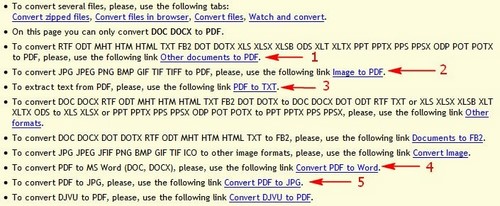
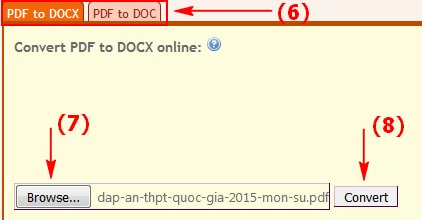
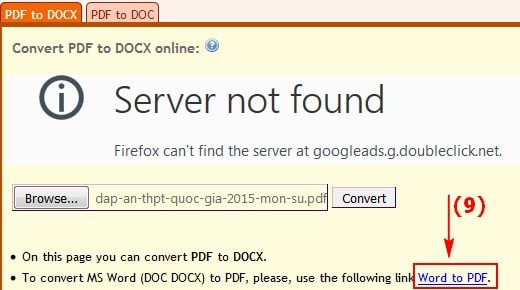
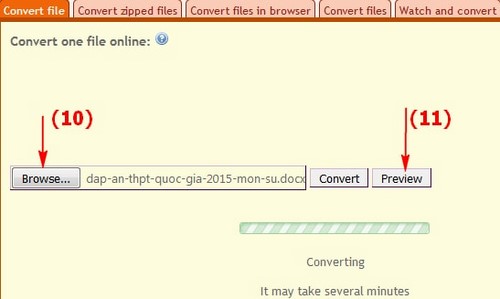
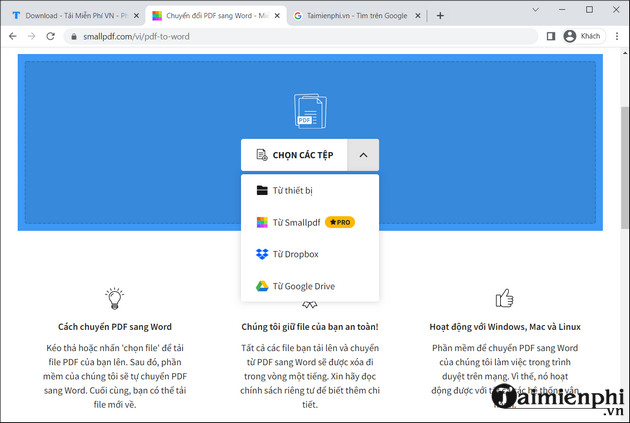
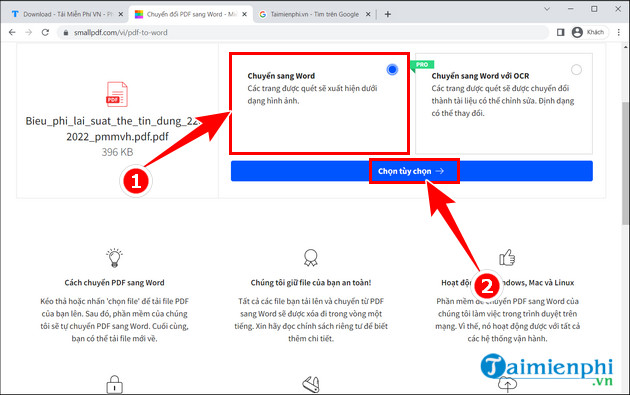
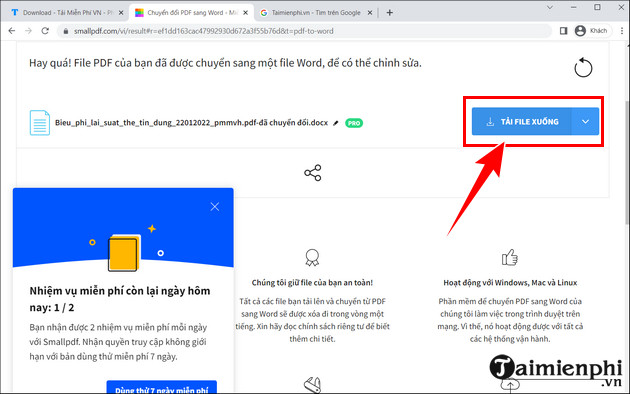
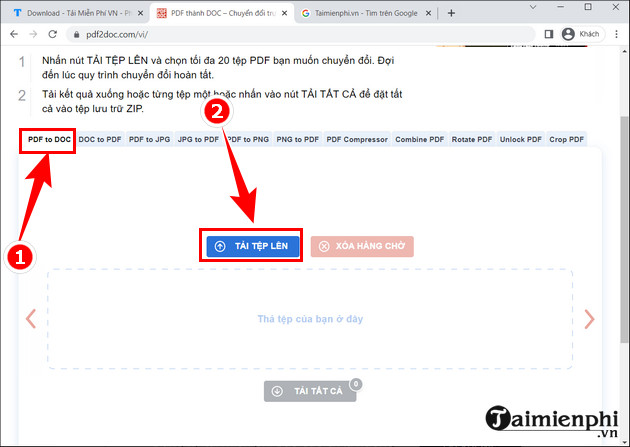
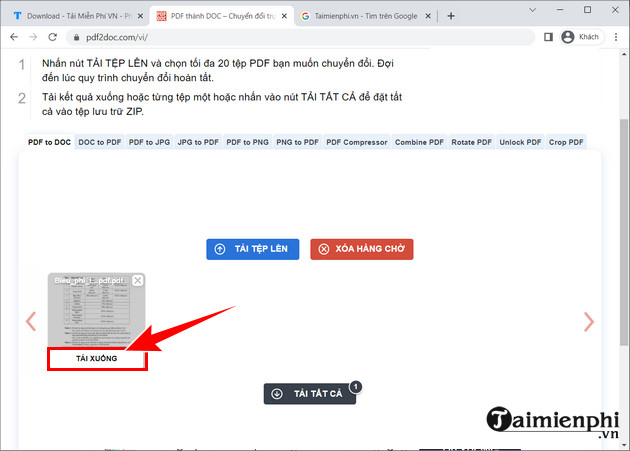
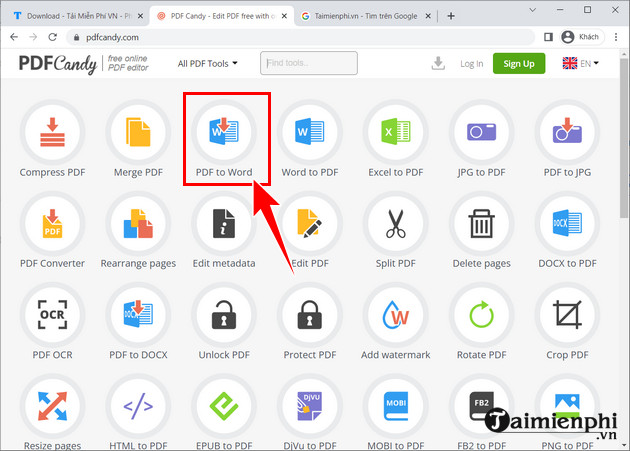
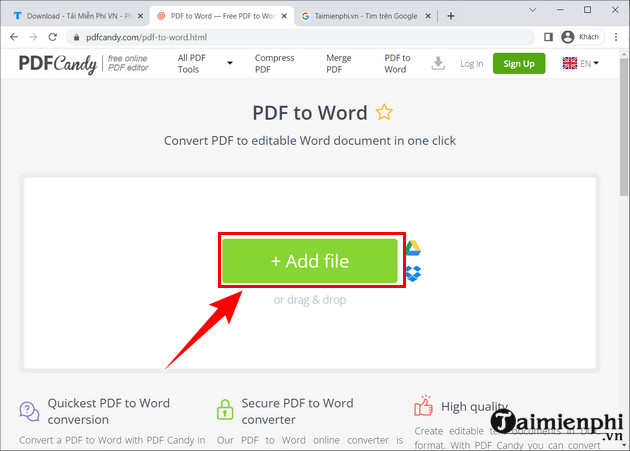
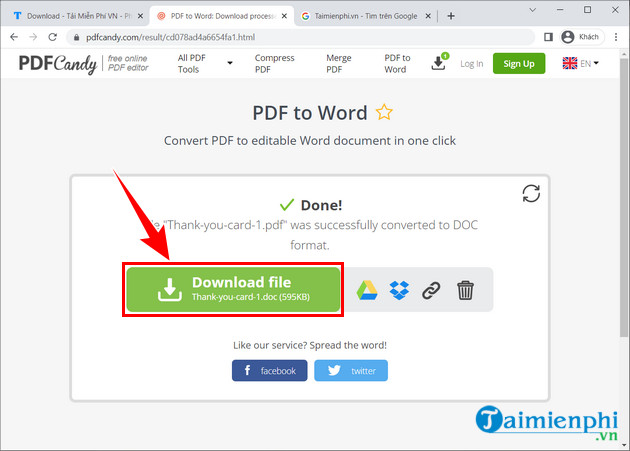
Online converters usually follow the same pattern: upload the PDF, choose Word/DOCX, select OCR if offered, wait for processing, and download the result. The screenshots below show several older interfaces and are retained only as a visual reference; buttons, limits, pricing, and privacy terms may have changed.
Older ConvertOnlineFree workflow
Older Smallpdf workflow
Older PDF2DOC workflow
Older PDF Candy workflow
Older Foxit online workflow
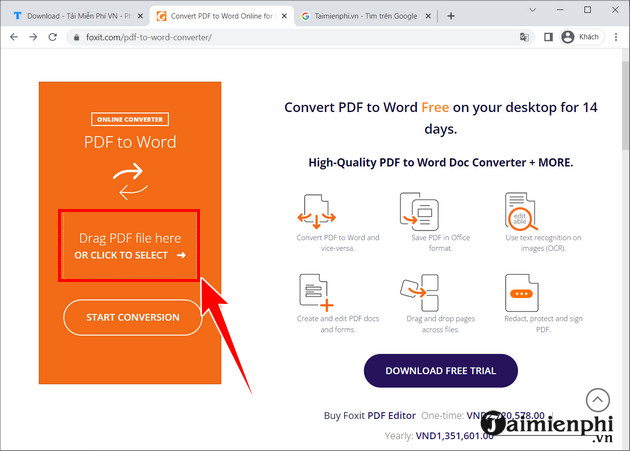
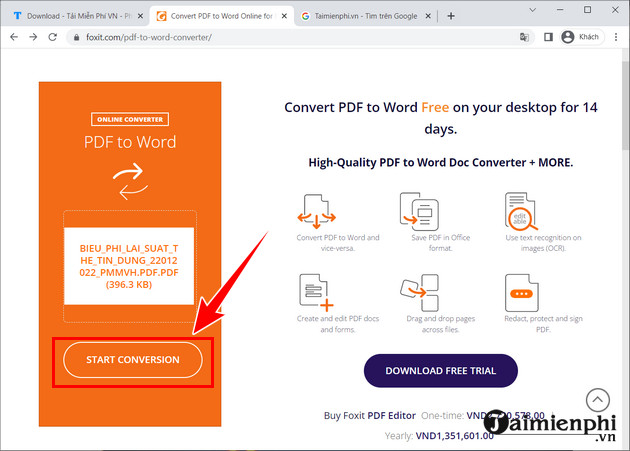
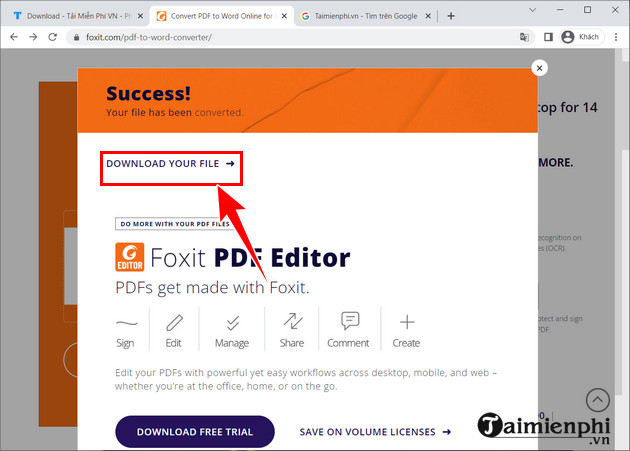
Older ConvertPDFtoWord workflow
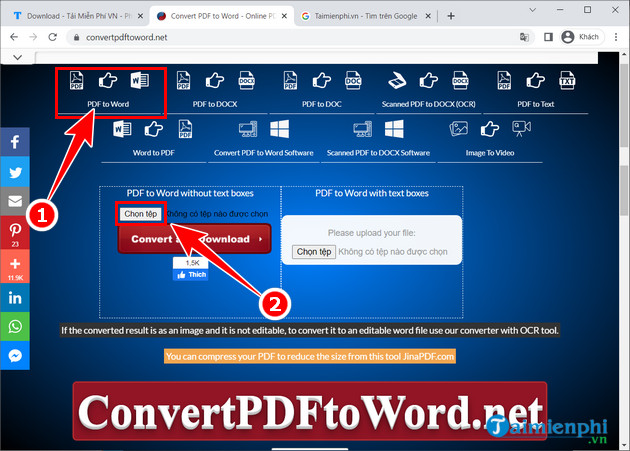
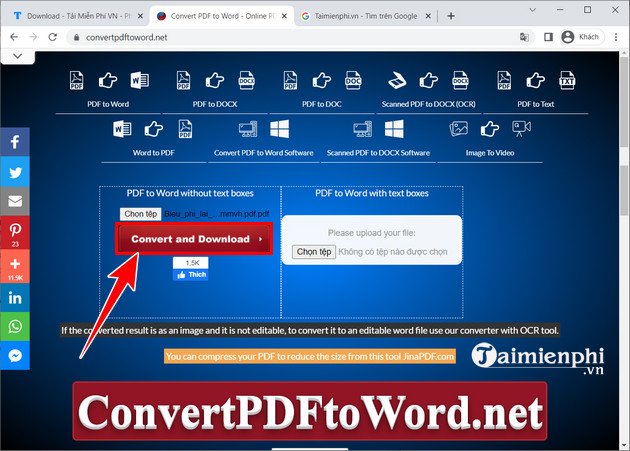
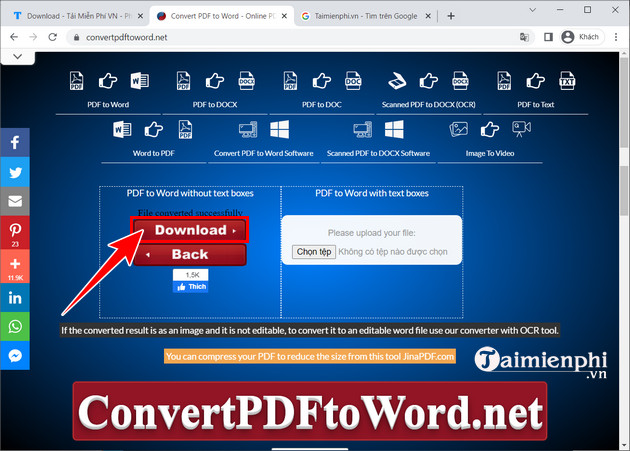
Do not choose a service solely because its old screenshot appears here. Before uploading, verify the current domain, publisher, encryption, file-retention policy, OCR language support, size limits, and whether the download requires payment. Never upload confidential contracts, identity documents, medical records, financial statements, unpublished work, or client data to an unapproved service.
For more current choices and their tradeoffs, compare these PDF-to-Word conversion methods. A desktop tool such as the one covered in the PDFgear overview can avoid sending a document to an unknown web converter, but you should still obtain software from its official publisher and review its permissions.
How to reduce font and character errors
- Start with a clean scan. Use straight pages, even lighting, adequate resolution, and good contrast. Remove shadows and black borders.
- Select the right OCR language. Do not use English-only recognition for a Vietnamese document.
- Preserve the original. Work on a copy and keep the scan available for comparison.
- Use DOCX rather than legacy DOC unless an old system specifically requires DOC.
- Install required fonts legally. A missing font changes appearance; it is different from an OCR character error.
- Review recurring substitutions. OCR can confuse characters such as O/0, I/l/1, rn/m, and accented letters.
- Check tables and columns manually. Reading order and cell boundaries often require correction even when the words are recognized correctly.
For Vietnamese legacy-encoding problems or wrong font mapping, use the focused guide to fix font errors after copying PDF content to Word.
Verify the Word document before using it
- Compare page count, headings, footnotes, names, dates, and totals with the PDF.
- Run spelling checks, but do not accept corrections blindly.
- Check whether paragraphs are real flowing text rather than separate text boxes.
- Inspect headers, page numbers, tables, mathematical notation, and non-Latin characters.
- Remove accidental blank pages and repeated headers inserted into the body.
- Save and reopen the DOCX to confirm fonts and layout remain stable.
There is no guaranteed “font-error-free” conversion
OCR and layout reconstruction are probabilistic. Accuracy depends on the scan, language model, typography, page design, and converter. For a legal, academic, financial, or published document, a person must compare the output with the original. The goal is an editable working copy—not proof that every character is correct.
Related Articles
 How to Convert PDF Files to Word Without Font Errors5 minutes read
 How to Convert PDF to Word Without Font Errors for Free7 minutes read
 How to Fix Font Errors in Word Quickly and Effectively5 minutes read
 How to Fix Font Errors in Images Using Canva AI4 minutes read
 How to Fix Font Errors When Copying from PDF to Word4 minutes read
 How to Fix Font Errors Word, Excel, Transcoding Fonts Super Fast3 minutes read
Reader Comments 0
Sign in with email or Google to join the discussion.