Table of Contents
You can turn a Word document into a PDF on Android or iPhone with the Microsoft Word mobile app. Android uses the system's Save as PDF print destination; iPhone and iPad provide an Export > PDF command. A browser converter is an alternative only for non-sensitive files.
Before converting
- Open the DOCX and let fonts, images, and cloud content finish loading.
- Use Print Layout and check page breaks, tables, headers, and margins.
- If a font is unavailable on the phone, the app may substitute another font and change line wrapping.
- Keep the editable DOCX as the master file; the PDF is a distribution copy.
Method 1: Save as PDF in Word for Android
- Open the Word document in the Microsoft Word mobile app.
- Tap the three-dot or File menu.
- Select Print.
- Open the printer list and choose Save as PDF.
- Tap the PDF/save icon, choose a folder, enter a file name, and save.
The menu can vary with the Word app and Android version. Microsoft's current mobile PDF instructions describe the same platform-specific routes.
Method 2: Export as PDF on iPhone or iPad
- Open the document in Word.
- Tap the three-dot menu.
- Select Export.
- Choose PDF.
- Save to Files, OneDrive, or another approved location.
If Export is missing, update the Word app, confirm the file is editable, and check whether your account or organization restricts the feature.
Older Microsoft Office mobile interface
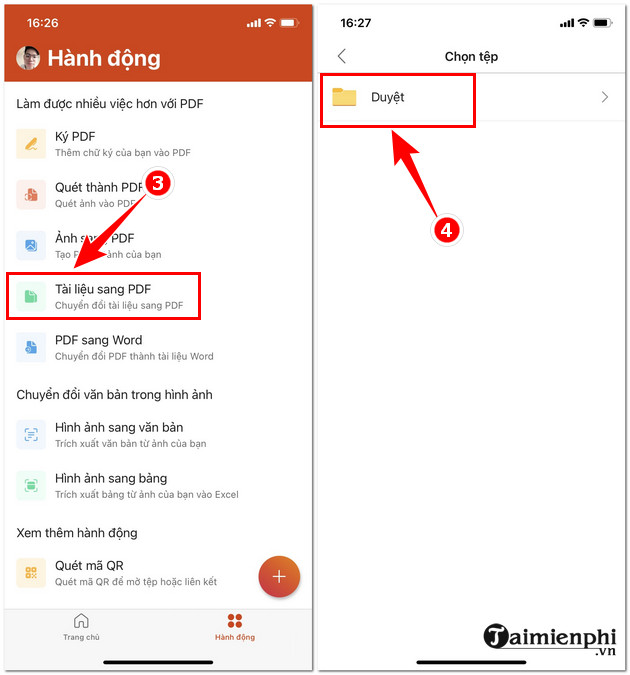
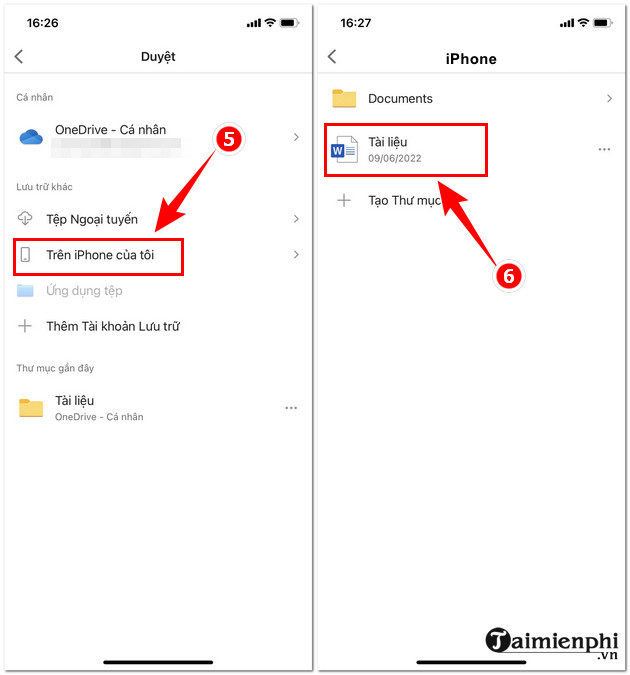
The screenshots below show an earlier combined Office app. Current Microsoft apps may use different navigation, so follow the Android or iOS steps above when the Actions screen is absent.
Open the older Office app and choose Actions.
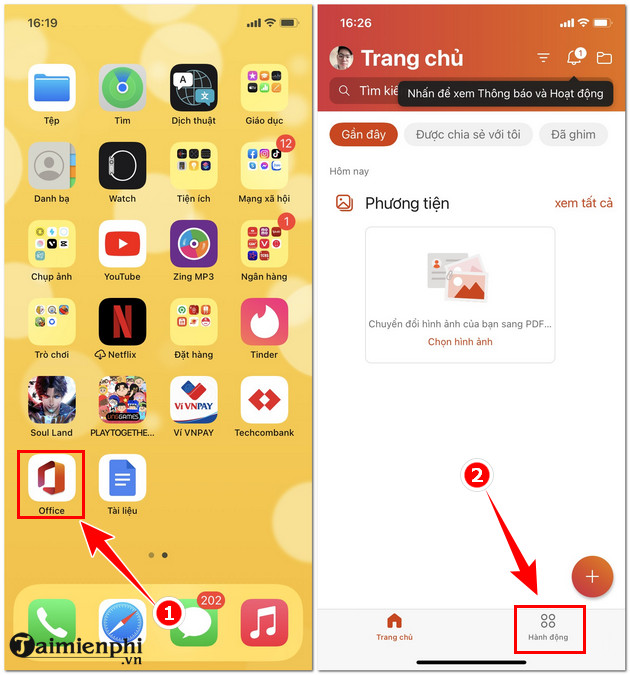
Select the document-to-PDF action and browse for the Word file.
Choose the document from local or approved cloud storage.
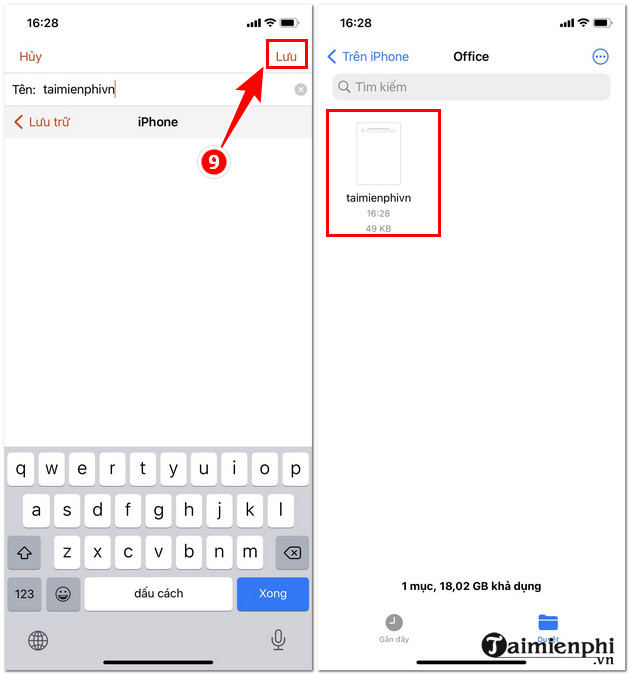
Open the additional menu and use the available save/export action.
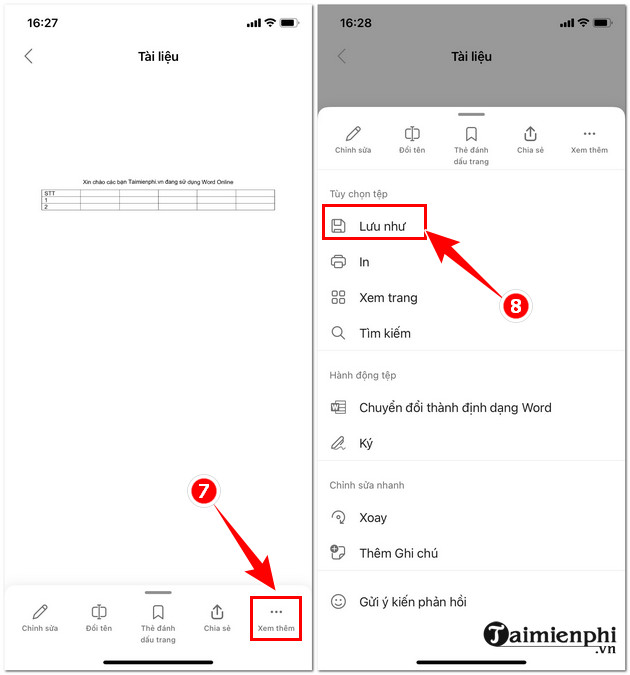
Choose a destination and save the PDF.
Method 3: Use a browser converter
A mobile web converter generally asks you to select a DOC/DOCX file, start conversion, then download the PDF.
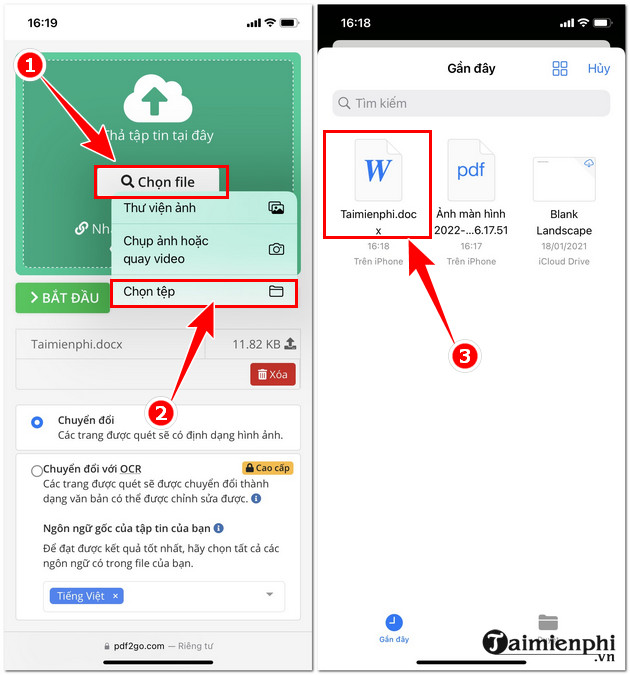
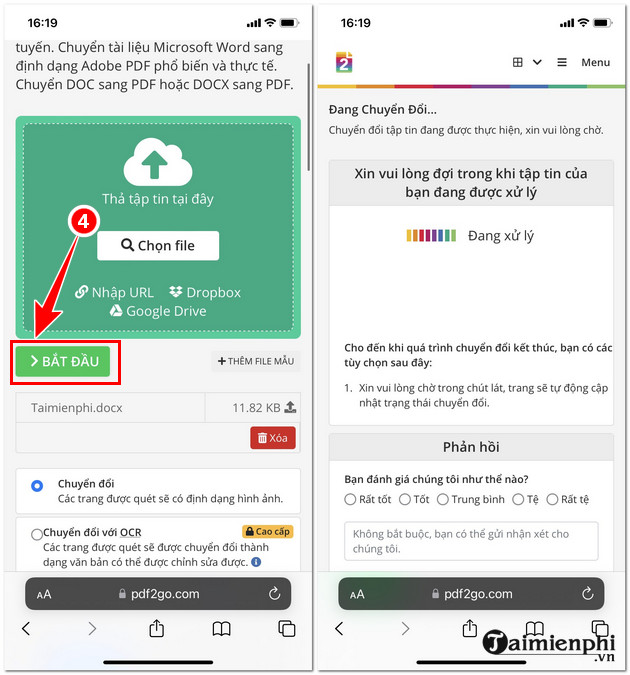
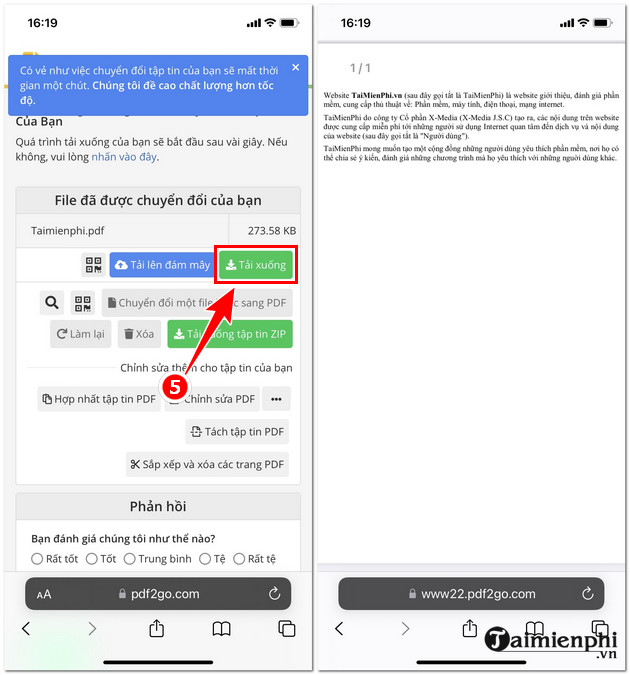
Before uploading, verify the current domain, publisher, price, retention policy, and whether the service stores or analyzes documents. Do not upload contracts, identification, financial records, medical information, client files, or unpublished work to an unapproved converter. A site labeled “free” may impose size limits, ads, or a trial subscription.
Check the PDF before sharing
- Open the saved file and verify its page count.
- Check tables, images, page numbers, headings, and links.
- Zoom in to confirm text is sharp rather than a low-resolution image.
- Confirm that comments, tracked changes, and hidden text are not exposed unintentionally.
- Check the file name and destination before attaching it to a message.
Converting to PDF usually stabilizes page presentation, but it does not guarantee identical output if the mobile app substituted fonts or could not render an object. For the desktop workflow, see how to save Word as PDF. If your source consists of phone photos instead of a Word file, compare the ways to convert JPG images to PDF.
Related Articles
 Convert PDF to Word, Convert PDF Files for Free12 minutes read
 How to Convert Word Files to PDF Beautifully: Practical Guide8 minutes read
 5 Ways to Convert PDF Files to Word4 minutes read
 Tools for Converting PDF to Word8 minutes read
 Add Another Tool to Convert Word Files to PDF for Free: Word to PDF2 minutes read
 Professional PDF File Conversion Software for Word7 minutes read
Reader Comments 0
Sign in with email or Google to join the discussion.