Table of Contents
To create a PDF from a Google Docs document on a computer, open the document and choose File > Download > PDF Document (.pdf). Google Docs generates a separate PDF; the editable source remains in Drive.
Prepare the document before exporting
A PDF preserves the page layout generated at export time, so check the source first:
- Use File > Page setup to confirm pages or pageless mode, paper size, orientation, margins, and page color. Switch to pages if the PDF needs conventional sheets.
- Apply heading styles rather than manually enlarging text.
- Check page breaks, tables, images, footnotes, headers, and footers in Print layout.
- Give hyperlinks meaningful text and add alternative text to important images where possible.
- Resolve suggestions and decide whether comments belong in the deliverable; ordinary PDF export is intended for the document content, not a collaborative review history.
Download a Google Doc as PDF
Open Google Docs or Google Drive and sign in to the correct Google account.
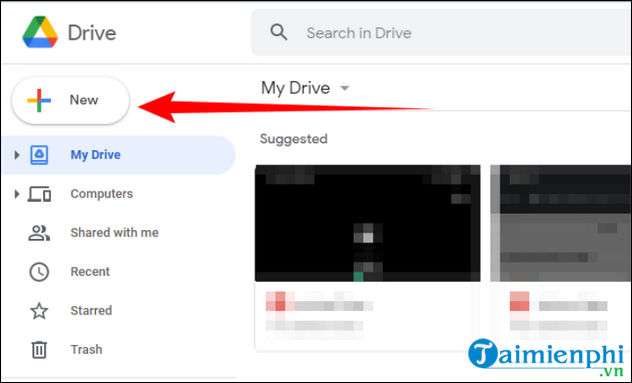
If starting from Drive, select New > Google Docs to create a document, or upload a supported file and open it for editing.
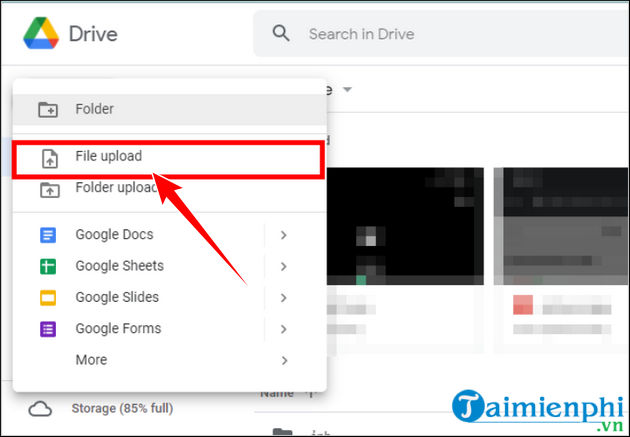
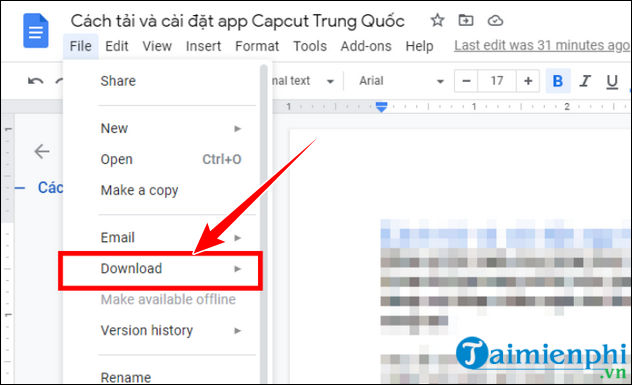
In the open document, select File.
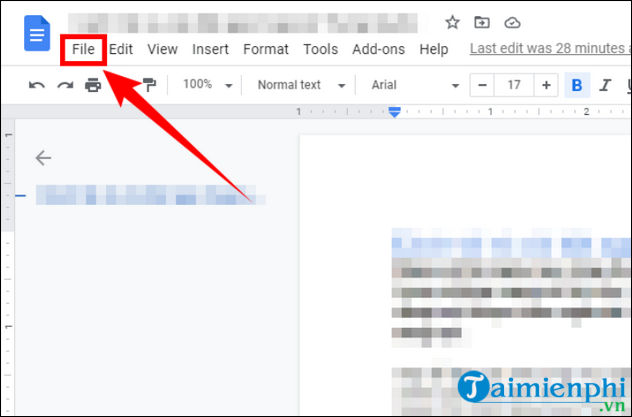
Point to or select Download.
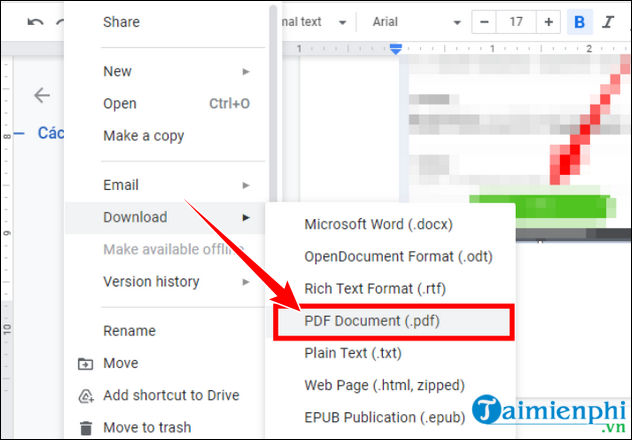
Choose PDF Document (.pdf).
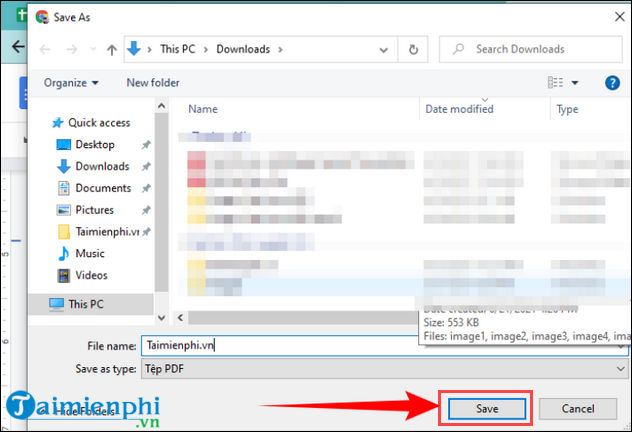
Your browser downloads the PDF. Depending on browser settings, it may save directly to Downloads or ask you to choose a folder and file name.
Check the downloaded PDF
Open the file and inspect the first and last page, page count, table wrapping, cropped images, fonts, links, and blank pages. If a line or object moved, correct the Google Doc and download a new PDF rather than editing both versions separately.
Use the Google Doc as the master source and add a version or date to exported filenames when several PDFs will circulate. For more background on choosing the right master format, compare PDF and editable document formats.
If the PDF will not download
- Confirm the document has finished loading and that you have permission to download it.
- Allow downloads for Google Docs in the browser, then try again.
- Try a private window without extensions that block downloads.
- For a very large or complex document, reduce oversized images or split the source into manageable sections, then merge the exported PDFs if the page-numbering requirements allow it.
- As a fallback, use File > Print and the operating system's Save as PDF destination, but verify links and document structure because printed output can differ from the native export.
If the exported PDF later needs changes and the Google Doc is unavailable, review ways to edit a PDF. When working in Microsoft Word instead, follow the separate steps to save Word documents as PDF.
Related Articles
 Instructions for Dividing and Merging Columns on Google Docs4 minutes read
 Useful Tools to Know in Google Docs6 minutes read
 How to Create a Google Docs Icon on Your Computer4 minutes read
 The Quickest and Most Effective Way to Create Borders in Google Docs5 minutes read
 How to Creating Documents Online Google Docs, Excel4 minutes read
 Google Introduced the New.new Domain Name to Create File Documents Online3 minutes read
Reader Comments 0
Sign in with email or Google to join the discussion.