Table of Contents
Excel 2016 can save a workbook as PDF without additional software. The important part is preparing the print area, scaling, page breaks, and sheet selection before export so columns are not cut off or unwanted worksheets included.
Support note: Office 2016 reached end of support in October 2025. These steps still work on an existing installation, but use a supported Office version for ongoing security updates.
Prepare the worksheet
- Select the intended cells and choose Page Layout > Print Area > Set Print Area if only part of the sheet should be exported.
- Choose the correct Orientation, paper Size, and Margins.
- Use Scale to Fit carefully. Fitting all columns on one page wide is often useful; fitting a long sheet onto one page tall can make text unreadably small.
- Open File > Print and inspect every preview page.
- Set repeated header rows through Print Titles when a table spans multiple pages.
The guide to aligning Excel pages for printing explains these controls in more detail.
Method 1: Save As PDF
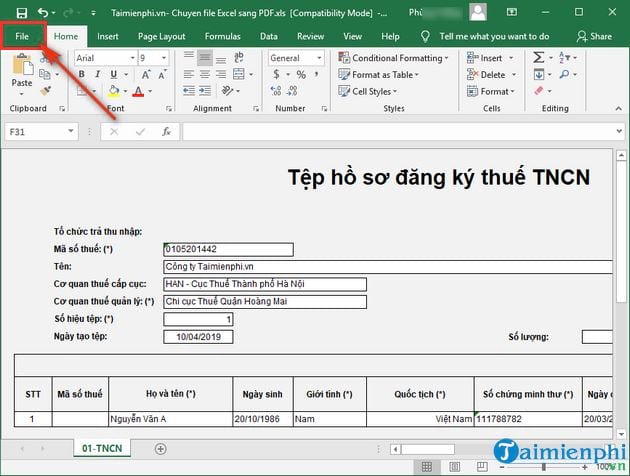
Open the workbook and select File.
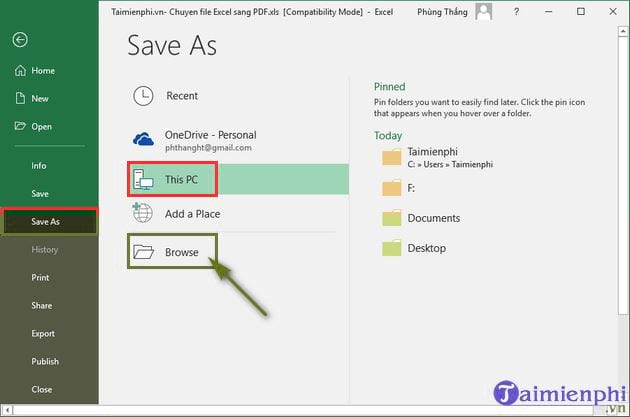
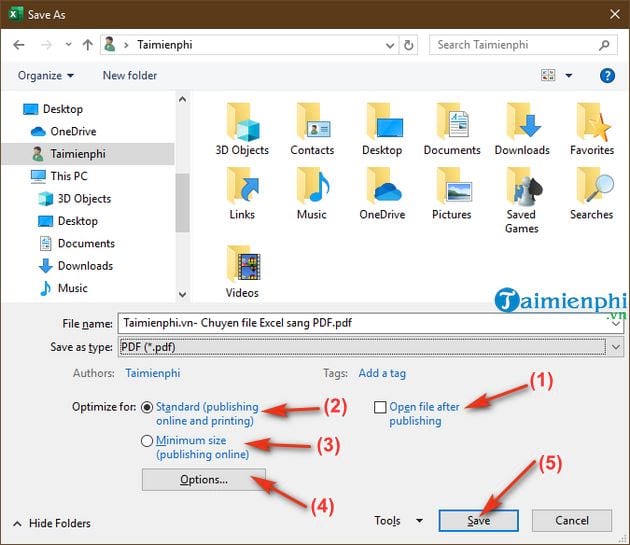
Select Save As, then choose This PC or Browse.
Choose a folder and file name. Set Save as type to PDF (*.pdf).
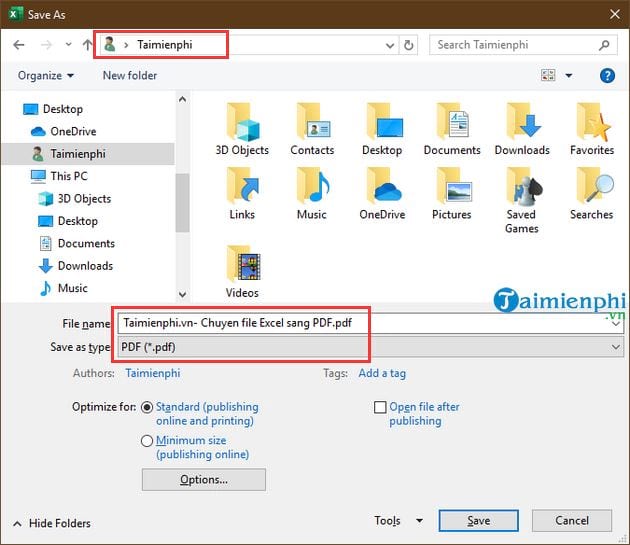
Select Standard for normal printing and viewing, or Minimum size when a smaller file matters more than image detail.
Select Options and choose what to publish: the active sheet(s), selected cells, or the entire workbook. Confirm page range and document properties as needed.
Select Save.
Method 2: Export as PDF/XPS
- Select File > Export > Create PDF/XPS Document > Create PDF/XPS.
- Choose a destination and file name.
- Open Options to confirm the publish range.
- Select Publish.
Save As and Export use the same underlying PDF publishing controls in Excel 2016, so choose whichever route is easier to remember.
Export several specific worksheets
Hold Ctrl and select the required sheet tabs, then export Active sheet(s). Ungroup the sheets afterward by right-clicking a selected tab and choosing Ungroup Sheets; otherwise, later edits can affect several worksheets at once.
What the PDF does and does not protect
A PDF presents the printed output rather than exposing the workbook's formulas and cell structure in the same way as an XLSX file. However, it is not a copyright or data-security control. Recipients can copy visible data, use extraction tools, or edit the PDF with suitable software.
- Remove hidden sheets, comments, personal information, and confidential cells before export.
- Do not assume that excluding a sheet from the PDF removes it from the original workbook—send only the PDF, not the XLSX, when the source must remain private.
- Use approved encryption and access controls when the information is sensitive.
- Check links and metadata in the exported file.
Fix cut-off columns, blank pages, or tiny text
- Columns are cut off: switch to landscape, reduce margins, or set width to one page.
- Text is tiny: do not force both width and height to one page; allow more vertical pages.
- Blank pages appear: clear an outdated print area and remove formatting far beyond the actual data.
- Only one sheet exported: choose Entire workbook or group the intended sheet tabs first.
- Rows split badly: adjust page breaks in View > Page Break Preview.
For an illustrated troubleshooting workflow, see how to save Excel as PDF and prevent Excel PDF content from being cut off. Always open the final PDF and compare its page count, totals, headers, and print quality with the workbook preview.
Related Articles
 Simple Way to Convert Excel Files to PDF: Exel to PDF8 minutes read
 How to Convert Excel Files to PDF Online Using Google Drive2 minutes read
 Simple Way to Convert Excel Files to PDF - Convert Directly or9 minutes read
 Convert Csv to Xls: How to Convert Csv Files to Excel in Bulk6 minutes read
 How to Save Excel Files as PDFs in Office 2010, 2013, 20162 minutes read
 Use Google Docs to Convert MS Office Files into PDF4 minutes read
Reader Comments 0
Sign in with email or Google to join the discussion.