Table of Contents
You can convert a PDF to Word in a browser with Google Drive/Docs or an online converter such as Xodo. Google Docs is useful for extracting simple text, while a dedicated converter usually tries harder to reconstruct the layout. Neither method guarantees a font-error-free DOCX.
Choose the right method
- Mostly plain text: Google Docs may be sufficient, especially when exact page layout is unimportant.
- Tables, columns, images, or forms: use a converter designed to preserve PDF layout, then review the result closely.
- Scanned pages: choose a service with OCR and the correct language.
- Sensitive content: avoid unapproved browser services; use an authorized desktop tool or organizational workflow.
Method 1: Convert PDF text with Google Docs
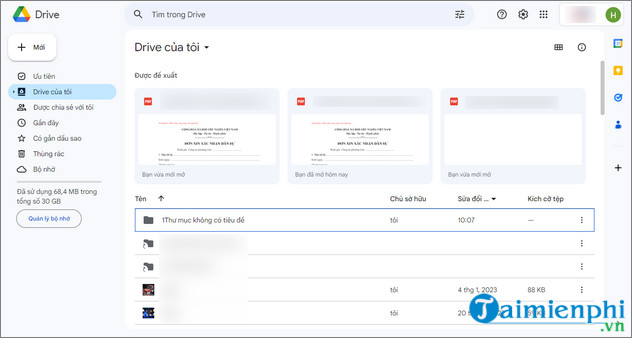
Open Google Drive and sign in to the account where the file should be stored.
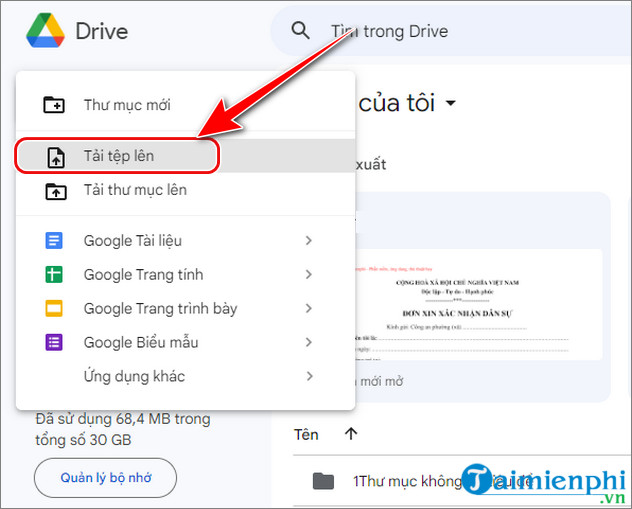
Select New > File upload and choose the PDF.
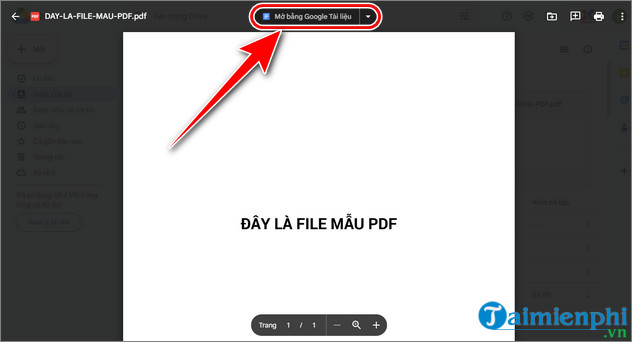
After the upload finishes, right-click the PDF and choose Open with > Google Docs.
Google creates a new Docs document. Compare its text with the PDF, especially names, numbers, accents, columns, and tables.
Select File > Download > Microsoft Word (.docx).
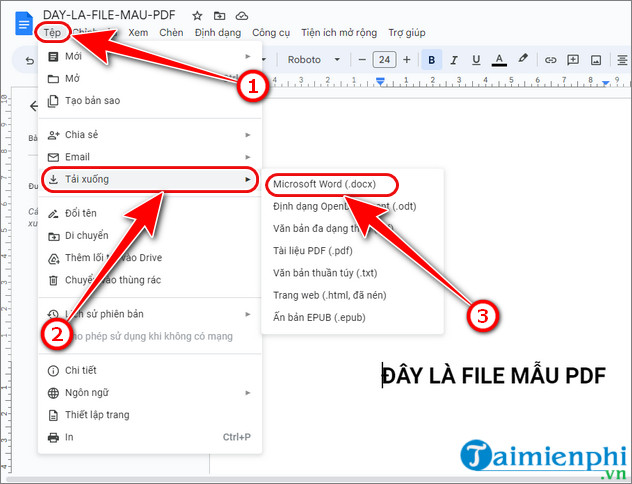
Open the downloaded DOCX in Word or another compatible editor and complete the formatting cleanup.
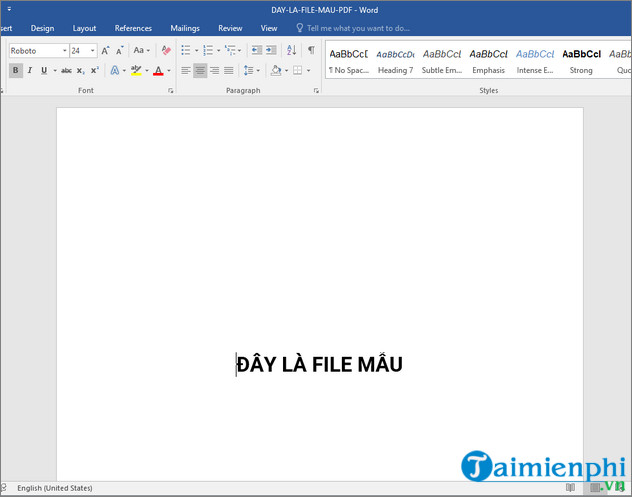
Google Docs may place a page image above extracted text, change line breaks, or lose complex formatting. It is better for content recovery than for reproducing a designed page exactly.
Method 2: Convert with Xodo in a browser
Xodo's current product includes PDF-to-Word conversion and OCR, but free limits, trial terms, account requirements, and paid plans can change. Review the current offer before uploading or subscribing; do not describe it as permanently unlimited and free.
Open the official Xodo PDF-to-Word tool.
Select the PDF from your device or an approved cloud source.
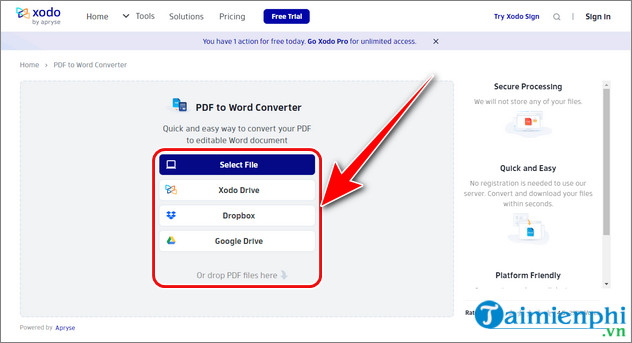
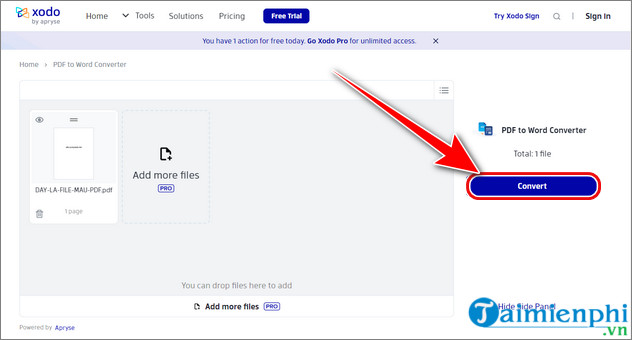
Choose Convert. Scanned files may be processed with OCR; verify the recognized language and output.
Download the DOCX and save it to a controlled location.
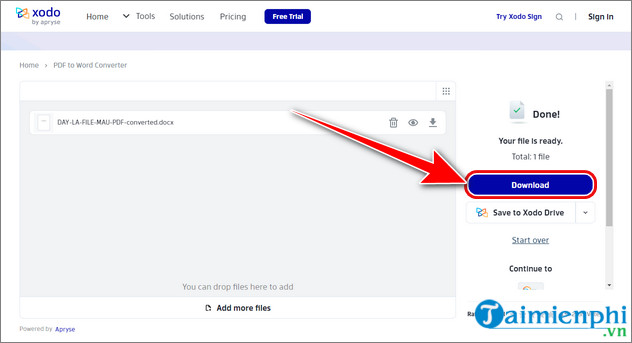
Xodo says that files requiring upload are deleted after a stated retention period, but you should still read the current privacy policy and use organizationally approved tools for confidential information.
Protect private documents
- Remove personal or confidential pages before upload when possible.
- Do not upload passwords, identity records, financial statements, medical information, contracts, or client files to an unapproved site.
- Confirm whether processing occurs locally or on a remote server.
- Delete the source and result from cloud storage if they are no longer needed.
- Beware of look-alike domains and sponsored download buttons.
Check the converted Word file
Review the DOCX side by side with the PDF. Check headings, page order, tables, text boxes, footnotes, hyperlinks, equations, page numbers, images, and any characters that OCR can confuse. Run spelling checks but verify each correction manually.
If a scanned PDF returns only pictures, use the OCR and PDF-to-Word guidance. If the text is editable but garbled, follow the steps to fix PDF-to-Word font errors.
Alternatives
Desktop Word can open many text-based PDFs without uploading them to an online converter. Other local PDF applications provide conversion or OCR with varying licenses. Compare the current PDF-to-Word methods and select based on privacy, scan quality, layout complexity, and how often you perform the task.
Related Articles
 Convert PDF to Word, Convert PDF Files for Free12 minutes read
 Tools for Converting PDF to Word8 minutes read
 Professional PDF File Conversion Software for Word7 minutes read
 How to Convert Word Files to PDF3 minutes read
 Software to Convert PDF to Word Online, PDF to Doc Online8 minutes read
 How to Install PDF to Word Converter on Your Computer Quickly and Simply5 minutes read
Reader Comments 0
Sign in with email or Google to join the discussion.