Table of Contents
A table of figures is an automatically generated list of captioned figures, tables, charts, or equations and their page numbers. It is different from a table of contents, which is built from Heading styles. Word can keep both lists up to date when items move or captions change.
The workflow has two parts: first add a real Word caption to every item, then use References > Insert Table of Figures. Do not type figure numbers manually, because Word will not recognize or renumber them reliably.
Add captions to figures, tables, and charts
- Select the picture, table, chart, equation, or other object.
- Open the References tab and select Insert Caption. You can also right-click a supported object and choose Insert Caption.
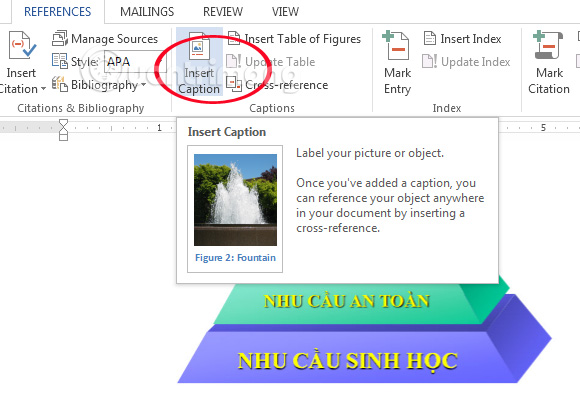
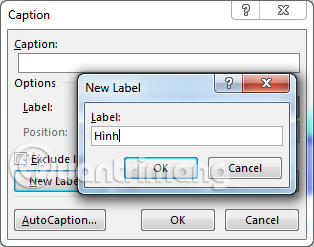
- Choose an appropriate Label, such as Figure, Table, or Equation. Select New Label only when the document needs another category, such as “Chart.”
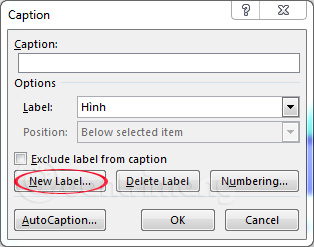
- Choose whether the caption should appear above or below the selected item.
- Type the descriptive caption text after the automatically generated label and number, then select OK.
For consistency, use one label for each category. If some graphics use Figure and others use a custom Image label, Word treats them as separate lists.
Include the chapter number in each caption
To produce numbering such as Figure 2-3, set up chapter headings before adding chapter-aware captions:
- Apply a built-in Heading style, usually Heading 1, to each chapter title.
- Use Home > Multilevel List to associate automatic chapter numbering with that Heading style. Do not type the chapter numbers manually.
- Select the object, choose References > Insert Caption, then select Numbering.
- Enable Include chapter number, choose the heading style that starts each chapter, select a separator, and confirm.
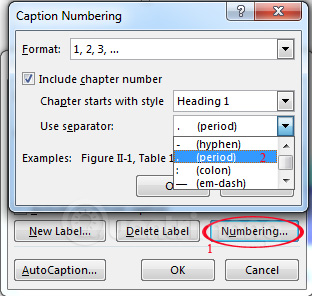
Microsoft's chapter-number caption guide explains why automatic heading numbering is required. If Word displays 0-1 or an incorrect chapter number, check the Heading style and multilevel list rather than editing the caption number by hand.
Format captions consistently
Word applies the built-in Caption style to inserted captions. Modify that style once instead of formatting every caption separately:
- On the Home tab, open the Styles gallery.
- Right-click Caption and choose Modify.
- Set the font, size, alignment, spacing, and other options, then confirm.
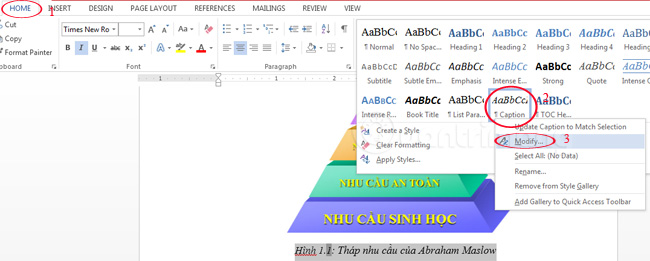
Changing the Caption style updates captions that use the style and keeps new captions consistent. Follow your institution, publisher, or organization's style guide for placement and formatting; there is no single thesis format that applies everywhere.
Insert the automatic table of figures
- Place the cursor where the list should appear, often after the document's table of contents.
- If it needs a new page, press Ctrl+Enter to insert a page break. Do not press the spacebar or Enter repeatedly.
- Choose References > Insert Table of Figures.
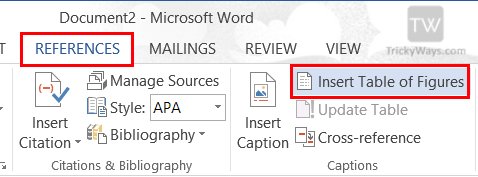
- In Caption label, select the category to include—for example, Figure, Table, or the custom Chart label.
- Choose whether to show page numbers, right-align them, and use hyperlinks. Select a format or adjust the options as needed.
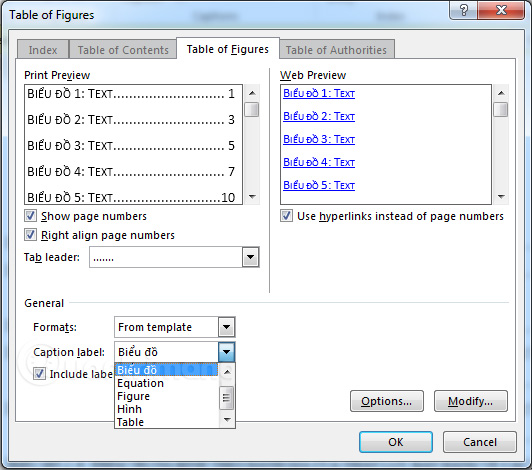
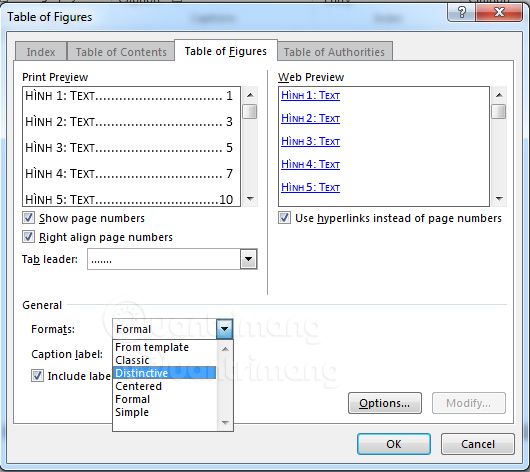
- Select OK. Word scans captions with the chosen label and inserts the list in page order.
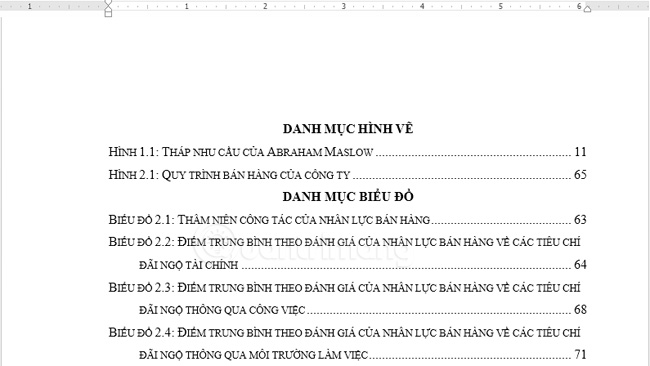
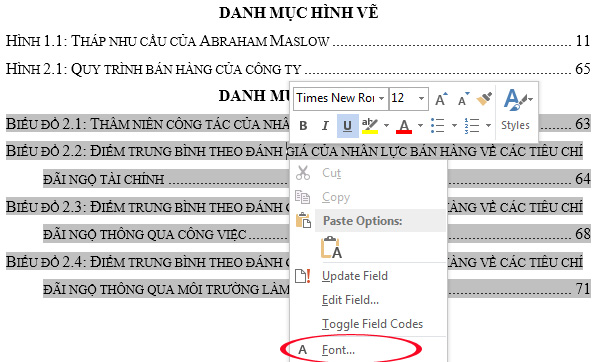
Create a separate table of figures for each label when the document needs distinct lists of figures, tables, and charts. Microsoft's current table-of-figures instructions apply to desktop Word in Microsoft 365 and supported perpetual versions.
If you need a list of chapter and section headings instead, use a table of contents. The broader Microsoft Word guide explains where the References and Captions controls fit into the desktop ribbon. An index in Word is a third, different feature based on marked terms rather than headings or captions.
Update caption numbers and the list
After adding, deleting, moving, or renaming items, update the fields rather than typing over the generated list.
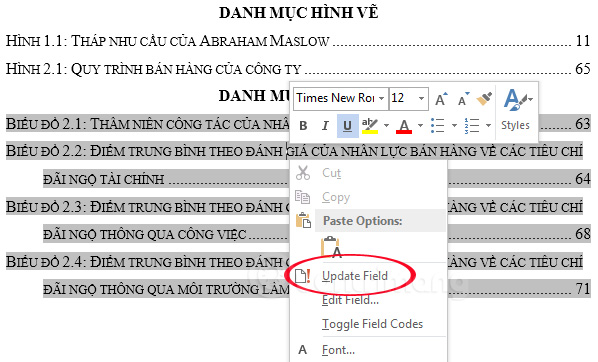
- To update the table of figures, right-click inside it and select Update Field, or click it and press F9.
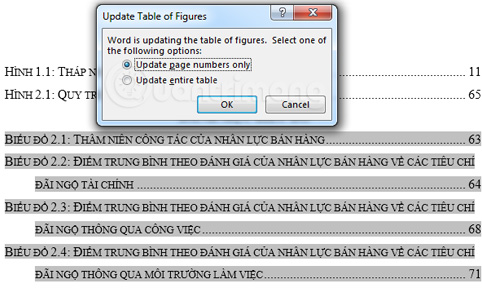
- Choose Update page numbers only when only pagination changed.
- Choose Update entire table when captions were added, removed, or edited.
To refresh all captions, cross-references, and other fields in the document, press Ctrl+A and then F9. Tables containing fields may need to be selected and updated separately. Microsoft's field-update reference also explains how to update fields before printing.
Fix common table-of-figures problems
- An item is missing: make sure its caption was created with Insert Caption and uses the same label selected for the list.
- The list shows only some categories: a table of figures includes one caption label at a time. Insert separate lists for Figures, Tables, and custom labels.
- Numbers are out of order: press Ctrl+A, then F9. Avoid manually editing generated sequence numbers.
- Chapter numbers are wrong: apply automatic multilevel numbering to the selected Heading style and update all fields.
- Field codes appear, such as
{ SEQ Figure }: press Alt+F9 to toggle from field codes to their results. - Formatting changes disappear: modify the Caption style for captions and the appropriate table-of-figures style for the generated list instead of applying one-off formatting.
- A figure and caption separate when moved: use an appropriate text-wrapping layout and group the object with its caption when Word permits it. See Microsoft's caption formatting guidance.
When referring to a figure from the body text, insert a Word cross-reference instead of typing “Figure 4” manually. The reference will update when caption numbers change.
Related Articles
 How to Create an Automatic Table of Contents in Word 2019/2016/2010/200712 minutes read
 How to Create Automatic Table of Contents in Word 20164 minutes read
 Create Automatic Table of Contents in Word for Word 2007, Word 20106 minutes read
 How to Creating a Table of Contents Automatically in Word3 minutes read
 How to Create Automatic Table of Contents Effectively in21 minutes read
 Create Automatic Table of Contents in Word 20039 minutes read
Reader Comments 0
Sign in with email or Google to join the discussion.