Table of Contents
By mid-2026, personalizing your online presence will go beyond just ordinary selfies. The trend of creating AI- powered images with a "breakthrough screen" effect is becoming a sensation on social media platforms.
By using ChatGPT and its built-in image modeling, you can transform a flat profile into a vibrant 3D space, where the subject appears to step out into real life through shattered glass. Follow the instructions below and you'll have the perfect "pierced" profile picture.
Detailed guide on creating "piercing" images for your profile page using AI ChatGPT
To create this artwork, you will need two main components: a portrait or profile picture of yourself and a screenshot of your Facebook profile page. Note that you can blur or adjust the display settings for necessary information if you don't want to reveal personal information on the page.
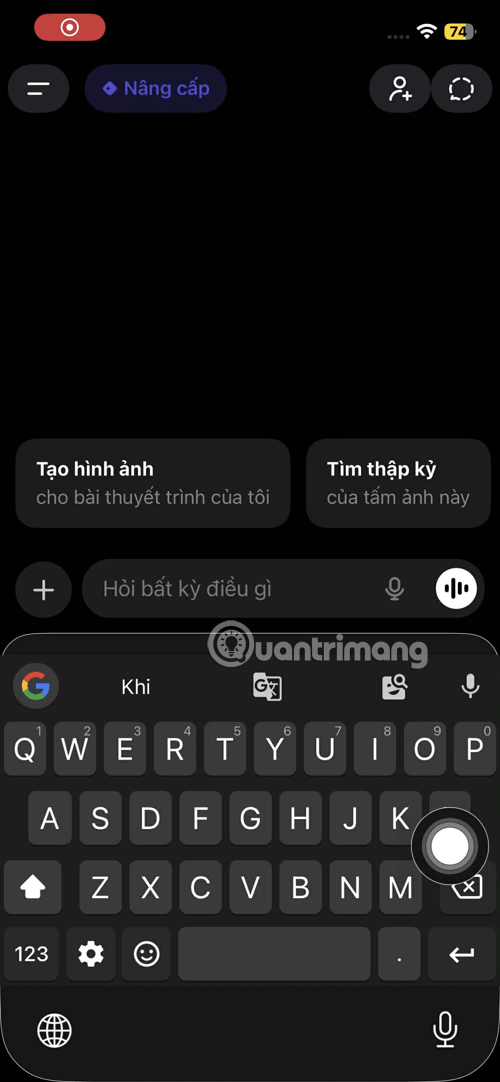
Step 1: Upload the source image to ChatGPT
Open the ChatGPT app on your phone. Tap the plus (+) icon to select images. You should select both a portrait photo and a screenshot of your profile page so that the AI has the most accurate data for comparison.
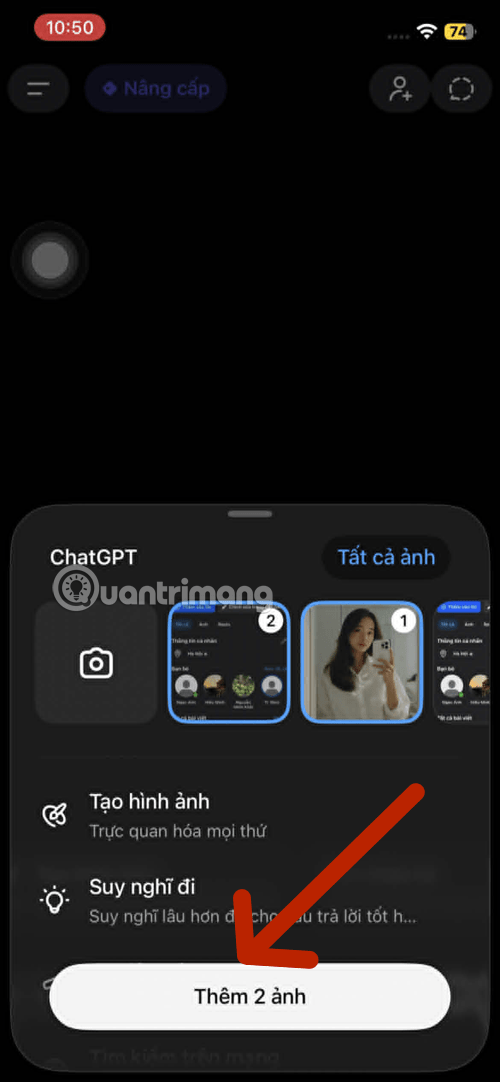
Step 2: Use a dedicated prompt
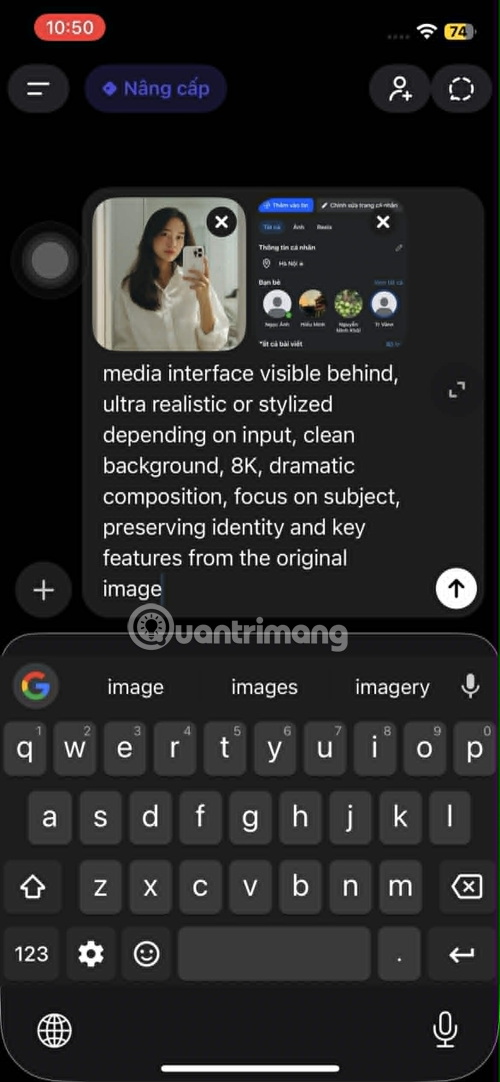
After uploading the image, paste the following prompt into the chat box to give commands to the AI:
A subject emerging out of a Facebook profile page displayed on a large smartphone screen, breaking through the screen with cracked glass and flying debris, dynamic forward motion, one part of the subject still inside the screen and one part outside, strong depth perspective, cinematic lighting, realistic shadows, motion blur particles, high detail, social media interface visible behind, ultra realistic, clean background, 8K, dramatic composition, focus on subject, preserving identity and key features from the original images.
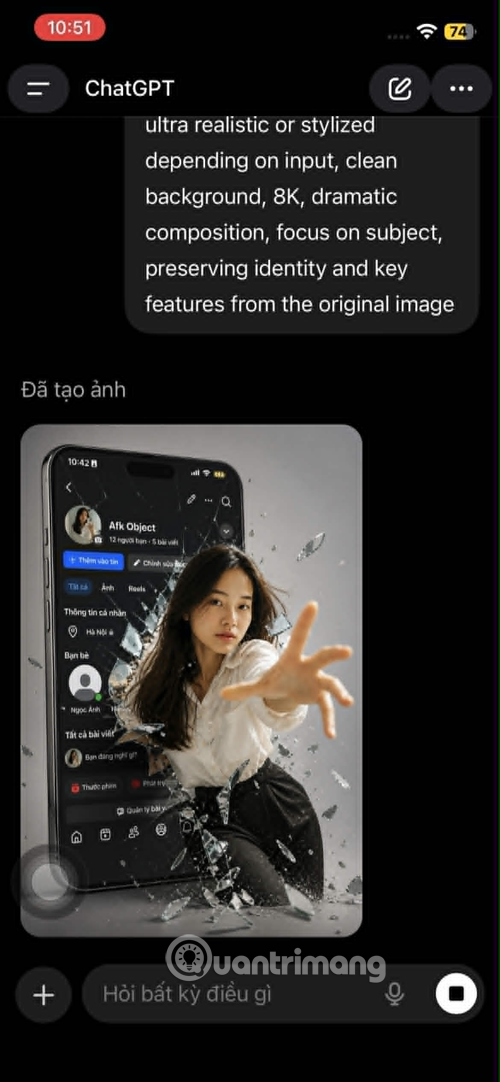
Step 3: Receive results and make adjustments
The AI will take a few seconds to process and output the image. If the subject doesn't look like you or the Facebook interface is incorrect, you can ask the AI to adjust the minor details until you are satisfied.
Step 4: Save and share
Once you're satisfied with the artwork, simply press "Save" to download the image to your computer in the highest resolution.
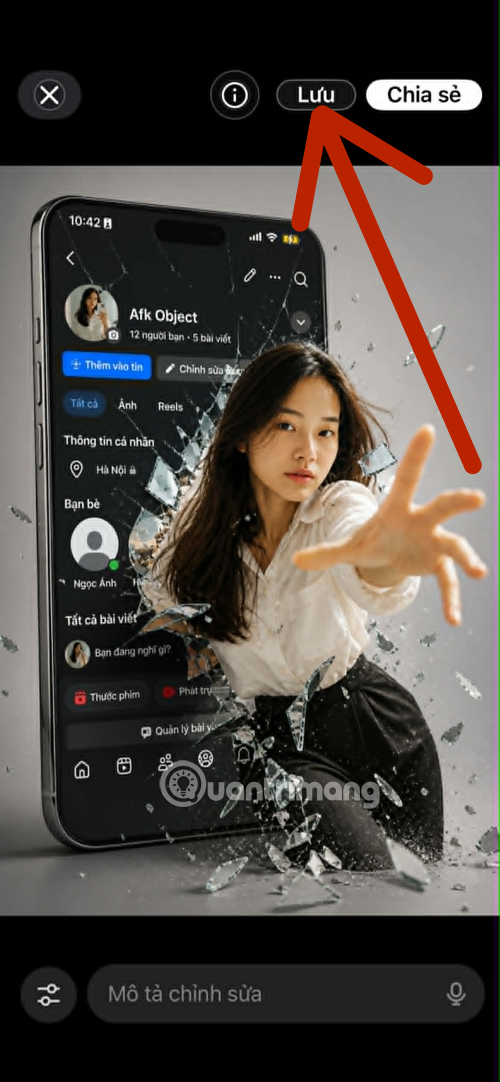
Prompt suggestion for creating images with a pierce-through effect on your profile page
If you want a slightly unconventional style instead of a realistic one, try changing the "Stylized" section in the prompt using these three suggestions:
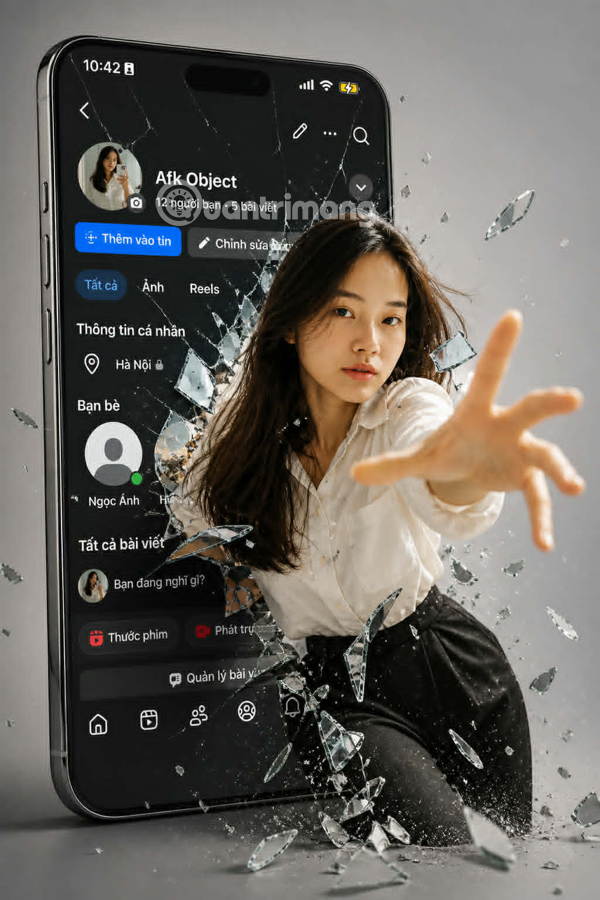
1. Japanese Anime/Manga Style
"A subject emerging out of a Facebook profile page on a smartphone screen, breaking through with cracked glass. Style: High-quality modern Anime, vibrant colors, cel-shaded, expressive features , dynamic forward motion, debris and energy particles, 8K, cinematic lighting, preserving key identity features from original photos."
2. Oil Painting Style
"A subject emerging out of a Facebook profile page on a smartphone screen, breaking through with shards of glass. Style: Impasto Oil Painting, thick brushstrokes, rich textures, dramatic chiaroscuro lighting , artistic debris, dynamic motion, maintaining subject's likeness from the provided images, 8K resolution."
3. 3D Animation Style (3D Render/Pixar Style)
"A subject emerging out of a Facebook profile page on a smartphone screen, breaking through the screen. Style: Stylized 3D render, Pixar-inspired, smooth surfaces, large expressive eyes, soft cinematic lighting , cute but dynamic debris, realistic shadows, focus on subject's identity, 8K, clean background."
Some tips for taking the best photos
- Screenshot quality: Make sure the screenshot of your profile is clear, showing your full name and profile picture so that the AI can accurately recreate it.
- Portrait lighting: Your original photo should have clear lighting, neither too dark nor too bright, so that the AI can recognize faces more easily.
Related Articles
 How to Create a Photo Collage on a Facebook Profile4 minutes read
 How to Disable Facebook Personal Page3 minutes read
 How to 'Hack' Facebook Profile8 minutes read
 What Is Shadow Profile on Facebook? Explained7 minutes read
 How to Create Avatar Halloween Facebook4 minutes read
 How to Turn On Facebook Profile Picture Guard Safely10 minutes read
Reader Comments 0
Sign in with email or Google to join the discussion.