Table of Contents
Quick Overview
Change Facebook Phone Number : Follow this practical guide to change Phone Number on Facebook Computer, Phone, including How to change Facebook phone number Android, iOS and How to change phone number on Facebook computer.
Current users are required to add an account number to confirm their Facebook identity and enable 2-layer Facebook security. And the phone number added to your Facebook account can change when you change or lose your previous phone number. After changing, the OTP verification code will be sent to the new number, making it convenient to manage and secure your Facebook account. Below are instructions for changing your phone number on Facebook.
How to change Facebook phone number Android, iOS
Step 1:
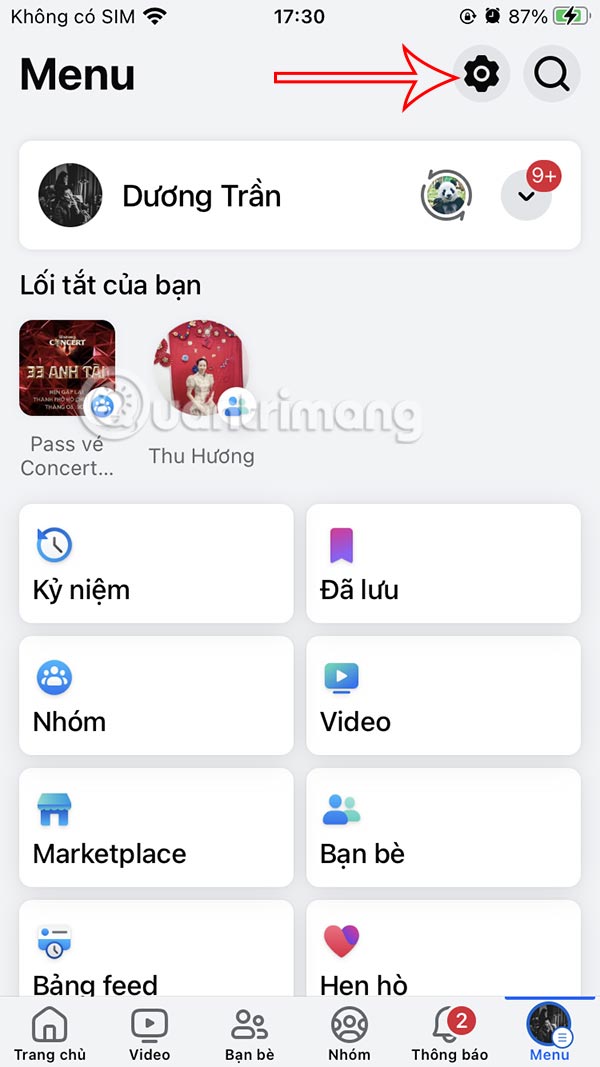
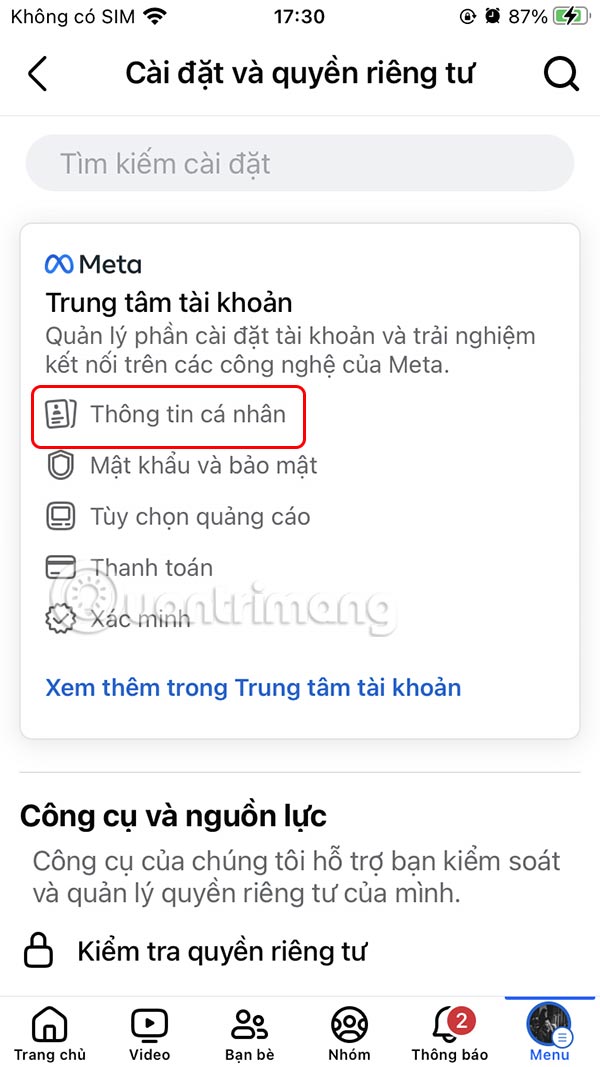
At the Facebook interface, click on the 3 dashes icon and then select the gear icon . Switch to the new interface, the user clicks on Personal Information .
Step 2:
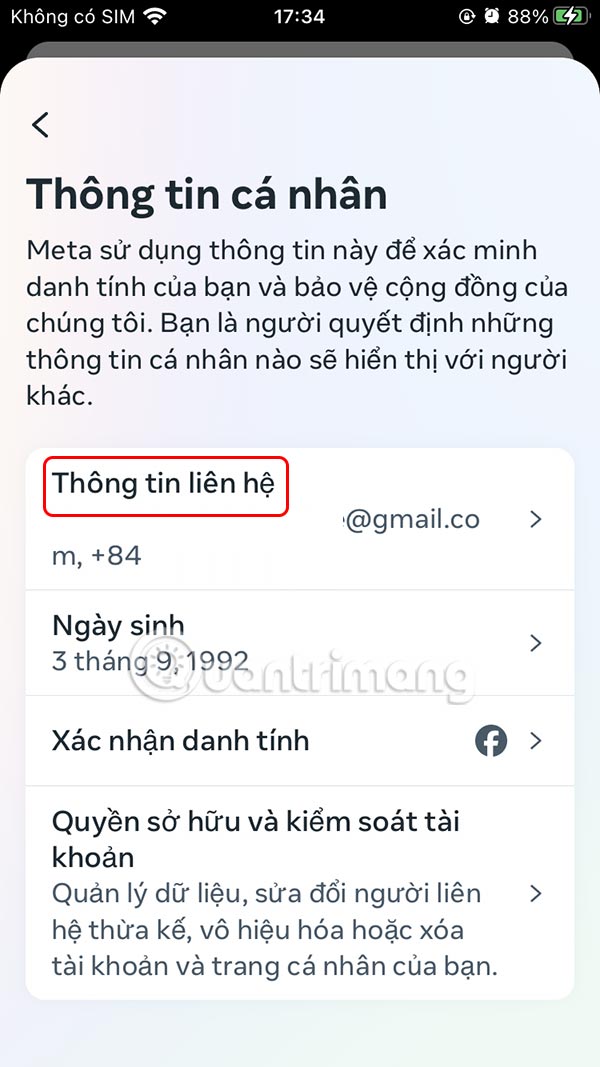
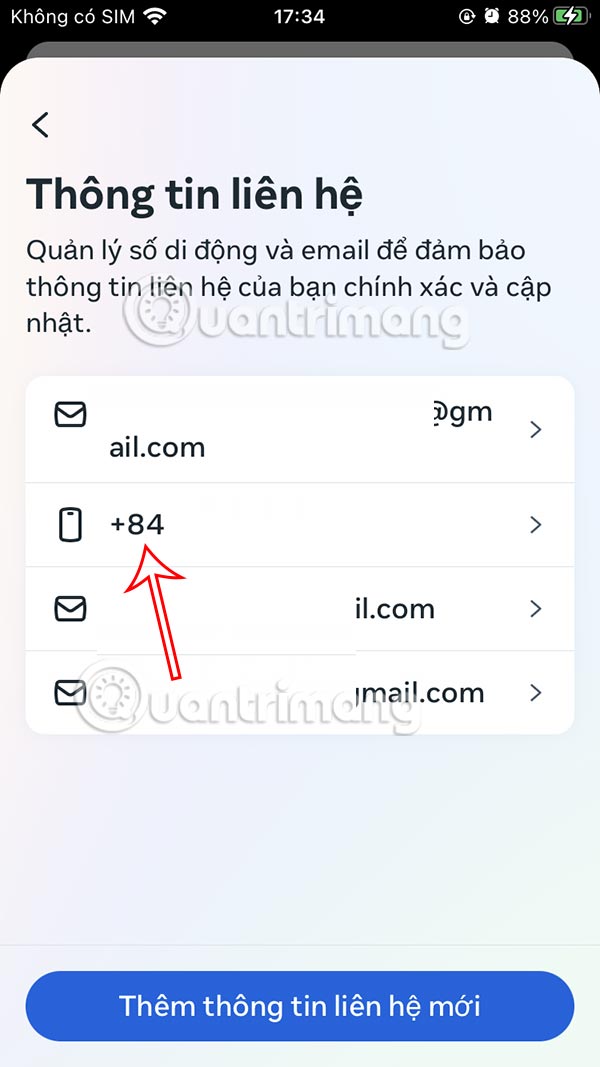
Switch to the new interface, the user clicks on Personal Information to adjust. Here, click on Contact Information to change. Click on the phone number line added on Facebook to change to the new number.
Step 3:
We will click on the Confirm Number option.
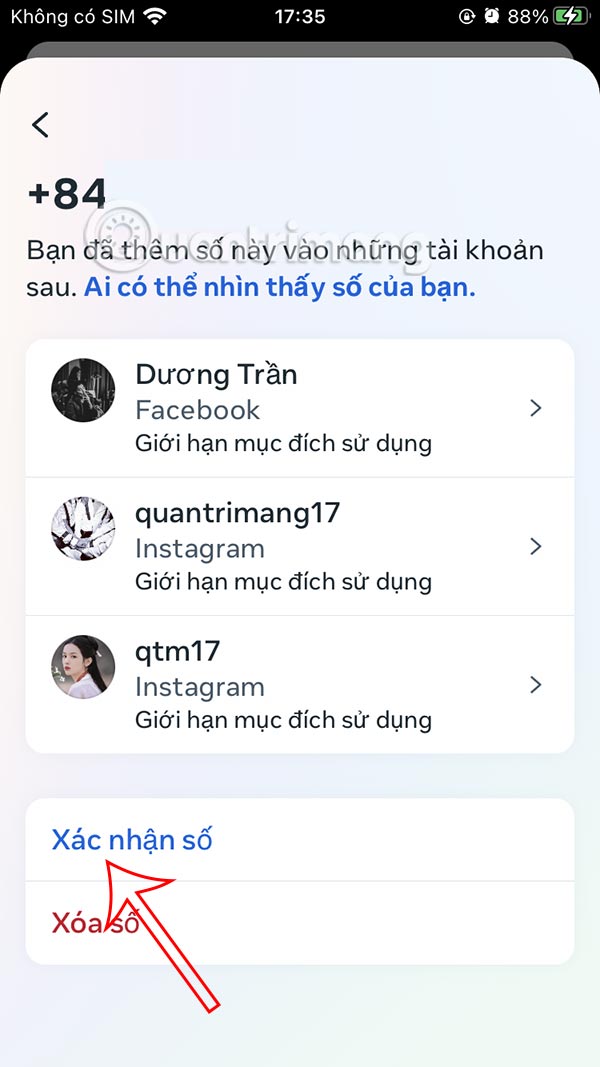
Step 4:
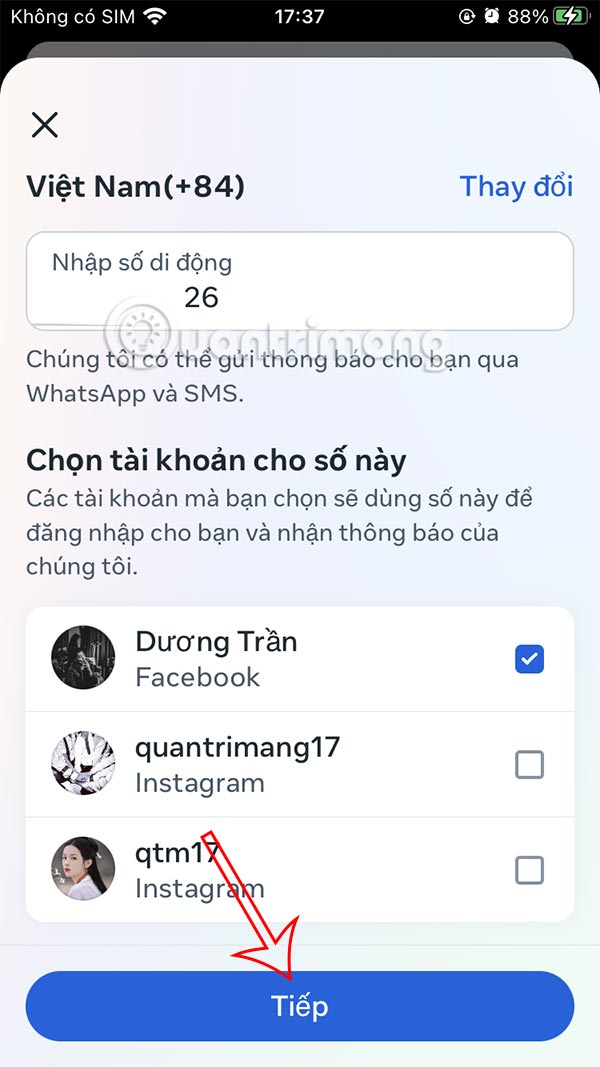
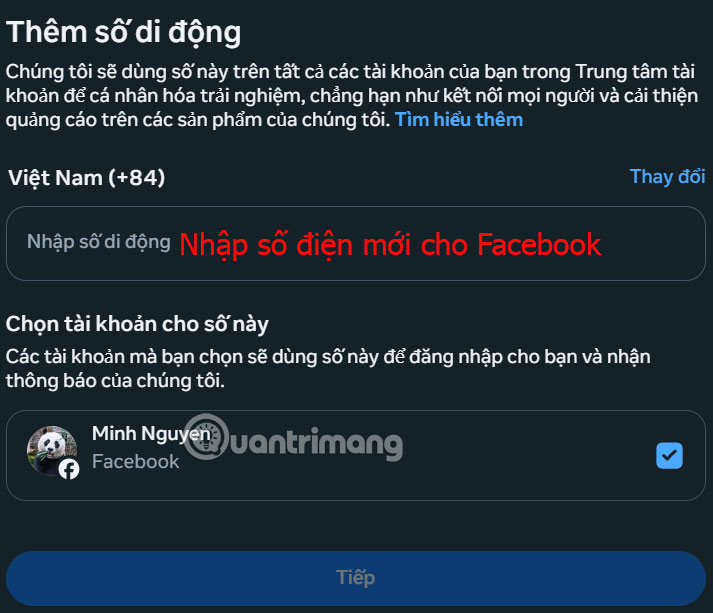
Now you delete the old phone number and enter a new phone number . Select the Facebook account below to use this new phone number.

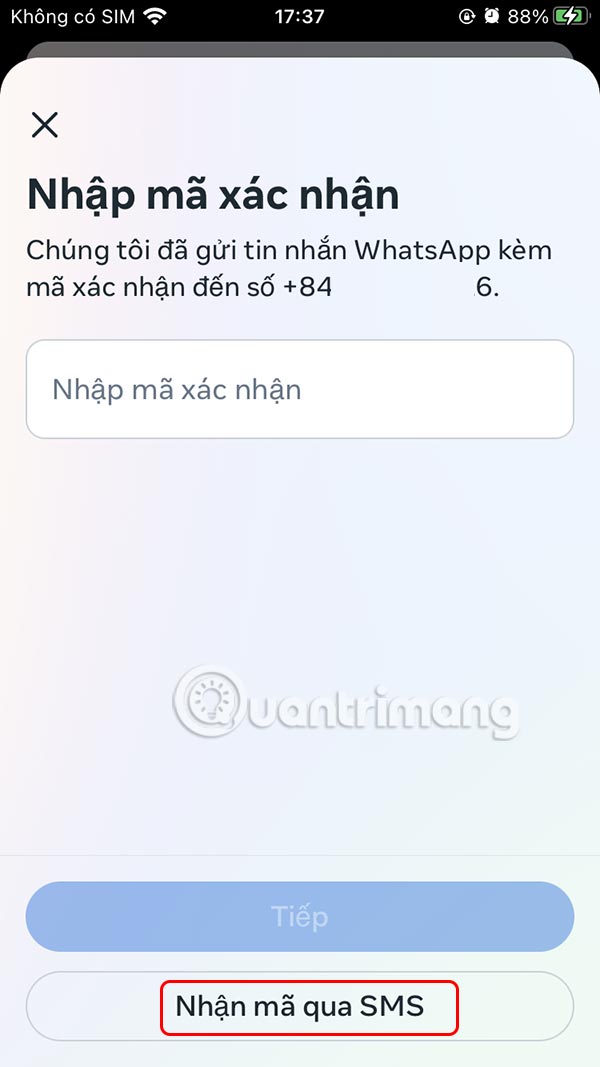
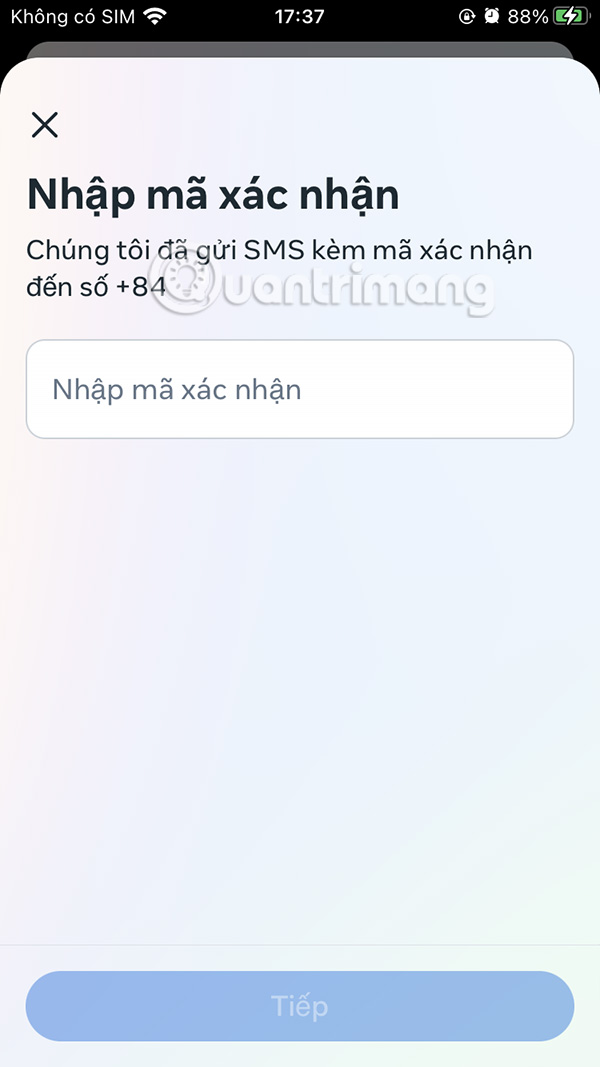
Finally, enter the confirmation code sent to the registered WhatsApp account using that new phone number, or click Receive via SMS code to change the method.
How to change phone number on Facebook computer
Step 1:
On the Facebook computer interface, users click on the avatar and select Settings & privacy .
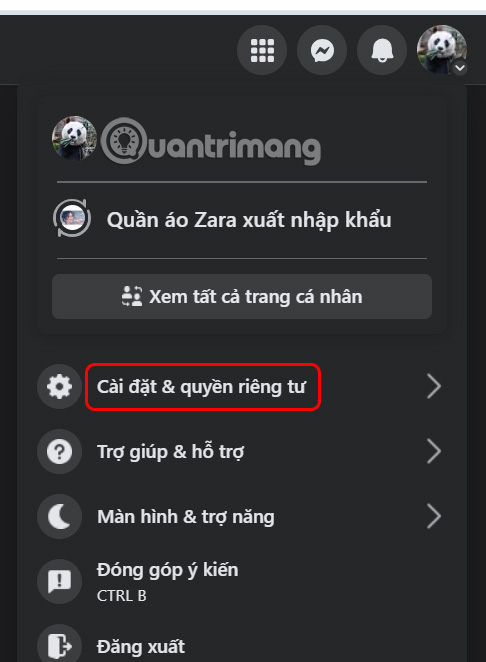
Continue to click on Display Settings in the display menu below.
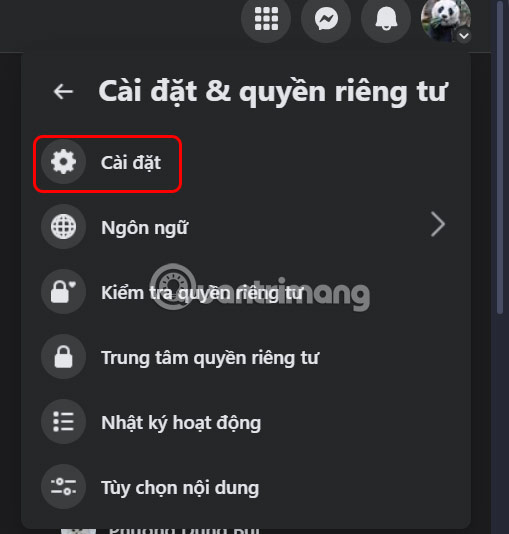
Step 2:
Continuing on the management interface, the user clicks on Personal Information to adjust.
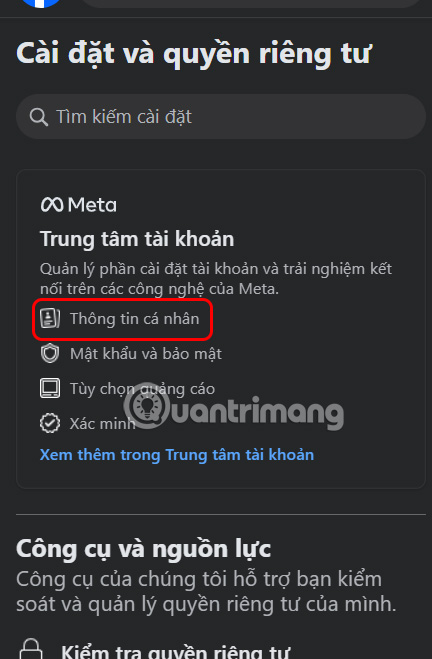
In the interface as shown, the user clicks on Personal Information .
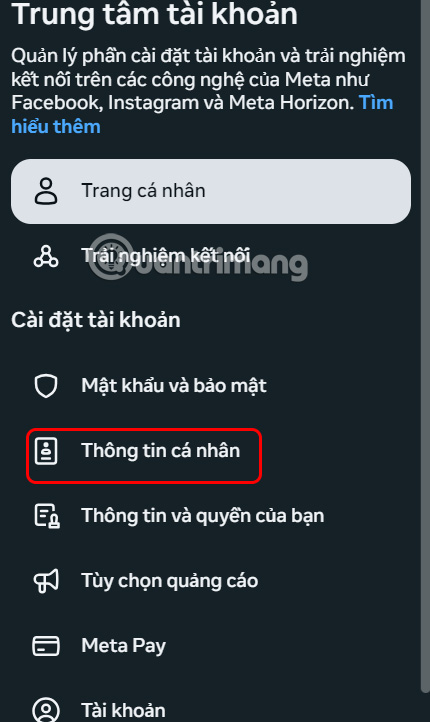
Step 3:
Look at the interface next to you and click on Contact Information .

We will click on the phone number to change.

Step 4:
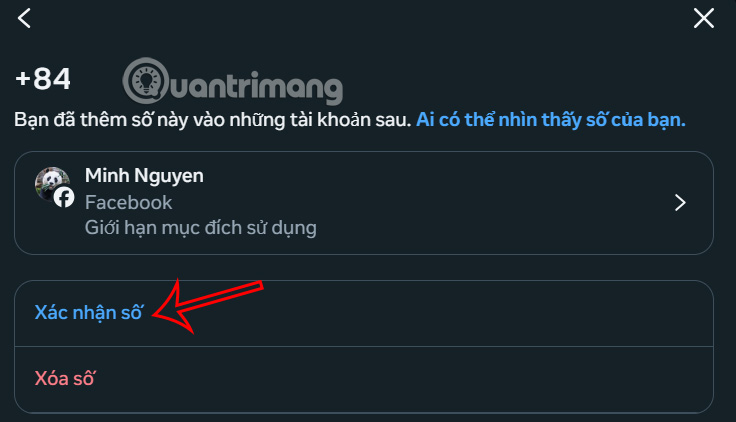
Click on Confirm number to change your Facebook phone number.
Here we enter the new phone number and then click on the Facebook account below to enter the phone number, click Next.
Finally, enter the confirmation code sent to complete changing your Facebook phone number.

FAQ About Change Facebook Phone Number
What should you prepare before you change Phone Number on Facebook Computer, Phone?
The phone number added to your Facebook account can be changed when you change or lose your previous phone number. After changing, the OTP verification code will be sent to the new number, convenient for Facebook management and security
What should you do if change Phone Number on Facebook Computer, Phone does not work?
Understanding Change Facebook Phone Number helps you evaluate its benefits, limitations, and potential risks before making a decision.
How can you get better results when working with Change Facebook Phone Number?
Select the Facebook account below to use this new phone number
Related Articles
 How to Change Phone Numbers on Facebook4 minutes read
 How to Deleting Facebook Phone Numbers4 minutes read
 How to Rename Facebook on the Computer: Change Facebook Name3 minutes read
 How to Rename Facebook on the Phone4 minutes read
 How to Sign in to Facebook with a Phone Number: Login Facebook4 minutes read
 Change Your Facebook Password on Your Phone, How to Change Mk Fb5 minutes read
Reader Comments 0
Sign in with email or Google to join the discussion.