Table of Contents
Learning how to block phone numbers or messages on galaxy s9 / s9 + is easier when the steps are completed in the correct order. Use this guide to prepare, make the changes, and verify the result.
- How to block any call on your Android phone
- How to filter and block spam calls on iPhone
- Top 5 apps that help you block spam calls on Android
Method 1: Block the phone number from the call log
How Block Phone Numbers or Messages on Galaxy S9 / S9 + Works
If you do not want to receive calls or messages from a certain phone number, you can block that phone number. When this number tries to call you, your phone will automatically reject the call.
Step 1:
Open the phone application on the device and scroll to the Call log icon - which stores all incoming and outgoing calls. Here, click the phone number you want to block and click Details In the menu that appears right below.

Step 2:
A new window appears showing that you are on the contact details page, now click the Block number Button in the bottom right corner of the screen. Continue, click Block , the phone number will no longer be able to contact you, including calls and text messages.

Method 2: Block phone numbers by manually entering
If the number wants to block you from calling or texting, you can apply this second method to deal with it before blocking it through the built-in blacklist.
Step 1:
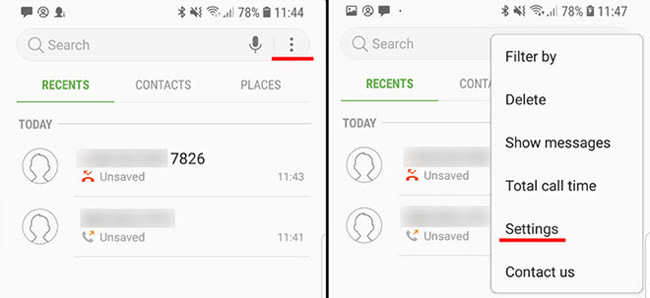
To block this phone number manually, go back to the phone application and go to the internal menu by tapping the 3 dots icon in the upper right corner.
Step 2:
In the menu that appears, search for the Block numbers Section in the Call settings Section . Click it and enter any phone number you want to block on Galaxy S9 / S9 +. Here you can also unblock the phone number that you blocked at the beginning of the tutorial.
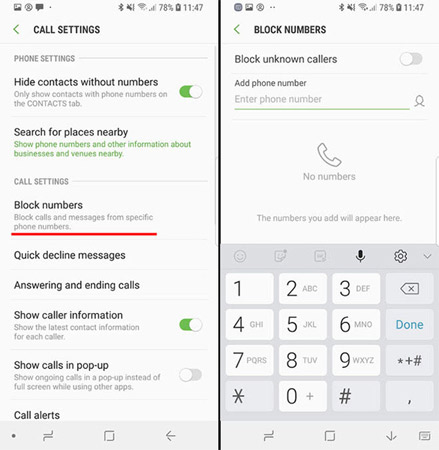
In addition, you can also block phone numbers that are not on your contact list, but this is not recommended because you may miss many important phone calls. Normally, we should only block phone numbers that we can identify and can do that are not in the directory.
I wish you all success!
- Instructions for installing Mickey Mouse and Minnie Mouse AR Emoji on Galaxy S9
- 5 settings you should change on Galaxy S9 / S9 +
- Summarize interesting tips on Galaxy S9 users should not ignore
FAQ
What should I prepare before I block phone numbers or messages on galaxy s9 / s9 +?
Review the requirements in the guide, confirm that your device or software is compatible, and save important work before changing settings related to block phone numbers or messages on galaxy s9 / s9 +.
Why might block phone numbers or messages on galaxy s9 / s9 + not work as expected?
The most common causes are incompatible versions, missing permissions, incorrect settings, or an interrupted internet connection. Recheck each step and restart the app or device when appropriate.
Can beginners follow these block phone numbers or messages on galaxy s9 / s9 + steps?
Yes. Follow the steps in order, avoid skipping confirmation screens, and compare your interface with the screenshots because labels may differ slightly between versions.
Related Articles
 Instructions to Block Messages When Spammed on Viber3 minutes read
 How to from AZ How to Block Calls and Messages on Android Nougat5 minutes read
 How to View Messages from a Blocked Number on Iphone3 minutes read
 How to Block Any Call on Your Android Phone7 minutes read
 How to Block Text Messages on iPhone: Complete Guide6 minutes read
 How to Block Spam Phone Numbers on iPhone5 minutes read
Reader Comments 0
Sign in with email or Google to join the discussion.