Table of Contents
This guide provides a clear overview of shutdown laptop doesn't turn on, including the main concepts, practical steps, and common questions. Use it to understand the topic, compare the available options, and make a more informed decision.
In addition to the error of not being able to start, the laptop Shutdown error but not turning off the power is also very inhibited. Many users have their laptops damaged by pressing Shutdown and folding the device into their pocket, then the laptop does not turn off and the temperature from the fan is still running, leading to overheating of the laptop and a very dangerous fire. To avoid such unexpected risks, you should fix the laptop Shutdown error but do not turn off the power immediately when you see this situation.
Fix laptop Shutdown but not power off:
Step 1: Click Start and search for Manage . Or you right-click on My Computer and select Manage.

Step 2: In Computer Management, select Device Manager.

Step 3: The cause of the laptop Shutdown error but not turning off the power comes from System devices . Please click on it.
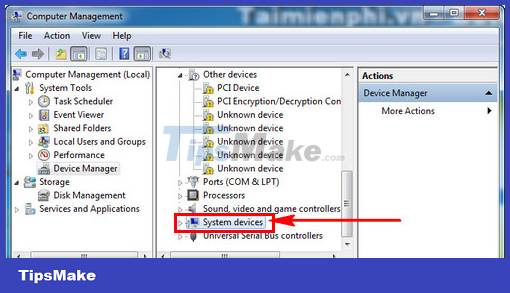
Double -click the left mouse button to open the Intel(R) Management Engine Interface.

Step 4: In the Intel(R) Management Engine Interface Properties dialog box . Click Disabled.
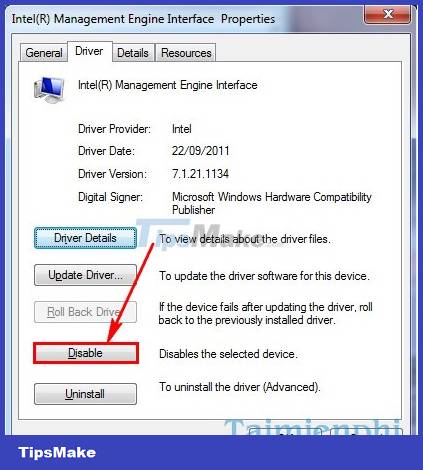
Alternatively, users can also right-click on Intel(R) Management Engine Interface and select Disabled .

Just turn off Intel(R) Management Engine Interface, you will definitely fix the laptop Shutdown error but not power off successfully. This is a very simple trick that can be applied on many different versions of Windows.
Laptop shutdown but not power off is better than the laptop can't shutdown, many of you encounter a laptop that doesn't shutdown often have to use hotkeys (hold the power button) to turn off the computer, so it will be very harmful to the machine, there are many causes leading to this problem. the laptop does not shutdown and restart, you need to learn carefully and fix this problem soon.
Another problem is also related to the laptop but more serious than the laptop Shutdown error but does not turn off the power. That is a laptop error or restarting can't enter Windows. The cause of this problem also has many, possibly due to battery, charger or laptop overheating. If the computer cannot be used, cannot enter Windows, which means that the user cannot use it. So fixing the laptop restart is a must-do. Let's see the causes and how to fix the error of restarting laptop and not being able to enter Windows to save your computer.
Computer lost sound is one of the common errors with users today, when you encounter this error, you will not be able to hear the sound coming from your computer. It's not simple, you need to find out the cause of this error, in that case, it will be successful to start fixing the computer's loss of sound.
Laptop with battery charging error can't come in due to many different reasons, possibly due to faulty battery bottle, due to the power cord. if you can't determine what is the cause of this error, the fix is very difficult, you should refer to the article on fixing the laptop battery charging error to find out the cause. As well as how to fix the laptop battery not charging error.
Conclusion
Understanding Shutdown Laptop Doesn't Turn On makes it easier to compare options, avoid common mistakes, and apply the information in this guide more effectively. Review the relevant requirements before making changes or choosing a solution.
FAQ
What is Shutdown Laptop Doesn't Turn On?
In addition to the error of not being able to start, the laptop Shutdown error but not turning off the power is also very inhibited.
Why is Shutdown Laptop Doesn't Turn On important?
Understanding Shutdown Laptop Doesn't Turn On helps you evaluate features, compatibility, performance, and potential limitations before you choose a product or follow a procedure.
What should you consider when using or choosing Shutdown Laptop Doesn't Turn On?
Consider your specific goal, compatibility requirements, available features, cost, security, and the practical recommendations described in this guide.
Related Articles
 How to Fix Computer Errors Without Completely Turning Off the7 minutes read
 How to Cancel Automatic Shutdown on Windows 104 minutes read
 7 Reasons Laptop Does Not Power up and How to Fix It6 minutes read
 How to Fix the Shutdown Error but the Power Light Is Still4 minutes read
 How to Schedule a Laptop Shutdown Using CMD Commands for Windows 104 minutes read
 Instructions to Prevent Shutdown on Windows 10 Computers5 minutes read
Reader Comments 0
Sign in with email or Google to join the discussion.