Table of Contents
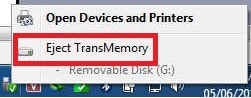
The message “The device ‘Generic volume’ cannot be stopped right now” means that Windows or an application still has the USB storage device in use. Newer Windows versions may instead say “This device is currently in use.” Do not unplug the drive while the warning is visible; close the activity and retry ejection.

1. Finish transfers and close files
- Wait for copy, move, backup, download, or synchronization progress to finish.
- Save and close every document or media file opened from the USB drive.
- Close File Explorer windows that show the drive. Also close terminals whose current folder is on that drive.
- Wait several seconds, then use Safely Remove Hardware and Eject Media again.
If you need the standard procedure, see how to safely eject a USB drive in Windows.
2. Pause background access
Backup software, cloud-sync apps, media libraries, search indexing, archive tools, and a manually started antivirus scan can keep a handle open. Pause the task or exit the application normally, then retry Eject. If the application is not responding, save other work before closing it in Task Manager.
3. Restart Windows Explorer
Press Ctrl+Shift+Esc to open Task Manager. Select Windows Explorer, then choose Restart task. The desktop and taskbar may disappear briefly. When they return, try ejecting the drive again.
4. Sign out or shut down
If Windows still reports that the volume is busy, sign out of your account to close user applications and then sign back in. If that does not release the drive, shut down the computer normally and disconnect the USB device only after the PC is fully off. This is safer than forcing an unknown process to release a file.
Why Unlocker is not recommended
The original article used the legacy Unlocker utility to display and release applications accessing the USB drive. The screenshots are retained below for historical context.
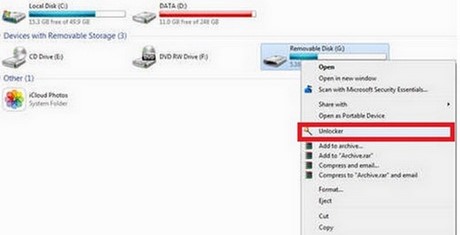
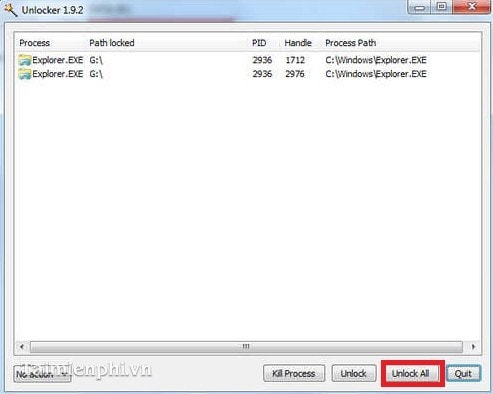
Forcing Unlock All can interrupt a write, discard unsaved changes, or cause an application error. Modern Windows already provides safer options: close the app, restart Windows Explorer, sign out, or shut down. Do not install an old Unlocker build from an unofficial download mirror.
Does the warning mean the USB drive has a virus?
No. An open file or background task is a much more direct explanation. Scan the device with Windows Security if you also notice unexpected shortcuts, unknown executable files, hidden documents, or other suspicious behavior. Follow the guide to protect a USB drive from autorun malware rather than formatting the drive solely because it would not eject.
If the error keeps returning
Try another USB port and another trusted computer. Back up accessible files if the device disconnects unexpectedly, becomes read-only, or produces file-system errors. The guide to common USB problems can help distinguish a software lock from a failing drive.
Related Articles
 Fix 'Generic Volume Cannot Be Stopped' Error in Windows XP1 minutes read
 Generic in C #: What You Need to Know8 minutes read
 What Is IDP. Generic Virus and How to Remove It?4 minutes read
 Fix the Unmountable Boot Volume Error on Windows 109 minutes read
 Summary of How to Fix 'the Process Com. Google. Process. Gapps Has7 minutes read
 What Is Idp. Generic?8 minutes read
Reader Comments 0
Sign in with email or Google to join the discussion.