Table of Contents
An autorun.inf file is not automatically a virus, but malware has historically used it to launch malicious programs from removable media. On current Windows systems, the safest response is to disable AutoPlay for removable drives, scan the USB drive before opening files, and avoid running unknown executables. Creating a locked autorun.inf file is an old workaround and should not be treated as reliable protection.

1. Turn off AutoPlay for removable drives
In Windows 11, open Settings > Bluetooth & devices > AutoPlay, then turn off Use AutoPlay for all media and devices. You can also leave AutoPlay enabled but set Removable drive to Take no action. In Windows 10, the equivalent controls are under Settings > Devices > AutoPlay.
This stops Windows from automatically offering or starting common actions when a USB drive is connected. It does not clean an already infected drive, so continue with a security scan.
2. Scan the USB drive before opening its files
- Connect the USB drive, but do not open unfamiliar files or shortcuts on it.
- Open Windows Security > Virus & threat protection.
- Select Scan options, choose Custom scan, and select the USB drive.
- Follow Windows Security's instructions if it detects a threat. Quarantine or remove detected malware instead of attempting to run or rename it.
Keep Windows and Microsoft Defender security intelligence up to date. If the drive contains important documents, copy only files you trust after the scan and check them again before opening.
3. Reduce the risk of USB-borne malware
- Do not open unexpected .exe, .scr, .cmd, .bat, .js, or shortcut files from a removable drive.
- Use a standard user account for everyday work and approve administrator prompts only when you know what is being installed.
- Keep a separate backup of important files. A USB drive that is your only copy is not a backup.
- If confidentiality matters, encrypt the USB drive with BitLocker To Go. Encryption protects lost or stolen data; it does not remove malware.
- For shared or managed computers, consider blocking writes to removable drives or applying an appropriate device-control policy.
Why the old autorun.inf workaround is no longer recommended
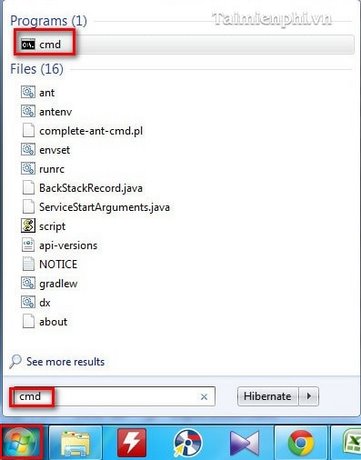
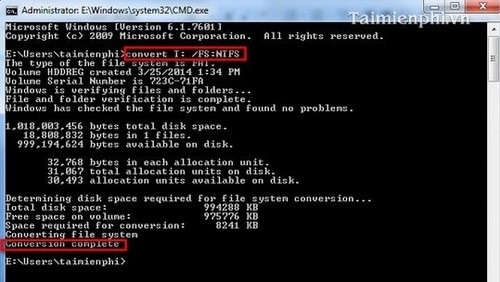
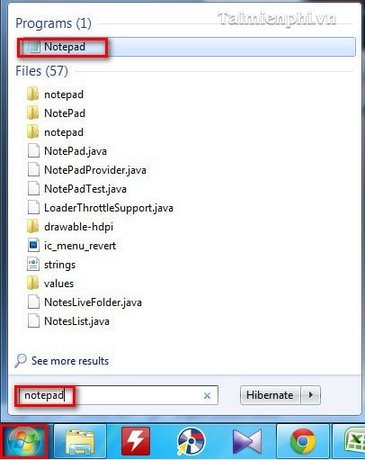
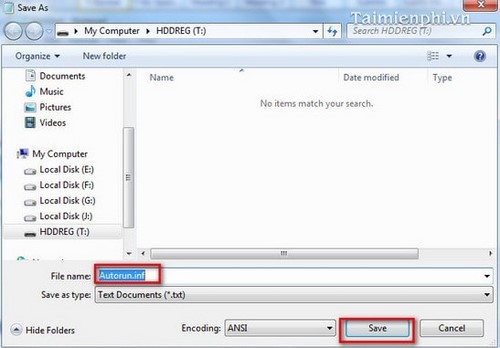
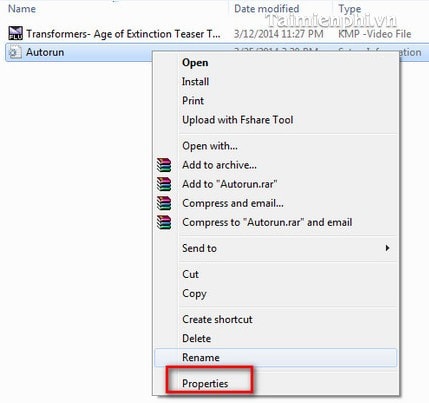
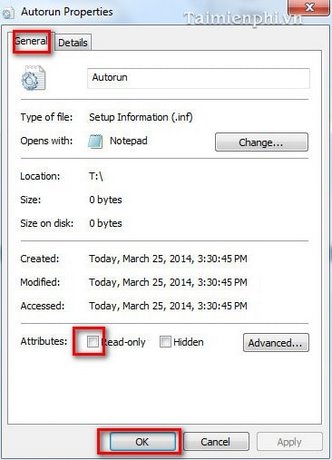
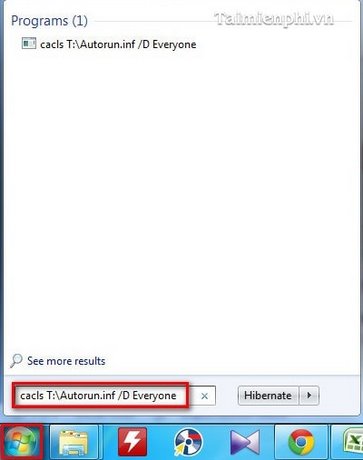
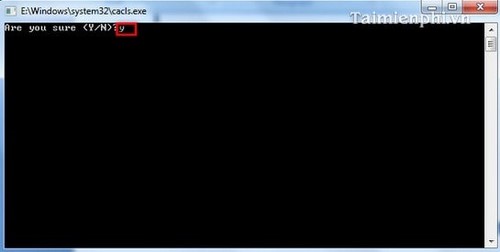
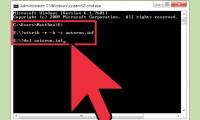
The legacy method shown below converted the drive to NTFS, created an empty autorun.inf file, marked it read-only, and changed its permissions with the cacls command. These screenshots are retained for historical context, but the procedure has important limitations:
- A malicious program can use filenames and launch methods unrelated to autorun.inf.
- Read-only attributes and file permissions are not a substitute for malware scanning.
- Converting a drive to NTFS can reduce compatibility with some devices, and a mistake with a drive letter or permissions can make files harder to access.
- The older
caclssyntax is not a sensible first-line security measure for a USB drive.

If the USB drive still behaves suspiciously
Disconnect it from other computers, run another scan, and recover only known documents from a clean machine. If threats return or files have been replaced by shortcuts, erase and reformat the drive only after recovering verified files and confirming that another clean copy exists. See the broader guide to protecting USB drives and Windows PCs for additional built-in safeguards.
Related Articles
 How to Remove Viruses from Flash Drive: Practical Guide8 minutes read
 How to Prevent Viruses from USB by Autorun Eater3 minutes read
 Anti-virus: Small Antivirus Programs for USB5 minutes read
 'Great Technique' Autorun Virus Removal by Hand3 minutes read
 Destroy the Autorun Virus in USB or on PC with 4 Simple Ways7 minutes read
 Eliminate Autorun Virus Hidden in USB Drive2 minutes read
Reader Comments 0
Sign in with email or Google to join the discussion.