Table of Contents
If Windows is still responding but the screen, taskbar, or an application window has disappeared, a keyboard shortcut may help you recover without restarting the whole computer. Choose the shortcut that matches the symptom below.
These methods cannot repair a hardware failure or a completely unresponsive system. Save open work as soon as you regain access.
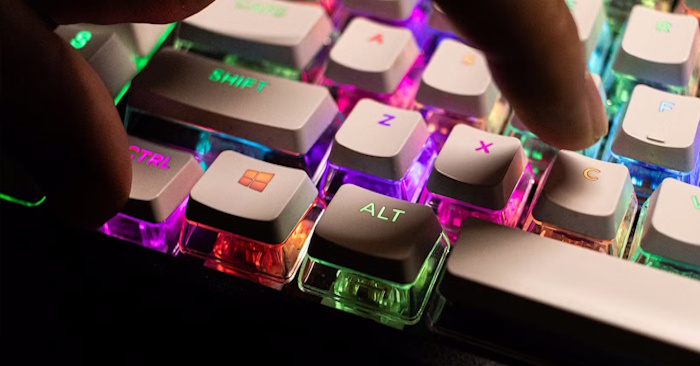
Win + Ctrl + Shift + B: try to recover display output
Press Windows + Ctrl + Shift + B together when the screen is blank or frozen but the computer seems to be running. Windows attempts to reset the graphics driver; you may hear a beep or see a brief flicker.
This is worth trying after waking from sleep or when audio continues despite a display problem. It does not reboot Windows, and it is not a guaranteed fix. If there is no response, check that the monitor is powered on and the display cable is connected. See Microsoft's blank-screen troubleshooting guide for further diagnosis.
Win + P: change the display mode
Windows may be sending the desktop to another display after you disconnect a monitor or docking station. Press Windows + P to open projection options:
- PC screen only: Use the primary PC display.
- Duplicate: Show the same desktop on both displays.
- Extend: Spread the desktop across displays.
- Second screen only: Use the external display.
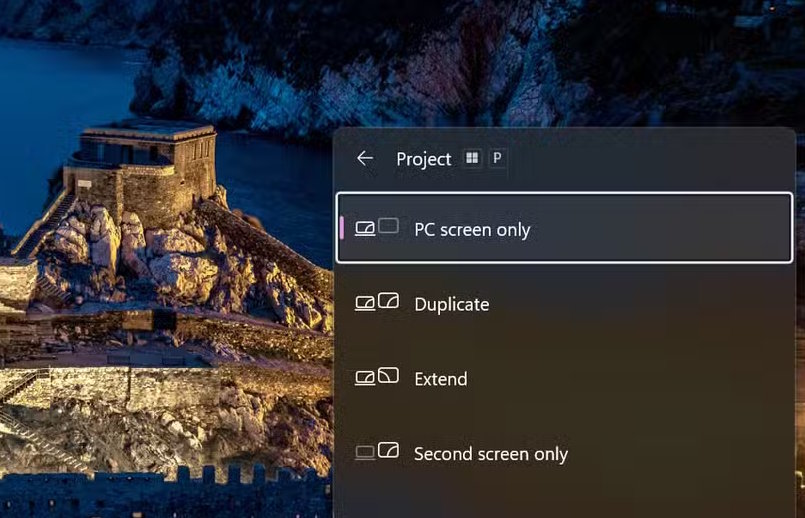
If the menu is visible, select the appropriate mode with the arrow keys and press Enter. If you cannot see it, press Windows + P, release the keys, tap P, and press Enter to cycle to another mode. Give the display time to switch before trying the next mode. This only helps when incorrect output selection is the problem.
Alt + Space, then Move: recover an off-screen window
If an app appears on the taskbar but its window is missing, first select it with Alt + Tab. Then:
- Press Alt + Space to open the active window's system menu.
- Select Move. On an English Windows interface, M commonly selects it; menu letters can differ in other languages.
- Press an arrow key, then use the arrows or move the mouse to bring the window into view.
- Press Enter or click to finish positioning it.
If Move is unavailable because the window is maximized, restore the window first. Some applications use custom window controls and do not support this menu.
When multiple monitors are connected, Windows + Shift + Left Arrow or Right Arrow moves the active window between them. The guide to Windows window-management shortcuts covers related controls.
Ctrl + Shift + Esc: open Task Manager
Press Ctrl + Shift + Esc if the taskbar or desktop stops responding. If Task Manager opens, Windows is still able to respond even though part of the interface has failed.
To recover Windows Explorer:
- Find Windows Explorer in the Processes list.
- Select it and choose Restart, or right-click it and select Restart.
- If Windows Explorer is not listed, choose Run new task, enter
explorer.exe, and press Enter. Older Task Manager layouts place this command under File.
Simply running explorer.exe does not necessarily restart an existing stuck Explorer process; use Restart when it is already listed. Other apps usually remain open, though Explorer windows and ongoing file operations may be affected. See the Windows Explorer restart guide for more detail.
If only one app has frozen, you can select it and use End task. Doing so can lose that app's unsaved work, so wait briefly or try its normal close command first.
Ctrl + Alt + Delete: reach recovery controls
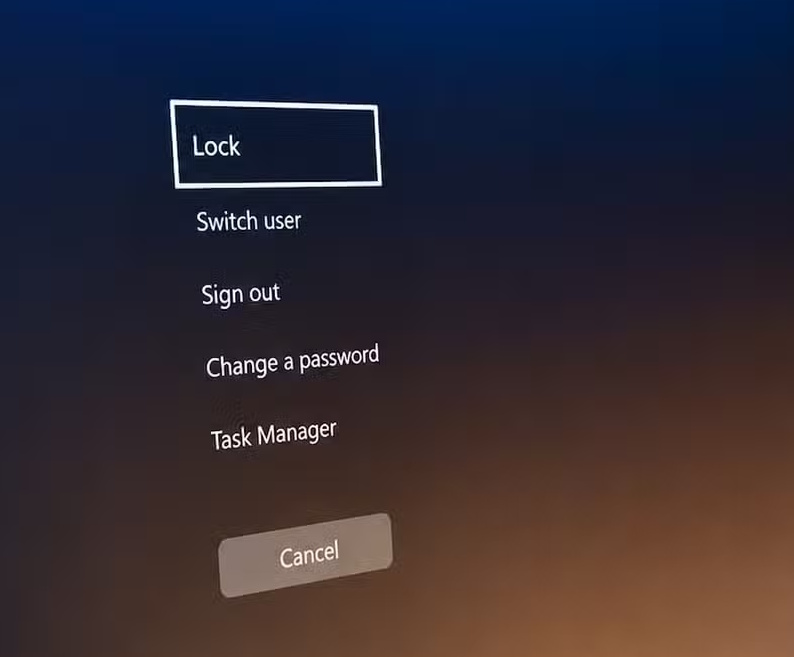
Press Ctrl + Alt + Delete if the desktop is unresponsive. When the security screen appears, try Task Manager or the power menu's normal Restart option.
As a last resort when normal restart is unavailable, holding Ctrl while clicking the power icon can open the Emergency restart warning. Confirming it restarts the PC immediately and can discard unsaved work. Read the warning before proceeding; this is not a shortcut for preserving a work session.
If these controls also fail, use your device manufacturer's recovery guidance. Repeated freezes need investigation into the app, driver, or hardware involved, rather than repeated emergency restarts.
Related Articles
 Summary of 60+ Latest Keyboard Shortcuts on Windows6 minutes read
 Summary of New Keyboard Shortcuts on Windows 11 to Help You7 minutes read
 Keyboard Shortcuts in Illustrator Are Often Used, Keyboard Shortcuts Are7 minutes read
 All the Keyboard Shortcuts on Obscure Computers11 minutes read
 8 Common Keyboard Shortcuts You Need to Know to Use Windows4 minutes read
 How to Change Keyboard Shortcuts in Photoshop6 minutes read
Reader Comments 0
Sign in with email or Google to join the discussion.