Table of Contents
You can remove a logo from a PDF when it is a separate editable object or a watermark recognized by your PDF editor. If the logo is part of a scanned image, it cannot simply be selected and deleted without changing that image.
Work on a copy of a document you are authorized to edit. If you have the original Word, PowerPoint, or design file, removing the logo there and exporting a fresh PDF usually gives the cleanest result.
Identify how the logo is stored
- Separate image or graphic: Select it in a PDF editor's content-editing mode and delete the selected object.
- Recognized watermark: Use the editor's watermark removal command, which may remove it across multiple pages.
- Header or footer: Edit the source document or the relevant header/footer object.
- Flattened or scanned page: The logo and page content share one image. Removing it requires image editing or rebuilding the affected area, and text underneath may not be recoverable.
A white rectangle can hide a logo visually while leaving the underlying object in the file. It is not equivalent to deleting the object.
Remove a recognized watermark in Acrobat
In an Acrobat desktop version with PDF editing tools, open Edit a PDF and choose Watermark > Remove. Follow the file-selection and output prompts for the documents you want to process. Adobe's watermark removal instructions describe the current workflow.
This command is for watermarks the tool recognizes. A logo embedded as an ordinary image or flattened into a scan may require another method. For a related example, see removing PDF watermarks with an editor.
Try Canva for an editable imported design
- Import the PDF into Canva's PDF editor and open the resulting design.
- Check the page layout before editing. Imported fonts and objects can differ from the original.
- Select the logo only. If it is a separate editable element, delete it. Use Undo immediately if other content disappears.
- Select Share > Download, choose a PDF output format, and export a new copy.
If clicking the logo selects the entire page image, stop: it has not been imported as a separate object. Canva is not a universal watermark remover. Check any account, premium-element, or export requirements before relying on a free workflow.
Delete a separate object with Soda PDF
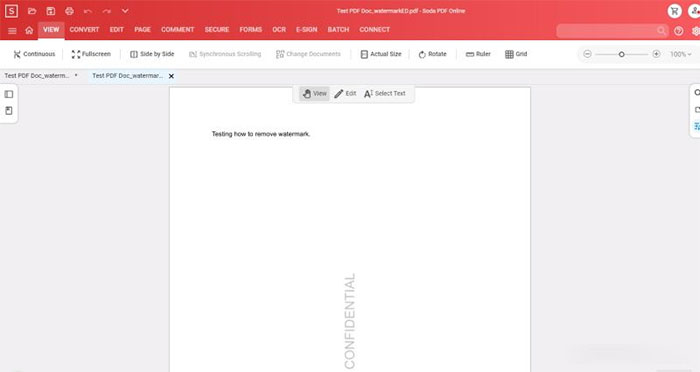
- Open the copied PDF in a Soda PDF version that supports content editing.
- Enter Edit mode and select the logo or watermark object.
- Confirm that the selection does not include surrounding text or the whole page, then press Delete.
- Save or download the edited PDF as a new file and reopen it to verify the change.
Tools and subscription requirements vary by version. Do not assume that every online PDF utility can delete existing page content or that closing the tab exports your changes. If the object cannot be selected separately, use the source file or another suitable method.
Use Word for a PDF that is mostly text
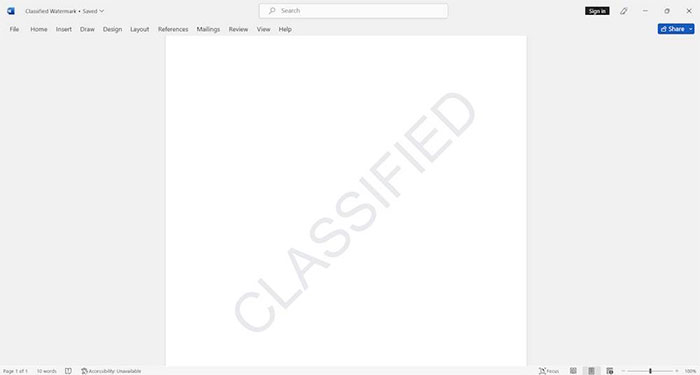
Word converts a PDF into an editable document. This works best for text-based files and can change tables, line breaks, and graphics; see Microsoft's PDF conversion guide.
- In Word, select File > Open, choose the copied PDF, and accept the conversion prompt.
- Find the logo in the converted document. Select that image or shape and delete it. If it is in a header, open the header to select the correct object.
- If Word recognizes it as a document watermark, try Design > Watermark > Remove Watermark.
- Export or save a new copy as PDF. Check every affected page against the original.
Clicking outside a watermark does not safely select it. Do not delete a whole page or arbitrary letters to remove a logo. If conversion breaks the layout, return to the original PDF and use a direct PDF editor. The overview of PDF-to-Word conversion tools covers alternative conversion options.
Use Google Docs when layout changes are acceptable
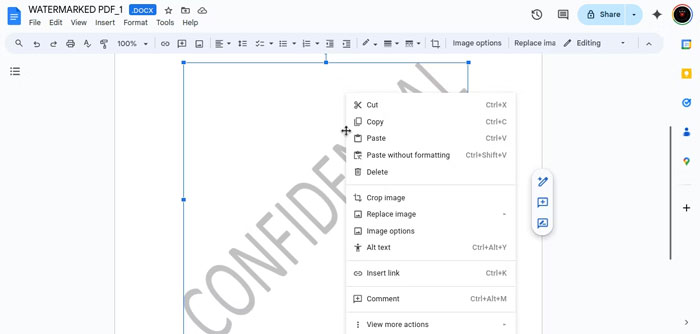
You can upload a PDF to Google Drive and open it with Google Docs for text conversion, or upload a DOCX you have already converted. A separate Adobe conversion step is not always necessary. Google notes that PDF-to-text conversion may not preserve formatting.
Inspect the converted content. If a logo remains as an editable image, select only that image and delete it. Rebuild any damaged layout, then select File > Download > PDF Document. This is better suited to simple text documents than forms or precisely positioned designs.
If the logo cannot be removed cleanly
For a scanned page, request an unbranded source or edit the underlying image only if you can preserve the necessary content. OCR can extract text, but it does not restore text concealed by a logo. If the document is restricted, obtain an editable copy or the necessary password from its owner.
Before sharing the result, confirm the page count, fonts, tables, links, and remaining graphics. Search and zoom in on the affected pages to ensure the logo was removed and useful content remains. For confidential documents, use an appropriate local editor rather than uploading them to an online service.
Related Articles
 10+ Easy Ways to Remove Logos from PDF Files14 minutes read
 Several Simple Ways to Convert PDF Files to WORD Files5 minutes read
 How to Convert Excel Files to PDF for Free, Extremely Simple5 minutes read
 Convert CAD Files to PDF5 minutes read
 Software to Remove Logos, Words on Videos and Usage3 minutes read
 5 Ways to Remove Default Apps on Windows 106 minutes read
Reader Comments 0
Sign in with email or Google to join the discussion.