Table of Contents
An Office update installs fixes and improvements for the product you already have. An upgrade moves you to a different product or major release and may require a new license. Checking for updates does not turn a one-time purchase of Office into the newest paid release.
Office 2016 and Office 2019 for Windows reached the end of support on October 14, 2025. Moving from 2016 to 2019 is therefore not a suitable way to regain ongoing support. Check Microsoft's support notice and choose a supported product that meets your needs.
Check what is installed
In an Office desktop app on Windows, open File > Account and look under Product Information. About Word or About Excel shows additional version and architecture details. On a Mac, use the app's About command.
Record the product name, version, and whether it is 32-bit or 64-bit before changing an installation. See how to check Office architecture, especially if you depend on add-ins. For a work or school installation, ask your IT team which release and update channel they support.
Install updates on Windows
- Save your work and open Word, Excel, or another Office app.
- Go to File > Account.
- Under Product Information, select Update Options > Update Now.
- If prompted, close Office apps so the installation can finish, then reopen an app and check its version.
If updates were disabled and you manage the installation yourself, Update Options may offer an Enable Updates command. A missing or unavailable command can indicate a managed installation or a different installation type; it does not automatically mean you need to reinstall Office. Follow Microsoft's Windows update instructions for the appropriate route.
Many current installations use Click-to-Run to handle Office updates separately from Windows Update. The explanation of the Office Click-to-Run service gives background on that component.
Install updates on a Mac
If you installed Office from Microsoft, open an app and select Help > Check for Updates. Use Microsoft AutoUpdate to install available updates and enable automatic updating if appropriate.
If the apps came from the Mac App Store, open the App Store's Updates page instead. See Microsoft's Mac update guide. Your macOS version must meet the product's current requirements.
Upgrade to a different Office product
A Microsoft 365 plan that includes desktop apps supplies updates while the subscription remains active, subject to its update channel and platform support. A one-time Office purchase generally does not include a free upgrade to the next major release. Not every Microsoft 365 plan includes desktop applications.
- Check the license you own or the plan provided by your organization.
- Confirm the new product's operating-system requirements and add-in compatibility.
- Back up your documents and any templates or custom settings you need.
- Sign in with the account associated with the license and follow the official installation instructions.
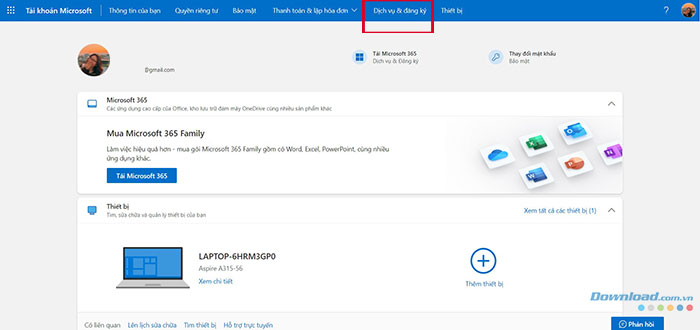
Personal Office purchases and subscriptions are usually listed under your Microsoft account's Services & subscriptions page. The account need not use an Outlook or Hotmail address; use the account linked to the purchase. Work and school licenses can use a different organizational portal.
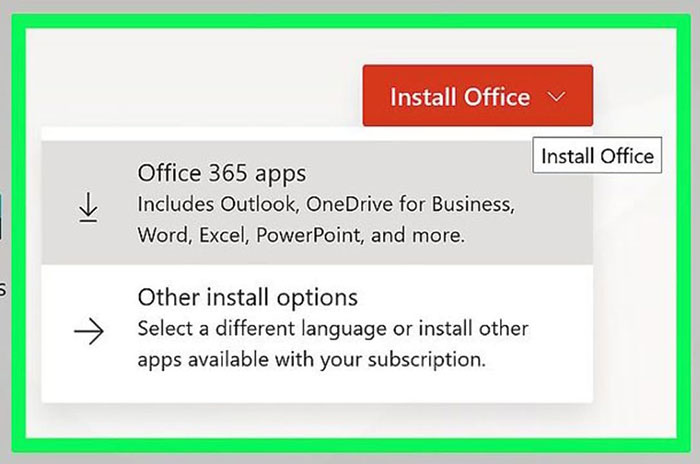
Download the installer offered for your entitled product, run it, and complete activation. The account page does not automatically grant the newest paid release. If setup reports a conflict with an older installation, follow its instructions rather than assuming every installer will overwrite every previous version. Microsoft's upgrade guide explains the options.
Where Windows Update fits
For installations serviced through Microsoft Update, you can enable updates for other Microsoft products:
- Windows 11: Settings > Windows Update > Advanced options.
- Windows 10: Settings > Update & Security > Windows Update > Advanced options.
Turn on the option to receive updates for other Microsoft products. This complements the applicable update mechanism; it does not upgrade an Office license or restore support to an unsupported product.

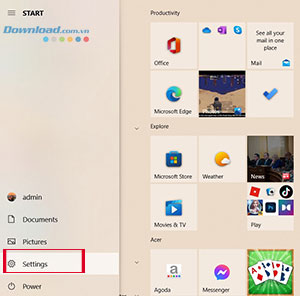
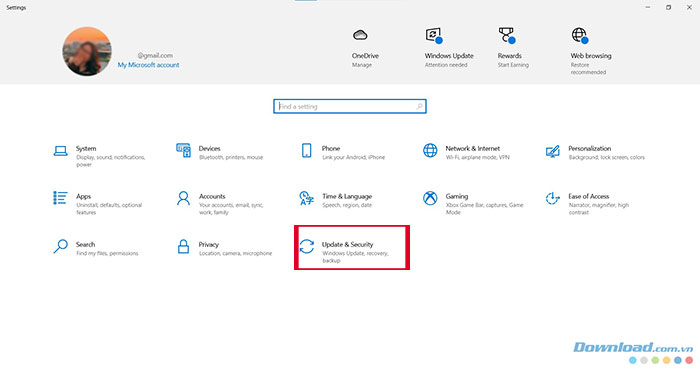
These screenshots show the older Windows 10 route to Windows Update.
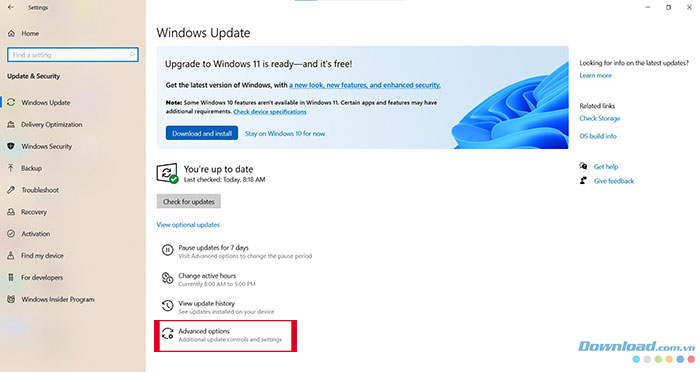
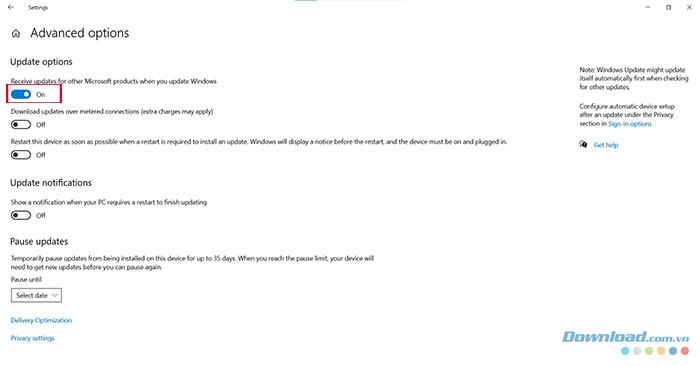
The Advanced options switch is shown above. Microsoft documents this route in its Microsoft Update guide. Windows 10's ordinary support has ended, so also review your operating system's support status.
If an update does not install
Keep the exact error message, confirm you have an internet connection, and check whether the installation is managed by an organization. Save and close open Office files before retrying. If the app says it is up to date but lacks a new feature, the feature may depend on your license or update channel rather than an installation failure.
Related Articles
 Four Reasons Do Not Need to Upgrade to New Microsoft Office5 minutes read
 4 Steps to Fix Error 0x8004fc12 When Activating Microsoft Office5 minutes read
 Why Upgrading to Microsoft 365 Might Not Be Worth It?7 minutes read
 Link Download Microsoft Office 20195 minutes read
 Microsoft Office iOS App Has an Important Update, Supports3 minutes read
 Best Microsoft Office Deals15 minutes read
Reader Comments 0
Sign in with email or Google to join the discussion.