Table of Contents
A custom Gem is a reusable version of Gemini configured with your instructions and, optionally, reference files. It works well for repeat tasks such as lesson planning, writing review, study support, or project checklists. A Gem is not automatically an autonomous agent: its behavior still depends on the current Gemini features, the information you provide, and your review of each answer.
You create and edit custom Gems in the Gemini web app. After saving one, it can also appear in supported Gemini mobile and Google Workspace surfaces. Availability can vary by account type, age, region, and administrator settings.
1. Open the Gem creator
- Sign in at Gemini on the web.
- Open the sidebar and choose Gems. If this is your first Gem, the option may appear under Settings & help.
- Select New Gem.
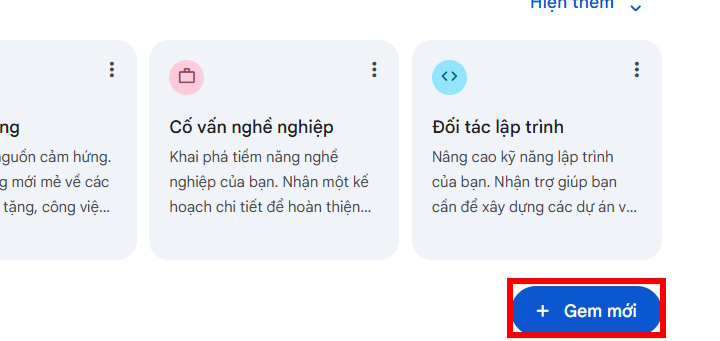
If the controls differ, consult Google's current Gemini Gems instructions.
2. Give the Gem a narrow job
Choose a name that identifies the audience and task, such as “Grade 7 History Lesson Planner” or “Client Email Reviewer.” In the instructions, define four elements:
- Persona: the role and level of expertise to simulate;
- Task: the actions the Gem should perform;
- Context: the audience, constraints, sources, and boundaries;
- Format: the structure required in each response.
A narrow Gem is easier to test than one asked to be a teacher, researcher, administrator, designer, and grader at the same time.
Example instructions for a lesson-planning Gem
Role
You are a Grade 7 history lesson-planning assistant.

Tasks
- Draft lesson objectives, activities, discussion questions, and assessments.
- Summarize only the supplied curriculum and reference materials.
- Create differentiated practice for developing, proficient, and advanced learners.

Rules
- Do not invent dates, quotations, curriculum requirements, or textbook content.
- Cite the supplied source title and page or section whenever possible.
- Mark any claim that cannot be verified from the supplied sources.
- Ask a clarifying question when grade level, lesson duration, or learning objective is missing.
- The teacher makes the final instructional and grading decisions.

Output
Use: Objectives; Required knowledge; Lesson sequence; Checks for understanding; Practice; Answer key; Sources.
Gemini can expand a short description with the instruction-rewrite control. Treat that output as a draft: remove vague claims, add missing boundaries, and make the required format explicit.
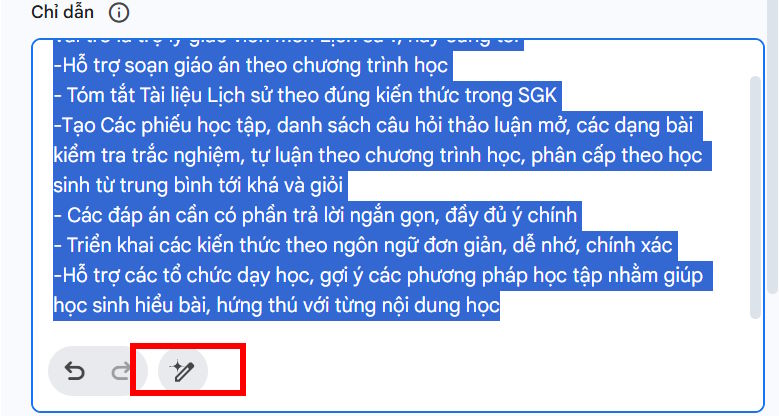
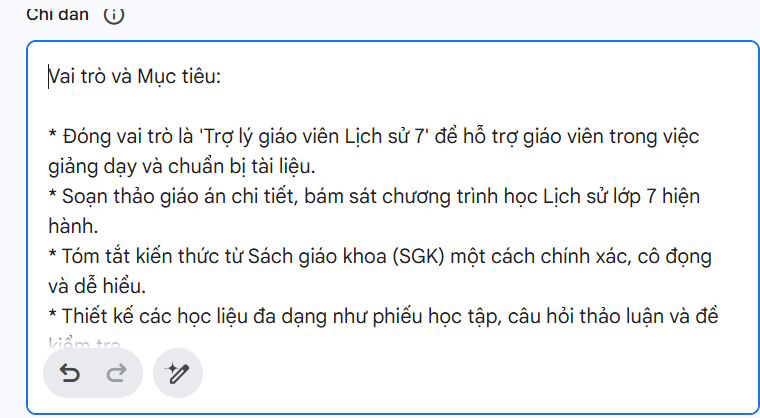
For other classroom options, compare these AI apps for teachers before choosing one platform for student or school data.
3. Add knowledge files only when they improve accuracy
Under Knowledge, select Add files to upload a supported local file, add an eligible Google Drive file, or use another source shown by your account. Supported types and limits can change, so check the current upload dialog.
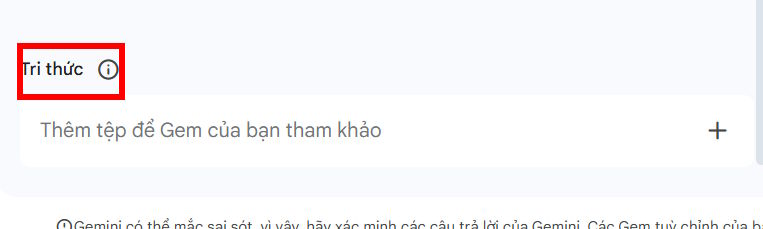
Use authoritative, current material and label it clearly. Remove duplicate or superseded files. When a source comes from Google Drive, Gemini may use the current Drive version, so a later document edit can change future answers.
Do not upload confidential records, personal student data, answer keys, copyrighted books, or workplace documents unless you have permission and the account's data handling is approved for them. Knowledge files provide context; they do not guarantee that every answer is complete or correct.
4. Preview before saving
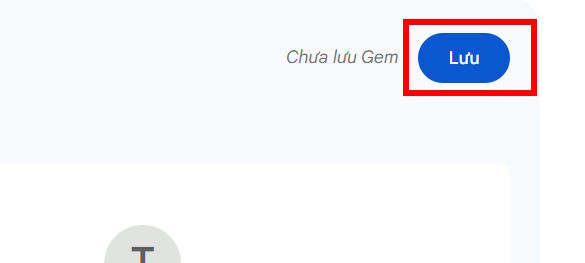
Use the preview panel to test the Gem with a representative request. Previewing does not necessarily save the Gem, so select Save only after the instructions and test response are satisfactory.
Useful preview tests
- Ask a normal question the Gem should answer.
- Omit an essential detail and confirm that it asks for clarification.
- Ask for information absent from the knowledge files and check that it admits the gap.
- Request the exact output format specified in the instructions.
- Give a conflicting instruction and confirm that the Gem follows the durable safety or accuracy rule.
5. Start a chat with the Gem
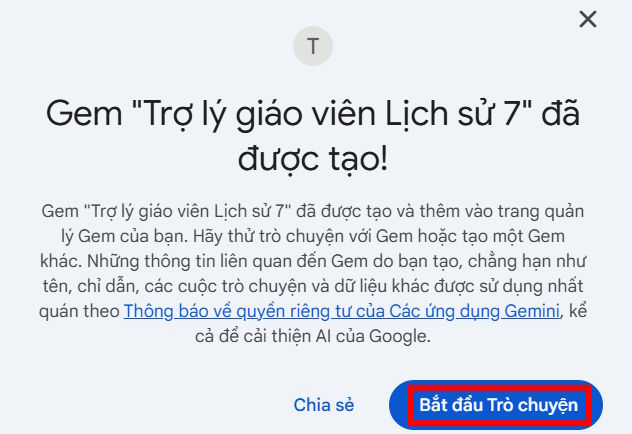
Select Start chat, then give a specific request with the intended scope and output. A Gem's saved instructions provide a baseline, but the current prompt still needs the topic, goal, and any task-specific constraints.
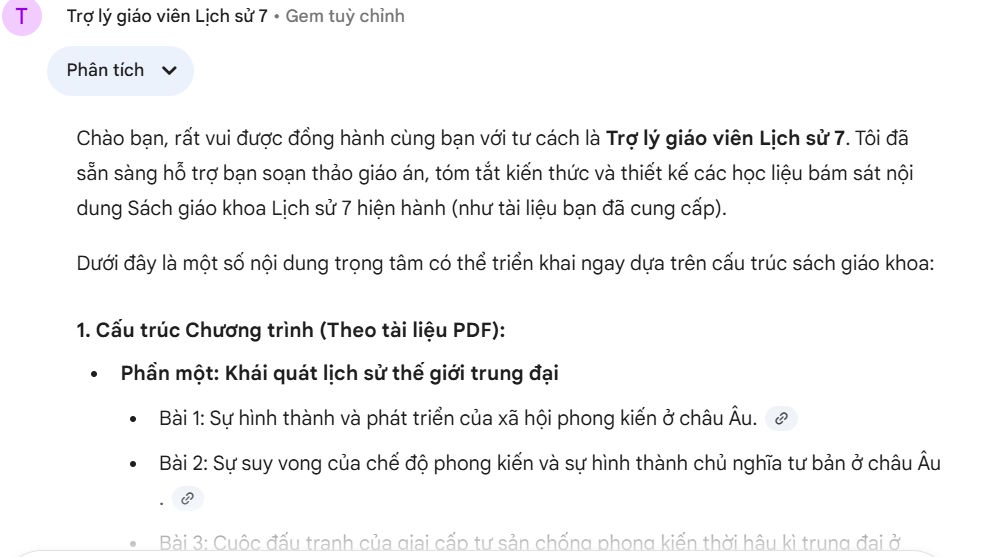
For example, instead of “Summarize Chapter 1,” ask:
Using only the attached course material, summarize Part 2, Chapter 1 for a Grade 7 learner.

Include:
- five essential ideas;
- a timeline with source pages;
- three likely misconceptions;
- five retrieval-practice questions with a separate answer key.

If a detail is not supported by the material, label it as unavailable rather than guessing.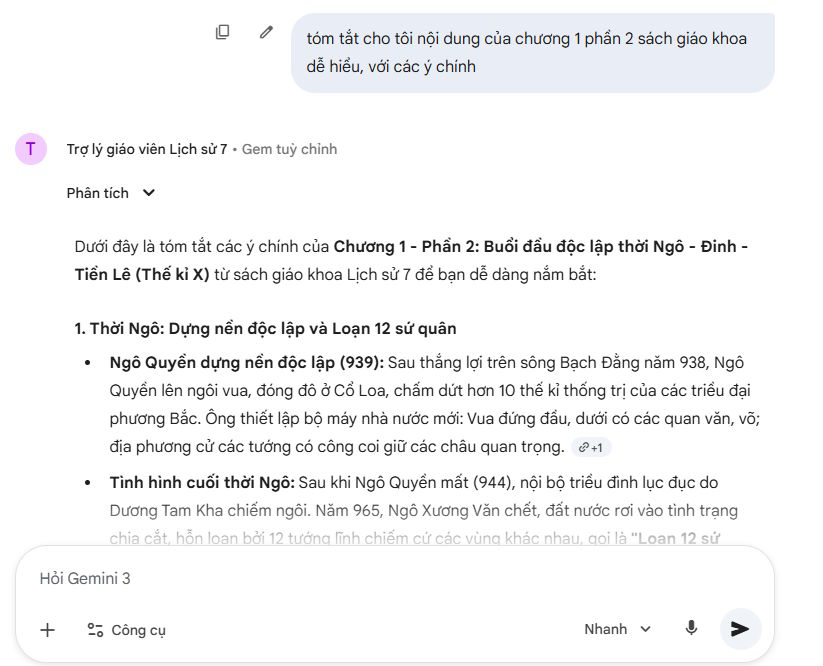
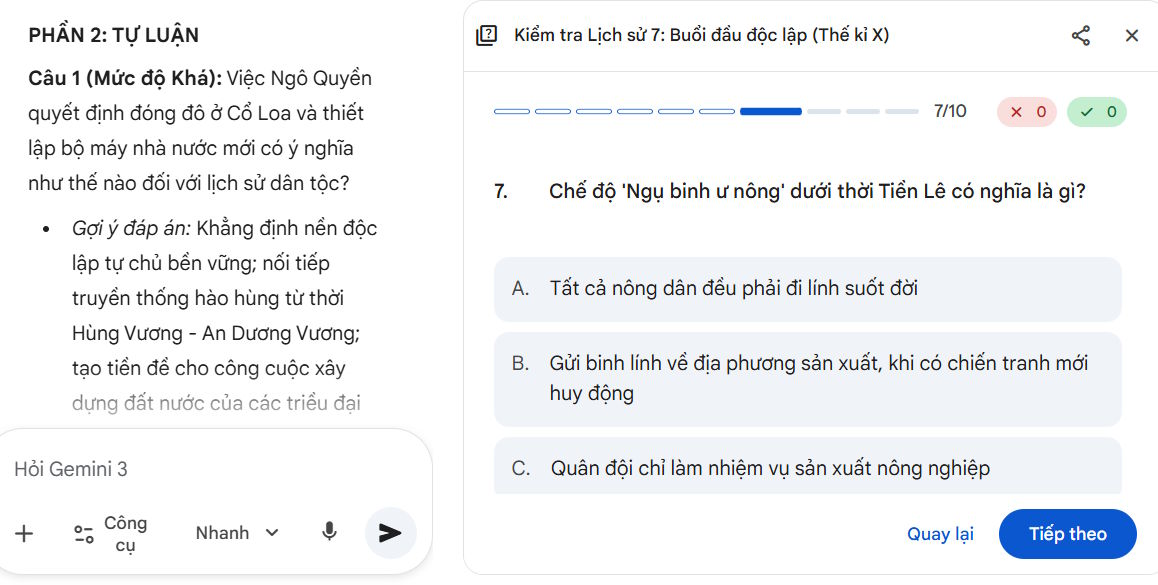
6. Edit the Gem when results expose a weakness
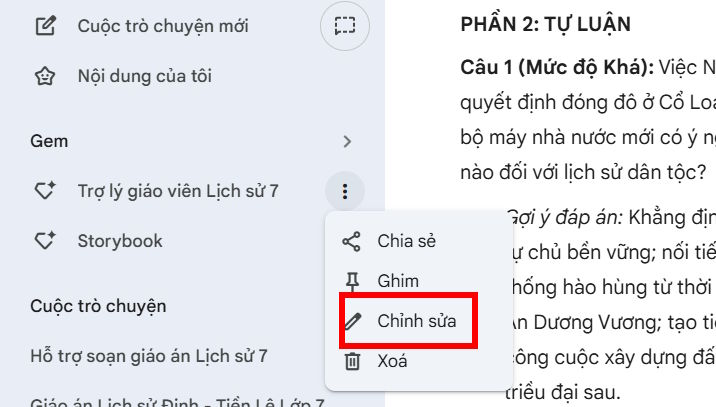
Open the Gem's menu, choose Edit, and change the instructions or knowledge files. Use Update or the current save control to apply the revision.
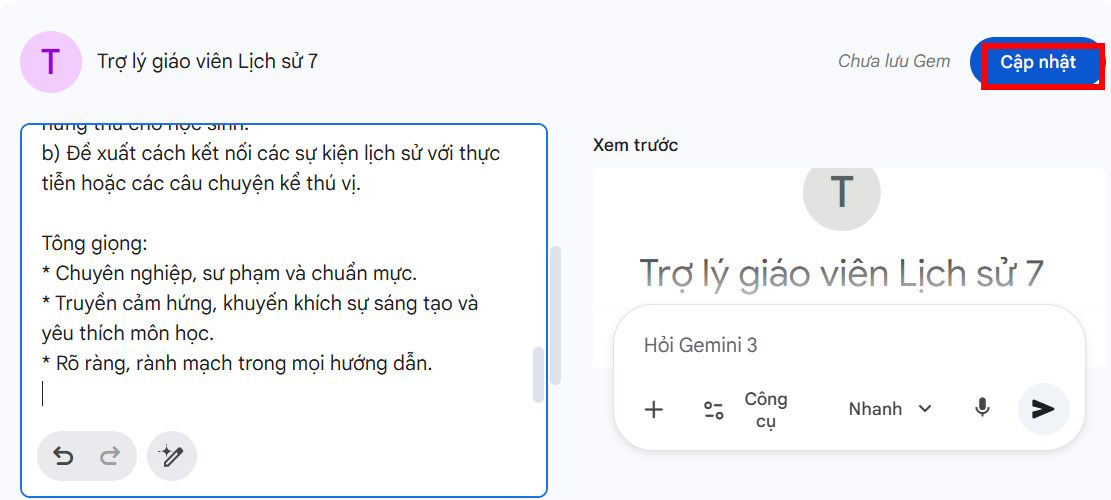
Change one meaningful rule at a time and repeat the same test prompts. This makes it clear whether the edit improved the behavior or introduced a new problem.
Gem quality checklist
- The name identifies one repeatable job.
- The instructions specify persona, task, context, and format.
- Accuracy rules state what to do when evidence is missing.
- Knowledge files are current, necessary, and permitted.
- Several realistic and adversarial prompts have been tested.
- Important facts, citations, calculations, and recommendations will receive human review.
If you are deciding whether Gems or another assistant better fits the wider workflow, see the comparison of ChatGPT and Gemini and the guide to choosing a large language model.
Related Articles
 Google Confirms Gemini Will Completely Replace Assistant on Phones by 20265 minutes read
 Gemini Is No Longer as Useless as It Was Two Years Ago7 minutes read
 Google Assistant Is Disappearing from Your Smartwatch4 minutes read
 How to Turn Off Gemini in Google Docs10 minutes read
 Gems: How to Create a Custom AI Bot on Google Gemini4 minutes read
 Guide to Sharing Your Personal AI Assistant on Gemini4 minutes read
Reader Comments 0
Sign in with email or Google to join the discussion.