Table of Contents
To remove the Gemini prompt bar at the bottom of Google Docs, open the Gemini menu, choose Bottom bar preferences, and select Turn off. This hides the bottom bar across Docs, but it may not remove the separate Gemini icon or side panel.
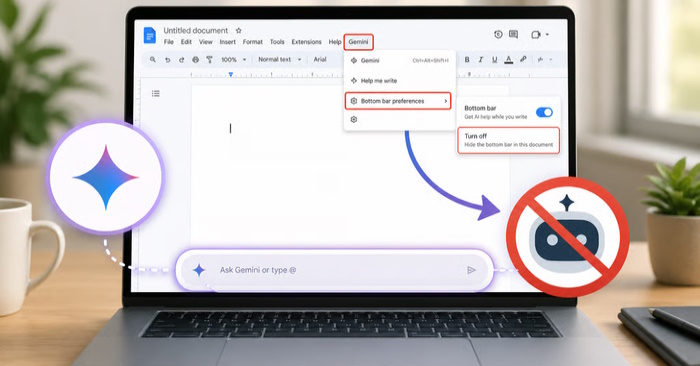
Turn off the Gemini bottom bar
- Open a document in Google Docs.
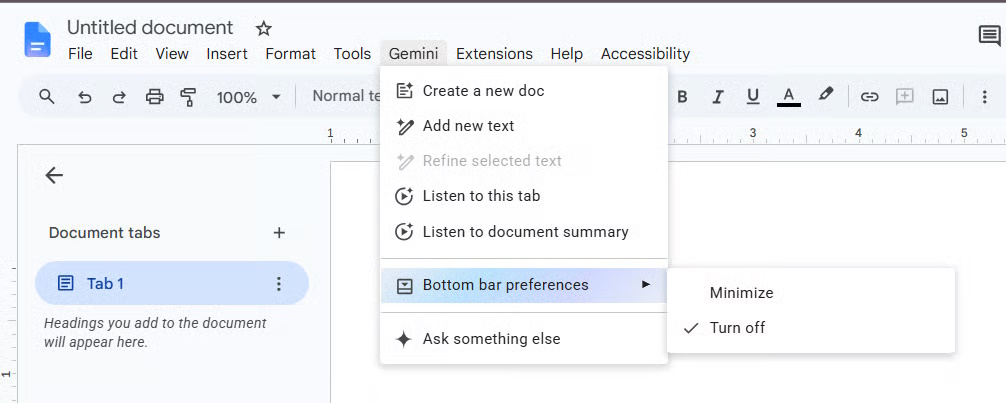
- In the top application menu, select Gemini.
- Choose Bottom bar preferences.
- Select Turn off.
- Refresh the document if the bar remains visible.
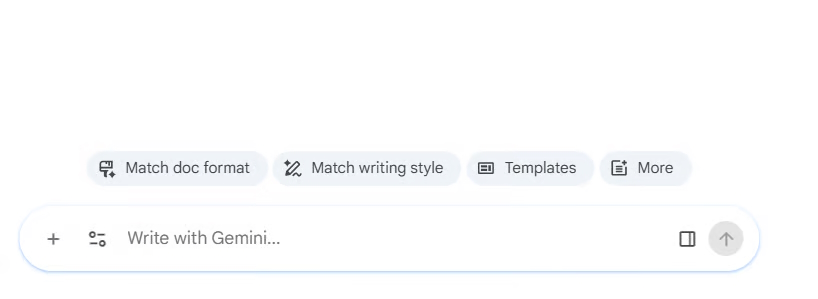
The preference applies to the signed-in account rather than only the current document. Menu wording and placement may change during Google Workspace rollouts.
Close the Gemini side panel
If the Gemini side panel is open, use its close control. Closing the panel does not disable Gemini; it simply hides that panel until it is opened again.
The top-right Gemini icon may remain available even after the bottom bar is turned off. Google Docs may not offer one user-level switch that removes every Gemini entry point while preserving all other smart features.
Disable Google Workspace smart features
For broader control, review the Google Workspace smart-feature settings associated with the account:
- Open Gmail with the same Google account used in Docs.
- Select Settings > See all settings.
- Find the section for Google Workspace smart features and open its management controls.
- Turn off the relevant Workspace smart-feature setting and save the change.
This is a broader account setting. Turning it off can affect personalized or intelligent features in Gmail, Docs, and other Workspace products—not only Gemini in one document. Read the explanation shown beside each switch before saving.
If the controls are missing
- Work or school account: an administrator may control Gemini access and smart-feature settings.
- Staged rollout: the menu may not yet be available for the account, region, or Workspace edition.
- Multiple Google accounts: confirm that Gmail and Docs are open with the same account.
- Mobile app: some preference controls may be available only in the desktop web interface.
- Cached interface: reload Docs or sign out and back in after changing the preference.
Choose the smallest change that meets your goal
Hide the bottom bar if it is the only distraction. Close the side panel if you merely want more editing space. Disable Workspace smart features only when you understand the wider effect and want AI-related or personalized features reduced across the account.
Related Articles
 The Quickest Way to Disable Gemini in Gmail, Google Photos, and Chrome7 minutes read
 Detailed Guide on Creating Images in Google Docs Using Gemini5 minutes read
 How to Disable Gemini in Gmail and Other Google Workspace Apps5 minutes read
 4 Google Apps That Work Better with Gemini: Explained5 minutes read
 4 Google Apps Work Significantly Better with Gemini AI: Explained8 minutes read
 Gemini Brings Audio Text Summarization Tool to Google Docs: Explained4 minutes read
Reader Comments 0
Sign in with email or Google to join the discussion.