Table of Contents
Send Anywhere can transfer photos, videos, audio, and documents between a computer and an iPhone without iTunes or a USB cable. Select the files on the sender, generate a six-digit key, enter it on the receiving device within 10 minutes, and keep both devices online until the transfer finishes.

Before transferring
- Install the official Send Anywhere app on the iPhone. The computer can use its desktop app or website.
- Grant access only to the photos or files you intend to send.
- Use a trusted network for sensitive material and share the one-time key privately.
- Keep both devices awake and connected; a paused one-time transfer cannot be resumed.
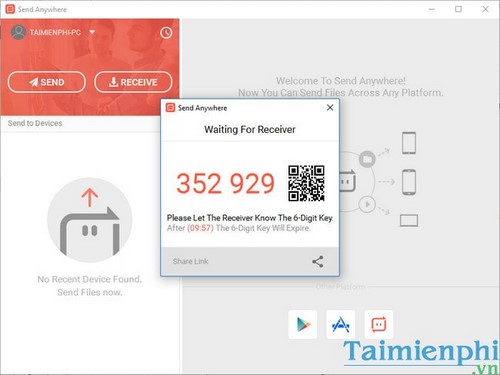
According to Send Anywhere's key-transfer documentation, the six-digit key is single-use and expires after 10 minutes.
Send files from a computer to an iPhone
- Open Send Anywhere on the computer and choose Send.
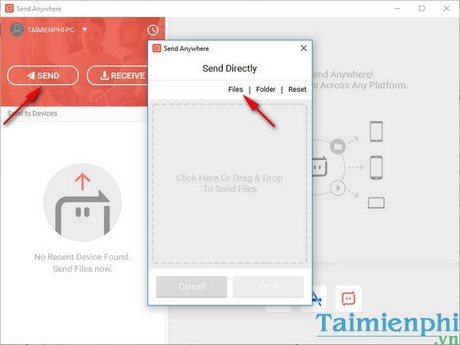
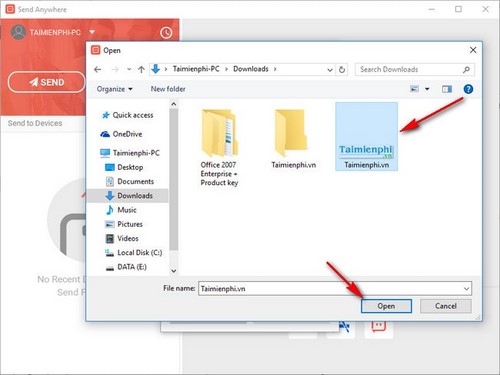
- Add one or more files or folders and confirm the selection.
- Copy the six-digit key shown by the app. Do not post it publicly.
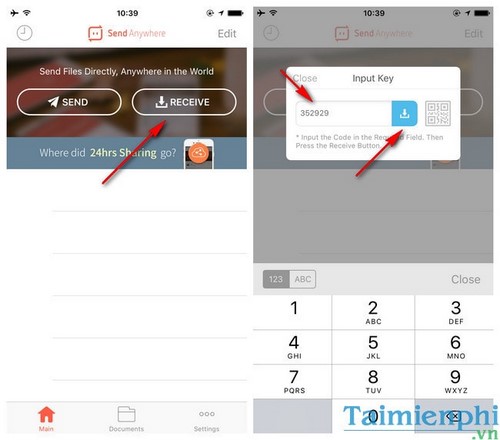
- On the iPhone, open Send Anywhere, select Receive, enter the key, and start the download.
Wait for the completion message before closing either app.
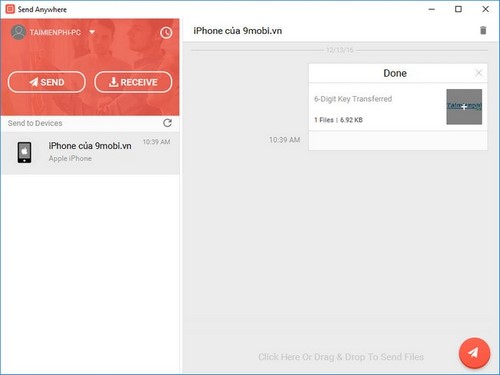
Where received files go on iPhone
Photos and videos may be saved to Photos when the app has permission. Other files can remain inside Send Anywhere or be exported to the Files app. Use the Share command and Save to Files when you want a document in iCloud Drive or On My iPhone.
An MP3 transferred this way does not automatically become part of the Apple Music library, and a movie file does not automatically appear in the TV app. You can play compatible files from Send Anywhere or Files, or use Apple Devices/Finder when you need them managed by Apple's media apps.
Send files from iPhone to the computer
- In the iPhone app, choose Send, select the photos, videos, or files, and tap Next.
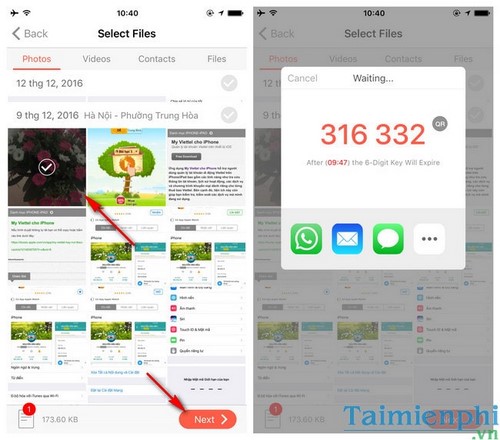
- On the computer, open Receive and enter the six-digit key.
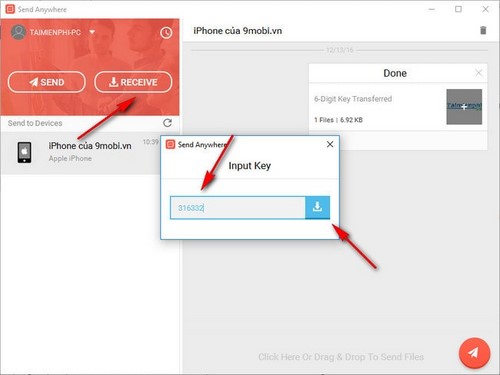
- Choose a destination folder, wait for completion, and open a sample file to verify it before deleting anything from the phone.
Security and troubleshooting
- Reject unexpected transfer notifications and never enter a key supplied by an unknown person.
- If the key expires, generate a new one rather than repeatedly retrying the old value.
- For interrupted transfers, start again; the one-time key method does not resume.
- If iOS cannot save a photo, review Photos permission and available storage.
- If a file downloads but will not open, it may use an unsupported format or codec.
Send Anywhere's official sending guide also explains links and other transfer options. For a cable-based photo import, use the built-in iPhone photo-transfer method. For broader on-device organization, see file-management apps for iPhone and iPad.
Related Articles
 Copy Photos, Music, and Videos from Your Computer to Your iPhone Using iTools4 minutes read
 How to Fix the iTools Error Where It Doesn't Recognize iTunes4 minutes read
 How to Copy Music to iPhone Without Itunes8 minutes read
 How to Copy Photos from iPhone to Computer Using ITools3 minutes read
 Are There Ways to Delete Music on iPhone?7 minutes read
 How to Copy Videos, Movies, and Music to iPhone and iPad Using iTunes on a PC11 minutes read
Reader Comments 0
Sign in with email or Google to join the discussion.