Table of Contents
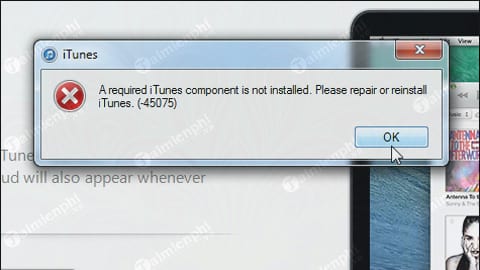
If iTunes shows error 45075 during installation or an update, restart Windows, install pending system updates, and retry with the current Microsoft Store or Apple package. Apple does not document 45075 as a current standalone code, so keep the complete error message: a second line or installer log may identify the failing component.
1. Use the right installer
On a current Windows PC, install iTunes from the Microsoft Store. If the goal is only to sync, back up, update, or restore an iPhone, use Apple Devices instead. Start from Apple's official Windows download page and do not mix a Store installation with an old standalone package.
2. Update Windows and restart
- Save your work and restart the PC.
- Open Settings > Windows Update, install available updates, and restart again if requested.
- Sign in with a Windows account allowed to install applications.
- Retry the installation.
These are the first checks in Apple's iTunes installation troubleshooting.
3. Remove a damaged older installation
If the error began while upgrading a classic desktop copy, back up the iTunes library, then uninstall iTunes through Settings > Apps > Installed apps or Control Panel. Restart before installing a fresh copy.
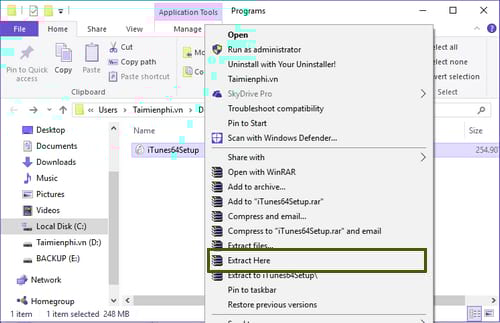
Older guides recommended extracting the iTunes executable with an archive utility:
They then ran Bonjour, Apple Application Support, Apple Mobile Device Support, and Apple Software Update installers manually:
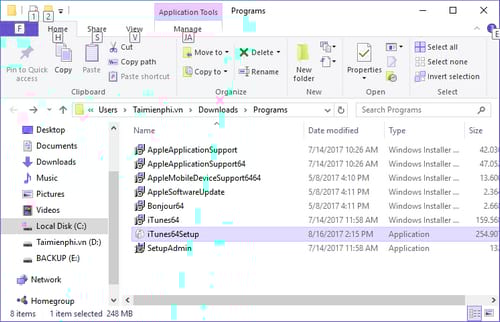
Do not use that as the default current fix. Component names and dependencies vary by package, and manually installing them in an invented order can leave a partial setup. Use the complete signed installer or Microsoft Store. If a clean removal is required, follow the safe iTunes uninstall guide and preserve components used by other Apple apps.
4. Check security software without weakening the firewall
Apple notes that third-party security software or background processes can block installation. Update that security software first. If its vendor recommends a temporary disablement for testing, disconnect from untrusted networks, pause only the minimum feature, install from the verified source, and immediately turn protection back on.
The original procedure opened Windows Firewall with firewall.cpl:
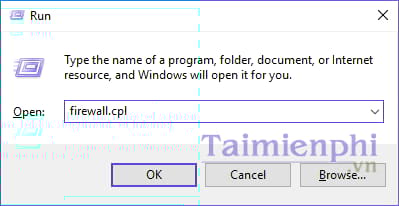
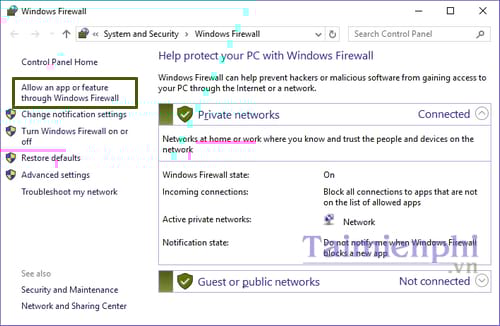
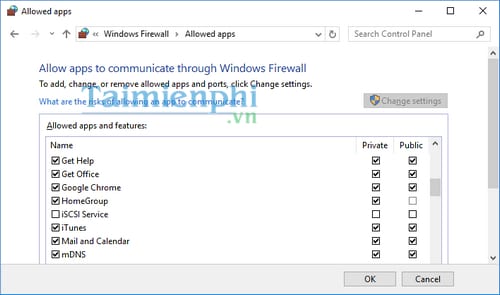
An installer normally does not need broad inbound firewall access. Do not enable iTunes on every public network merely to fix 45075. If iTunes installs but cannot reach Apple services, test a trusted network and review existing rules; allow Bonjour only where local-network discovery is actually needed.
5. Repair the Microsoft Store path
- Open Microsoft Store, sign in, and install all Store updates.
- In Windows Settings, open the Microsoft Store app's advanced options and use Repair before Reset.
- Confirm that date, time, and region settings are correct.
- If the Store itself fails, use Microsoft's Store troubleshooting rather than a random iTunes mirror.
If the error remains
Record the full message, Windows version, iTunes source, and the point where setup fails. Contact Apple Support for Apple packages or Microsoft Support for Store failures. Do not repeatedly delete registry keys or shared Apple folders.
After installation succeeds, use the iTunes update guide to keep the app current. If installation works but the iPhone is missing, the issue is device detection rather than error 45075; check the cable, trust prompt, and Apple driver.
Related Articles
 Fix Itunes Error: 'An iPhone Has Been Detected but It Could Not Be4 minutes read
 What Is Itunes 3259 Error? How to Fix the Error 3259?3 minutes read
 Instructions for Installing, Updating and Using Itunes on Windows 108 minutes read
 Fixing the Issue of Not Seeing the Tones Ringtone Option in iTunes When Creating iPhone5 minutes read
 How to Fix iTunes Error -45054 Quickly While Downloading Files or6 minutes read
 How to Install iTunes on Windows 11 32-Bit and 64-Bit Computers12 minutes read
Reader Comments 0
Sign in with email or Google to join the discussion.