Table of Contents
When iTools reports that it cannot detect iTunes or a connected iPhone, confirm that Apple's device software works first. iTools depends on Apple communication components on Windows, so removing those components before testing the cable, trust prompt, and drivers can make the problem worse.

Why iTools fails to detect the Apple software
Common causes include an outdated iTools build, a new iOS version the app does not yet support, an incomplete Apple Devices or iTunes installation, a damaged Apple Mobile Device driver, a charge-only cable, or a rejected Trust This Computer prompt.
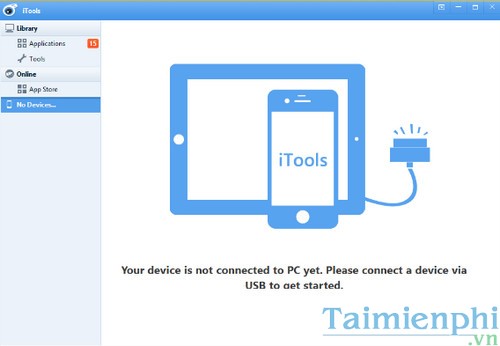
Start with the supported connection checks
- Unlock the iPhone or iPad and connect it directly with a data-capable cable.
- Tap Trust and enter the device passcode if asked.
- Try another USB port and cable.
- Open Apple Devices or iTunes. If the iPhone is missing there too, follow Apple's device-recognition troubleshooting before reopening iTools.
- Update Windows, iOS or iPadOS, Apple's Windows apps, and iTools from their official sources.
Repair or reinstall the Apple components safely
Only consider a reinstall when Apple's own app also fails or Windows shows a driver error. Older instructions use Control Panel:
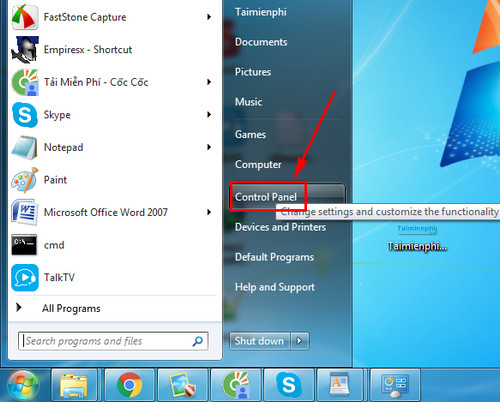
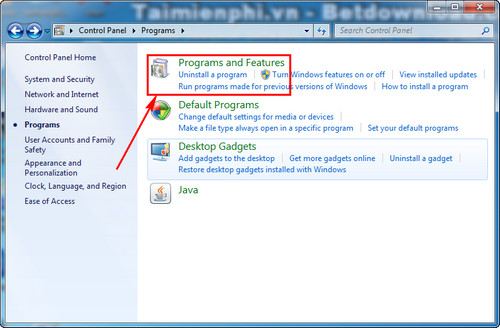
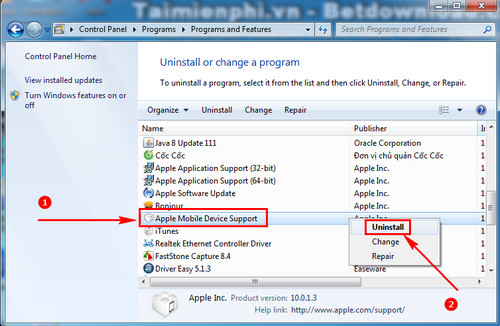
Do not uninstall Apple Mobile Device Support by itself and assume the repair is complete. It is one of the components that enables USB communication. A safer recovery is to back up the iTunes library, uninstall the affected Apple app through Windows, restart, and reinstall a current copy from Apple or Microsoft. The complete iTunes uninstall guide explains which shared components to preserve.
Use iTools One-Click Repair only if your version provides it
Some older iTools versions included a connection repair flow. Interface labels may have changed or may be absent in a current release. Download iTools only from its official publisher, open its connection diagnostic, and review what it proposes to install or change before approving it.
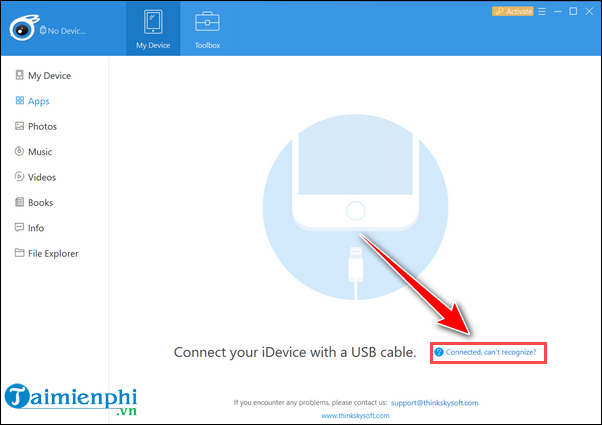
The legacy workflow began from a Connected can't recognize option:
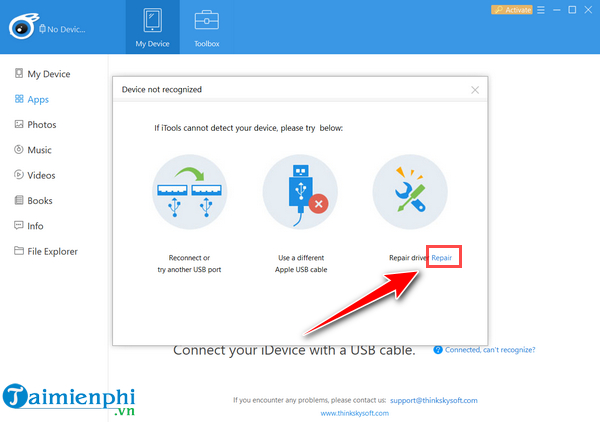
Selecting Repair opened the diagnostic:
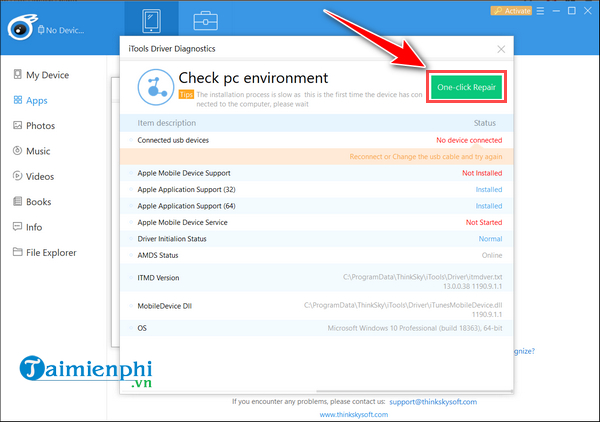
The tool then offered One-Click Repair:
Keep the PC online and do not disconnect the device or shut down Windows while a legitimate driver repair is running.
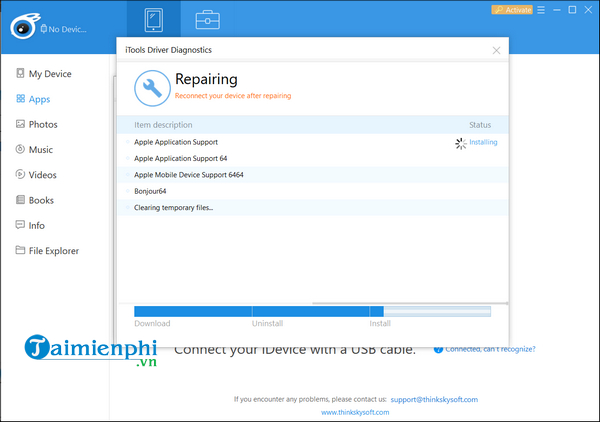
After the repair reports completion, restart the PC before reconnecting the device.
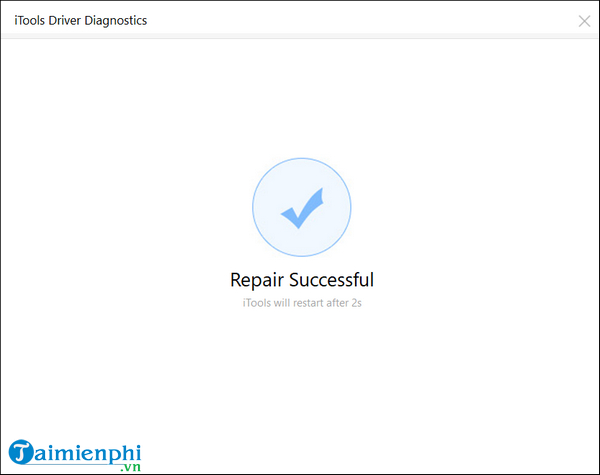
Connect the unlocked device again and approve the trust prompt.
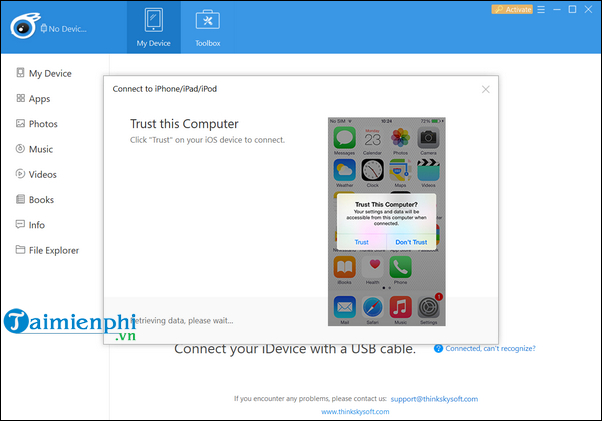
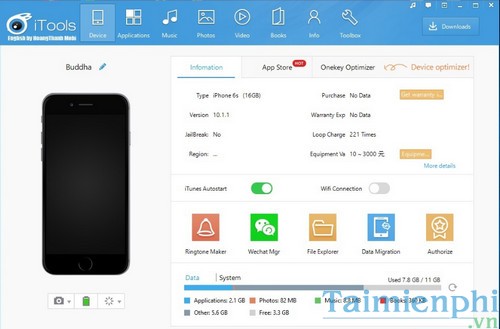
If detection succeeds, open the device overview and verify that the model and storage details match your device.
If the error remains
If Apple Devices or iTunes recognizes the iPhone but iTools still does not, the iTools build is likely incompatible or damaged. Reinstall its latest official release or contact its vendor rather than repeatedly removing Apple drivers. For routine transfers, Apple's own apps are the more predictable option; see how to move music, videos, and photos with current and legacy Apple tools.
Related Articles
 How to Fix iTools Incompatibility with iTunes3 minutes read
 How to Fix ITools Error Not Receiving iPhone3 minutes read
 What Is Itunes 3259 Error? How to Fix the Error 3259?3 minutes read
 Itunes Not Recognizing iPhone? the Cause and How to Fix It6 minutes read
 How to Convert Itools into Vietnamese Language5 minutes read
 Copy the Image to Your iPhone Using Send Anywhere4 minutes read
Reader Comments 0
Sign in with email or Google to join the discussion.