Table of Contents
You do not need iTunes or iTools to copy photos from an iPhone or iPad to a computer. Connect the device with a data-capable cable, unlock it, approve the trust prompt, and import the pictures with the computer's built-in Photos app. Windows users can also copy the files directly from the DCIM folder.
Import iPhone photos to Windows
- Connect the iPhone or iPad to the PC with a USB or USB-C cable. Keep the device unlocked.
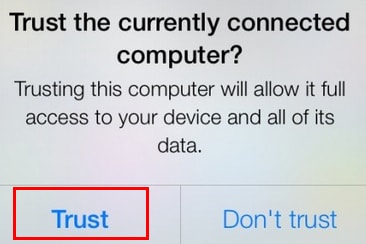
- Tap Trust or Allow on the device if prompted, then enter its passcode.
- Open the Windows Photos app.
- Select Import, choose the connected device, and wait while Windows finds the photos and videos.
- Select the items and destination, then start the import. Keep the device connected until it finishes.
Apple's current Windows instructions also ask users to install Apple Devices so the PC can communicate correctly with the iPhone. See Apple's photo-transfer guide for the supported setup.
Copy files through File Explorer
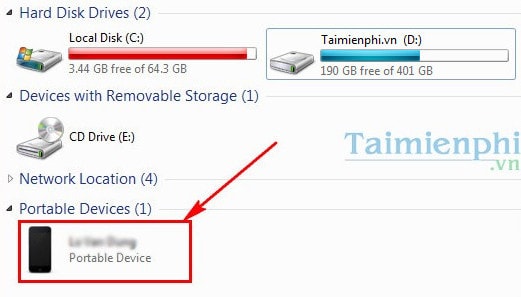
If you prefer ordinary folders, open File Explorer > This PC, select Apple iPhone, then open Internal Storage > DCIM. Copy the required folders or files to a folder on the PC. Copy first and verify the result before deleting anything from the phone.
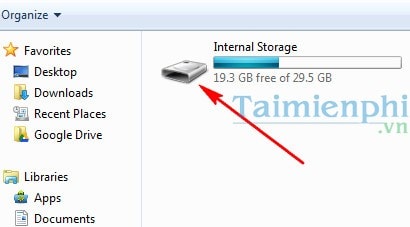
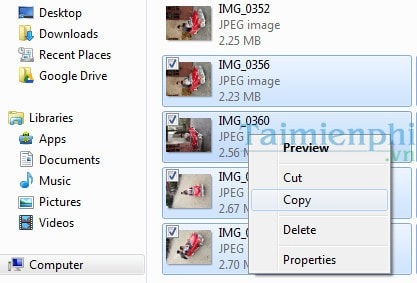
The DCIM folders may not match the album layout in the Photos app. If iCloud Photos uses Optimize iPhone Storage, some originals may not be stored locally and therefore may not be available over USB. Let the device download the originals or use iCloud Photos on the PC.
Import photos to a Mac
- Connect and unlock the iPhone or iPad, then approve any Allow or Trust prompt.
- Open Photos on the Mac and select the device in the sidebar.
- Choose an album, select the items, and click Import Selected, or import all new items.
Troubleshooting
- The device does not appear: try another data cable or USB port, reconnect while the phone is unlocked, and update Apple Devices and Windows.
- Only some photos appear: check whether iCloud Photos is keeping optimized copies on the phone.
- Windows cannot open HEIF or HEVC files: install the appropriate Windows codec, or on the iPhone open Settings > Apps > Photos and review the Transfer to Mac or PC setting.
- Import stops: copy smaller batches and keep the device awake and connected.
For a wireless alternative, use Google Photos or iCloud Photos. If you need to move other media in the opposite direction, see how to transfer music from a computer to an iPhone or iPad.
Related Articles
 Copy the Image to Your iPhone Using Send Anywhere4 minutes read
 Copy Photos, Music, and Videos from Your Computer to Your iPhone Using iTools4 minutes read
 How to Copy Photos from iPhone to Computer Using ITools3 minutes read
 How to Fix iTools Incompatibility with iTunes3 minutes read
 Copy Photos from iPhone / iPad to Computer Without Itunes4 minutes read
 How to Transfer Photos/videos from iPhone to Computer Without iTunes Explained8 minutes read
Reader Comments 0
Sign in with email or Google to join the discussion.