Table of Contents
To install jetAudio on Windows, download the current installer from the official jetAudio site, run the signed setup file, accept the licence only after reviewing it, and follow the installation wizard. The screenshots below use an older installer, so some labels may differ.
Before downloading
- Check the official release notes and system requirements for the version you choose.
- Download from the jetAudio download page, not a third-party mirror.
- Scan the installer and verify its publisher in Windows Properties.
- Create a restore point if the PC is used for production audio work.
The publisher describes jetAudio as an integrated multimedia player. Format support depends on the installed build and codecs, so do not assume every MP3, MP4, or AVI variant will play.
Install jetAudio step by step
- Double-click the downloaded installer. If Windows displays a security prompt, confirm that the publisher and file location are expected.
- On the welcome screen, close other media applications and click Next.
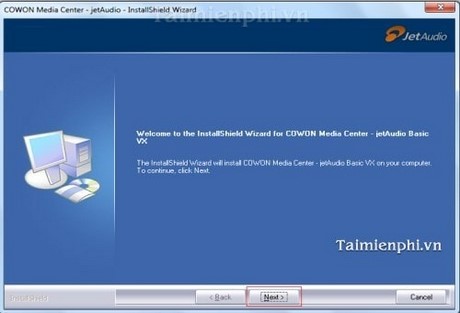
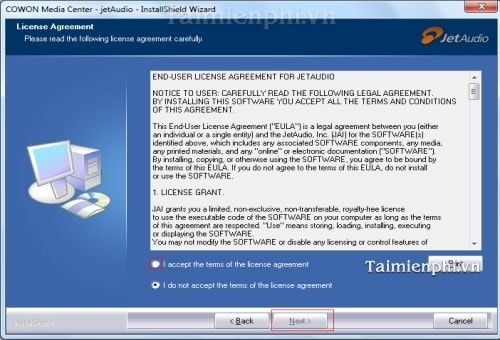
- Read the licence agreement. Select I accept the terms of the license agreement only if you agree, then click Next.
- Review the destination and optional components. Avoid changing the installation folder unless you have a specific reason.
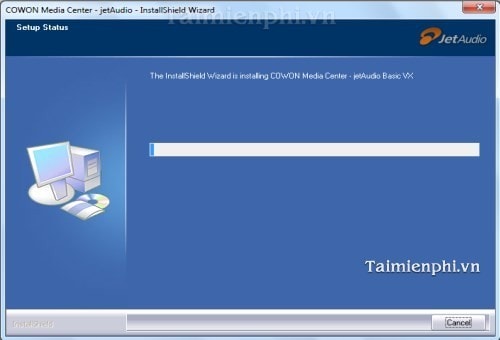
- Start the installation and wait for Windows to finish copying files.
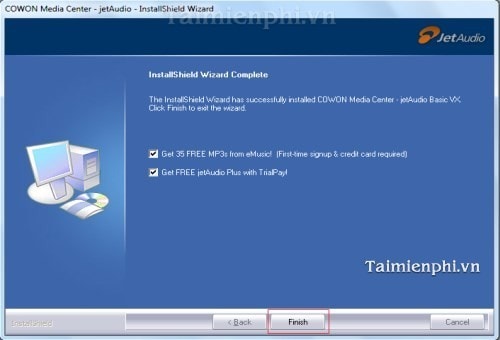
- Click Finish. Restart the PC only if the installer requests it.
First-time setup
Open jetAudio and add a small test folder rather than the entire music collection. Check the selected audio output device, volume, library location, and file associations. If you do not want jetAudio to open every media file, decline or limit the default-player options.
Test playback with a known-good file before installing additional codec packs. If one file fails but other files work, the issue is more likely its codec or corruption than the entire player.
If installation fails
- Confirm that the installer is complete and was downloaded from the official site.
- Install pending Windows updates and restart.
- Check whether antivirus software quarantined a required file; do not broadly disable protection.
- Remove an incomplete older jetAudio installation through Windows Settings, restart, and retry.
For general setup safety, see the principles of installing Windows software. If you decide not to keep the player, follow the standard program removal steps instead of deleting its folders manually.
Related Articles
 Install a Webcam for Your Computer and the Simplest Way to Use It Explained11 minutes read
 The Simplest Way to Install and Use Everyone Piano on Your Computer5 minutes read
 How to Install Windows 11 23H2 on an Unsupported Computer6 minutes read
 Install Windows Without a Disc9 minutes read
 The Simplest Way to Install Additional Fonts for Computers4 minutes read
 How to Download and Install Basic Drivers for Windows6 minutes read
Reader Comments 0
Sign in with email or Google to join the discussion.