Table of Contents
Claude Code's VS Code extension can inspect a repository, propose changes across several files, run development commands, and show edits as inline diffs. It is most useful for tasks that require project-wide context, but it should still be treated as a collaborator whose plan, commands, and code need review.
What you need
- Visual Studio Code 1.94 or later.
- An Anthropic account with Claude Code access, such as a supported paid Claude subscription or a Claude Console account.
- A local project that you can build or test independently of the AI tool.
The extension bundles a copy of the Claude Code command-line interface for its chat panel. You only need the separate CLI installation if you also want to run the claude command in VS Code's integrated terminal. Check Anthropic's official VS Code integration guide for current prerequisites and account options.
Install Claude Code in VS Code
- Open the Extensions view with Ctrl+Shift+X on Windows or Linux, or Cmd+Shift+X on macOS.
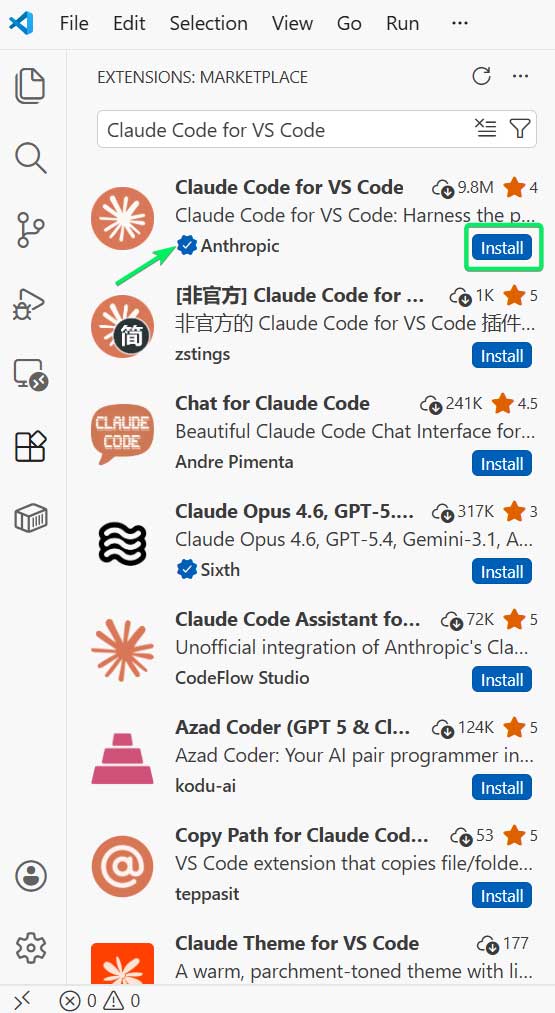
- Search for Claude Code.
- Verify that the publisher is Anthropic, then select Install.
- Open a file in the project. Select the Spark icon in the editor toolbar, or open the Command Palette and run the Claude Code command for opening a new tab.
- Sign in when prompted and choose the project folder Claude is allowed to work with.
If you prefer terminal-based installation on Windows, see the separate Claude Code installation guide for Windows 11.
Give Claude useful project context
Claude can discover files on its own, but concise project instructions reduce guesswork. A CLAUDE.md file can describe details that are not obvious from the code, such as:
- the commands used to build, lint, and test the project;
- the main directories and their responsibilities;
- coding and naming conventions;
- architectural constraints or APIs that must not change;
- generated files, secrets, and directories that should not be edited.
Keep this file short and verifiable. Do not paste credentials into it, and remove rules that no longer reflect the repository. The /init command can create a starting draft, but you should inspect and edit that draft before relying on it.
Use a review-first workflow
1. Start with a bounded request
State the desired result, relevant files, constraints, and how success will be tested. For example: “Add validation to the profile form without changing its public API. Update the existing tests and run the form test suite.” A specific request is easier to inspect than “improve this project.”
2. Ask for a plan before a large change
For refactors or features that touch several parts of the codebase, use plan mode. Review the proposed files, assumptions, migration steps, and test strategy. Correcting a mistaken plan is faster and safer than undoing a broad edit.
3. Review every diff
The extension displays file changes inside VS Code. Check for unintended edits, duplicated logic, missing error handling, exposed secrets, and changes to dependencies or configuration. Auto-accept can speed up low-risk, repetitive work, but it removes an important checkpoint and is a poor default for unfamiliar repositories or sensitive code.
4. Run the real validation commands
Ask Claude to run the relevant formatter, linter, type checker, tests, and build. Then inspect the command output yourself. A passing test suite is useful evidence, but it does not prove that behavior outside the covered cases is correct. Manually exercise the critical path when possible.
5. Check the final Git diff
Before committing, use VS Code's Source Control view or git diff to review the complete change. Make sure temporary logs, local settings, generated artifacts, and unrelated formatting changes were not included.
Working with files and diagnostics
You can mention files and selected line ranges in the chat so Claude begins with the most relevant context. For debugging, include the exact error, steps to reproduce it, and the expected behavior. Claude can use project files and VS Code diagnostics to investigate, but a traditional debugger remains better for observing runtime state, breakpoints, timing, and data flow.
Multi-file edits are a strong fit for tasks such as renaming an internal API, updating callers after a type change, adding tests alongside a feature, or applying the same validation rule across related modules. The value comes from coordinated changes, not from accepting a large patch without inspection.
VS Code extension or terminal?
| Choose the VS Code extension when | Choose the CLI when |
|---|---|
| You want visual diffs and plan review in the editor. | You work mainly in a terminal or remote shell. |
| You frequently refer to selected code and diagnostics. | You need shell-oriented scripting and automation. |
| You want several conversations in editor tabs. | You need the same workflow in an editor without the extension. |
The two interfaces can be used in the same project. If you are also evaluating other assistants, see how Claude Code and GitHub Copilot fit together and our list of alternatives to GitHub Copilot.
Limit access and watch usage
Claude Code can read files and request permission to run commands, so review the project scope and each sensitive action. Keep secrets in protected environment variables, use version control, and avoid granting broad automatic permissions on production systems. Treat instructions found in untrusted repository files, issues, or web content as potentially unsafe.
Usage depends on the account and the size and length of sessions. Large repositories, long conversations, and repeated tool calls consume more of the available allowance. Split unrelated work into separate sessions, keep prompts focused, and consult Anthropic's current usage-limit documentation rather than relying on a fixed message estimate.
A practical first task
Begin with a small, reversible issue: ask Claude to explain one module, propose a test for a known edge case, and make the change only after you approve the plan. Review the diff and run the test yourself. This short cycle shows how well the extension understands the repository before you entrust it with a larger refactor.
Related Articles
 How to Work More Effectively With Claude Code12 minutes read
 Tips for Using Claude AI to Program Effectively for Beginners8 minutes read
 Things You Need to Know About Claude Code5 minutes read
 How to Use Claude to Code and Debug Code6 minutes read
 What Is the Claude Code: Clear Explanation7 minutes read
 Which AI Programming Tool Is Right for You: Claude Code or Cursor?10 minutes read
Reader Comments 0
Sign in with email or Google to join the discussion.