Table of Contents
Twee's Create a Dialogue on Any Topic tool can turn a topic or short source text into a draft conversation for an English lesson. The useful workflow is to set a specific situation and learner level, generate the dialogue, and then edit it so the language sounds natural and supports a clear classroom objective.
This guide covers the teaching platform Twee, not Twitter or X.
1. Open the dialogue tool
Sign in at app.twee.com. In the tool library, select Create a Dialogue on Any Topic. If the layout has changed, search for the tool name or look in the reading and speaking tools.
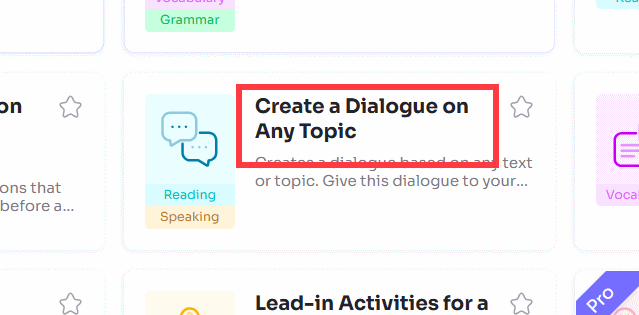
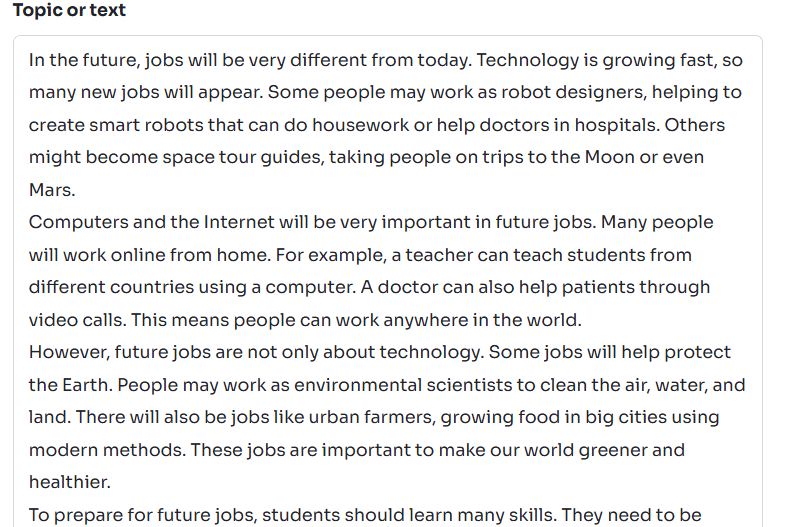
2. Describe a specific speaking situation
Enter either a topic or the text on which the conversation should be based. A broad prompt such as “travel” tends to produce a generic exchange. Give the speakers a role, setting, and purpose instead:
- Roles: a hotel guest and receptionist;
- Situation: the guest's room is too noisy;
- Goal: explain the problem, ask about alternatives, and agree on a solution;
- Language focus: polite requests and clarification questions.
A focused setup creates a dialogue that is easier to use for role-play. Avoid entering private student information or copyrighted material that you are not permitted to upload.
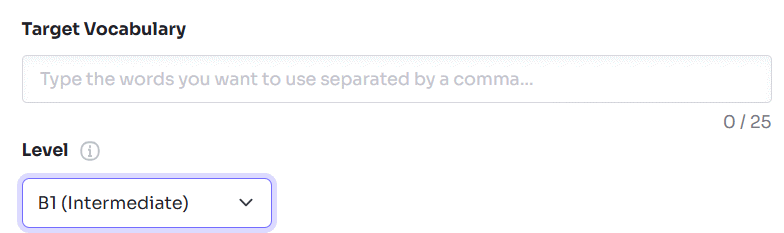
3. Add target vocabulary carefully
If the interface provides a vocabulary field, enter a short list of words or phrases students have already encountered. Choose language that the speakers would realistically need, such as Could you help me with…?, I'm afraid there is a problem, and Would it be possible to…?.
Do not force a long vocabulary list into one short conversation. It can make the exchange sound unnatural and distract from the speaking goal. For other ways to develop a topic before the dialogue, see TipsMake's guide to creating English discussion questions with Twee.
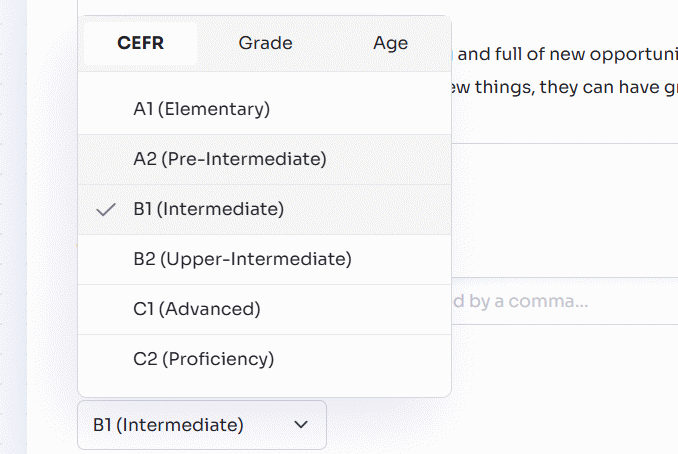
4. Select an appropriate learner level
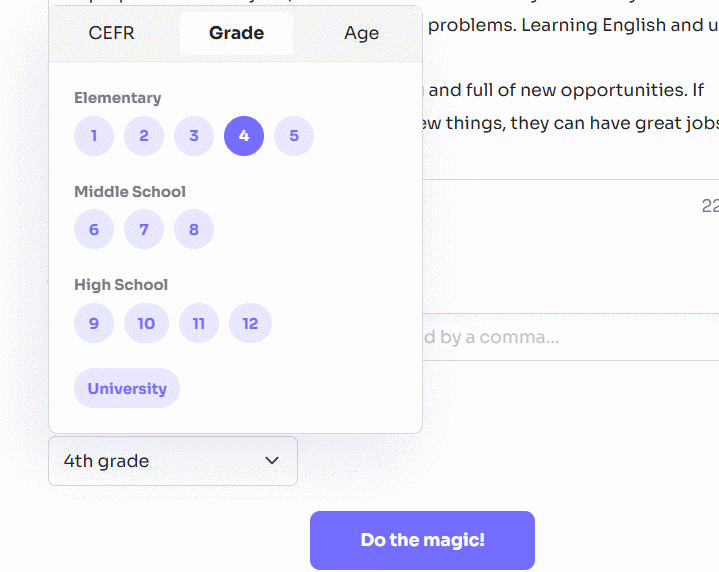
Choose the CEFR level, grade, or age option shown in your account. Use CEFR when language complexity is the main concern; grade or age can be more helpful when the situation and background knowledge must suit a particular group.
The level control is only a starting point. A dialogue can contain simple grammar yet still be unsuitable because it assumes unfamiliar cultural knowledge, moves too quickly, or gives one speaker much more to say than the other.
5. Generate the dialogue
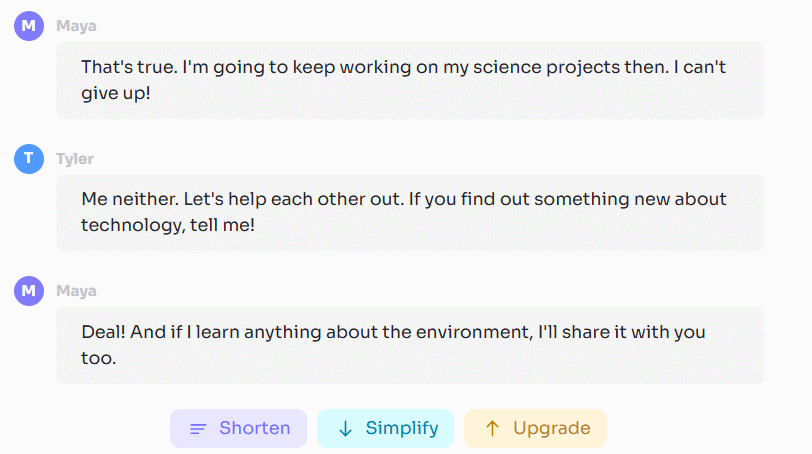
After checking the topic, roles, vocabulary, and level, click Do the magic. Read the complete result before copying or sharing it. If Twee offers controls such as Shorten, Simplify, or Upgrade, use them to create another draft—but review the new version again.
6. Edit the generated conversation
A generated dialogue should be treated as lesson material that needs a teacher's judgment. Check that it:
- has a clear beginning, purpose, and resolution;
- uses the target language naturally rather than inserting it mechanically;
- gives both speakers meaningful turns;
- does not repeat the same greeting or explanation;
- matches the learners' vocabulary, grammar, and reading load;
- avoids stereotypes, unsupported factual claims, and unnecessarily sensitive details;
- contains enough context for students to understand each speaker's intention.
Read the lines aloud. If a sentence would sound awkward in an ordinary conversation, shorten it or replace it. Also decide whether students should follow the script exactly or use it only as a model.
Turn the draft into a speaking activity
Copying the text is not the end of the lesson design. Choose an activity that makes learners process and reuse the language:
- First reading: students identify each speaker's problem, goal, and final decision.
- Supported rehearsal: pairs read the dialogue and mark stress or useful phrases.
- Information gap: remove several key lines and ask partners to complete them in their own words.
- Role variation: change one detail—price, time, location, or constraint—and have students adapt the exchange.
- Independent role-play: students keep the situation and language goal but stop using the script.
For a reading-focused follow-up, you can also use the same dialogue as the source for open-ended questions in Twee.
A practical prompt example
Topic: A customer returns headphones that disconnect during calls.
Speakers: customer and store employee.
Goal: describe the problem, ask two diagnostic questions, and agree on an exchange or further test.
Target language: The problem occurs when…, Have you tried…?, Would you prefer…?
This is more useful than entering “a conversation in an electronics store” because it gives the exchange a realistic purpose and makes the desired language observable. Twee can supply the first draft; the teacher should make the final decisions about accuracy, difficulty, and how students will use it.
Related Articles
 How to Turn Twitter Topics into Blog Posts4 minutes read
 Guide to Creating Discussion Forums Using NotebookLM4 minutes read
 How to Link Twitter Posts into a Topic on Iphone and Ipad: Threats3 minutes read
 Instructions for Using Twitter for New Users14 minutes read
 How to Create a Telegram Group Topic for Discussion4 minutes read
 Instructions for Creating Bookmarks in Twitter3 minutes read
Reader Comments 0
Sign in with email or Google to join the discussion.