Table of Contents
Canva's Translate feature can translate text on selected pages or across an entire presentation without requiring you to copy each text box into a separate translator. It keeps the design structure, but translated text may expand, wrap differently, or need terminology corrections. Duplicate the original design first, then review every translated slide before presenting or exporting it.
Before translating the presentation
- Make a copy: keep an untouched version in the source language.
- Proofread the source: unclear or misspelled text often produces a worse translation.
- Standardize terms: decide how product names, acronyms, technical terms, and names should appear.
- Check text objects: text embedded inside a photo will not behave like editable Canva text.
- Confirm access: Translate availability and usage limits can depend on the account and current Canva plan.
Canva maintains a current Translate help page if the controls in your editor differ from the screenshots below.
1. Open or import the slides in Canva
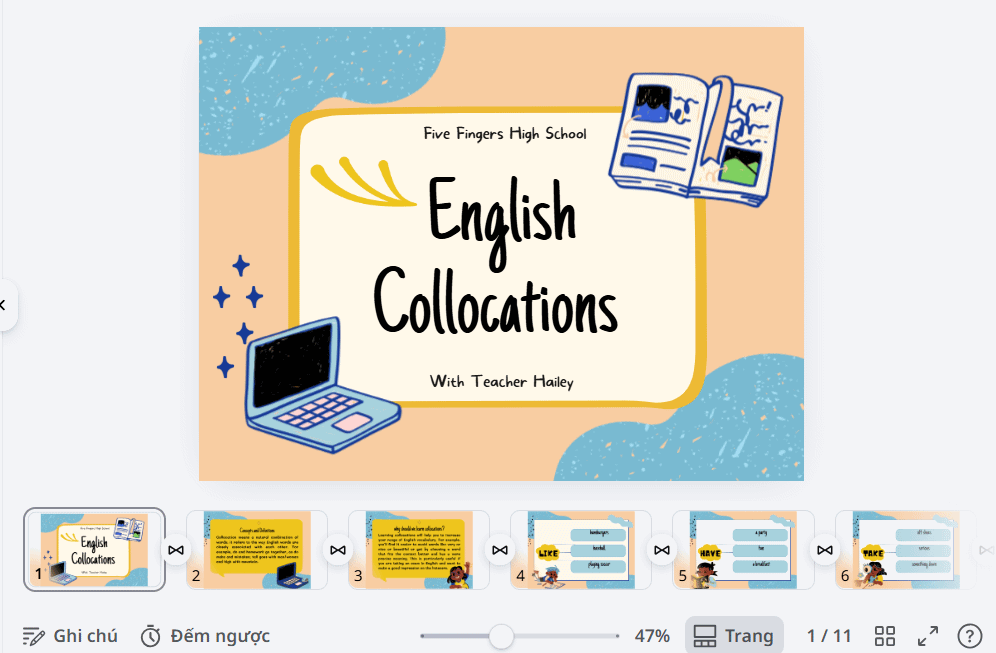
Open the presentation you want to translate. If it began as a PowerPoint file, import it and check that fonts, charts, and text boxes survived the conversion before translating. Canva cannot correct layout problems that were already present in the imported file.
2. Open Translate
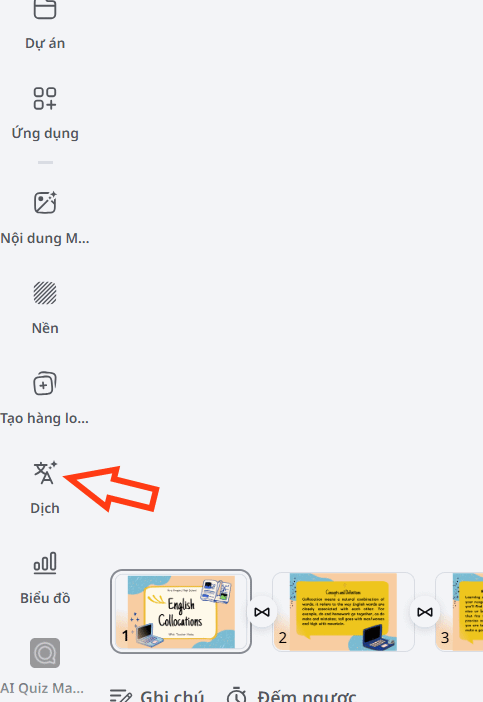
From the editor sidebar, open Apps if necessary and select Translate. Canva may also surface the tool directly in the sidebar, depending on the current workspace layout.
3. Choose the target language
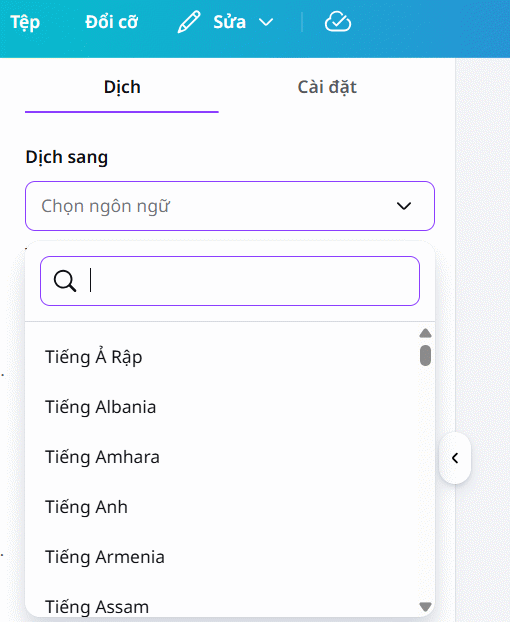
Select the language into which the presentation should be translated. If Canva asks for the source language, choose it explicitly when automatic detection could be confused by short text, names, or a design containing more than one language.
Where a tone option is available, use it only as a broad style control. It does not replace a human review for brand voice, formality, regional usage, or subject-specific terminology.
4. Select the text or pages to translate
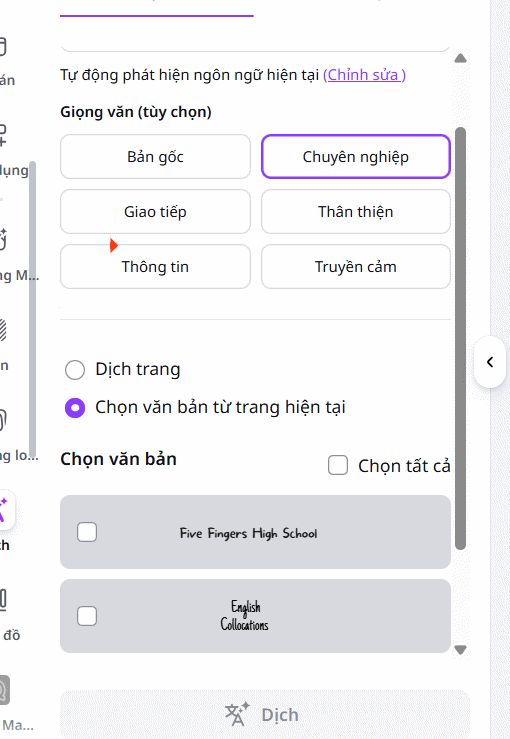
Choose the scope carefully:
- Selected text is useful for one text box or a small correction.
- Current page translates the editable text on the active slide.
- Selected pages works when only part of the deck needs another language.
- All pages creates the broadest translation and should be followed by a complete slide-by-slide review.
The exact labels can change as Canva updates the editor. Confirm the page selection rather than assuming every slide is included.
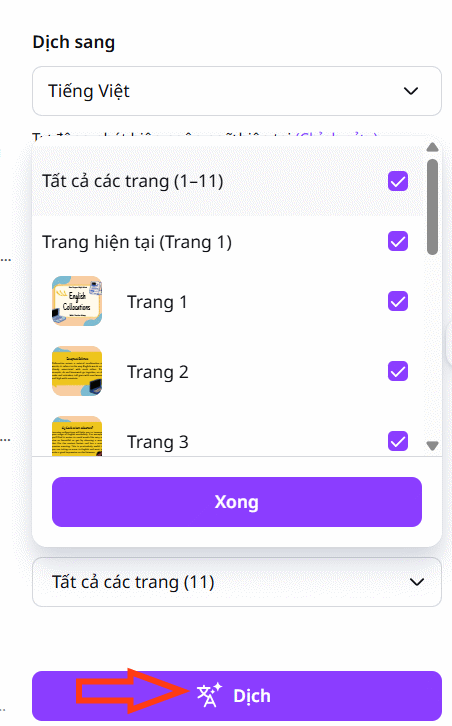
5. Run the translation and inspect the result
Select Translate and allow Canva to process the chosen content. The translated pages should retain the overall design, but preservation of the layout is not the same as a finished multilingual presentation.
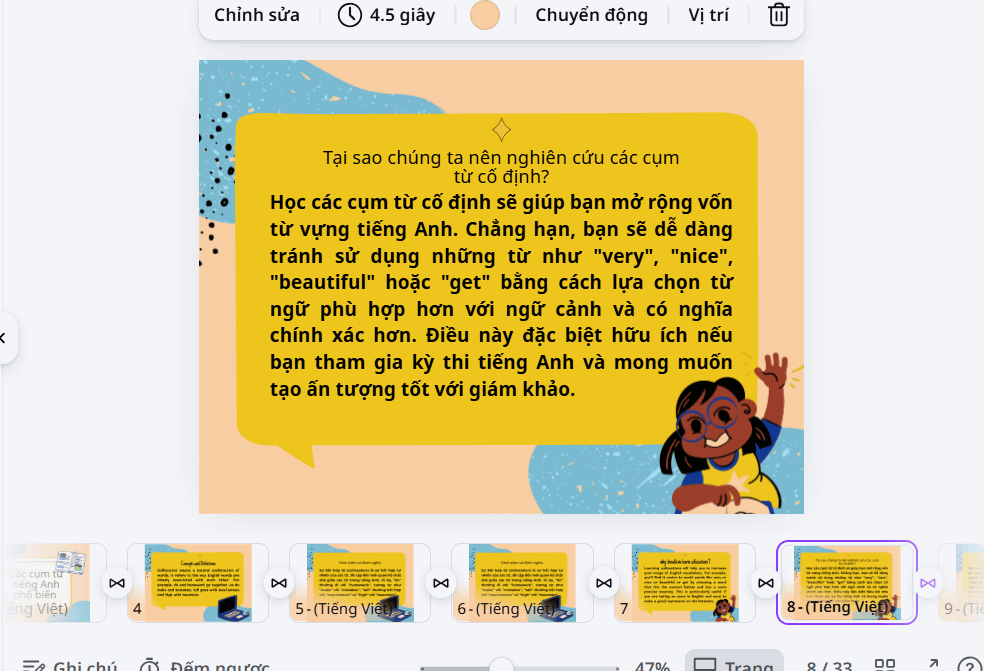
Review every translated slide
Automated translation can miss context, especially in short headings and technical material. Use a fluent reviewer for public, legal, medical, financial, or safety-critical content. Check the following before sharing:
- Meaning: compare each statement with the source, including negatives, units, dates, and qualifiers.
- Terminology: use the same translation for recurring product and technical terms.
- Names and URLs: confirm that proper nouns, email addresses, links, and codes were not altered.
- Overflow: translated text may be longer and can run outside its box or cover an image.
- Line breaks: avoid splitting phrases in places that change meaning or make headings hard to scan.
- Fonts: make sure the selected typeface contains the characters required by the target language.
- Reading direction: right-to-left languages may require realignment and a different visual order.
- Charts and images: replace text baked into images manually and check axis labels, legends, and captions.
- Speaker notes and alt text: translate these separately if the audience will receive or rely on them.
Keep the design readable after translation
Do not solve overflow by shrinking every text box until the type becomes unreadable. First shorten overly literal wording, enlarge the box, adjust line spacing, or redistribute content across slides. A separate layout for the translated version is acceptable when the language needs more space.
If the translated deck will be used outside Canva, export a test copy and inspect it in the destination app. TipsMake's guide to converting Canva slides to PowerPoint explains the export workflow and common font or animation limitations. If you are rebuilding the visual style, the list of presentation template sources offers additional starting points.
Troubleshooting
- Translate is missing: search under Apps, confirm your account access, and consult Canva's current help documentation.
- Some text was skipped: verify that it is editable text rather than pixels in an image, then translate that text box separately.
- The language is detected incorrectly: select the source language manually or provide a longer source passage.
- The output sounds unnatural: revise the source wording, translate again, or edit the result with a fluent speaker.
- Formatting changed after export: test available fonts in the destination application and keep a PDF reference of the approved layout.
Canva Translate is most useful for creating a first multilingual draft. Accuracy, terminology, cultural fit, and final layout still require deliberate review.
Related Articles
 How to Create Presentation Slides Using Canva AI5 minutes read
 Guide to Translating Canva Sheets Data Tables3 minutes read
 How to Convert Canva Slides to Powerpoint6 minutes read
 How to Create Presentation Slides on ChatGPT5 minutes read
 10 Things You Can Do with Google Slides8 minutes read
 Guide to Creating Lecture Slides Using Brisk AI5 minutes read
Reader Comments 0
Sign in with email or Google to join the discussion.