Table of Contents
Messenger encrypts personal chats and calls end to end by default; you do not need to switch encryption on for each conversation. The setting described here is secure storage, now labeled Message storage in many versions of the app. It creates an encrypted backup that lets you restore your chat history on a new device.
Without secure storage, new messages remain encrypted, but older messages and media may be unavailable if you lose your phone or replace it. The exact menu wording can vary slightly by Messenger version.
Set up secure storage in Messenger
1. Open Messenger settings
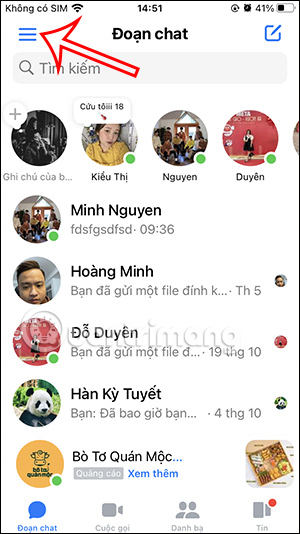
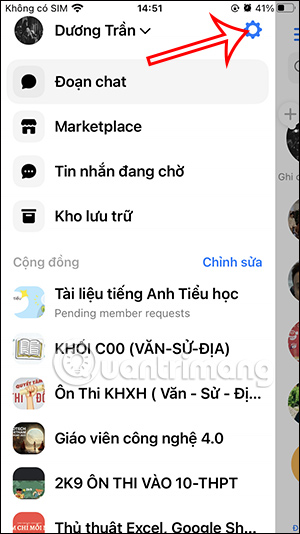
In the Messenger mobile app, tap the menu button, then tap the gear icon to open Settings.
2. Open the encrypted-chat storage controls
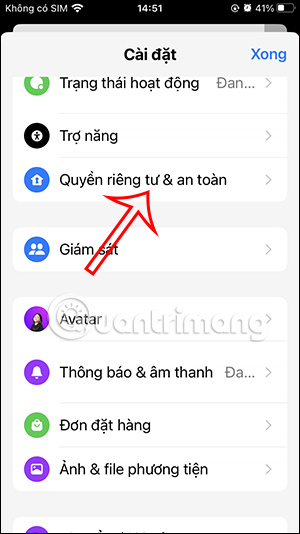
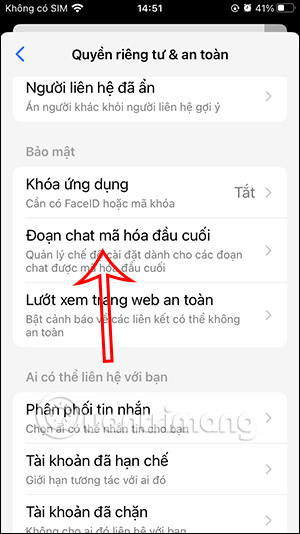
Tap Privacy & safety, choose End-to-end encrypted chats, and then open Message storage. Older app versions may call the last option Secure storage.
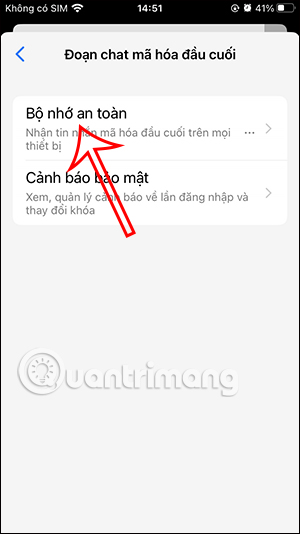
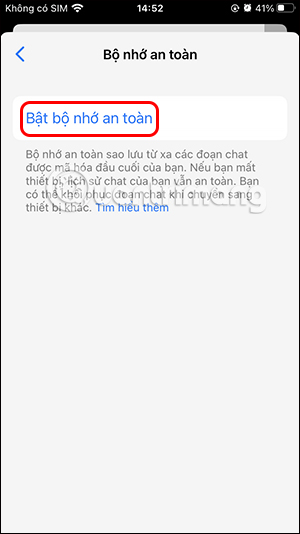
3. Choose a recovery method
Turn on message storage if it is not already enabled, then choose one of the recovery methods offered on your device:
- 6-digit PIN: easy to use across different devices and operating systems. Choose a PIN that is not obvious and do not reuse a banking or device-unlock PIN.
- Google or Apple account: Messenger can store a recovery key in Google Drive or iCloud. This can be convenient when you mainly use one mobile platform.
- 40-character code: a manual recovery code that you must copy and keep in a secure password manager or offline location.
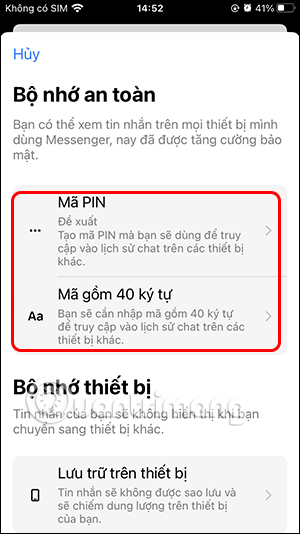
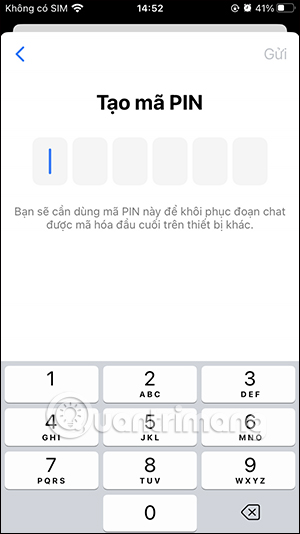
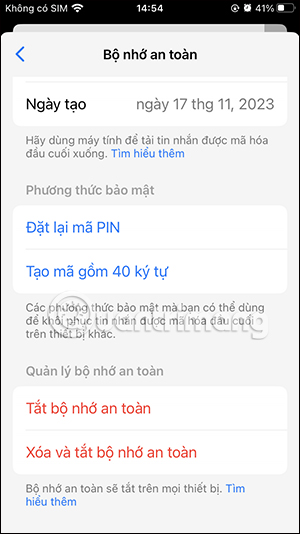
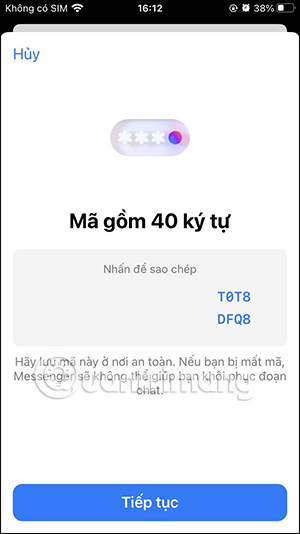
Meta's recovery-options guide lists the methods currently available. You may be able to configure more than one method, which gives you a fallback if one becomes unavailable.
Restore encrypted messages on another device
- Install Messenger and sign in to the same account.
- When asked to restore encrypted chat history, choose the recovery method you previously configured.
- Enter the 6-digit PIN or 40-character code, or allow Messenger to retrieve the key from your Google or Apple account.
- Wait for the encrypted history to finish loading before assuming messages are missing.
If the app does not prompt you, return to Settings > Privacy & safety > End-to-end encrypted chats > Message storage. Meta also provides separate PIN restoration instructions.
If you forget the PIN
If you still have an original device on which the chat history is available, use it to reset the PIN, change the recovery method, or request a one-time recovery code. Do this before signing out or deleting Messenger from that device.
If you have no original device and no other recovery method, resetting secure storage may cause the existing backed-up history to be lost. Meta cannot simply reveal an old PIN or decrypt the backup for you. Do not reset storage until you understand what chat history is still available on your devices.
What end-to-end encryption does and does not protect
End-to-end encryption protects message and call content while it travels between participants' devices. Meta states that it cannot read that content unless a participant chooses to report a message. Encryption does not protect a conversation after someone unlocks either participant's device, takes a screenshot, forwards content, or gains control of an account.
Protect the Facebook account with a strong unique password and two-factor authentication, keep Messenger and the operating system updated, and review unfamiliar signed-in devices. A recovery PIN is not the same as a chat's cryptographic security key; Messenger says chats remain encrypted even if you never compare keys.
How to confirm a chat is encrypted
Open the conversation and tap the person's name. Messenger identifies protected conversations with wording such as Messages and calls protected with end-to-end encryption. The conversation settings may also let you view or compare encryption keys, although comparison is optional.
For a broader comparison of encrypted messaging designs, see Signal versus Telegram. You can also compare everyday features in our guide to free messaging apps.
Related Articles
 How to Turn Off End-to-end Encryption on Messenger: Step-by-Step Guide3 minutes read
 Can't Turn Off End-to-end Encryption on Messenger, Why Is That Explained7 minutes read
 How to Translate Messenger Calls Directly2 minutes read
 How to Sending Photos That Can Only Be Viewed Once on Messenger4 minutes read
 How to Enable Full-disk Encryption on Windows 10?7 minutes read
 What Is End-to-End Encryption? How Does It Work?6 minutes read
Reader Comments 0
Sign in with email or Google to join the discussion.