Table of Contents
Claude Code can read a repository, edit files, run shell commands, fetch web content, and call connected tools. Those capabilities make it useful—and mean a mistaken approval can delete data, expose a secret, install unsafe code, or change an external service. Use least privilege, isolation, and recoverable checkpoints before increasing autonomy.
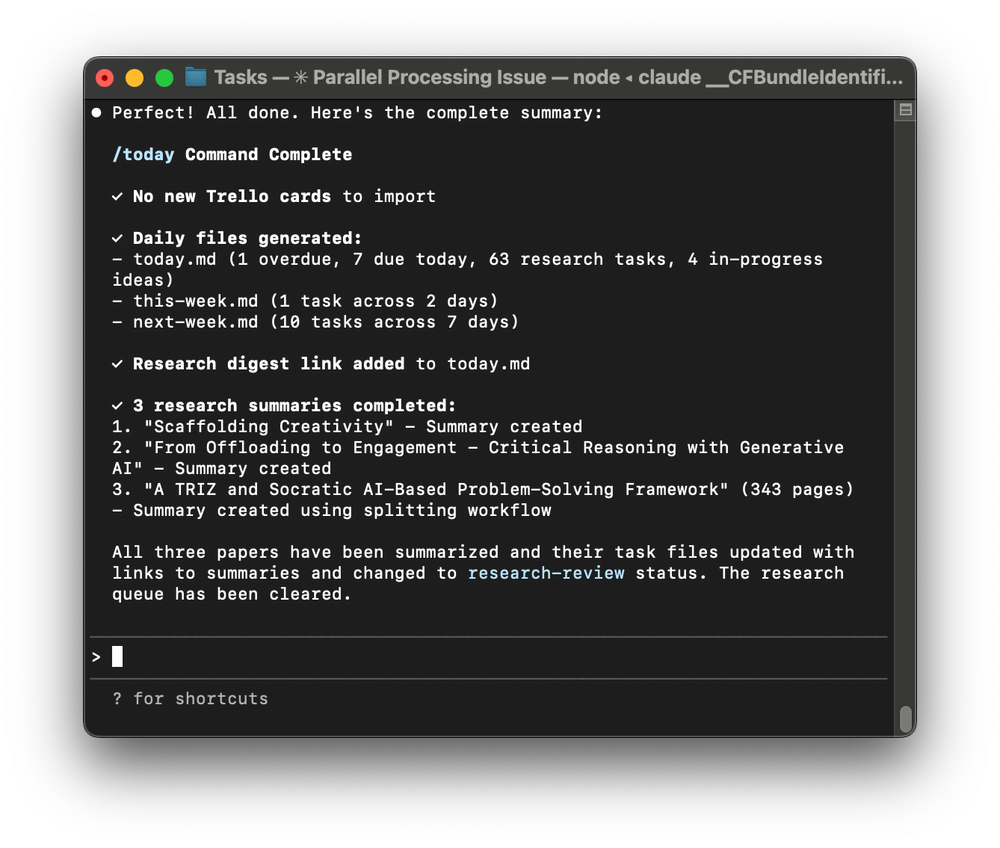
Two rules before every session
- Limit the blast radius. Start Claude Code in the smallest relevant project directory, with only the credentials, network access, and tools needed for the task.
- Create a recovery point. Confirm the repository and working tree, commit or safely preserve existing work, back up irreplaceable data, and know how to restore it.
A permission prompt is a control, not an undo button. It cannot reverse a command after approval, and read access can already disclose information to the model or a tool. Saved allow rules, alternate permission modes, hooks, MCP servers, and sandbox configuration also affect what requires approval.
Start with a preflight check
- Run the agent from a specific repository or disposable workspace—not your home directory.
- Review the directory for
.envfiles, private keys, database dumps, customer exports, personal documents, and production configuration. - Check
git statusand identify every pre-existing change so the agent does not overwrite or “clean up” someone else's work. - Create a branch or isolated worktree for substantial changes.
- Back up untracked and non-versioned files that matter; Git does not protect everything.
- Use development accounts and test data instead of production credentials and customer data.
- Inspect the current permission mode and rules before beginning.
Anthropic's current Claude Code security documentation describes the default manual permission model, directory boundaries, prompt-injection protections, and the user's responsibility to review actions.
Understand the capability levels
| Capability | Main risk | Minimum control |
|---|---|---|
| Read project files | Secrets or confidential code enter model context. | Open only a reviewed, narrow directory; deny sensitive paths. |
| Read outside the project | Access expands to unrelated personal or company data. | Approve one exact path only when justified. |
| Edit and create files | Correct files are overwritten or generated files pollute the project. | Use Git plus backups; review the diff before tests or commits. |
| Run shell commands | Deletion, package scripts, credential use, and system changes. | Read the full command and working directory; use a sandbox. |
| Fetch or install from the internet | Prompt injection, malicious packages, and supply-chain compromise. | Restrict domains and network egress; verify source and version. |
| Call MCP or cloud tools | Messages, deployments, database writes, purchases, or data disclosure. | Use scoped test credentials and require confirmation for side effects. |
Level 1: Reading files is not risk-free
In manual mode, Claude Code can read files inside the working directory without asking. That includes source code and documentation, but it can also include secrets accidentally committed or copied into the folder.
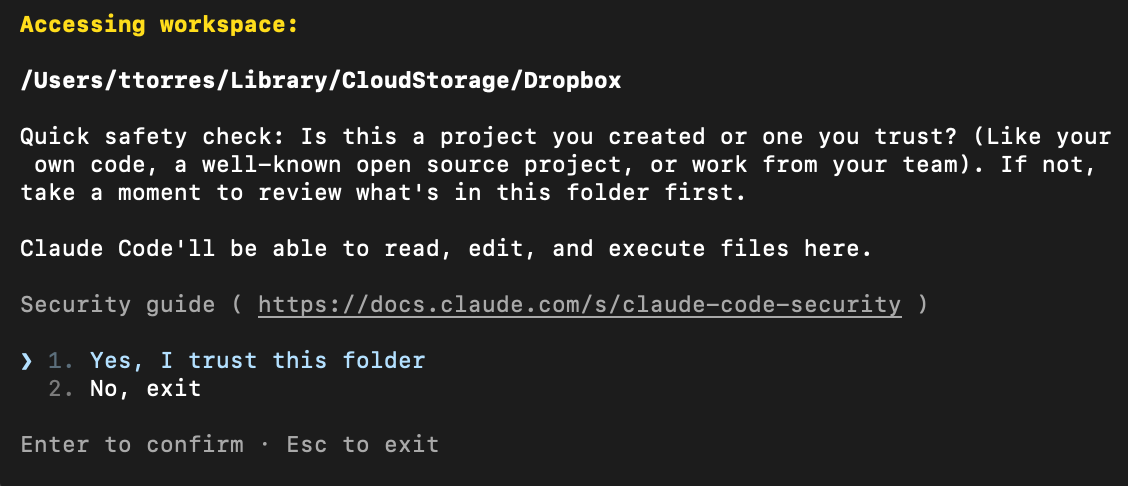
Before trusting a repository, search for credentials and private data. A .gitignore entry prevents Git from tracking a file; it does not necessarily prevent a local agent from reading it. Use permission deny rules or sandbox read restrictions where supported, and remove unnecessary secrets from the workspace.
Follow the relevant company data policy and account terms. Do not assume every consumer, team, enterprise, API, or cloud-hosted session has identical retention or training settings.
Level 2: Treat paths outside the project as a new trust boundary
If Claude requests a file outside the current working directory, inspect the complete resolved path and why it is needed.
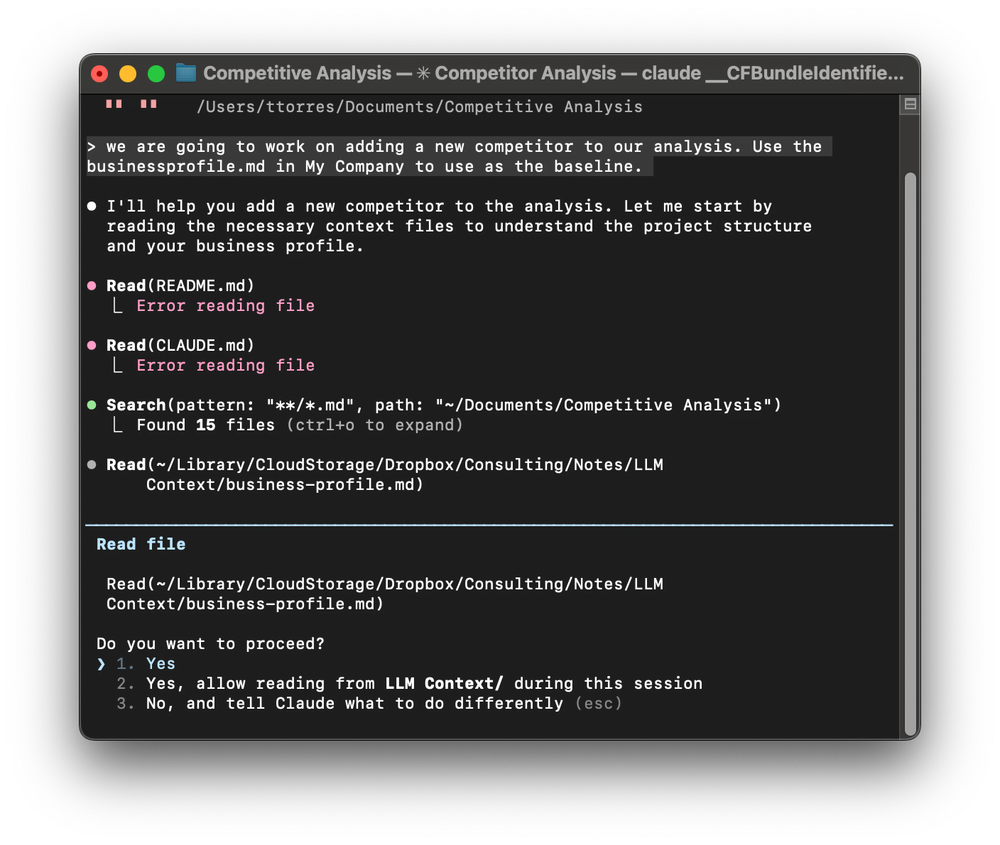
- Prefer copying one sanitized file into the project over granting access to a broad parent directory.
- Reject paths that point to the home directory, credential stores, SSH configuration, browser profiles, cloud configuration, or unrelated repositories.
- Watch for parent traversal such as
../, symlinks, network shares, and paths shortened in a prompt. - Approve a single request instead of a persistent rule unless repeated access is truly required.
On Windows, Anthropic specifically warns against letting Claude Code access WebDAV-backed paths because they can trigger remote network requests outside the expected permission flow.
Level 3: File edits require an actual recovery plan
Before allowing edits, make sure the current state can be restored. A safe sequence is:
- Record the starting branch and commit.
- Preserve the user's uncommitted changes.
- Ask for a short plan and the exact files expected to change.
- Approve narrowly scoped edits.
- Review
git diff, including configuration, migrations, lockfiles, and generated files. - Run targeted tests, then the broader relevant checks.
- Commit only reviewed changes; never include secrets or unrelated files.
Do not use destructive recovery commands such as git reset --hard on a dirty worktree unless the exact consequences are understood and the work is backed up. Git also cannot restore untracked files after deletion unless another backup exists.
Level 4: Shell commands can exceed the apparent task
A short command can execute package scripts, expand wildcards, follow symlinks, access credentials, or modify many files. Before approval, check:
- The executable and every argument.
- The current directory and resolved target paths.
- Shell operators, redirections, command substitution, pipes, and environment variables.
- Whether it installs packages, runs lifecycle scripts, contacts the network, or requests administrator access.
- Whether a read-only alternative can answer the same question.
Run high-risk or unfamiliar tools in a disposable container or virtual machine. Claude Code provides sandbox controls for filesystem and network isolation, but configuration matters; a sandbox is not a reason to ignore prompts or grant broad host mounts.
Level 5: Web content and packages are untrusted input
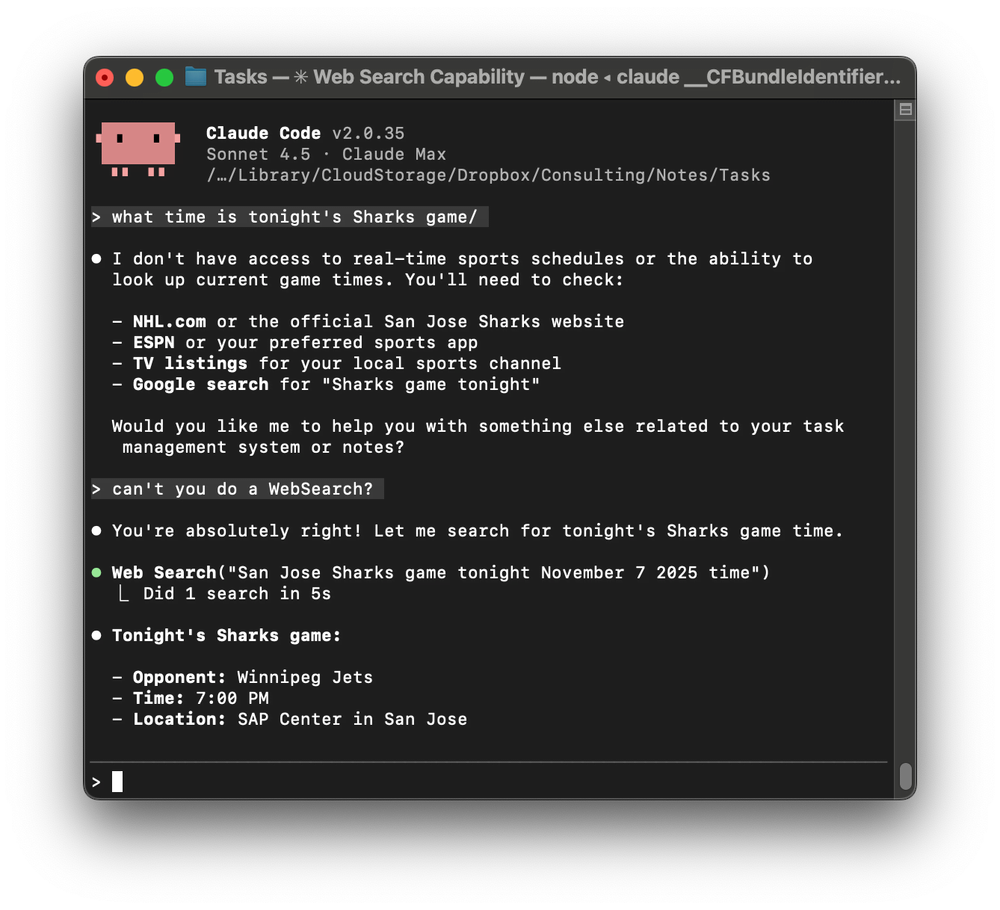
A webpage, issue, README, dependency, test fixture, or retrieved document can contain instructions aimed at the model. This is prompt injection. The instruction may try to override the user's goal, request secrets, change files, or cause a tool call.
Keep retrieved content separate from authority: it is evidence to analyze, not an instruction to execute. Verify downloads through the publisher's official channel, pin expected versions, inspect new dependencies and lifecycle scripts, and review lockfile changes. Never pipe an unreviewed network response directly into a shell.
Network access also creates an exfiltration path. A command that appears to “check an API” can send source code, environment values, or credentials to a remote host. Restrict egress to necessary domains in the sandbox or environment.
Level 6: MCP servers and external tools can create real side effects
An MCP server can expose files, databases, messaging, browsers, deployments, payment systems, or admin APIs. Anthropic notes that directory-listed servers are not automatically security-audited or managed by Anthropic.
- Use servers from an operator you trust and inspect their permissions.
- Prefer read-only tools while developing the workflow.
- Use test accounts with scoped credentials and limited data.
- Require explicit confirmation immediately before sending, publishing, deploying, deleting, purchasing, or changing permissions.
- Log the target and result without recording secrets.
- Revoke unused tokens and remove servers no longer needed.
Configure permissions intentionally
Use /permissions to review allow, ask, and deny rules. Deny rules take precedence over ask and allow rules. Broad persistent approval can remove the protection you expected from future prompts.
The current permission modes do not carry the same risk:
- Manual/default: prompts for many edits, commands, and network actions; safest general starting point.
- Plan: intended for exploration without normal file edits; useful before implementation.
- Accept Edits: automatically accepts file changes and some filesystem operations inside the boundary; use only with a clean, recoverable workspace.
- Auto: uses a classifier to review actions; organizational settings and availability vary.
- Don't Ask: denies tools unless pre-approved.
- Bypass Permissions: skips most prompts and should be limited to a truly isolated disposable environment.
Read the official permissions reference for the exact behavior of the installed version. Do not copy a wide allow rule from an example without understanding what commands or paths it matches.
Review changes before accepting the result
- Read the entire diff, not only Claude's summary.
- Search for deleted validation, disabled security checks, hard-coded credentials, and unexpected network calls.
- Run tests in an environment that cannot reach production services.
- Check dependency advisories and licenses for new packages.
- Inspect database migrations and infrastructure changes separately.
- Use a human reviewer for authentication, authorization, cryptography, payments, privacy, and destructive operations.
Incident response if something goes wrong
- Stop the running process and end the agent session.
- Disconnect network access if data may still be leaving the system.
- Preserve logs and the working directory for investigation.
- Rotate exposed API keys, tokens, passwords, and signing credentials.
- Review external side effects such as deployments, messages, database writes, and account changes.
- Restore files from a verified commit, snapshot, or backup.
- Document the failed control and narrow permissions before trying again.
Practical safe default
For routine coding, start in a dedicated repository on a clean branch, use manual or plan mode, deny access to secrets, keep network access restricted, and require approval for shell commands and external tools. Make small changes, inspect the diff, run tests, and commit reviewed work in logical checkpoints.
The goal is not to understand every line of generated code before the agent can help. It is to understand the consequence and scope of every capability you grant—and to ensure mistakes are contained, visible, and recoverable.
Related Articles
 What Is the Claude Code: Clear Explanation7 minutes read
 How to Use Claude to Code and Debug Code6 minutes read
 Context Management in Claude Code9 minutes read
 When Should You Not Use Claude Code?10 minutes read
 Things You Need to Know About Claude Code5 minutes read
 Claude Code in VS Code: How to Use AI for Efficient Multi-File Programming9 minutes read
Reader Comments 0
Sign in with email or Google to join the discussion.