Table of Contents
Claude can help explain errors, trace faulty logic and propose code changes, but the useful workflow is not “paste code and copy the answer.” Provide a reproducible problem, ask for a diagnosis before a patch, review the diff, and run the same checks you would require from a human contributor.
Before sharing code
- Remove API keys, passwords, tokens, customer data and private identifiers.
- Confirm that company policy and the code's license allow it to be sent to the service.
- Create a branch or commit a clean checkpoint so changes are recoverable.
- Reduce the report to the smallest example that still reproduces the bug.
- Keep the original failing test or error output unchanged.
Open Claude and start a conversation for the specific bug. A paid plan is not inherently required for a good debugging method; use the model and access level available to you and judge the result by the tests.
1. Write a reproducible bug report
Include the language and version, framework or runtime, expected behavior, actual behavior, exact error message, steps to reproduce and the smallest relevant code. State any constraints, such as keeping a public API compatible or avoiding a new dependency.
Environment: Python 3.12, pytest 8
Expected: parse_price("1,250.00") returns 1250.0
Actual: ValueError: could not convert string to float
Reproduction: run pytest tests/test_price.py::test_comma_separator

Analyze the root cause first. Cite the exact line responsible. Then propose the smallest safe fix and one regression test. Do not change unrelated code.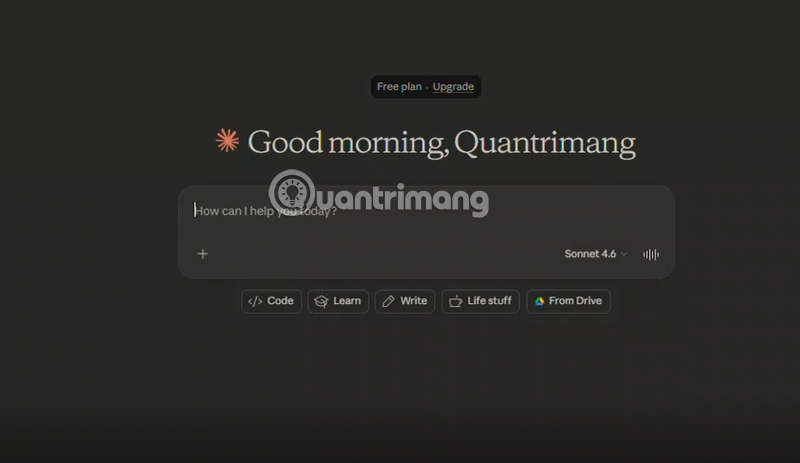
2. Ask for diagnosis before code
Request the likely root cause, evidence and any assumptions. If more than one explanation fits, ask Claude to rank the possibilities and name the observation or test that would distinguish them.
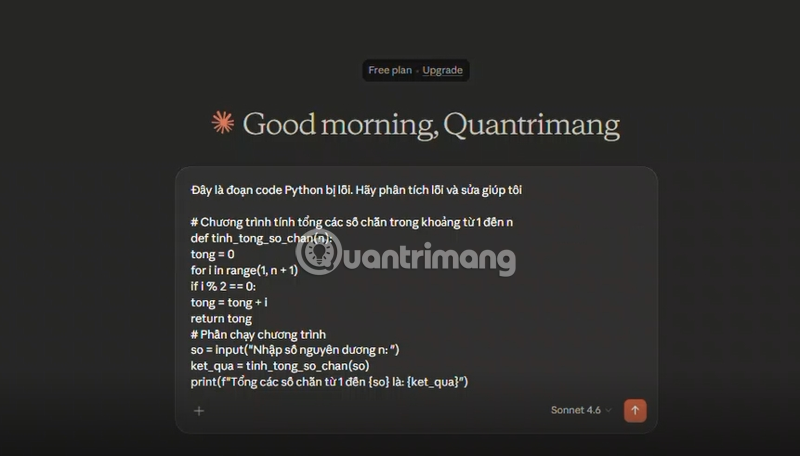
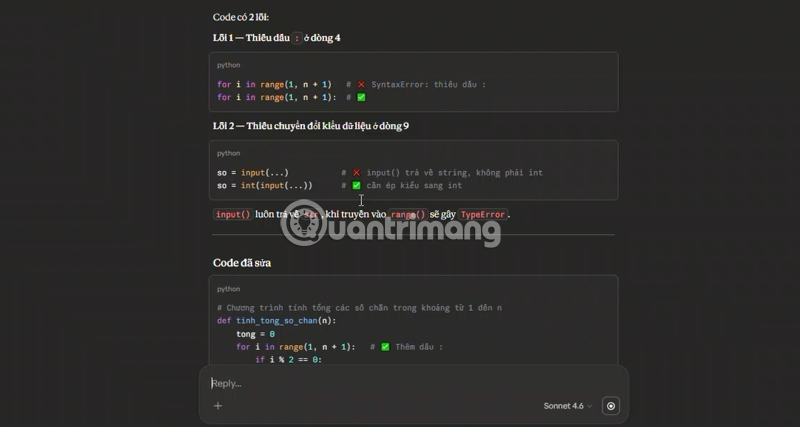
A useful diagnosis should identify:
- the failing line or data flow;
- why the current behavior occurs;
- which inputs or environment conditions trigger it;
- what could break if the proposed fix is too broad;
- how a test can prove the bug and the repair.
3. Challenge the explanation
Compare the response with the stack trace, documentation and actual runtime behavior. Do not accept a confident explanation that does not account for the observed failure. Ask follow-up questions when the model assumes a library version, operating system or input shape you did not provide.
4. Request a minimal patch and tests
Ask for a unified diff or clearly separated before-and-after block. A small patch is easier to audit than a full rewritten file. Require a regression test that fails on the original code and passes after the change.
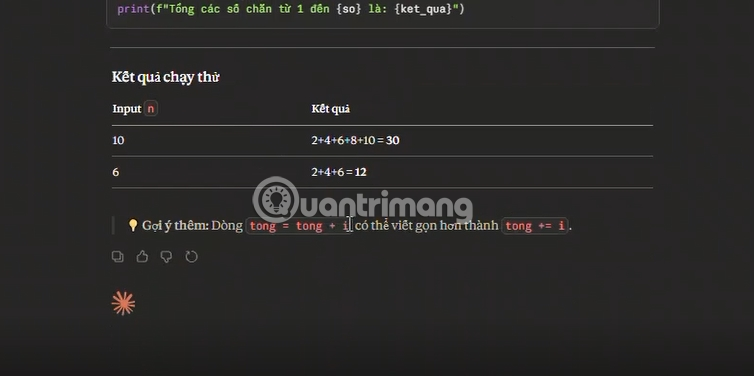
Useful follow-up:
Show the change as a unified diff. Explain each changed line. Add the smallest regression test. List any behavior this patch intentionally does not handle.5. Apply the change in a controlled environment
Paste or apply the patch only after checking the target file and context. Then run:
- the original reproduction steps;
- the new regression test;
- the relevant existing test suite;
- the formatter, linter and type checker used by the project;
- a security or dependency check when the change affects input handling, authentication or packages.
Inspect the final diff for unrelated formatting, removed error handling, hardcoded values, fabricated APIs and changed dependencies. Test edge cases around empty input, boundaries, invalid data and concurrency when they apply.
A stronger prompt template
Act as a debugging partner, not an automatic code rewriter.

Environment:
[language, versions, framework, operating system]

Expected behavior:
[what should happen]

Actual behavior:
[what happens]

Exact error and stack trace:
[paste unchanged output]

Minimal reproduction:
[commands and smallest relevant code]

Constraints:
[compatibility, performance, security, dependencies]

First explain the most likely root cause and assumptions.
Then propose the smallest patch as a diff.
Add a regression test.
Do not change unrelated code or invent APIs.
Finish with commands I should run to verify the fix.
Anthropic's current prompting guidance emphasizes clear, direct instructions and sufficient context. For debugging, concrete evidence is more useful than a long role description.
Tasks Claude can help with
- Explaining a stack trace or unfamiliar function.
- Finding a minimal reproduction from a larger example.
- Proposing tests for a confirmed defect.
- Comparing two possible fixes and their tradeoffs.
- Reviewing a diff for correctness, security and maintainability.
- Translating an error into a checklist for further investigation.
When not to trust the first answer
Escalate the review when code handles authentication, cryptography, payments, personal data, permissions, infrastructure or destructive operations. Claude may suggest a function that does not exist, overlook a race condition, weaken validation or produce a patch that only satisfies the visible example.
Use official library documentation for API details, and have a qualified reviewer approve high-impact changes. Never deploy generated code solely because it compiles.
Final verification checklist
- The root cause explains the exact failure.
- The patch is minimal and preserves required behavior.
- A regression test proves the fix.
- The existing suite still passes.
- No secret or private data was shared or committed.
- The final diff has been reviewed by a person.
- Deployment and rollback steps are understood.
To compare Claude with other assistants for repository work, see Claude vs. ChatGPT. The roundup of AI tools for programming helps match a tool to chat-based debugging, IDE completion or agentic development.
Related Articles
 What Is the Claude Code: Clear Explanation7 minutes read
 When Should You Not Use Claude Code?10 minutes read
 Things You Need to Know About Claude Code5 minutes read
 This Claude Code Mode Is a Worthy Competitor to Other Ides8 minutes read
 How to Use Claude Code Safely: a Guide to Risk Management12 minutes read
 Connect Claude Code to Discord With Channels11 minutes read
Reader Comments 0
Sign in with email or Google to join the discussion.