Table of Contents
Google does not provide one switch that disables every AI feature across its services. You can turn off Workspace smart features, hide Gemini in Chrome, and leave Search Labs experiments, but Google says the standard AI Overviews shown in Search cannot be disabled. The steps below explain the controls that are currently available and what each one changes.
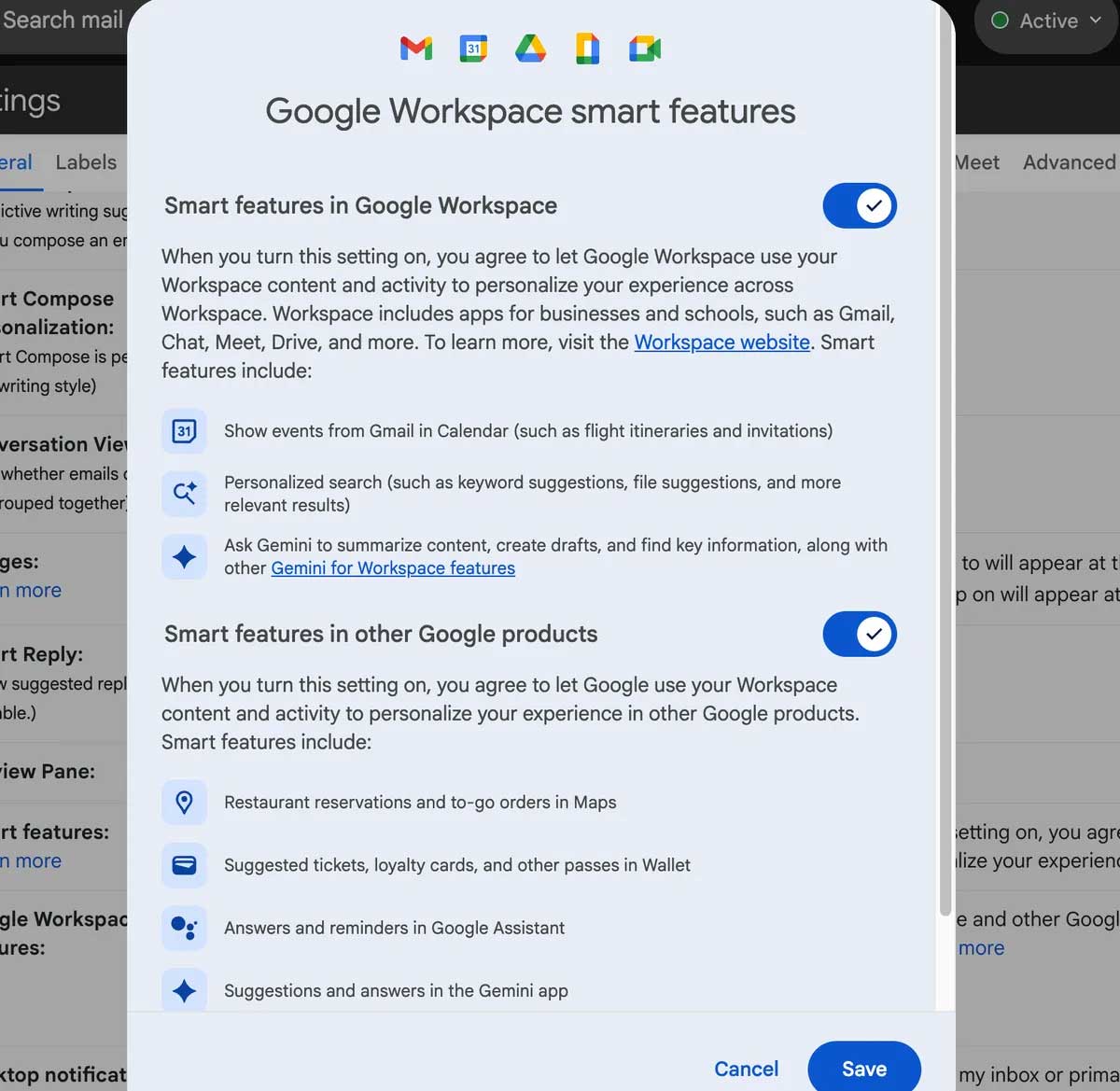
Turn off smart features in Gmail and Google Workspace
These settings control features that use data from Gmail, Drive, Chat, Meet, and other Workspace services to personalize your experience. Turning them off can also remove useful non-AI conveniences, such as automatic Calendar events created from Gmail, personalized search suggestions, Smart Compose, or Smart Reply.
- Open Gmail on a computer and select Settings > See all settings.
- On the General tab, find Google Workspace smart features.
- Select Manage Workspace smart feature settings.
- Review and turn off the controls you do not want. Depending on your account, these may include smart features in Gmail, Chat, and Meet; smart features across Google Workspace; and smart features in other Google products.
- Save or confirm the changes when prompted. Repeat the account-specific setting for any other Gmail account you use.
Google documents the current options and the features affected in its smart-features help page. Work or school accounts may be subject to settings chosen by an administrator, so some controls can be unavailable.
Hide or restrict Gemini in Chrome
If Gemini is available in your version of Chrome, open More > Settings > AI innovations > Gemini in Chrome. Under Preferences, turn off Show Gemini at the top of the browser. On macOS, you can also turn off its menu-bar entry and keyboard shortcut. The same page lets you review permissions such as precise location, microphone access, sharing the current tab by default, and allowing Gemini to browse for you.
The menu can vary by Chrome version, region, age, and account type. Google's Gemini in Chrome instructions show the current controls. Hiding Gemini also affects related Chrome features that depend on it, including the prompt-based shortcuts described in our guide to Skills in Chrome.
Can you turn off AI Overviews in Google Search?
No. Google describes AI Overviews as a core Search feature and does not offer a permanent off switch. Turning off the AI in Search option in Search Labs only opts you out of experimental Labs features; it does not remove AI Overviews that are part of regular search results.
To see a page of text-based links without an AI Overview, run a search and select the Web filter. It may appear directly below the search box or under More. You must select it for the searches where you want that view. Google's AI Overviews help page confirms this limitation.
Adding -ai to a query is not a reliable workaround. The minus operator merely asks Google to exclude pages containing that term; it does not disable the AI Overview interface.
Leave AI experiments in Search Labs
If you previously joined an AI experiment, open a new Google Search tab while signed in, select the Labs flask icon, choose Manage, and turn off AI in Search. This stops participation in the experiment but, as noted above, does not disable core AI features already built into Search.
Choose the control that matches your goal
- Reduce AI in Gmail, Drive, and other Workspace apps: turn off the relevant Workspace smart-feature controls.
- Remove the Gemini button from Chrome: disable its browser preference and review its permissions.
- Avoid an AI Overview for a search: select the Web filter after searching.
- Stop testing unreleased Search features: opt out through Search Labs.
If these controls do not produce a clean enough browsing experience, another browser or search engine may suit you better. Our comparison of AI-focused browsers can also help you understand which products add assistant features and which controls to look for.
Related Articles
 How to Turn Off Instagram Notifications on iPhone5 minutes read
 5 Simplest and Most Thorough Ways to Turn Off Cortana on Windows 106 minutes read
 How to Block Skype Friends Effectively, Avoid Being Bothered4 minutes read
 How to Turn Off / Hide Facebook Nick Even When Online4 minutes read
 How to Enable or Disable Windows Features on Windows 105 minutes read
 How to Turn Off the Notification Feature on Chrome When3 minutes read
Reader Comments 0
Sign in with email or Google to join the discussion.