Table of Contents
This updated guide explains how to Change the Channel of Wi-Fi Router to Maximize Signal through clear steps, practical examples, and important checks that help prevent common errors.
Of course, not necessarily after changing the channel of the Wifi Router, your Wifi network will run at maximum speed, for many other reasons. But with instructions to change the Channel Channel for your Wifi Modem will help optimize the best Wifi signal.
Note : If your Wifi wireless network is working fine, you do not need to change it. * 70 * Because the Wifi Modem automatically selects the optimal Channel, the default helps you and normally will be OK. In some cases, you feel that the problem of Wifi signal decreases, please change.
Quick Adsense WordPress Plugin: http://quickadsense. com/
Scan Your Wi-Fi Channel and See If It Matches with Other Wi-Fi?
To scan all Wifi around you, and view information about each channel - Channel of each Wifi you use WifiInfoView tool . This is a lightweight tool, you just need to extract the. ZIP file and run it directly.

Download WifiInfoView
or if on Windows XP you use the WirelessNetView utility.

As you can see in the screenshot of the software's interface, your channel is 6 and there are many Wi-Fi networks around in which the Wifi uses a channel - Channel is 6. Then you should change the channel to a new channel. not coincide with other Wifi to optimize Wifi signal.
Note : If you have several different Wifi transmitters, pay attention to the information of all of them. Also change to not overlap with each other.
How to Change Your Wi-Fi Channel
The change will be slightly different due to the slightly different interface of each router. In my example, I use Netis Wifi Router. However, to find the settings, change the Wifi Channel is not too complicated.
First, you access the default IP address of the Wifi Router: 192.168.1.1 or 192.168.0.1 on the Web browser. If the default IP access is not available, your IP Router has been changed.
Quick Adsense WordPress Plugin: http://quickadsense. com/To find that Router Access IP you are as follows. Open the RUN dialog box (Windows + R), type cmd and Enter. At the Comand Prompt window type ipconfig and Enter. You will find your Wifi Access Modem IP.

In my case, the IP address to access my Wifi Modem has changed, 192.168.99.1 and I will type so into the browser to access the Modem's management. You will see the request to enter the User and Access Password - Search at the back of the Modem will see the default User and Pass section (If changed, you enter under the changed Pass).
Next , the different router vendors are a bit different. But you just find the following: Wireless → Wireless Settings → Change in the Channel .

As shown in the picture, you will open the Channel and select the Channel you may need to change.
Principles of Changing Channels to Maximize Wi-Fi Signal
Your Wifi will operate in frequencies of 2400 and 2500MHz. About 100 MHz is divided into 14 20MHz channels, so there is some overlap between channels and that is not good for Wifi signal.
Fortunately, channels 1, 6, and 11 are far enough apart and will not overlap. For normal network setup (i. e., 802.11 a, b, or g), you should try to use channels 1, 6, or 11.
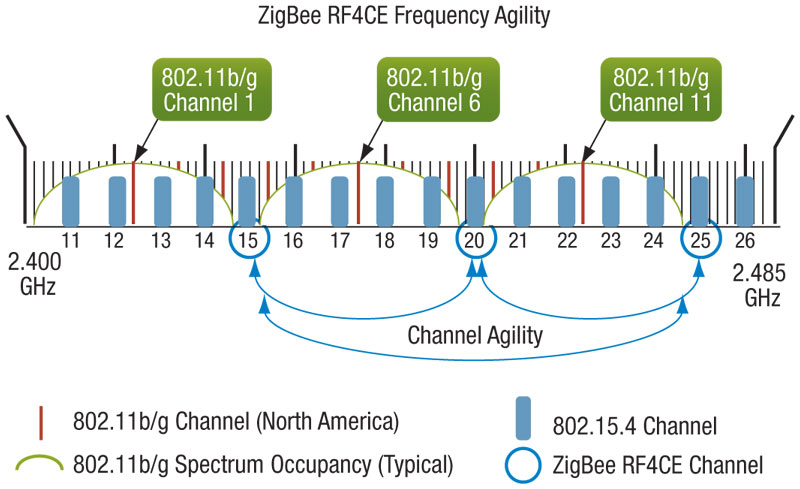
If you are using one of channels 1, 6 or 11. But again coincide with many Wifi around, you change to one of the remaining two values.
In my case, the original Channel was 6 and coincided with many other Wifis, so I switched to Channel 11 to get the strongest Wifi signal.
You can see that the Channel Width section (below the Channel) has 2 options of 20 MHz and 40 MHz. You only choose 40MHz if you are in an area with no Wifi nearby , because at 40MHz, the frequency duplication will be much higher than 20MHz.
This part is related to frequency types so it is difficult to understand. However, just follow the instructions you will install the channel for the Wifi Modem with the strongest signal, not overlapping with the surrounding Wifi. Good luck!
ShareitFAQ
What is the easiest way to Change the Channel of Wi-Fi Router to Maximize Signal?
Start with the requirements in this guide, then follow each step in order. Check the result after every major change so problems are easier to identify.
Can beginners follow these instructions?
Yes. The process is organized into practical steps, and you can repeat any step before moving forward.
What should I check if the method does not work?
Confirm your software or device version, permissions, settings, file format, and internet connection when the task depends on online services.
Related Articles
 Why Need to Change the Wireless Channel of the Router?7 minutes read
 How to Choose the Right Wi-Fi Router12 minutes read
 Select the Location of the Router to Increase the Wi-Fi Wave5 minutes read
 How to Change DNS Server on the Most Popular Routers9 minutes read
 11 Best Long-range Wi-Fi Routers 201816 minutes read
 How to Configure Xiaomi 3C Wi-Fi Router to Be Repeater7 minutes read
Reader Comments 0
Sign in with email or Google to join the discussion.