Table of Contents
This updated guide explains how to change Windows 11 lock screen timeout with clear steps, practical tips, and useful context. Windows 11 lock screen timeout can be changed depending on the user's needs, whether they want the timeout to be fast or slow. If the Windows 11 lock screen timeout causes you to log in to your computer many times, interrupting your work.
How to Change Windows 11 Lock Screen Timeout via Settings
Step 1:
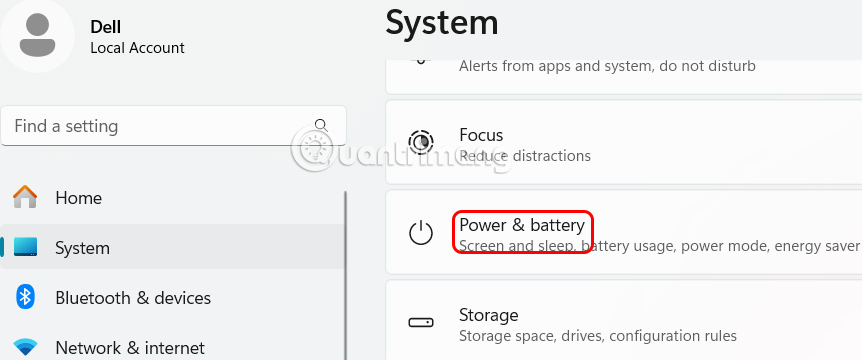
Press Windows + I to open Settings , then select System and look to the right and select Power & battery .
Step 2:
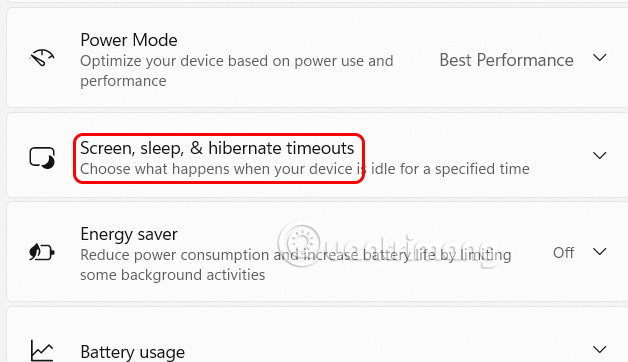
Next, we select Screen , sleep to adjust the standby screen on the computer.
Step 3:
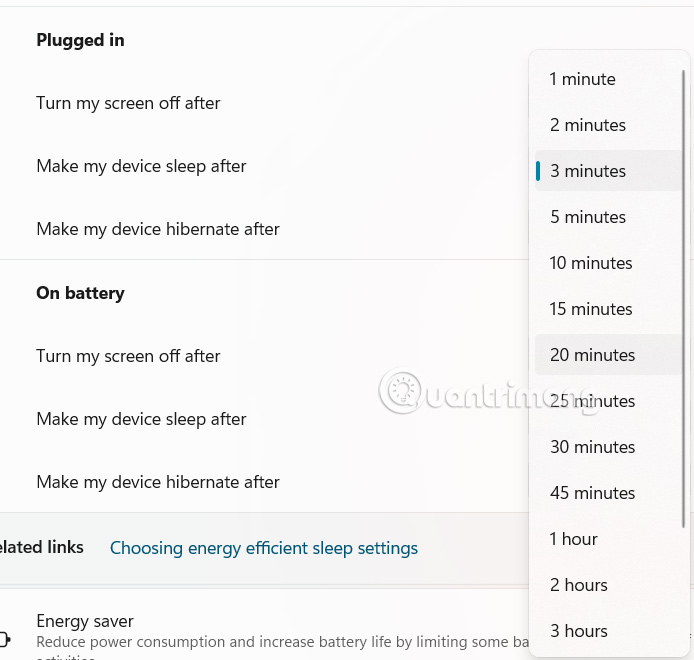
In the drop-down list at On battery you adjust the screen lock timeout at Turn my screen off after . Then also adjust down to Plugged in at Turn my screen off after .
Change Windows 11 Lock Screen Timeout via Control Panel
Step 1:
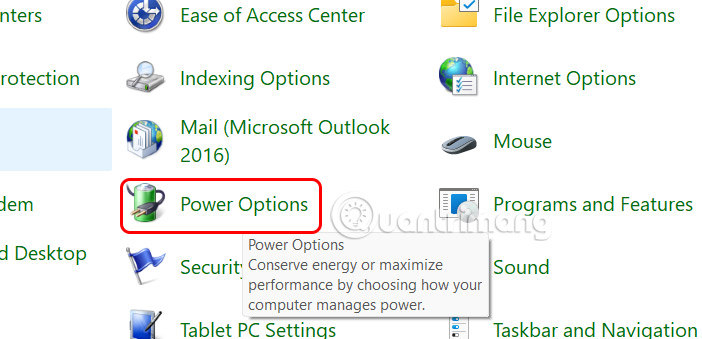
First you open Control Panel, then we select Category and select Large icons .
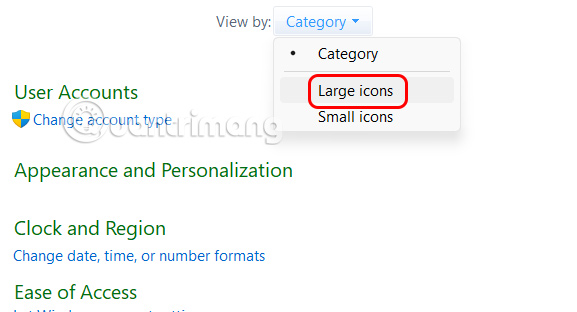
Then the user clicks Power Options to adjust.
Step 2:
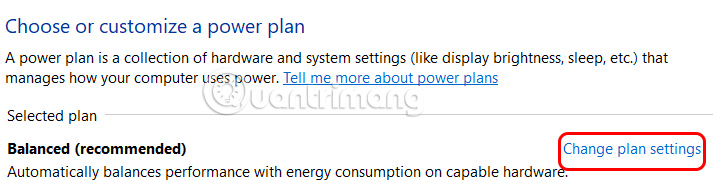
Here, the user continues to select Change plan settings to change.
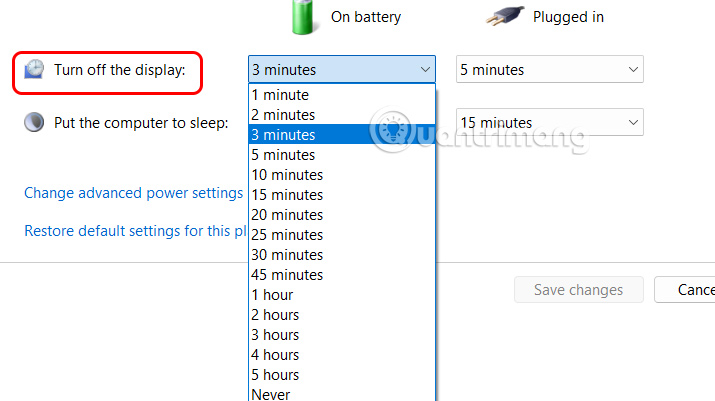
Tap the menu at Turn off the display and select the lock screen time you want to set.
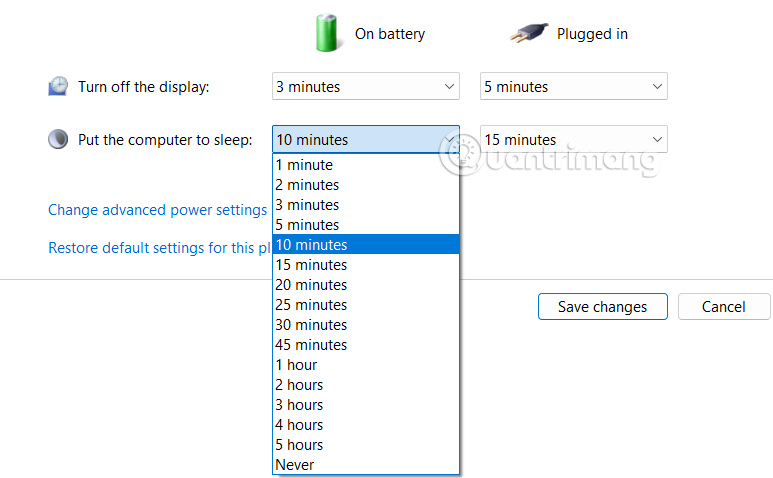
Continue clicking on Put the computer to sleep and also select the time to change.
We will apply the lock screen timeout change for both On battery and Plugged in.
Finally choose Save changes.
Change Lock Screen Time via Registry
Step 1:
We press the Windows + R key combination to open the Run interface, then you enter regedit . Next, you access the path below.
HKEY_LOCAL_MACHINESYSTEMCurrentControlSetControlPowerPowerSettings7516b95f-f776-4464-8c53-06167f40cc998EC4B3A5-6868-48c2-BE75-4F3044BE88A7 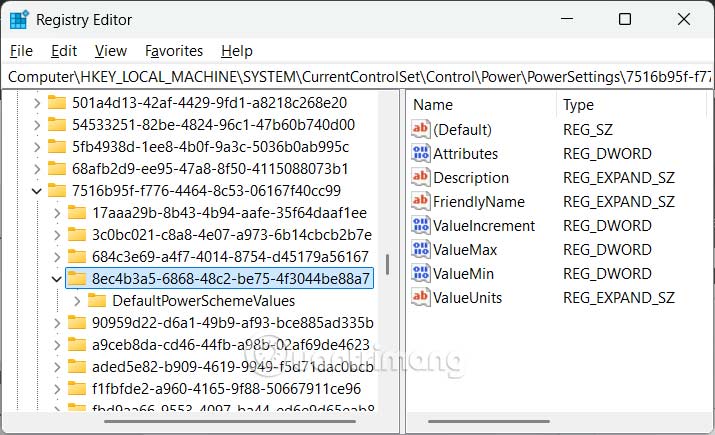
Step 2:
Look at the interface next to you, double-select the Attributes value and select the change value to 2 .
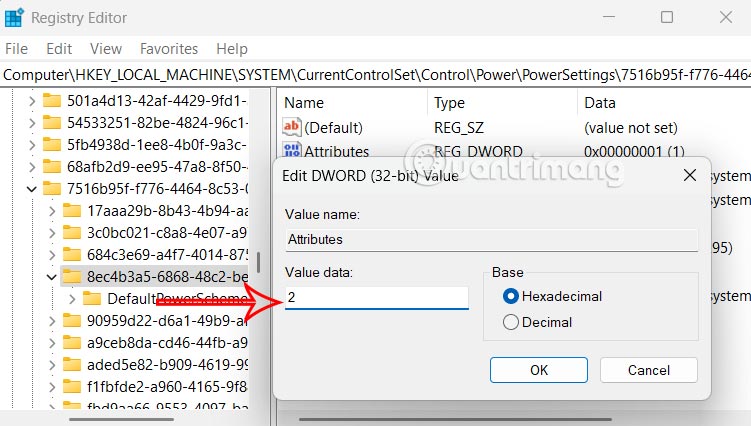
Step 3:
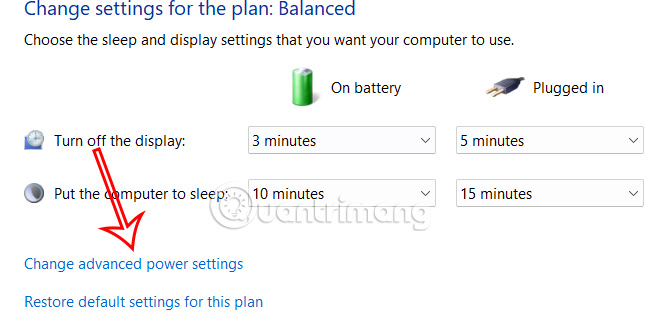
Open Control Panel again, open Power Options and select Change plan settings . Continue to choose Change advanced power settings .
In this interface, users drag down to the Display section and expand Turn off display after to adjust.
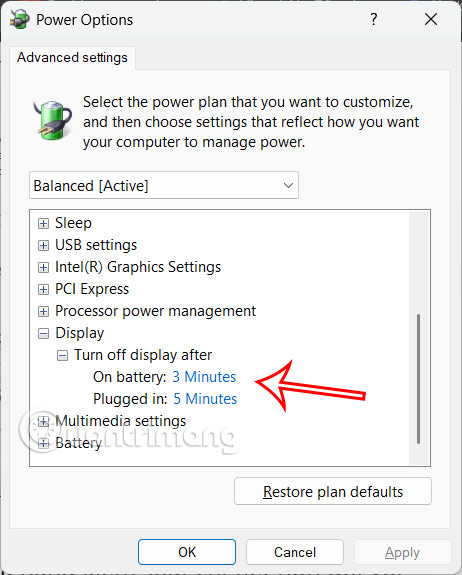
This method provides more granular control over the lock screen timeout, especially if you want the screen to turn off after a period of inactivity while the computer remains unlocked.
FAQ
What should I prepare before I change windows 11 lock screen timeout?
Review the requirements and options in the guide first. Having the correct device, app version, account access, or materials ready helps prevent avoidable errors.
How long does it take to change windows 11 lock screen timeout?
The time depends on the task and your setup. Most basic steps can be completed quickly, while downloads, updates, scans, or troubleshooting may take longer.
What should I do if the steps do not work?
Repeat the instructions in order, confirm that your software or device is supported, and check permissions, connectivity, and available updates before trying again.
Related Articles
 How to Change Windows 11 Screen Lock Timeout: Step-by-Step Guide3 minutes read
 How to Change Screen Lock Timeout in Windows 107 minutes read
 3 Ways to Change the Windows 11 Lock Screen Timeout5 minutes read
 How to Change Lock Screen and Screensaver Timeout Settings on Windows9 minutes read
 How to Change the Lock Screen Background in Windows 106 minutes read
 Tricks to Customize the Windows 10 Lock Screen8 minutes read
Reader Comments 0
Sign in with email or Google to join the discussion.